

- Support Center
- Multiple Languages
- Language
- Help Us Translate
Expert in
PC Health Solution

All-in-one PC health solution: clean, optimize and secure

Comprehensive PC cleaning, optimization and protection

Keep drivers always up-to-date

More stable performance with less system crashes

Protect millions of computers against malware

Top computer security with full-round protection

Protect against viruses & boost PC performance
Automatically scan and update drivers.
Update game ready drivers for peak gaming performance.
Identify and fix various common of hardware issues.
Boost 30% of system performance for fast & smooth running.

My computer says my printer driver is unavailable. What to do next? Get a step-by-step guide to solve your problem effectively.



Remove and re-add the printer
Run Windows Troubleshooter
Update drivers manually with Device Manager
Download latest drivers manually from official site
Update drivers automatically with Driver Booster
When your printer says “The driver is unavailable”, it means that your printer is connected physically while the driver that tells the printer what and how to print is not working.
It is commonly caused by a printer driver that is missing, corrupted, outdated or incompatible with your operating system.
How to fix printer driver unavailable? Follow steps below.
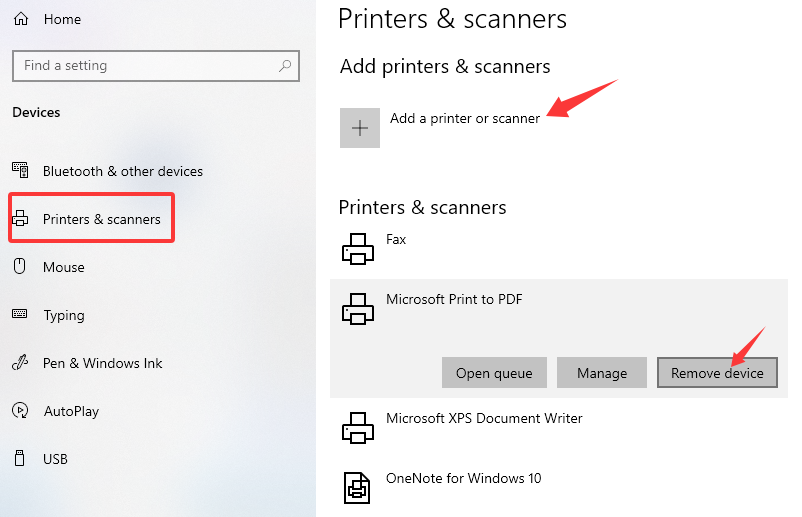
For windows 10:
Go to Settings > Devices > Printers & scanners.
Choose your printer and click Remove device.
Then click Add printers and scanners to scan and reconnect your printer.
For Windows 11:
Go to Settings > Bluetooth & devices.
Select the printer > click the Remove button to remove it.
Click Add device to scan and connect your printer again.
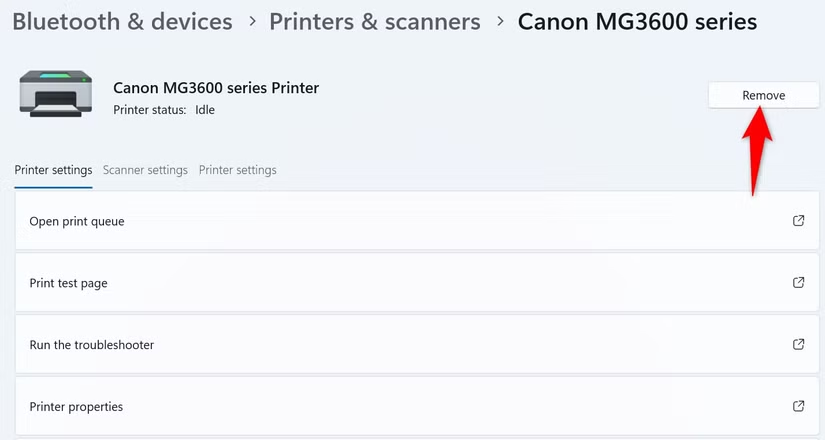
(Image from How-To Geek)
Windows Troubleshooter is a built-in automated diagnostic tool made by Microsoft. It repairs detected common issues. For problems that can be fixed, it will give you suggestions.
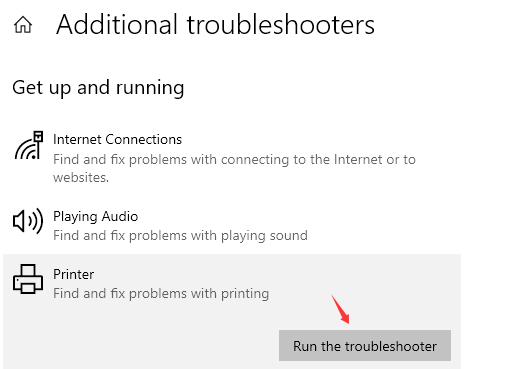
For Windows 10:
Go to Settings > Troubleshoot > Additional troubleshooters.
Click Printer > click Run the troubleshooter and follow the on-screen instructions.
For windows 11:
Go to Settings > System > Troubleshoot > Other troubleshooters.
Find Printer under the Most Frequent section and click the Run button.
Continue with the on-screen directions.
Search Device Manager in the search section of Windows taskbar and open it.
Scroll down to click Printer queues.
Find the printer you want to use, right-click it, and click Update driver.
Then click Search automatically for drivers and follow the on-screen installation instructions.
Go to the HP Support page, click Printer.
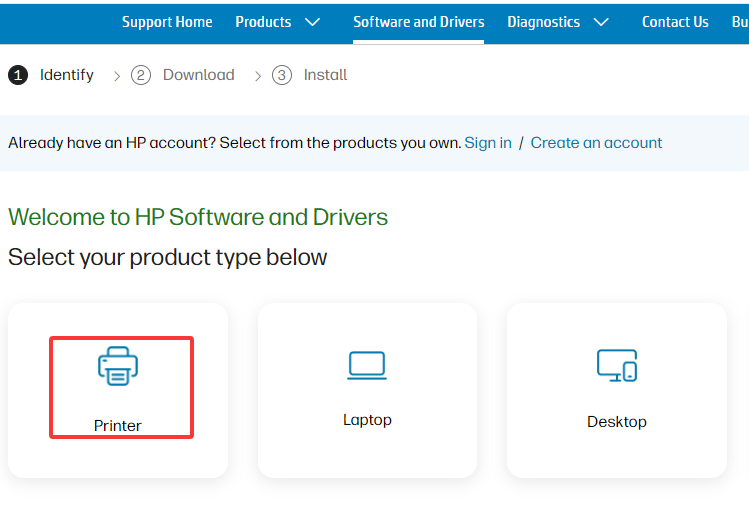
Enter your serial number, product number or product name to make the site identify your printer.
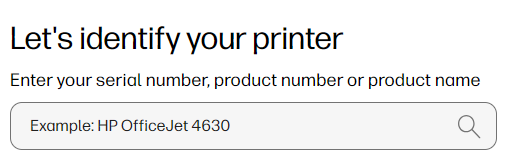
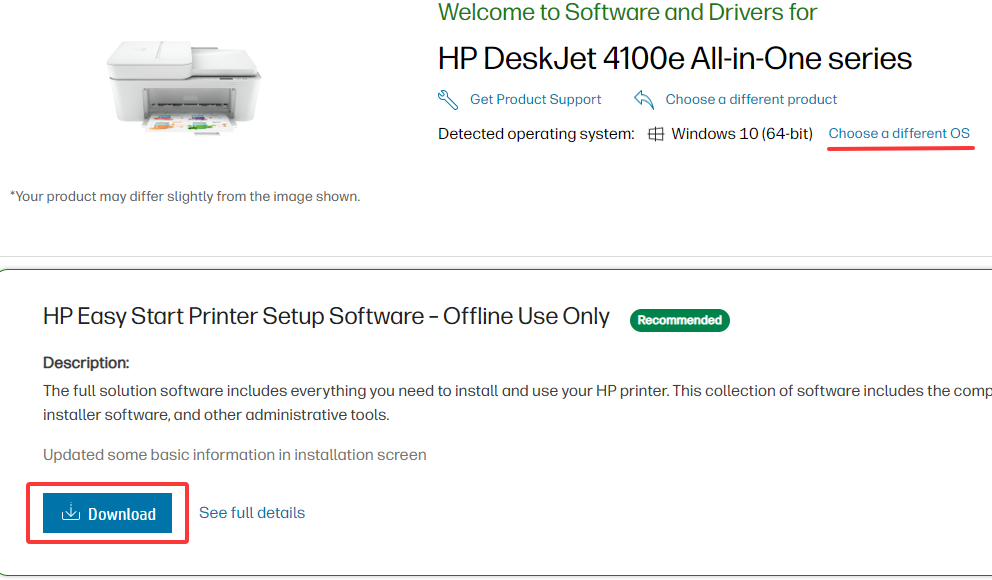
Then download the official printer driver and install it on your computer. (It automatically detects your operating system. If something is wrong and the driver is not compatible with your OS, choose your operating system manually.)
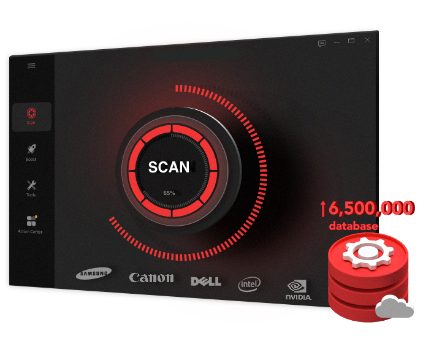
Driver Booster is an automatic driver booster for Windows systems. It scans and detects all your drivers and updates them with one click.
Make sure your printer is plugged into your PC via USB or connected to the local Wi-Fi.
Download and install Driver Booster for free.
Click the SCAN button. Find printers that are labeled as “Printers”, “Print queues”, or System device”.
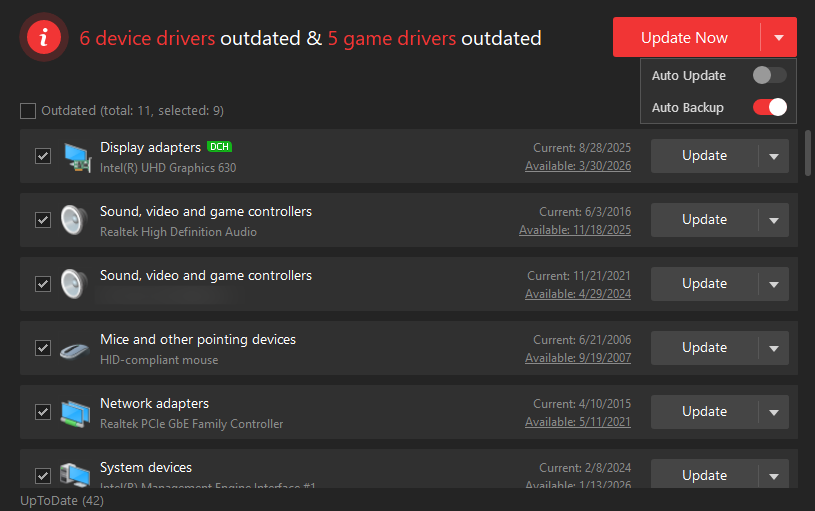
Update printers by clicking the Update button and follow the on-screen instruction to complete it.
Tips: To back up drivers before updating, upgrade to the Driver Booster Pro version.
 People Also Ask
Free up disk space by safe Windows Installer folder cleanup. This guide shows how to use Settings, Disk Cleanup, etc., to remove unwanted installer files.
Why is my PC screen black? How to fix a black screen? What can I do as a normal person?
How to fix corrupted files in Windows 11 to enhance system stability? This guide covers the most effective methods to repair damaged files on your PC.