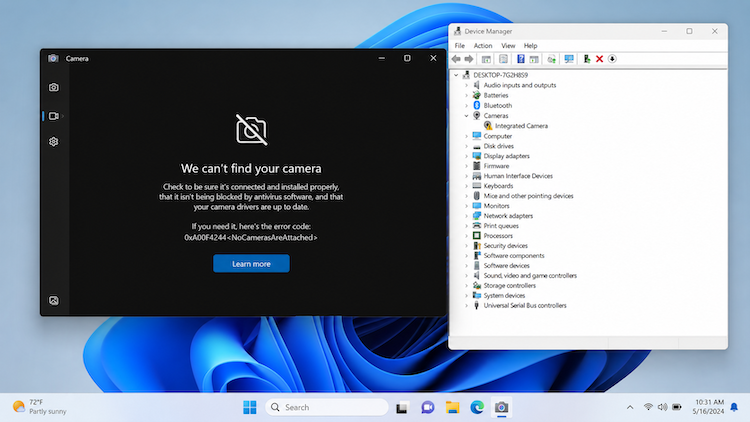
Mia joins an online interview, but her laptop camera shows a black screen. She opens Device Manager, searches the laptop maker’s support page, and still cannot tell which file is the correct driver. This is a common situation when a webcam driver is missing, outdated, corrupted, or incompatible with a recent Windows change. Microsoft also lists missing drivers, restrictive privacy settings, antivirus interference, and app-specific problems among common causes of camera failure.
This guide explains how to update camera drivers quickly and safely. You will learn how to update camera drivers, complete a camera driver update, and how to update webcam drivers with Driver Booster or three built-in/manual methods. It also covers Windows 11-specific steps and practical checks to make before installing anything.
Why You Need to Update Camera Drivers
A camera driver is the software layer that allows Windows and applications to communicate with an internal webcam or an external USB camera. When that layer fails, users may see a black preview, frozen video, poor resolution, repeated app crashes, Device Manager error codes, or a camera that disappears entirely. Problems can begin after a Windows upgrade, a failed driver installation, a hardware change, or an app update. Microsoft explains that drivers allow Windows to communicate with connected hardware and that devices may not work properly when that communication fails.
A Windows camera driver update may restore compatibility, improve stability, fix device detection, and help the camera use the correct resolution and frame rate. You should also consider an update when the camera works in one app but not another, when a recent driver causes errors, or when the manufacturer releases a fix for a known issue. Updating can also improve compatibility with conferencing, recording, and browser-based camera apps.
Before you update camera drivers, check the basics: make sure any physical privacy shutter is open, reconnect an external webcam, try another USB port, and confirm that Camera access is enabled in Windows privacy settings. Microsoft recommends checking physical camera switches, USB connections, privacy permissions, and the Windows Camera app before assuming that the driver is the only cause.
How to Update Camera Drivers Automatically with Driver Booster
Driver Booster is IObit’s Windows driver updater for finding outdated, missing, and faulty drivers. The current product page lists support for Windows 11 and Windows 10, more than 12,000,000 free device drivers, and over 1,200 major brands. IObit also states that available packages receive Microsoft WHQL verification and an IObit security scan. Driver Booster creates a system restore point before updating a driver by default.
This makes Driver Booster useful for readers searching for “update camera drivers Windows 11” or “how to update camera drivers Windows 11” without comparing hardware IDs across multiple manufacturer websites.
Why Use Driver Booster?
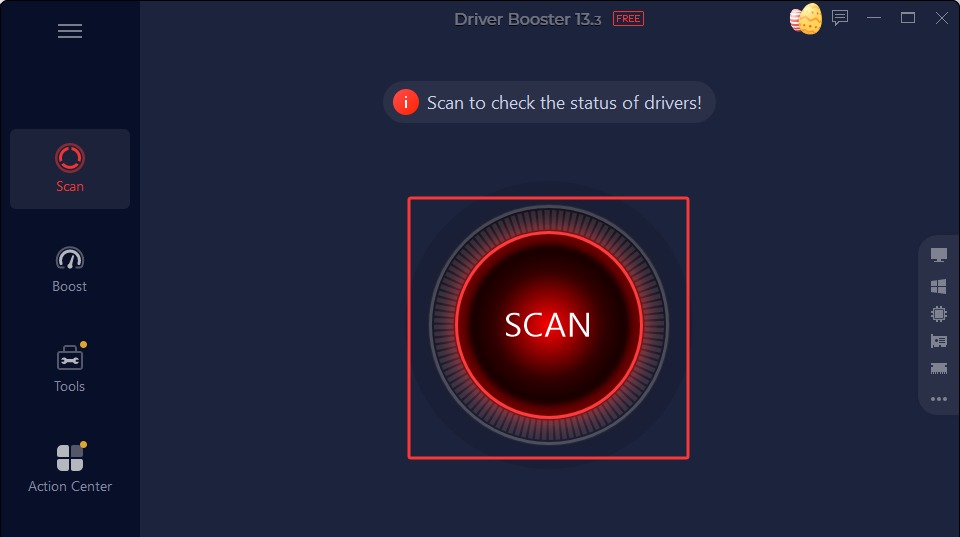
Automatic Driver Updates: Driver Booster scans the computer for outdated, missing, faulty, and uninstalled drivers, then displays the available updates on a single results screen. For broader driver instructions, see this guide on how to update driver in Windows.
Advanced Breakpoint Resume Technology: If a download is paused or interrupted, Driver Booster can continue it from the previous point instead of restarting the entire download.
Large Driver Database: The current database covers more than 12,000,000 free drivers from over 1,200 brands, including drivers for USB controllers, chipsets, graphics devices, audio hardware, and other components.
Safe & Reliable: Driver Booster creates a restore point before installation by default. It also provides Driver Roll Back, Driver Restore, and System Restore options for handling an unsuccessful update. Some backup functions require the Pro edition.
Resolve Common Issues with 1 Click: Its Tools section includes options for no sound, network failure, incorrect resolution, invalid device data, offline updates, and system information. Some tools, including Fix Device Error, are Pro-only.
Steps to Update the Camera Driver
1. Download and install Driver Booster from the official IObit page.
2. Open Driver Booster and click SCAN.
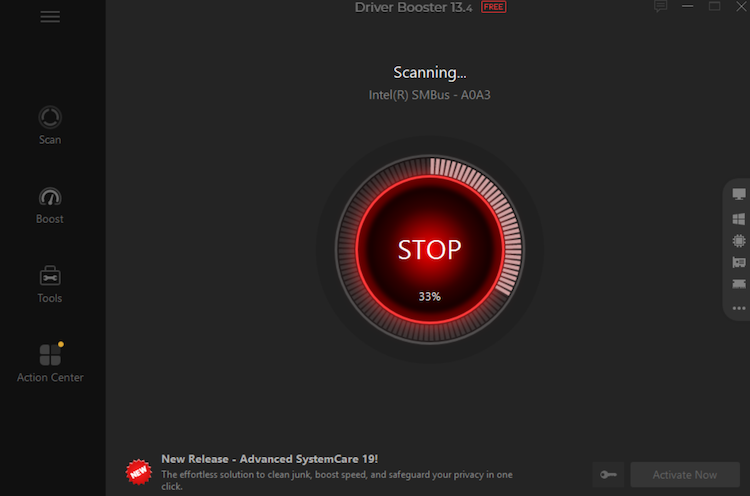
3. Review the results and locate the camera, webcam, imaging device, or related USB driver.
4. Click Update beside that entry. Driver Booster supports updating individual drivers separately.
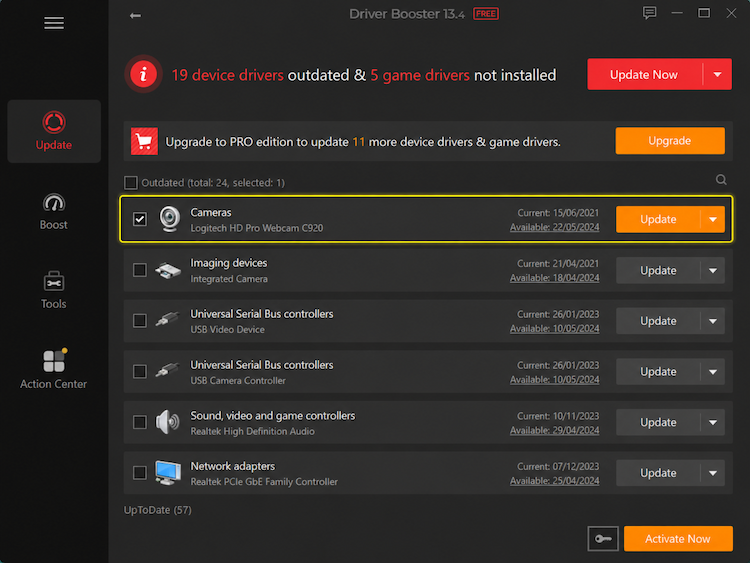
5. Wait for the download and installation to finish.
6. Restart Windows if prompted.
7. Open the Windows Camera app and test video quality and device detection.
The official manual describes three standard stages: downloading the selected driver, creating a restore point, and installing the package. It also confirms that users can click Update beside an individual entry rather than updating every listed driver.
The fully unattended option that downloads or installs drivers while the PC is idle is a Pro-exclusive feature. For users who regularly maintain several devices, an automatic driver updater can reduce repeated manual searches and version comparisons.
How to Update Webcam Drivers Manually with 3 Proven Methods
Manual methods are valid, but they require the correct device model, Windows edition, system architecture, and package version. That can be time-consuming for beginners and older users, and installing the wrong package may leave the camera unchanged or create a compatibility problem.
Method 1: Download from the Manufacturer
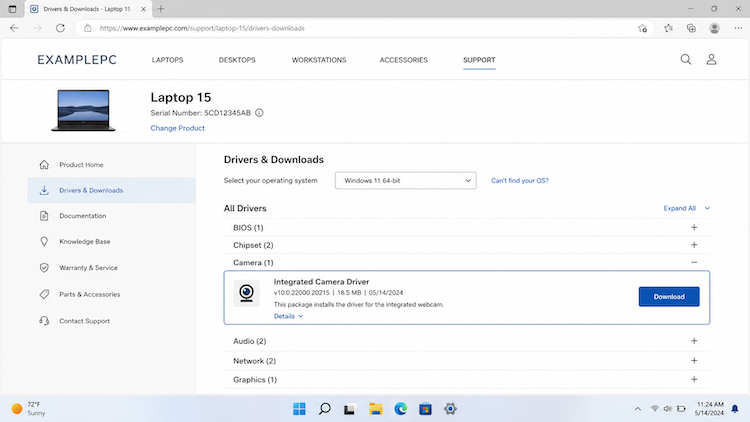
Visit the official support page for the laptop or webcam brand, enter the exact model, choose the correct Windows version, and download the newest compatible camera, imaging, USB, or chipset package. Run the installer and restart the PC.
Microsoft recommends obtaining manually installed drivers from the hardware manufacturer’s official website and avoiding unrelated driver-download sites.
Method 2: Update via Device Manager
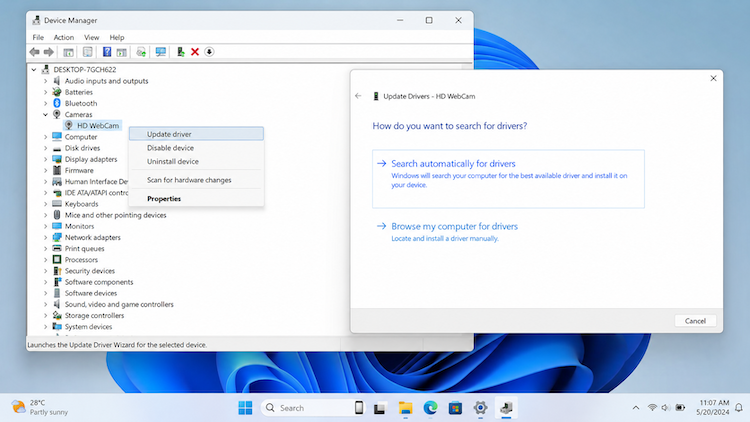
To update webcam drivers, follow these steps:
1. Right-click Start and select Device Manager.
2. Expand Cameras or Imaging devices.
3. Right-click the webcam and select Update driver.
4. Choose Search automatically for drivers.
5. If you downloaded a package, select Browse my computer for drivers instead.
6. Choose the driver folder and complete the installation.
Device Manager supports both an automatic search and manual installation from a folder containing a previously downloaded manufacturer driver.
Method 3: Update via Windows Update
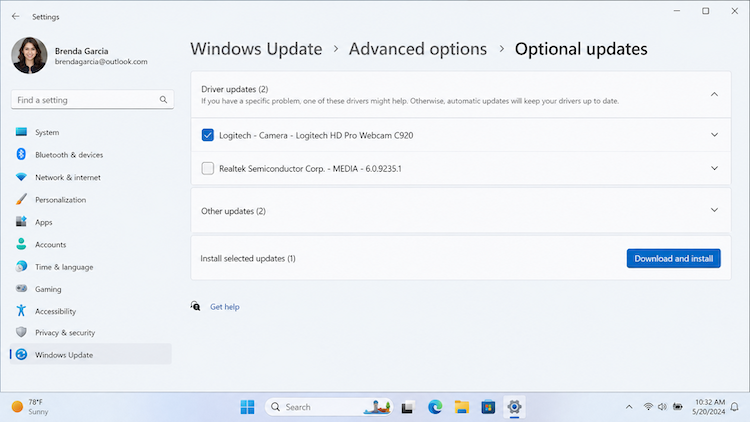
For Windows 11, open:
Settings > Windows Update > Advanced options > Optional updates
Select the available camera-related driver, click Download and install, and restart the computer.
Windows 10 users can open:
Settings > Update & Security > Windows Update
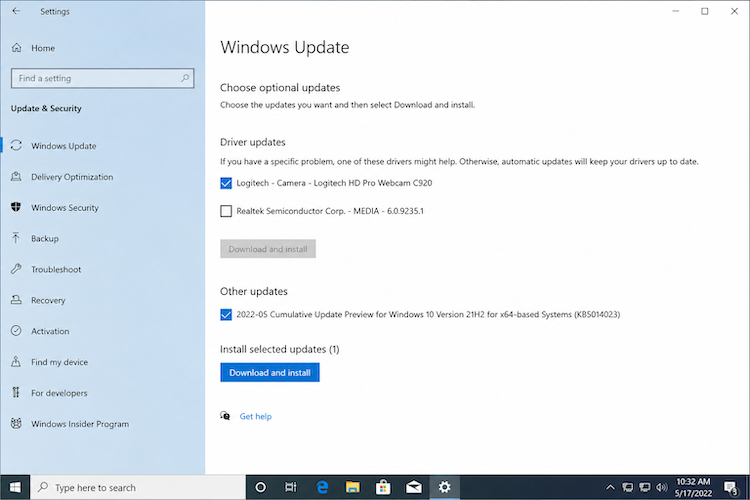
Check for updates and open the optional driver section when it appears. Microsoft notes that recommended drivers may install through Windows Update, while optional driver updates must be selected manually.
These methods work, but Driver Booster is usually simpler when users want to update camera drivers without manually comparing packages, checking system architecture, or repeating searches across several support pages.
Frequently Asked Questions About Camera Driver Update
1. How Often Should I Update Camera Drivers?
Update camera drivers when Windows reports a problem, the webcam becomes unstable, a major system change causes incompatibility, or the manufacturer publishes a relevant fix. A working camera does not need constant driver changes.
2. Is Third-Party Software Safe?
Use a recognized vendor, download from its official site, and prefer tools that verify packages and provide recovery options. Driver Booster states that its available drivers undergo Microsoft WHQL and IObit security checks and that it creates a restore point before installation by default.
3. What If the Camera Is Missing from Device Manager?
Reconnect an external webcam, try another USB port, and restart Windows. In Device Manager, select Action > Scan for hardware changes. Also check the physical privacy shutter and Windows camera permissions. Microsoft recommends scanning for hardware changes after uninstalling or troubleshooting a missing camera driver.
4. Should I Roll Back a Failed Update?
Yes. Open the camera’s Properties, select the Driver tab, and choose Roll Back Driver when available. Restart the computer afterward. This is especially useful if the camera stopped working immediately after an update.
5. What If an Update Does Not Fix the Problem?
Test the Windows Camera app, check app-specific permissions and antivirus privacy controls, inspect the cables and USB ports, and test the camera on another PC. A driver cannot repair failed hardware, a closed privacy shutter, or blocked camera access.
Conclusion
Knowing how to update camera drivers can resolve black screens, freezes, missing-device errors, and compatibility problems. Manufacturer downloads, Device Manager, and Windows Update are useful, but each requires manual checking. Driver Booster offers a faster path by scanning the PC, matching available updates, and installing the selected camera driver with recovery safeguards. Download Driver Booster, run a scan, and update camera drivers only when the results show a missing, outdated, or faulty entry that needs attention.
Driver Booster Free
- Automatically scan and update drivers.
- Update game ready drivers for peak gaming performance.
- Identify and fix various common of hardware issues.
- Boost 30% of system performance for fast & smooth running.