Non-skippable ads can be especially frustrating when users simply want to watch a tutorial, music video, or gaming video without interruptions. Years ago, when YouTube didn't have any ads, around 2005-2007, and that’s a lovely time. But it was not long before overlay ads were introduced, and then it was compulsory pre-roll ads. Now, every two or three videos, ads are inserted during videos too. The mid-roll advertisements kinda like a method to force users to buy YouTube Premium.
Obviously, a monthly subscription is a last resort when ads get too annoying. But are there any free workarounds? How to watch YouTube without ads? You’ve come to the right place. This blog presents some practical and legal ways to bypass YouTube ads on PC or on Smart TV, Apple TV, Google TV, etc.

How to Watch YouTube Without Ads Online? Chrome/Firefox/Egde
If you are watching YouTube via Chrome or Microsoft Edge, then you can use a dedicated ads remover to deny ads requests, block JavaScript, or stop your browser from rendering page elements. This type of software can effectively eliminate web-based YouTube home page sponsored ads and the pre-roll/mid-roll ads in a specific YouTube video.
IObit Advanced SystemCare has been in this market for 21 years and has won awards from CNET, Softpedia, and PCWorld, delivering a stable and authentic PC optimization experience for users. And the ad-blocking function is a proud one in its toolkit.
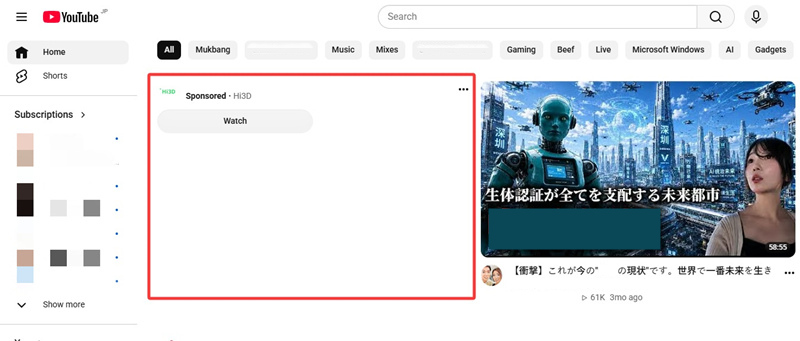
Here is an intuitive GIF showing IObit ad-blocking feature is actively working.
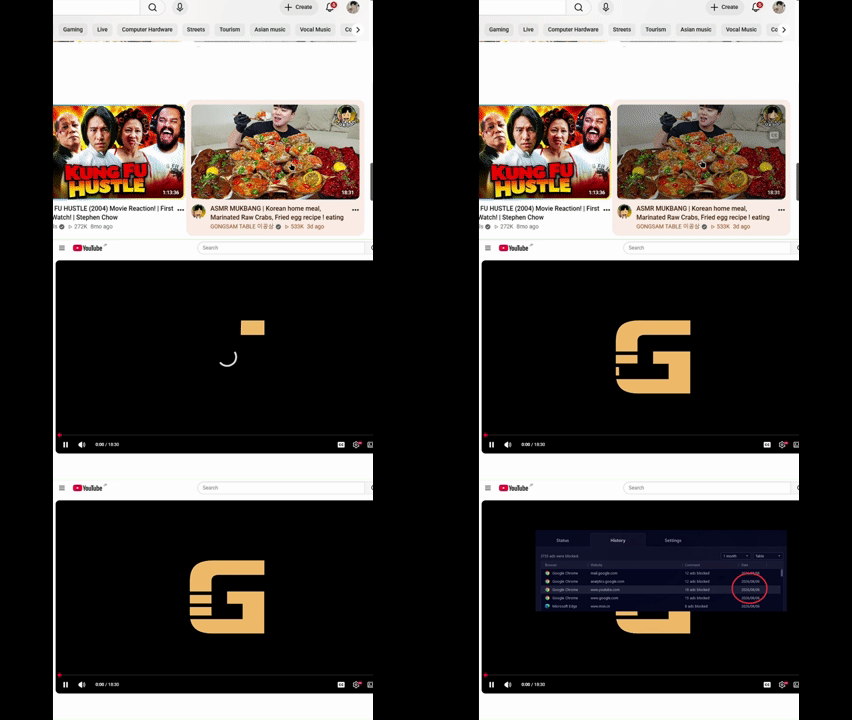
How to watch YouTube without ads with IObit Advanced SystemCare?
Step 1. Download IObit Advanced SystemCare.
Step 2. Toggle on this ‘Ads Removal’ function and restart your browser.
This function is free, requiring no Pro license.
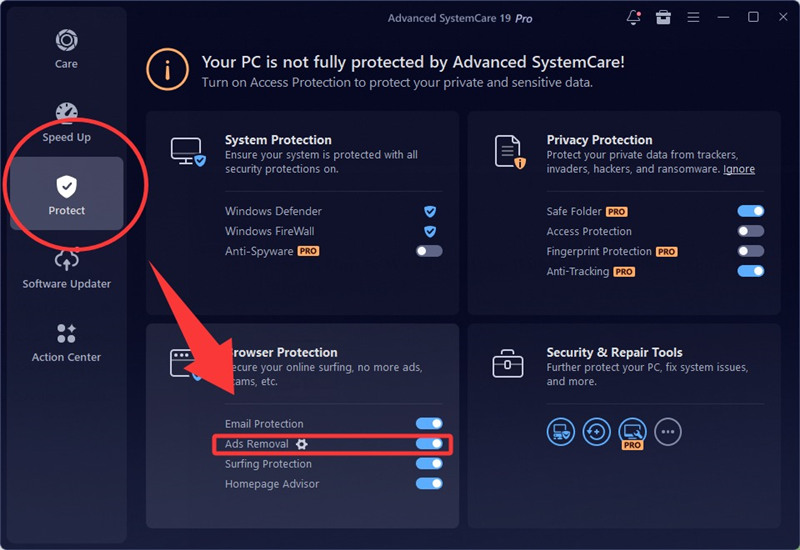
Step 3. Once this function is activated, IObit Advanced SystemCare starts to clean ads in your Browser.
The image below shows the blocking history and proves this software works.
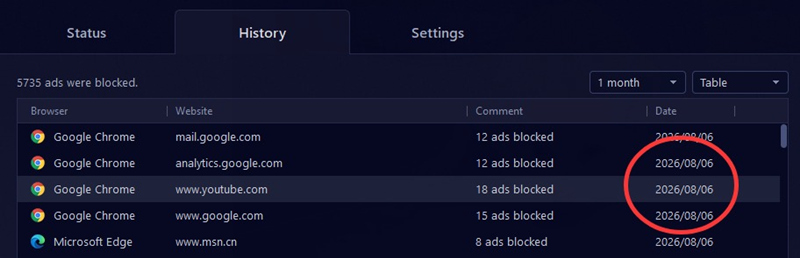
Core Features of IObit Advanced SystemCare
Auto-clean your PC for faster online surfing
Detect latent online threats from dangerous sites
Block webpage ads and video ads
Turbo Boost function to enhance Internet Speed
BTW, this software is a PC-based ads blocker. And it does not provide any service to remove ads from YouTube TV or Smart TV. If you want to know how to watch YouTube without ads on Smart TV, you can jump to the third part of this blog to try some remote tricks.
How to Watch YouTube Without Ads by Changing URL?
Briefly speaking, there isn’t a stable way to remove ads by changing URL. Many methods used to be workable due to domain vulnerability, but nowadays, many URL-based ad-bypass tricks are already fixed. If you are surfing and see some comments from Reddit suggesting they can completely bypass YouTube ads via URL modification, please keep a wary eye on that. In this section, you can take a quick glance at all the URL-changing tricks; some could still be working now.
#1. Add a period at the end:
Original URL: https://www.youtube.com/watch?v=tQsA8Sonu_E
Modified URL: https://www.youtube.com./watch?v=tQsA8Sonu_E
This was once a very popular method that involved adding a dot after youtube.com. It exploited differences in domain handling to bypass ads, but it should no longer be recommended as a working method.
#2. Add a hyphen between yout and ube:
Original URL: https://www.youtube.com/watch?v=tQsA8Sonu_E
Modified URL: https://www.yout-ube.com/watch?v=tQsA8Sonu_E
The Embedded Player behaves differently from the standard Watch Page, so ads may be handled differently in some cases, but it does not guarantee an ad-free experience. Some users were still using this URL method in 2026.
#3. Add a _popup to the watch code:
Original URL: https://www.youtube.com/watch?v=tQsA8Sonu_E
Modified URL: https://www.youtube.com/watch?v=tQsA8Sonu_E_popup
It requests YouTube to use a different player/page mode, which may load fewer of the ad-related components found on the standard Watch Page, resulting in significantly fewer ads in some cases.
#4. Change the watch code to an embed code:
Original URL: https://www.youtube.com/watch?v=tQsA8Sonu_E
Modified URL: https://www.youtube.com/embed/tQsA8Sonu_E
/embed/ serves as the URL for YouTube’s embedded player, though it does not guarantee an ad-free experience. While it may alter the handling of video page components and advertisements, recent testing conducted in 2026 confirms that this specific workaround is no longer practical.
How to Watch YouTube TV Without Ads Using Remote on Smart TV? Apple TV, Google TV Guide
Watch pre-recorded YouTube TV videos, and you still can see pre-roll and mid-roll ads. For those who don’t want to purchase YouTube Premium, some remote tricks can help skip ads, not 100% guaranteed, but worth trying.
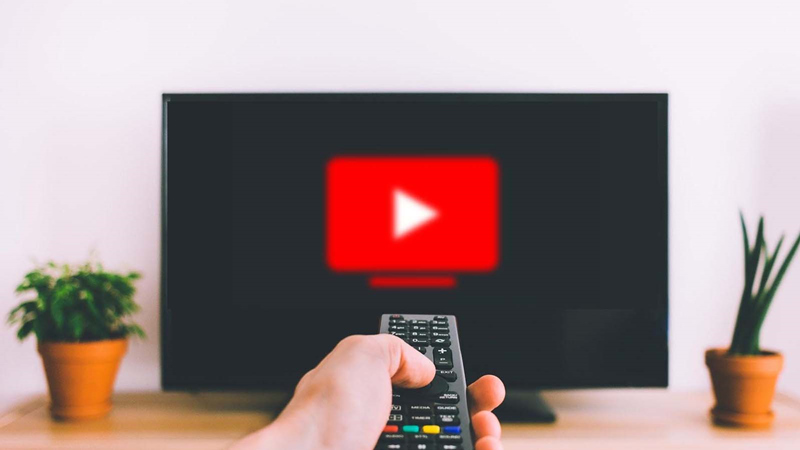
Method One: How to skip ads in Smart TV using remote? Go to Settings and return
This method is proven to still be practical in August 2026. This method can be universally used on most of the Smart TV brands, like Google TV, Apple TV, etc.
Step 1. Press the Settings button on your remote when an ad is playing.
Step 2. When a menu appears, navigate to ‘All Settings’.
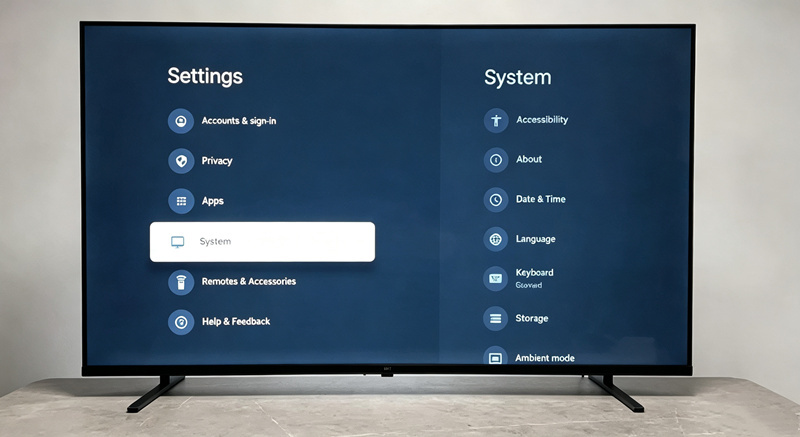
Step 3. Don’t do any operations. Press the ‘Return’ button to go back to the previous screen.
Step 4. Ads should be skipped.
Method Two: How to block ads on YouTube TV without Premium? Switching apps
Switch Apps and Return to YouTube. This method came from a Reddit user; some users tried it and said it worked, but some reflect this method doesn't work. Guess this trick is not universally practical for all Smart TV brands.
Step 1. When a pre-roll or mid-roll ad appears, use your TV remote to leave the YouTube app.
Step 2. Press the shortcut button for another installed app, such as Hulu, Netflix, or another streaming app.
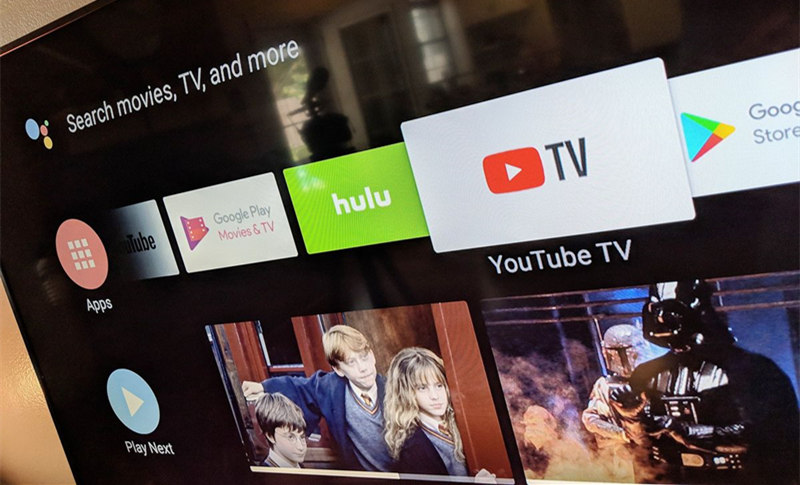
Step 3. After a few seconds, press the YouTube shortcut button again, or use the Home/Apps menu to reopen YouTube.
If the workaround works on your TV and current YouTube app version, YouTube may resume the video instead of continuing the previous ad.
How to Watch YouTube Without Ads on iPhone?
Here is the most straightforward way to watch YouTube without ads on iPhone: change your browser. This method comes from a Reddit user who finds Brave super helpful in blocking ads. The Brave browser’s Shields function effectively blocks cookies, requests, and scripts, providing a smooth experience for mobile users.
How to watch YouTube without ads on iPhone using Brave?
Step 1. Download Brave Browser.
Open the App Store on your iPhone, search for Brave Browser, and download the official app.
Step 2. Open YouTube in Brave.
Launch Brave, visit youtube.com, and sign in to your YouTube account.
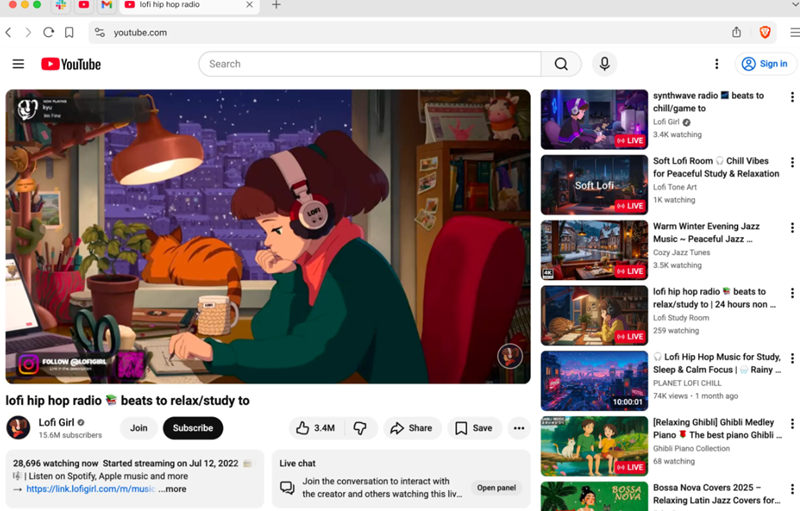
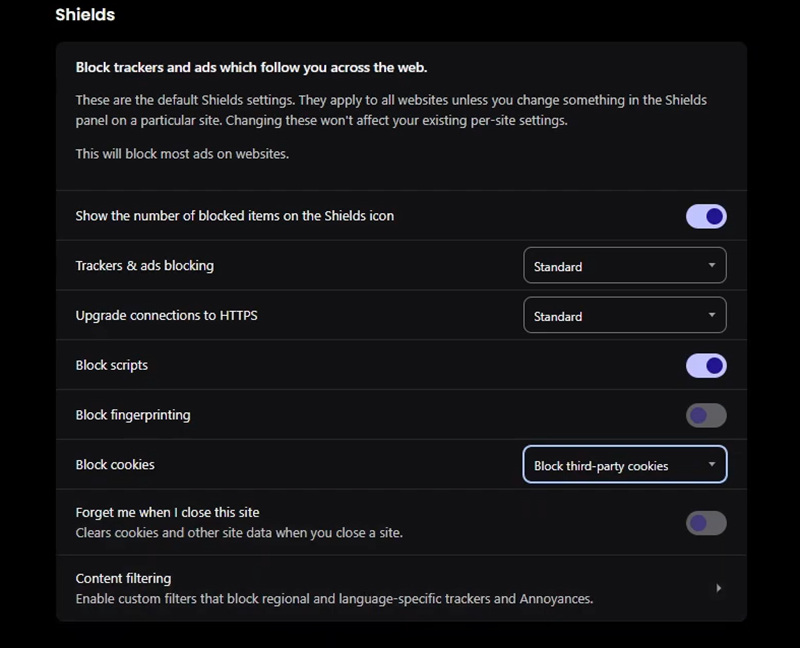
Step 3. Enable Brave Shields.
Make sure Shields are enabled for YouTube. Follow the image below to configure the settings.
Step 4. Play YouTube videos in Brave — Search for the video you want to watch and play it directly in Brave. Avoid opening the video in the official YouTube app, because Brave's ad blocking only applies when YouTube is accessed through the browser.
Bonus Tip: Are YouTube Ads Blocker Violating YouTube’s Terms of Use?
Ad-blocking software is not necessarily illegal, but using it to block ads on YouTube violates YouTube's Terms of Service. Does this mean you cannot use ads blockers? Not really; the thing is, YouTube does not impose strict censorship on ads blockers. The detections are not frequent at all. And once you are detected, no serious consequences at all.
What will YouTube do once it detects you use an ad blocker?
Show an ad-blocker warning — You may see a message asking you to allow YouTube ads or subscribe to YouTube Premium.
Ask you to disable the ad blocker — YouTube may request that you turn off the ad blocker before continuing to watch.
Restrict video playback — If you continue blocking ads, YouTube may eventually prevent videos from playing until you allow ads or disable the blocker.
Conclusion
This blog shares some tools and tricks for users who want to know how to watch YouTube without ads on both PC and Smart TV. The content above collects almost all the mainstream methods that have proven workable in preventing YouTube ads. Although some are invalid now, IObit Advanced SystemCare serves as a practical tool to stably block ads on YouTube. Please feel free to download it.
Advanced SystemCare Free
- Clean: 420 billion traces removed & 85 EB junk files cleaned
- Protect: 80 million unauthorized access blocked & 20 million bugs fixed
- Speed Up: 6 million hours of startup time saved & Turbo boost
- Optimize: Auto clean and auto care your PC with AI mode