Keeping your PC drivers up to date is one of the easiest ways to improve system performance, fix hardware problems, and enhance gaming stability. Outdated drivers can cause crashes, lag, audio issues, and compatibility problems with new software or devices.
If you're wondering how to scan for driver updates, there are several methods available, including built-in Windows tools and dedicated software. In this guide, you'll learn how to scan for driver updates Windows 11 and 10 manually, as well as automatically using a handy and reliable driver update scanner. Whether you prefer manual updates or automated driver management, these methods can help keep your drivers current and your system running smoothly.
Why You Should Scan for Driver Updates Regularly
Before scanning for driver updates, let's look at why this task should be part of your regular PC maintenance routine. Updating drivers isn't just about accessing new features—it can also improve performance, resolve compatibility problems, and help keep your Windows system stable and secure. More specifically, it can:
Improve System Performance: Updated drivers help your hardware work more efficiently. Graphics card, chipset, and network driver updates can enhance gaming performance, reduce stuttering, and improve system responsiveness.
Fix Hardware Compatibility Issues: If your printer, headset, Wi-Fi adapter, or other devices suddenly stop working, outdated drivers may be the cause. Scanning for updates ensures your hardware stays compatible with the latest Windows version.
Enhance Security and Stability: Manufacturers often release driver updates to patch bugs and security vulnerabilities. Regular updates can prevent crashes, blue screens, and other system instability issues.
How to Scan for Driver Updates Windows 10 and 11 Using Windows Update
Windows Update is an easy way to check for driver updates on your PC. It can automatically provide tested driver updates for devices like graphics cards, printers, audio devices, and network adapters. Because it is built into Windows, it is a good option for beginners and requires little technical knowledge. Although it may not always offer the latest driver versions, it can help keep your hardware working properly. Follow the steps below to scan for driver updates using Windows Update.
Step 1. Press Windows + I to open the Settings app.
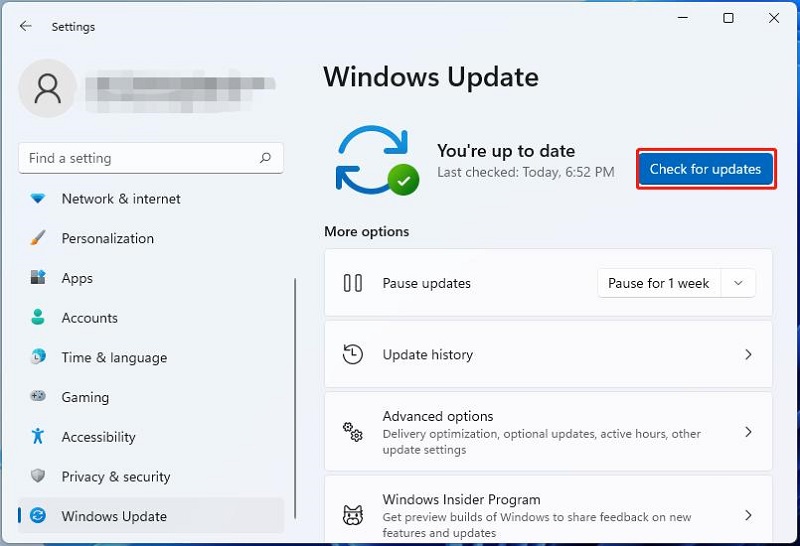
Step 2. Go to Windows Update from the left sidebar.
Step 3. Click Check for updates. Windows will search for system and driver updates. Windows will scan Microsoft’s update servers for available system, security, and driver updates.
Step 4. If optional driver updates are available, they may appear under Advanced options > Optional updates.
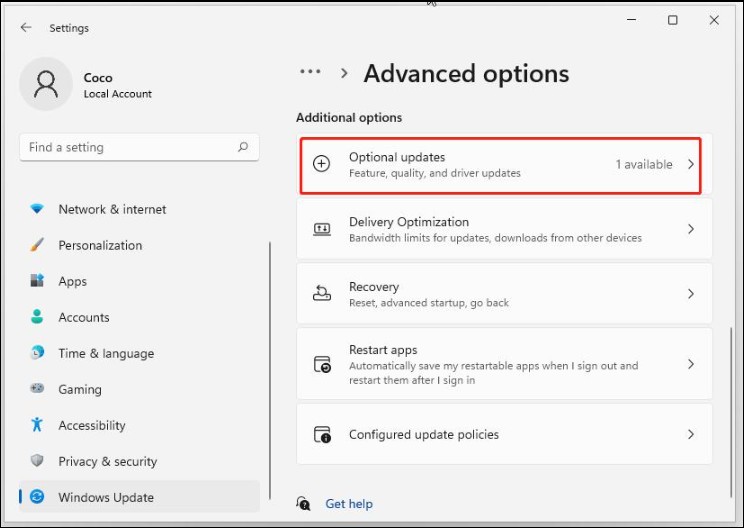
Step 5. Expand the Driver updates section and select the driver updates you want to install. Click Download & install.
Also Read: How to Update Windows Drivers >>
How to Scan for Driver Updates on PC Through Device Manager
Device Manager is another built-in Windows tool for checking and updating drivers. It lets you update specific hardware, such as graphics cards, network adapters, sound devices, printers, and storage controllers. This is helpful when a device is not working properly or when you want to check if it has the latest driver. Although it requires more manual effort than a straightforward scanner driver update, Device Manager remains a simple and convenient way to manage drivers in Windows.
Step 1. Press Windows + X on your keyboard and select Device Manager from the menu.
Step 2. Browse the list of hardware categories and expand the category that contains the device you want to update.
Step 3. Right-click the device you want to check and select Properties.
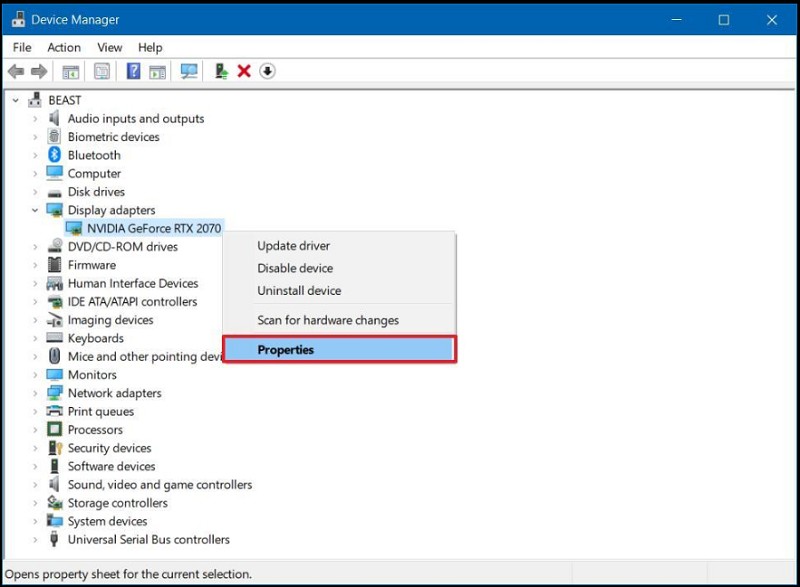
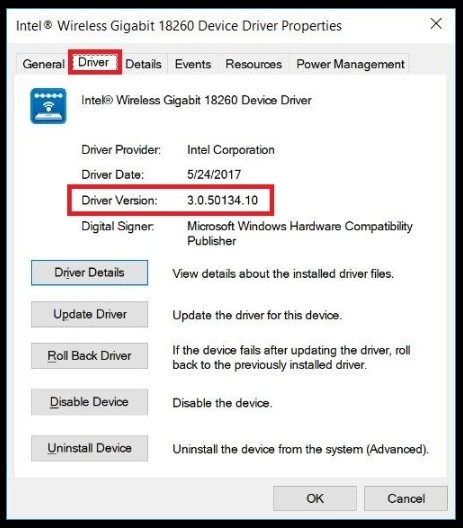
Step 4. In the Properties window, click the Driver tab. Review the currently installed driver version and provider.
Step 5. Click Update Driver and select Search automatically for drivers.
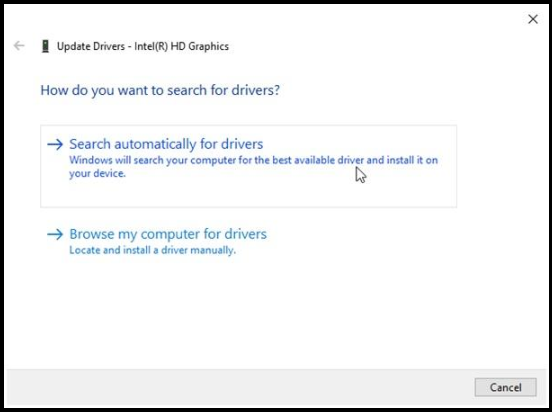
Step 6. If Windows installs a new driver, restart your computer when prompted.
Limitations of Device Manager: Although Device Manager is useful, it often only finds drivers available through Microsoft's database. It may not detect the latest drivers released by hardware manufacturers.
Use a Driver Update Scanner for Faster Results
Updating drivers manually can be time-consuming. A driver update scanner makes it easier by automatically finding outdated or missing drivers and locating the correct updates. Instead of checking each driver one by one, you can scan your entire PC and update multiple drivers at once.
Driver Booster Free
- Automatically scan and update drivers.
- Update game ready drivers for peak gaming performance.
- Identify and fix various common of hardware issues.
- Boost 30% of system performance for fast & smooth running.

A driver update scanner saves time, reduces the risk of installing the wrong drivers, and helps keep your hardware working properly. One popular option is IObit Driver Booster, which offers automatic scans, a large driver database, and one-click updates for a simple driver management experience.
Key Features of IObit Driver Booster:
Automatic scanning for outdated, missing, and faulty drivers
One-click driver updates for faster maintenance
Extensive driver database covering millions of devices
Driver backup and restore options for added safety
Scheduled scans and automatic updates
Game Ready driver updates for improved gaming performance
Offline driver updater support for systems with limited Internet access
Fixes for common device errors, sound issues, and network problems
Uninstall Realtek audio driver and many other drivers with one click
Step 1. Download and launch IObit Driver Booster on your computer.
Step 2. Open IObit Driver Booster and locate the large SCAN button. Click this button to scan your system for outdated, missing, and faulty drivers.
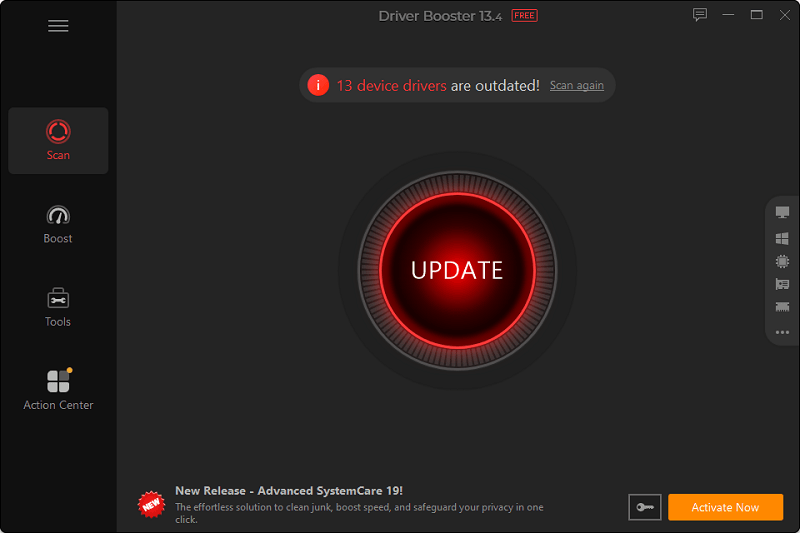
Step 3. After the scan, Driver Booster will display a list of outdated or problematic drivers. Review the detected drivers and their available updates.
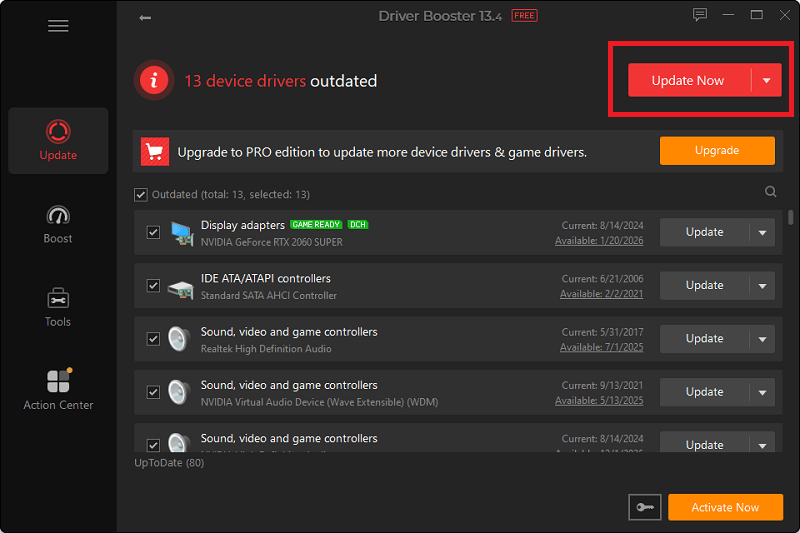
Step 4. Click Update next to an individual driver or click Update Now to update all detected drivers at once.
How to Check Whether Your Drivers Are Up to Date
After updating your drivers, it's a good idea to make sure everything is working properly. Check that your devices are functioning normally, verify the installed driver versions, and watch for any issues such as crashes, error messages, or slow performance. These simple checks can help confirm that the updates were installed successfully and that your system remains stable.
1. Verify Through Device Manager
Open Device Manager and ensure there are no warning icons next to your devices.
2. Review Driver Versions
You can check a driver's version by opening the device properties and viewing the Driver tab.
3. Monitor System Performance
Improved system responsiveness, fewer crashes, and better hardware functionality often indicate successful driver updates.
Common Driver Update Issues and Solutions
Even when you follow the correct steps to update your drivers, you may occasionally encounter problems during or after the process. Now, let’s understand these common issues:
Driver Update Fails to Install
Restart your computer and try again. Make sure you have administrator privileges and a stable internet connection.
Device Stops Working After an Update
Use the Roll Back Driver option in Device Manager to restore the previous driver version.
Windows Cannot Find the Latest Driver
Consider using a dedicated driver update scanner like Driver Booster, which often provides access to newer manufacturer-released drivers.
FAQ About Driver Updates
1. How do I scan for driver updates on Windows 11?
You can scan for driver updates using Windows Update, Device Manager, or a driver update scanner such as IObit Driver Booster.
2. What is the best driver update scanner?
Many users prefer IObit Driver Booster because it offers automatic scanning, one-click updates, and a large driver database.
3. Is it safe to update drivers automatically?
Yes. Reputable automatic driver update tools verify driver compatibility before installation and often include backup and restore features.
4. How often should I scan for driver updates?
For most users, scanning once every month is sufficient. Gamers and power users may benefit from more frequent checks.
5. Can outdated drivers cause performance problems?
Absolutely. Outdated drivers can lead to crashes, hardware malfunctions, reduced performance, and compatibility issues.
Conclusion
Knowing how to scan for driver updates is essential for maintaining a fast, stable, and secure computer. While Windows Update and Device Manager provide basic driver management capabilities, they may not always find the latest driver versions available.
For a faster and more comprehensive solution, consider using a dedicated driver update scanner like IObit Driver Booster. It can automatically detect outdated drivers, install updates with a single click, and help keep your PC running at its best with minimal effort. More importantly, it enables users to know how to update driver. Now, download it to give it a try!
Driver Booster Free
- Automatically scan and update drivers.
- Update game ready drivers for peak gaming performance.
- Identify and fix various common of hardware issues.
- Boost 30% of system performance for fast & smooth running.