Bad sectors can make a hard drive slower, prevent files from opening, trigger errors, and eventually put important data at risk. Fortunately, some bad sectors are caused by logical errors and can be repaired with the right tools. This guide explains the common signs and causes, how logical and physical bad sectors differ, and several practical solutions to help you repair bad sectors hard drive, keeping your drive working properly. Let’s get started.
Recognize the Signs that There Are Bad Sectors on Hard Drive
A bad sector hard drive problem does not always make the drive stop working immediately. Instead, you may notice performance and reliability problems that gradually become worse. Common warning signs include:
Your computer frequently lags or freezes when accessing the drive.
Certain files or folders refuse to open.
Windows unexpectedly displays a blue screen.
Disk-related errors appear when copying, opening, or saving files.
The hard drive takes much longer than usual to read or write data.
If several of these symptoms occur together, checking the drive for bad sectors is recommended before the problem causes further data loss.
What Causes Bad Sectors on a Hard Drive
There are two main types: physical and logical bad sectors. Before trying to repair bad sectors on hard drive, it is important to understand what causes them. Below are the causes of each type.
Physical bad sectors result from actual damage to the storage medium.
Common causes: aging hardware, physical impact, excessive heat, manufacturing defects, dust, or other hardware deterioration.
Logical bad sectors, also called soft bad sectors, occur when a sector cannot be read correctly even though it may not be physically damaged.
Common causes: Sudden power loss, improper shutdowns, file-system corruption, malware, interrupted write operations, and software errors.
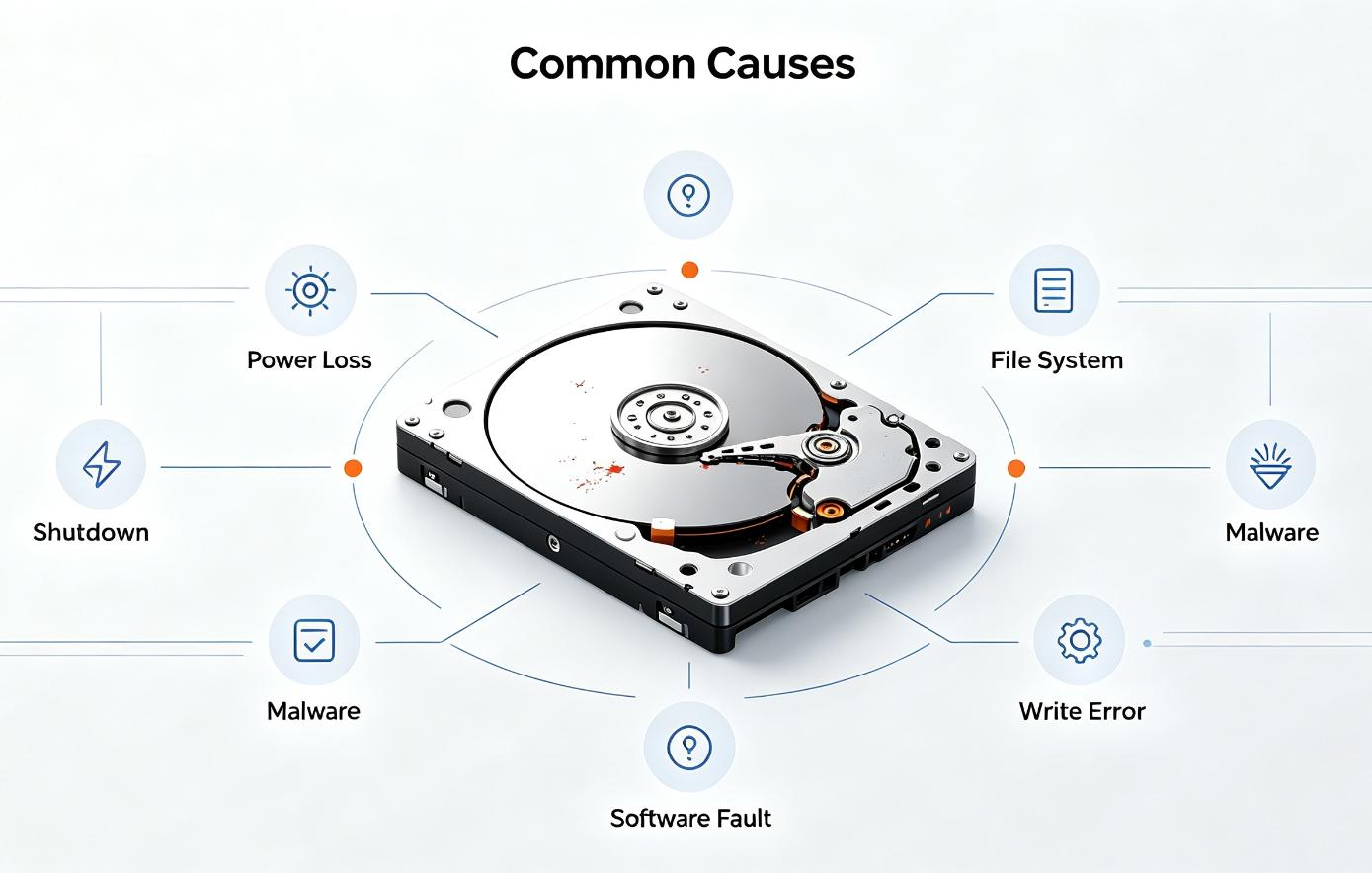
Knowing which type you are dealing with is important because software may fix logical sectors, while physically damaged sectors usually require a different approach.
How to Repair Bad Sectors Hard Drive (for Logical) - 2 Ways
Logical bad sectors are generally the ones you can attempt to repair through software. However, before performing any bad sector fix, back up all important files from the affected drive. A deteriorating disk can become less reliable over time, so protecting your data should always come first.
After creating a backup, try the following two methods.
Way 1: Repair Bad Sectors Hard Drive Using Advanced SystemCare
Try this easier way to inspect and repair disk problems first. Advanced SystemCare provides a collection of Windows maintenance utilities in one interface. Its Disk Doctor tool is specifically designed to analyze disks and file systems for errors, making it useful when you want to repair bad sectors hard drive caused by logical issues. Disk Doctor can scan selected drives and attempt to repair detected file-system problems. This gives users who are uncomfortable with command-line utilities a more straightforward graphical approach.
Advanced SystemCare Free
- Clean: 420 billion traces removed & 85 EB junk files cleaned
- Protect: 80 million unauthorized access blocked & 20 million bugs fixed
- Speed Up: 6 million hours of startup time saved & Turbo boost
- Optimize: Auto clean and auto care your PC with AI mode

What’s more, Advanced SystemCare provides broader PC maintenance tools alongside disk checking. Its optimization functions can help clean unnecessary files and improve Windows performance, making it useful as a hard disk cleaner when accumulated junk is consuming storage space.
Moreover, users experiencing unusually high disk activity can investigate system performance alongside disk health. This can be particularly useful when troubleshooting Windows 11 100 disk usage and other performance problems rather than treating every slowdown as a bad sector.
Here is how to repair bad sectors with Advanced SystemCare:
Step 1. Download and install Advanced SystemCare, then launch the program after installation.
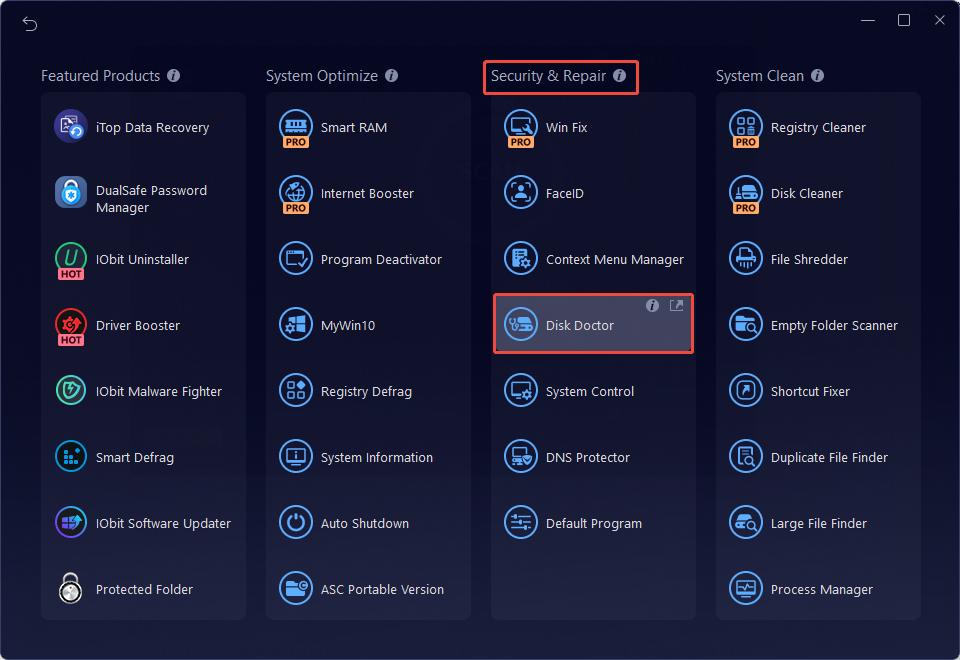
Step 2. On the main Advanced SystemCare interface, click the Toolbox icon in the upper-right area to access the available tools.
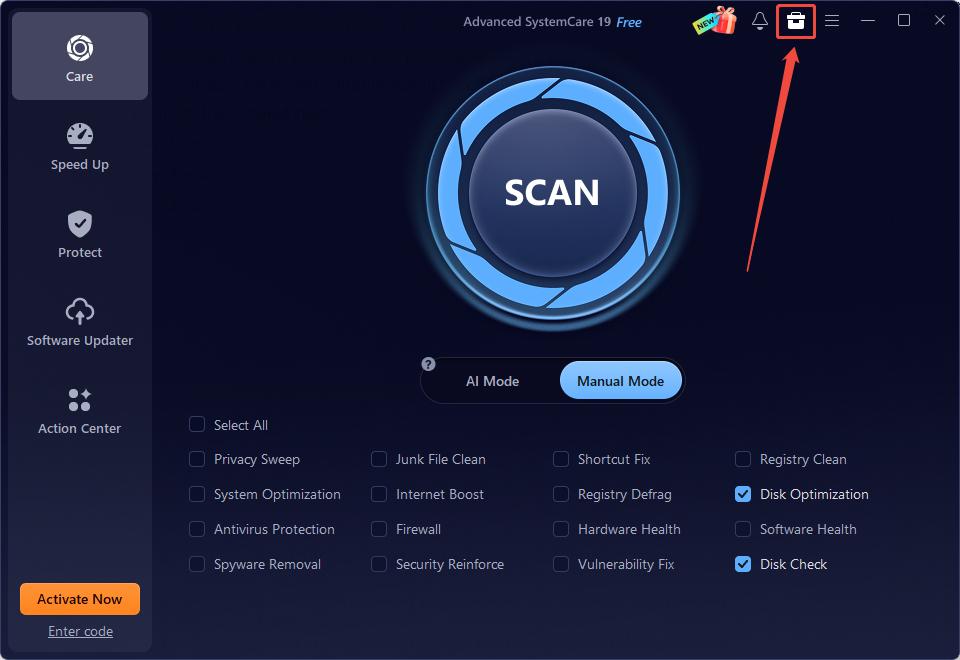
Step 3. Under the Security & Repair section, click Disk Doctor, and click Download to get it.
Step 4. Select the drive you want to examine and click Next to check it for errors.
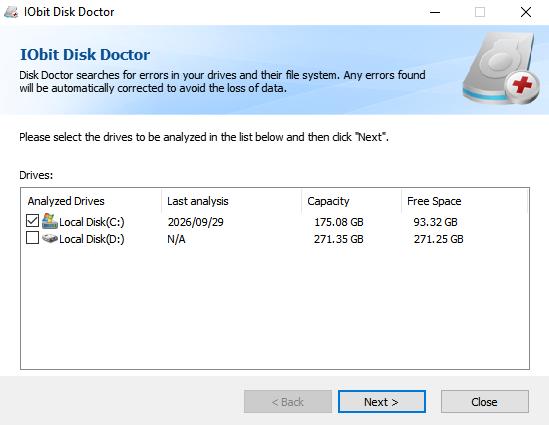
Step 5. If it detects repairable logical disk errors, apply the recommended repair and restart Windows when necessary.
Besides this, Advanced SystemCare contains other utilities for Windows maintenance and optimization. For example, users looking for a RAM optimizer windows 11 solution can use its performance-related tools to manage system resources. Its optimization features can also complement a gaming optimizer setup when background processes and unnecessary files are affecting performance.
When you want a broader collection of maintenance features rather than separate utilities for every task, Advanced SystemCare is also one of the best pc optimizers to consider for routine PC cleanup, optimization, and disk maintenance. Download the latest version and use Disk Doctor to check your drive when logical disk errors begin causing problems.
Way 2: Repair Bad Sectors Hard Drive with Windows CHKDSK Tool
Windows also includes CHKDSK, a command-line utility that checks a volume’s file system and file-system metadata for logical and physical errors. With the appropriate parameters, it can fix logical disk errors and locate bad sectors.
Here is how to use it:
Step 1. Type cmd into Windows Search and choose Run as administrator for Command Prompt.
Step 2. Enter the following command and press Enter:
chkdsk X: /f /r (Replace X with the drive letter you want to check. The /f parameter tells CHKDSK to fix disk errors, while /r locates bad sectors and attempts to recover readable information.)
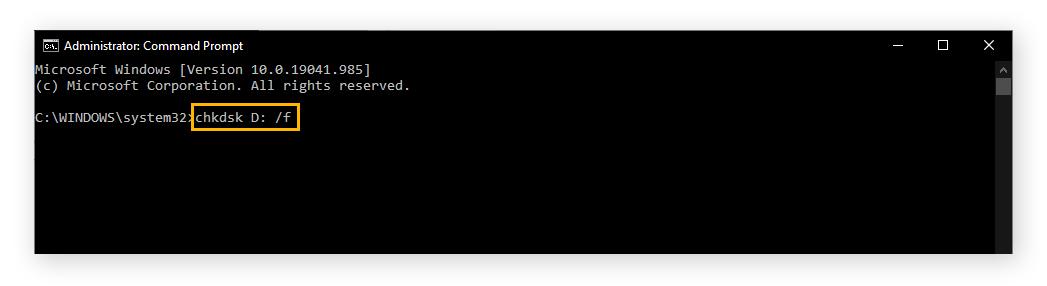
Step 3. If Windows says the drive is currently in use and asks to schedule the check for the next restart, type Y and press Enter.
Step 4. Restart the PC when required and allow CHKDSK to finish. Avoid turning off the computer while the disk check is running.
How to Repair Bad Sectors Hard Drive (for Physical)
A physical bad sector in hard drive cannot normally be repaired by software because the storage medium itself has been damaged. The priority is therefore protecting your files and determining whether the drive should be replaced.
Step 1. Stop writing unnecessary data to the affected drive to reduce the risk of further problems.
Step 2. Back up all accessible and important files to another healthy disk as soon as possible.
Step 3. Run the drive manufacturer’s diagnostic utility or check its health information to determine whether the disk is deteriorating.
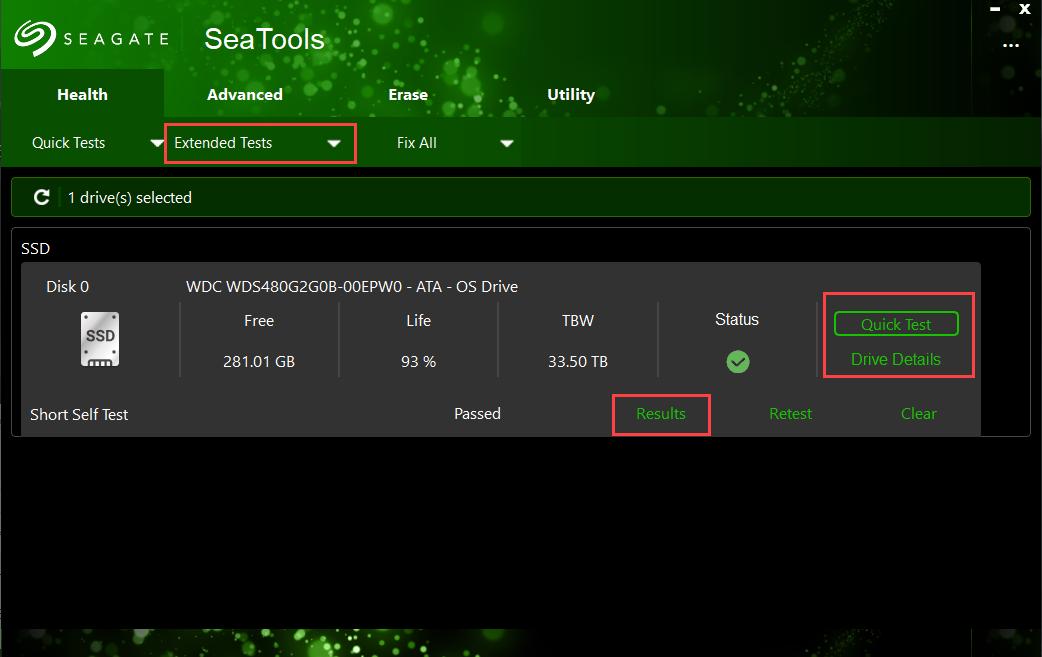
Step 4. If the drive continues producing bad sectors, errors, unusual noises, or read/write failures, replace it rather than relying on repeated software repairs.
If important files are inaccessible and the disk has suffered physical damage, avoid repeatedly stressing it with repair operations. Professional data recovery may be safer when the lost data is valuable.
How to Prevent Bad Sectors Hard Drive in the Future
After completing bad sectors on hard drive repair, a few preventive habits can reduce avoidable disk problems and help protect your data:
Shut down Windows correctly instead of repeatedly forcing the PC off.
Use a UPS or reliable power source to reduce sudden power interruptions.
Keep your PC adequately ventilated to prevent excessive drive temperatures.
Avoid moving or striking a laptop while a mechanical hard drive is actively working.
Keep Windows and security software updated.
Scan the drive periodically if you notice unusual errors or performance problems.
Maintain regular backups of important files.
Replace an aging or unreliable drive before complete failure occurs.
These measures cannot prevent every hardware failure, but they can reduce unnecessary stress on your storage device.
The Bottom Line
Bad sectors should not be ignored, especially when files become inaccessible or drive performance suddenly declines. To repair bad sectors hard drive, Advanced SystemCare provides a convenient and fast graphical approach through Disk Doctor while also offering additional PC maintenance features. Download Advanced SystemCare, check the affected disk, and develop regular drive-maintenance habits to keep your Windows PC running reliably.