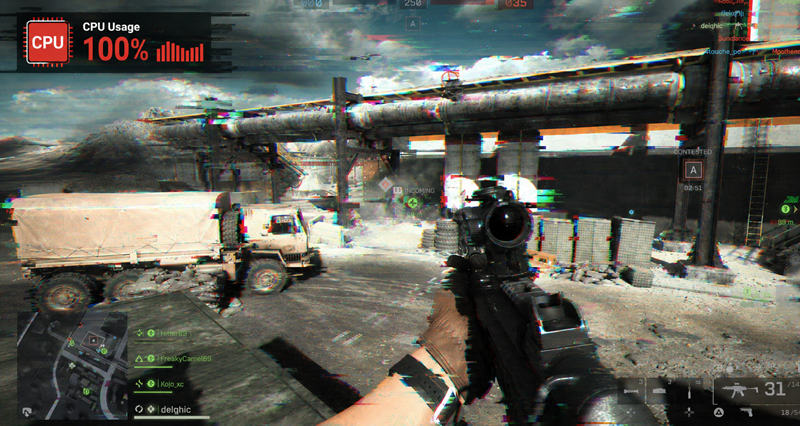
Many people think Battlefield 6 high CPU usage is because their CPU is not good enough. But that’s not the case for everyone. Actually, RAM bottleneck/in-game settings/overheating and even Wifi driver (yes, you don’t hear it wrong) can be major causes for your stuttering BF6 gameplay. If you are suffering from BF6 CPU bottlenecks like choppy camera movement, stuttering during explosions, Frame Time Spikes, slow motion issues, and short freezes. You must read this blog’s 6 practical fixes gathered from the most frequently asked BF6 stuttering scenarios.
Overclock CPU to Fix Battlefield 6 CPU Bottleneck - Use the BIOS
If your high CPU usage is caused by an old PC, you can try a slightly risky method - Overclock CPU to fix BF6 CPU bottleneck. Your PC can run Battlefield in a smoother way. This section shares two types of overclocking, proving effective in increasing CPU frequency from 4.5 GHz to 5.0 GHz. But note that overclocking a CPU is risky because it demands extra voltage and may cause overheating. To maintain the stability of your PC, you need to tune other parameters. Fret not, a tutorial prepares everything for you.
How to overclock CPU to fix BF6 CPU bottleneck with BIOS?
Step 1. Restart your PC and boot into BIOS.
Step 2. Press the Left Arrow key or Right Arrow key on the keyboard to switch screens until you see CPU Configuration.
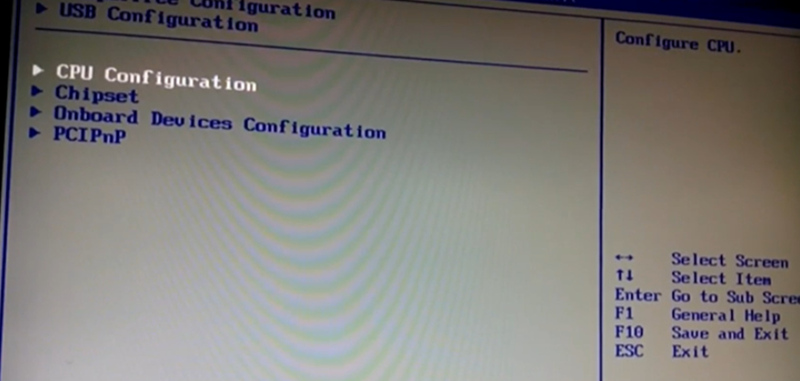
Step 3. Find the CPU Ratio Settings.
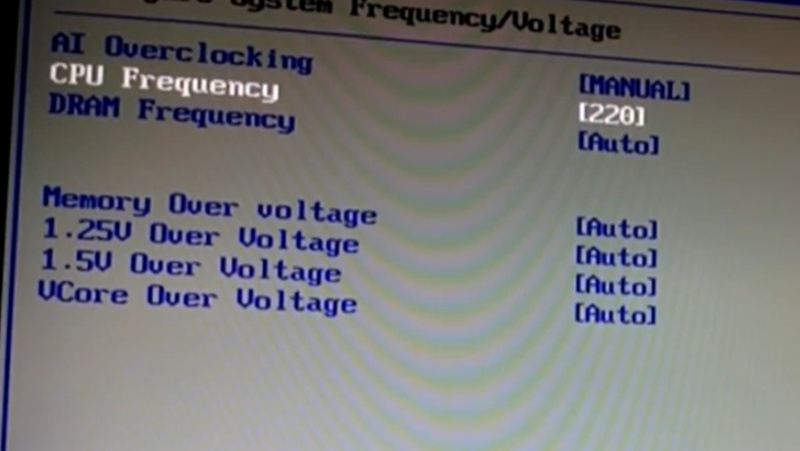
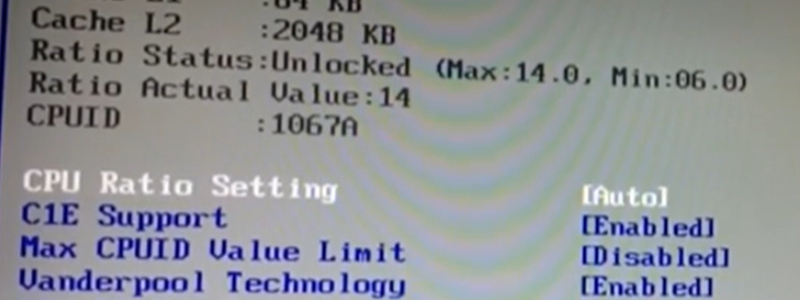 Step 4. Change Overclocking mode from AI to Manual. Then slightly raise the CPU Frequency to 220 (220 MHz is a base clock; after multiplying by the CPU ratio, it is eventually 4.4 GHz or 5 GHz).
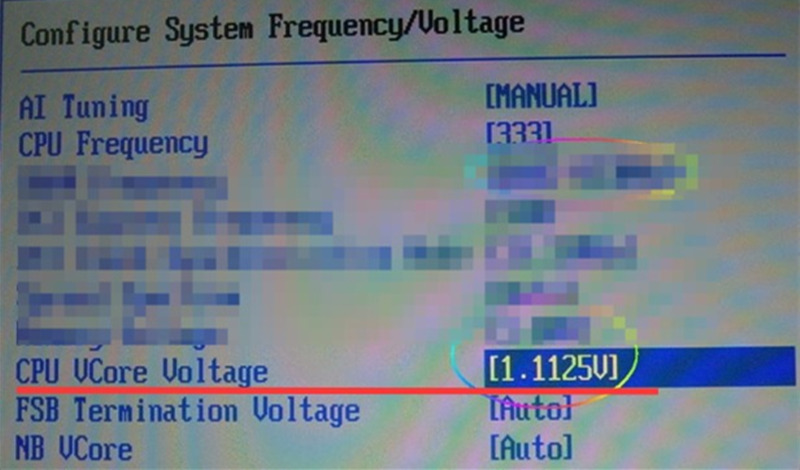
Now, to make sure your Voltage is tuned, you need to check whether your system is unstable. If so, increase CPU VCore Voltage. The interface to set up VCore is under the Configure System Frequency/Voltage menu.
How to overclock CPU to fix BF6 CPU bottleneck without BIOS?
If you don't want to restart your PC and boot into the BIOS, and you don't want to manually test Voltage tuning. You can try some CPU overclocking software that does the same job. For AMD users, it is Ryzen Master. For Intel users, it is Intel XTU. If you are Nvida users, there is no CPU overclocking software available. You can try a third-party software called CPU Booster.
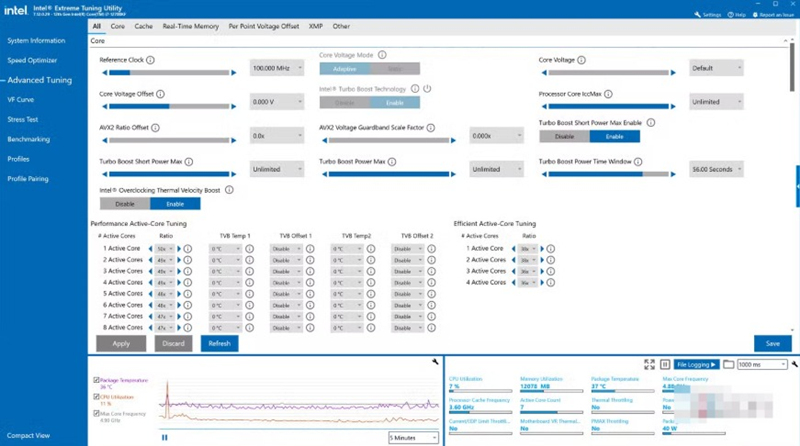
You can manage the number of active cores, Core Voltage, etc, and run a stress test right after the configuration.
I wrote a tutorial on how to use these 3 types of CPU Boosters; please click to check it out.
Battlefield 6 High CPU Usage Ultimate Fix - Configure User.fcg File
The hardcore BF6 user cfg fix is now reckoned as one must-try method. Briefly speaking, this method lets players manually change the number of CPU cores and threads used by Battlefield. If the file is configured correctly, the frame time becomes stable, thermal throttling is limited, and the CPU usage can be reduced from 90% to 60%.
Though some negative comments from an advanced player on https://forums.ea.com/ share another aspect. He explains that the user.cfg trick concentrates the CPU load onto a few cores instead of spreading it evenly, which may cause some of the cores to hit 100% utilization and then the framerate drops. Anyway, let’s dive into the method and test if it works for you.
How to configure a user.fcg file to fix BF6 high CPU usage?
Step 1. Open Notepad and create a new document.
Step 2. Copy and paste the lines below into it.
Thread.ProcessorCount 8
Thread.MaxProcessorCount 8
Thread.MinFreeProcessorCount 8
Thread.JobThreadPriority 0
Thread.MaxworkerThreadCount 16
Step 3. Replace the numbers with your CPU’s actual values.
Where to find the numbers? Open your Task Manager > click the Performance tab > navigate to the CPU tab, and you can see your CPU’s actual Cores and Logical Processors.
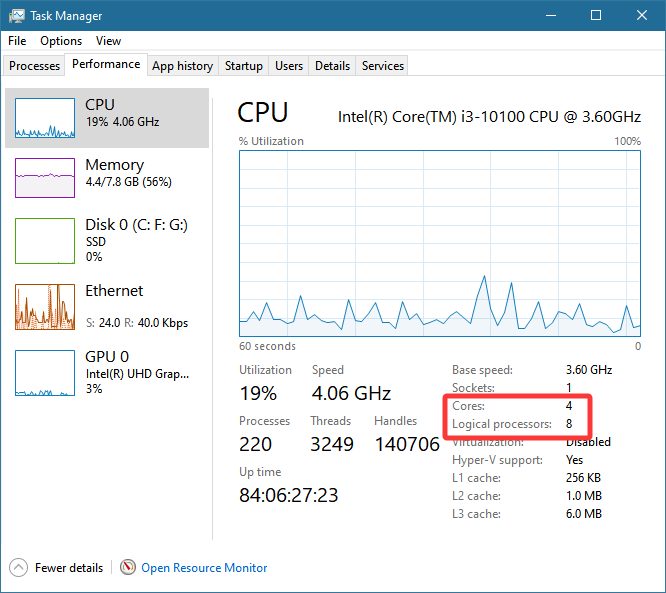
So, based on my antique PC, my 5 lines should be like:
Thread.ProcessorCount 4
Thread.MaxProcessorCount 4
Thread.MinFreeProcessorCount 4
Thread.JobThreadPriority 0
Thread.MaxworkerThreadCount 8
Step 4. Locate your Battlefield 6 game documents and find the user.cfg file. Replace the original 5 lines with your new 5 lines in the text editor.
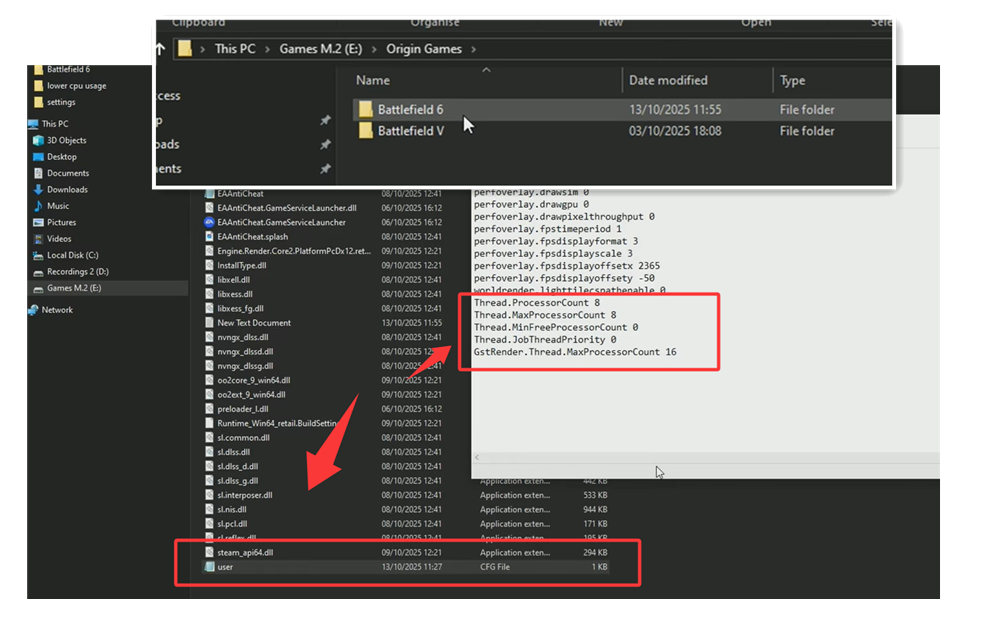
Step 5. Save the changes. If you feel insecure, you can copy the original file and save it elsewhere so as to create a restore point manually.
Now you can launch your Battlefield 6 and see if the CPU high usage problem gets resolved. If it doesn't resolve your BF6 CPU bottleneck issues, your problem could be a RAM bottleneck, an outdated CPU, or overheating. Please read on to check other fixes.
Battlefield 6 High CPU Usage Fix - Your Wifi Driver May Conflict with CPU
The method in this section is not a commonly known solution. This Battlefield 6 performance issue was found by the notorious YouTuber JayzTwoCents, who thinks the wifi driver inside users’ motherboards influences their CPU. This may sound weird because the two things are considered not correlated at all. But when he uninstalls and reinstalls the Wifi driver, the game stutters and the choppy camera movement is gone for good. And the CPU usage will be observed to be drastically reduced.
Signs you are having this problem:
Your mouse or keyboard, once unplugged and re-plugged, isn’t activated successfully.
When BF6 crashes, your PC freezes and cannot be shut down.
How to fix Battlefield 6 high CPU usage by troubleshooting Wifi drivers?
Step 1. When game stutters occur, force shut down your PC and reboot.
Step 2. Open the Event Viewer > Windows Logs.
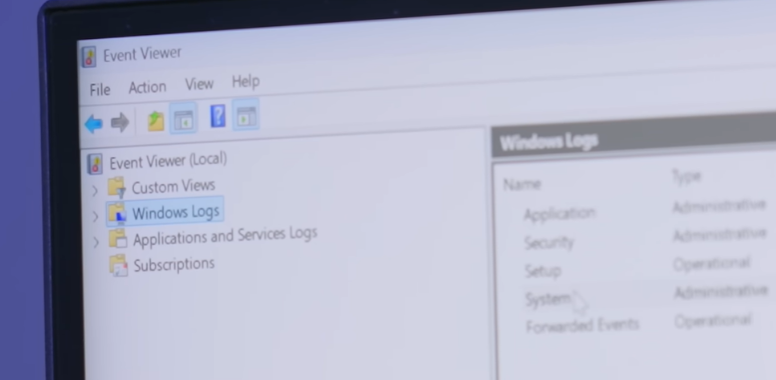
Step 3. Check what causes the errors. In this case, it is the Wifi driver that conflicts with your gameplay.
Step 4. Go to the provider of your motherboard and download the latest Wifi/Blue Tooth drivers. (Note: you shouldn’t go to the Device Manager to update the driver; that program keeps telling you that your drivers are up-to-date)
If you have problems manually updating your drivers, you can download IObit Driver Booster to one-click update all drivers for free. Display drivers, audio drivers, and Wifi drivers. If all drivers are up-to-date, CPU conflicts will be very likely to be solved.
Driver Booster Free
- Automatically scan and update drivers.
- Update game ready drivers for peak gaming performance.
- Identify and fix various common of hardware issues.
- Boost 30% of system performance for fast & smooth running.

This method is suitable for those whose CPU/GPU/RAM don’t have any bottlenecks, and none of the solutions on the Internet help with game optimization.
Optimize CPU for Battlefield 6 High Usage - BF6 CPU Bottleneck Fix
Normally, with the 2 solutions above, your high CPU usage problem should be solved. But if there are still no changes, you may consider upgrading your CPU and RAM. But before you spend this money, here is a free solution to help solve the BF6 CPU Bottleneck (may be caused by RAM storage limitation or thermal throttling) to optimize your gaming environment.
IObit Smart RAM is a handy tool to auto-clean RAM and monitor your RAM’s current status. Note that if your Pagefile is piling up, RAM is approaching 100%, but the CPU is at a low percentage, then you are facing a RAM bottleneck. Auto-clean RAM storage can hugely unburden your CPU. Let’s see how to use this tool to optimize your RAM?
Step 1. Download IObit Advanced SystemCare.
Step 2. From the Toolkit, find the ‘Smart RAM’ program from the System Optimize column.
Step 3. Download it and check the current status of your RAM. And hit the ‘Go!’ button to release your RAM storage manually if necessary.
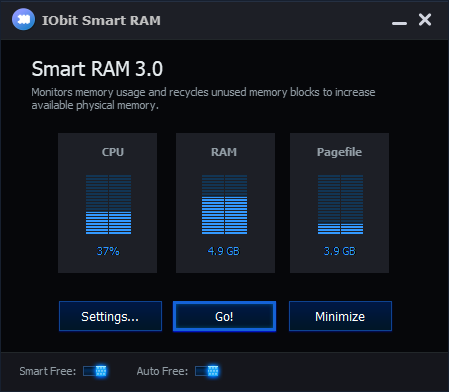
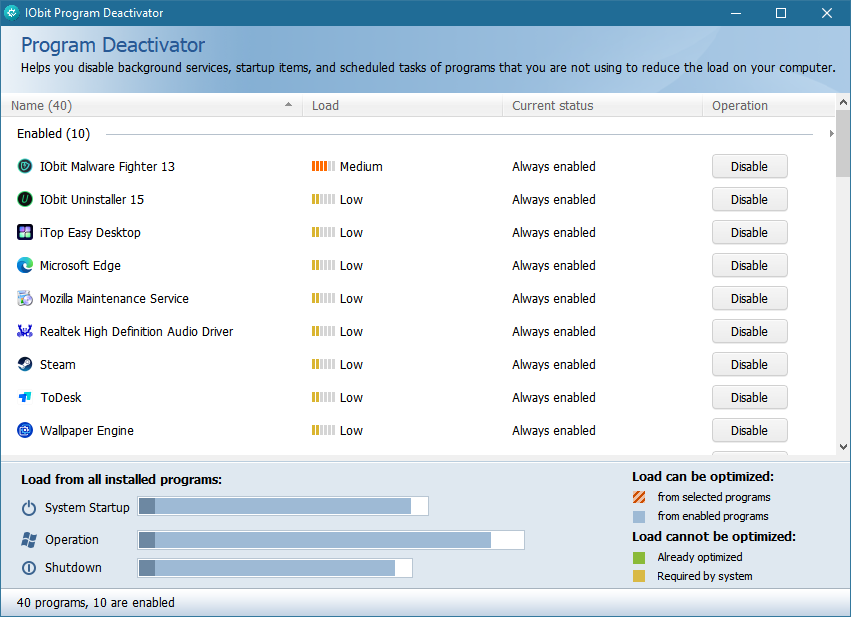
This derivative tool in IObit Advanced SystemCare Toolkit optimizes your PC by saving more system resources to BF6. IObit Program Deactivator lists all the programs running in the background and tags the heavily loaded ones for you. It may surprise you that some programs eat up a big portion of your system resources, such as Steam wallpaper (especially 4K live wallpapers), Discord, and OBS streaming services.
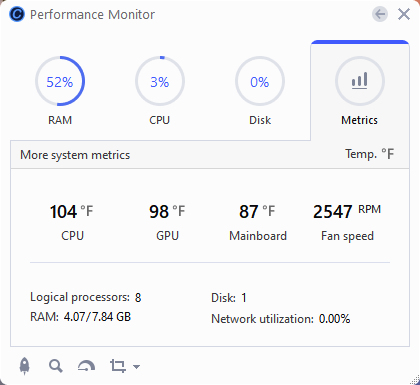
You can also find temperature indicator software to monitor your mainboard's temperature. The editor uses IObit Advanced SystemCare's Performance Monitor. This small tool works in the background and doesn't affect me playing games at all. This tool is in IObit SystemCare's Toolkit too.
Battlefield 6 High CPU Usage Fix - Cooling Down the Overheating
If your CPU temperature goes above 90°C while playing Battlefield 6, your processor may slow itself down to prevent overheating. This can cause FPS drops, stuttering, and lag. Try checking your CPU temperature with tools like MSI Afterburner or HWiNFO. If your CPU is running too hot, upgrading to a better CPU cooler or turning on the air conditioner may help improve performance.
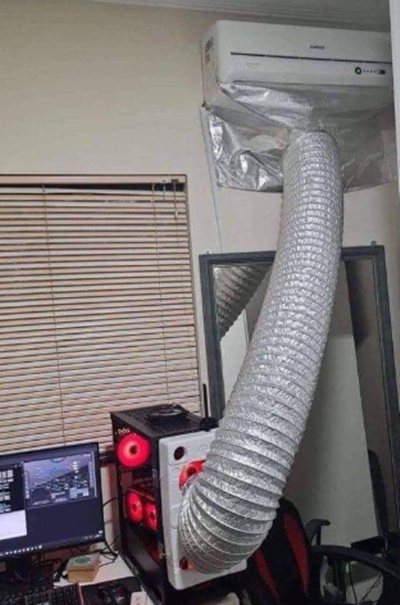
Warm Reminder: Turn On the Air Conditioner!
BTW, it may surprise you that the air conditioner in your room can be super helpful. If the average temperature hits 30-35 degrees in your room, then it is a big trouble for your CPU cooler. And for every 1°C drop in room temperature, CPU temperatures typically decrease by about 0.5°C to 1°C. When your CPU cools down from 95°C to 85°C and is within the thermal limit, then your FPS can go from 105 to 112 FPS, around a 12% escalation.
Battlefield 6 High CPU Usage Fix - Enlarge Your RAM Storage
One user from the Battlefield 6 forum mentioned that he upgraded his RAM to 32GB and his stuttering gameplay is fixed. This is not a common scenario, but if the RAM bottleneck is the real problem, it should be upgraded. But the question is, how to know if your BF6 high CPU usage is caused by a RAM bottleneck? Here are some signs. If your indicator’s metrics match the signs below, then you are possibly having a RAM bottleneck.
Tips for those who want to upgrade their RAM:
Check what memory specifications your motherboard supports.
32 GB is sufficient for those who need to stream with OBS.
Check Memory type (DDR4 or DDR5).
Conclusion
Battlefield 6 can push both your CPU and memory to their limits, causing high CPU usage, stuttering, frame time spikes, FPS drops, and even slow-motion gameplay. The good news is that the Battlefield 6 high CPU usage issue can be fixed by identifying the real bottleneck, whether it's overheating, insufficient RAM, poor settings, or an aging CPU. Don't hesitate to try free Windows 11 Cleaner - IObit SystemCare to rationally manage your system resource, auto boost your PC in the background.
Advanced SystemCare Free
- Clean: 420 billion traces removed & 85 EB junk files cleaned
- Protect: 80 million unauthorized access blocked & 20 million bugs fixed
- Speed Up: 6 million hours of startup time saved & Turbo boost
- Optimize: Auto clean and auto care your PC with AI mode