

- Support Center
- Multiple Languages
- Language
- Help Us Translate
Expert in
PC Health Solution

All-in-one PC health solution: clean, optimize and secure

Comprehensive PC cleaning, optimization and protection

Keep drivers always up-to-date

More stable performance with less system crashes

Protect millions of computers against malware

Top computer security with full-round protection

Protect against viruses & boost PC performance
Quick and deep system scanning throughout PC system.
Smart defense against all malicious infestations.
High-level security and privacy protection in real time.
Leading anti-malware and anti-virus engines.

Learn how to save passwords in Chrome, manage saved logins, fix password-saving issues, and protect your accounts from malware and online threats.



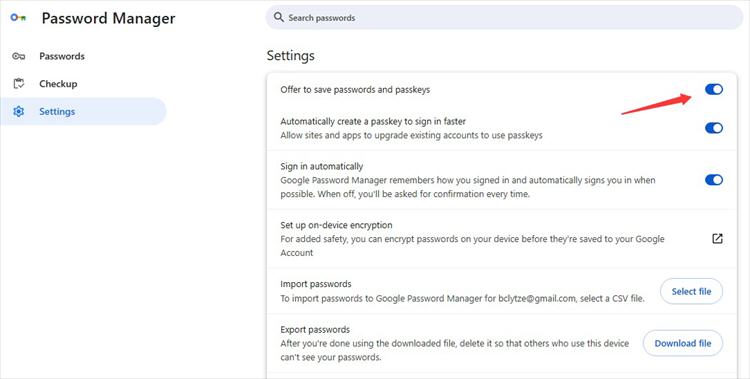
Enable the Offer to save passwords and passkeys to save passwords in Chrome.
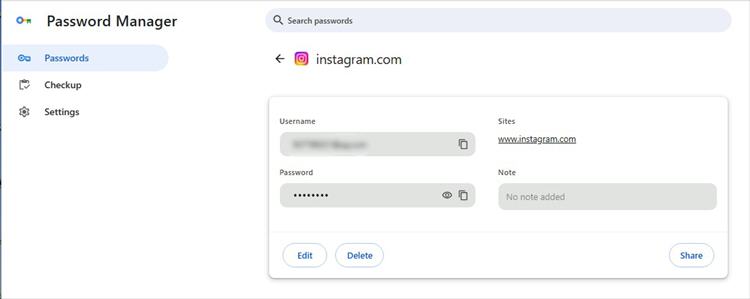
View, edit, or delete saved passwords in Chrome.
Is it safe to save passwords in Chrome?
Are passwords safe in Chrome without syncing?
What to do if Chrome doesn't save your passwords.
Add another layer of Chrome protection with IObit Malware Fighter from malware.
Measures to make saving passwords in Chrome safer.
Remembering a unique password for every website can be difficult. Fortunately, Google Chrome has a built-in password manager that lets you save passwords, fill in login details automatically, and manage your credentials in one place. But is it safe to save passwords in Chrome and how to save passwords in Chrome? Here's how to use the feature and keep your accounts better protected.
Saving passwords in Chrome only takes a few steps:
1. Open Chrome and click the three-dot menu in the upper-right corner.
2. Select Settings and open Google Password Manager.
3. Find the password-saving settings and enable the option to offer to save passwords, if available.
 4. Visit a website and sign in with your username and password.
5. When Chrome asks whether to save your password, click Save.
The next time you visit that website, Chrome can offer to autofill your saved login details, making signing in faster and easier.
If you need to check a saved password or remove an outdated login, open Google Password Manager from Chrome Settings.
Select the website or account you want to manage. Chrome may ask you to verify your identity before revealing a password. From there, you can view, edit, or delete the saved credentials.
It's a good idea to review your saved passwords occasionally and remove accounts you no longer use. This keeps your password list organized and makes it easier to identify credentials that need updating.
Generally, yes. Chrome uses security protections, including encryption, to help protect stored passwords. Google Password Manager can also help identify weak, reused, or compromised passwords.
However, saving passwords in Chrome isn't completely risk-free. If someone gains access to your unlocked computer or Google Account, your saved credentials may be exposed, depending on your security settings. Malware and phishing attacks can also put your accounts at risk.
To improve security, use a strong device password, enable two-step verification for your Google Account, and avoid reusing passwords across different websites.
Chrome can store passwords locally or sync them through your Google Account, depending on your settings.
With syncing enabled, your saved passwords can be available on other devices where you sign in to the same account. This is convenient, but it also makes protecting your Google Account especially important.
If you prefer not to sync passwords, review your Google Password Manager settings and choose the storage option that suits your needs. Regardless of your choice, keep your device secure and avoid saving sensitive credentials on shared or public computers.
If Chrome doesn't prompt you to save a password, first check whether password saving is enabled in Google Password Manager.
You should also check whether the website has been marked as a site where Chrome should never save passwords. If so, remove it from that list if you want Chrome to offer to save your credentials again.
If the problem persists, update Chrome and restart the browser. Some websites use special login systems that may not trigger the standard password-saving prompt.
Even when Chrome protects stored credentials, malware on your computer can create additional security risks. Malicious software may attempt to steal information, monitor activity, or compromise your online accounts.
IObit Malware Fighter is a Windows security tool that helps detect and remove malware. It complements Chrome's password manager by adding another layer of protection for your computer.
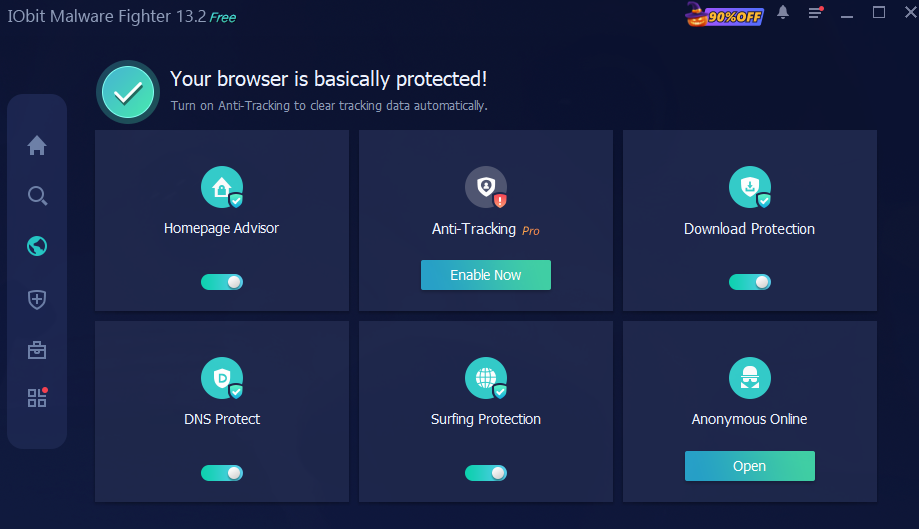
It helps check and protect your computer from viruses, block supported threats before they cause harm, depending on your edition and settings. What’s important, it helps protect against supported malicious websites and online threats.
IObit Malware Fighter doesn't replace Chrome's password manager or guarantee that passwords cannot be stolen. Instead, it can complement strong passwords, browser updates, virus removal, and secure account settings.
Follow these simple habits to reduce the risks of storing passwords in your browser:
Use unique passwords: Create a different password for every important account.
Secure your Google Account: Enable two-step verification and use a strong, unique password.
Keep Chrome updated: Install security updates when they become available.
Avoid suspicious links: Never enter credentials on websites you don't trust.
Scan for malware: Use reputable security software like IObit Malware Fighter to check your computer for potential threats.
It is a convenient way to save passwords in Chrome to manage everyday logins, and its built-in protections make it a reasonable choice for many users. However, the answer to “is saving passwords in Chrome safe?” depends partly on how well you protect your browser, Google Account, and computer.
By reviewing saved credentials, using unique passwords, enabling account security features, and adding malware protection with an anti virus software such as IObit Malware Fighter, you can make everyday browsing more secure.
 People Also Ask
Does clearing cache delete passwords? Discover what browsing data gets erased after clearing cache & cookies and why saved passwords remain intact.
For those who forget their password and recovery key and fail to remove BitLocker encryption, this blog shares thoughts on how to unlock their hard drives.
Why does my default search engine keep changing to Yahoo? Learn about browser hijacking and reliable fixes to solve it!