- Support Center
- Multiple Languages
- Language
- Help Us Translate
Expert in
PC Health Solution

All-in-one PC health solution: clean, optimize and secure

Comprehensive PC cleaning, optimization and protection

Keep drivers always up-to-date

More stable performance with less system crashes

Protect millions of computers against malware

Top computer security with full-round protection

Protect against viruses & boost PC performance
Automatically scan and update drivers.
Update game ready drivers for peak gaming performance.
Identify and fix various common of hardware issues.
Boost 30% of system performance for fast & smooth running.

Discover all the ways for how to right click without a mouse on your laptop, including efficient keyboard shortcuts and handy tips.



4 Ways to Right Click Without a Mouse on a Windows Laptop.
3 Ways to Right Click on Mac Without Mouse.
How to Set up Right Click Shortcuts on Your PC.
How to Navigate Web Browsers Using Keyboard.
Right-clicking refers to using the right mouse button on a computer, particularly on a laptop. Generally, right-clicking is a useful tool that opens context menus, allowing you to work more efficiently. However, certain situations—such as a hardware malfunction—can lead to issues like a frozen mouse or a missing cursor.
In this article, we explain how to right click without a mouse, specifically using the keyboard. You will discover several keyboard-based right-click methods—ideal for continuing your work even if your mouse fails. Learn how to leverage your keyboard's full functionality to boost your productivity.

Whether you are using a desktop or a laptop, you can right-click using the keyboard thanks to built-in Windows shortcuts. This guide explains how to right click on a keyboard without a mouse—whether via the Context Menu Key, keyboard shortcuts, the touchpad, or even by controlling the pointer with the keyboard.
The Context Menu Key is located between the right Alt and Ctrl keys. It is found on both AZERTY and QWERTY keyboards. The icon on this key often depicts a menu box with a pointer on it.
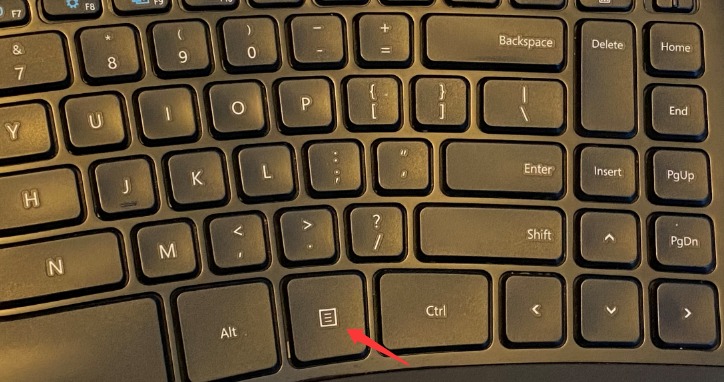
In Microsoft Windows or any other Windows program, pressing Shift + F10 allows the user to perform the right-click function using the keyboard.
The touchpad is a rectangular touch-sensitive surface where you place and move your finger to move the cursor. Like a mouse, the touchpad has two buttons for left- and right-clicking. If you are using a laptop without a mouse, you can right-click using the touchpad.
1. Open "Control Panel" > Search for "Ease of Access Center" > Click "Set up Mouse Keys".
2. Enable Mouse Keys to allow navigation using the numeric keypad.
Here are the keyboard shortcuts for right-clicking:
Learn More: How to Uninstall Realtek Audio Driver >>
You can easily right-click on a Mac without a mouse by using the keyboard. Thanks to macOS keyboard shortcuts and accessibility options, it is possible to right-click using only the keyboard—without a mouse or trackpad. Here are the methods you should know:
This combination allows you to quickly enable or disable Mouse Keys on your keyboard.
Tip: When "Mouse Keys" is enabled, you cannot use the keyboard or numeric keypad to type text.
Hold down the Ctrl key while left-clicking to perform a right-click.
Go to the Apple menu > System Settings, click "Accessibility" in the sidebar, then "Pointer Control," and turn on Mouse Keys.
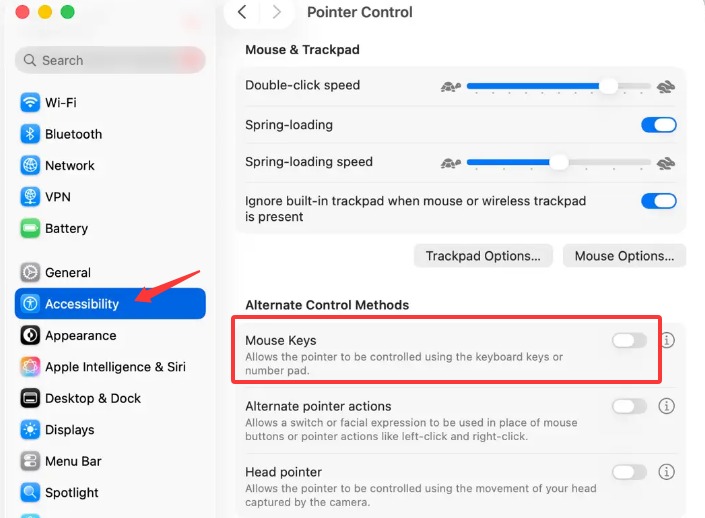
This allows you to left-click, right-click, double-click, or drag and drop using keyboard keys, assistive switches, or even facial expressions (such as smiling or opening your mouth).
1. Open "Control Panel" > click "Hardware and Sound" > "Mouse".
2. Select the "Buttons" tab and locate the "Button assignment" section.
3. From the drop-down menu, select the button you wish to modify, then enter the desired key combination in the field below.
4. Click Apply and OK.
Note: This feature is not available in all versions of Windows.
Also Read: Why Won’t My GeForce Driver Update? Complete Fix Guide [Tested] >>
You can navigate a web browser without a mouse by using only the keyboard. Arrow keys (directional keys) allow you to move the cursor or scroll through text and pages on the screen.
To select items or move between areas on a webpage or in Windows, use the Tab key to move forward and Shift + Tab to move backward. Once you reach the desired item, press Enter to activate it, or Space to check a box or trigger a button.
Some browsers also offer additional shortcuts:
Ctrl + Tab to switch between tabs
Ctrl + L to quickly access the address bar
Ctrl + T to open a new tab
Using these keys and combinations, you can perform all key browser actions without ever touching the mouse.
Conclusion
If you often need keyboard shortcuts or other way for how to right click without a mouse because your mouse isn't responding as expected, outdated or faulty drivers may sometimes be part of the problem. Driver Booster can automatically scan your PC for outdated device drivers and help update compatible mouse, touchpad, and other hardware drivers. Keeping these drivers up to date can help maintain smoother and more reliable input performance.
 People Also Ask
Discover how to turn off a computer with keyboard quickly and easily on both Windows and Mac. Optimize your computing experience today.
Why Is My Mouse Lagging? Learn why your mouse is lagging on Windows and how to fix stuttering, pointer acceleration, and driver issues effortlessly.
Is your keyboard stuck on your laptop, preventing you from using your computer? Discover 6 simple and effective solutions to unblock your keyboard.