- Support Center
- Multiple Languages
- Language
- Help Us Translate
Expert in
PC Health Solution

All-in-one PC health solution: clean, optimize and secure

Comprehensive PC cleaning, optimization and protection

Keep drivers always up-to-date

More stable performance with less system crashes

Protect millions of computers against malware

Top computer security with full-round protection

Protect against viruses & boost PC performance
Automatically scan and update drivers.
Update game ready drivers for peak gaming performance.
Identify and fix various common of hardware issues.
Boost 30% of system performance for fast & smooth running.

Discover how to turn off a computer with keyboard quickly and easily on both Windows and Mac. Optimize your computing experience today.



Turn off a PC with keyboard for fast access and convenience.
3 shortcuts to turn off a computer on Windows.
2 shortcuts to turn off a computer on Mac.
Things about how to shut down a computer with keys.
The difference between shut down & restart & sleep.
Want to turn off your computer easily and quickly? Learn how to shut down PC using keyboard, allowing you to perform this task more efficiently without clicking with a mouse.
Time savings
Shutting down the computer using the keyboard is faster than searching for the power button with the mouse. This can save you valuable time.
Greater comfort
For some people, using the keyboard is more comfortable than using the mouse. This can help reduce wrist strain.
>> Laptop Keyboard Stuck: 6 Quick & Easy Solutions
The most useful method is to press Windows key + D to show the desktop. Then press Alt + F4 while on the desktop. This opens the shutdown window, where you can select "Shut down" or "Restart."
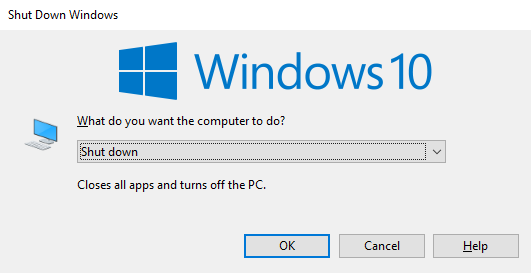
In Windows, you can press the Windows key + X and then press U twice to shut down the computer.
If you are an advanced user, you can open the command prompt (CMD) by pressing Windows + R and typing "shutdown /s /f /t 0" to shut down the computer immediately.
Mac users can also shut down their computers using keyboard shortcuts. The available shortcut depends on your keyboard and whether it has a Power button or Media Eject key.
Press Control + Option + Command + Power button simultaneously.
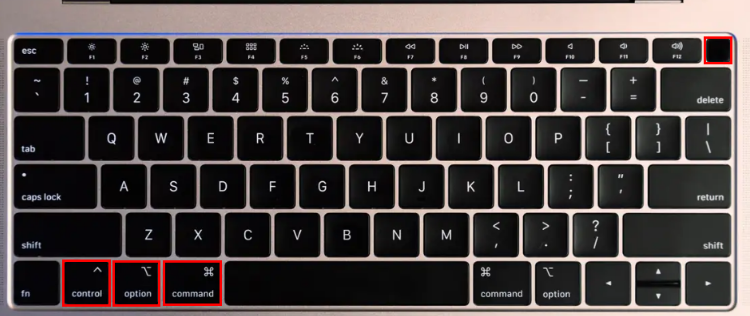
Your Mac will close open apps and begin shutting down. If there are unsaved documents, you may be asked to save them first.
If your Mac keyboard has a Media Eject key, press: Control + Option + Command + Media Eject
This quits your apps and shuts down the Mac, while allowing you to save unsaved work. Apple lists these as shutdown shortcuts for compatible Mac keyboards.
>> How to Change Keyboard Language: Step-by-Step Guide for Windows, Mac, Android & iPhone
Is there any risk of data loss when shutting down this way?
No, provided you don't have unsaved documents. Your computer should close applications and save everything before shutting down.
Can I customize the keyboard shortcuts for shutting down my computer?
Yes, on most operating systems, you can customize keyboard shortcuts according to your preferences.
What is the difference between shut down and restart?
Shut down closes all processes and turns off the computer completely, whereas Restart turns it off and then on again.
Is there a keyboard shortcut to put the computer to sleep?
Yes, in Windows, you can press Windows + L to lock the computer, which is similar to putting it to sleep.
Shut Down: Turns off your computer and closes all programs.
Restart: Turns the computer off and immediately starts it again.
Sleep: Puts the computer into a low-power state while keeping your current session available.
Use Shut Down when you are finished using your PC, Restart when applying changes or troubleshooting, and Sleep for short breaks.
Knowing how to turn off a computer with keyboard can make everyday PC use faster and more convenient. To keep your PC running smoothly beyond simple shortcuts, you can also use Driver Booster to scan for outdated drivers and update them more easily. With up-to-date drivers, your computer can maintain better compatibility and performance with its hardware and connected devices.

 People Also Ask
PC stuck on boot screen? Learn how to fix pc stuck on boot screen with proven methods like Safe Mode, SFC scan, and driver updates.
Yes. You can try 3 ways on how to uninstall the Realtek audio driver and reinstall it to solve the problem that PC sound is not working generally.
Struggling with “why won't my GeForce driver update”? Learn why you can’t update NVIDIA driver and discover fixes for GeForce driver installation errors.