- Support Center
- Multiple Languages
- Language
- Help Us Translate
Expert in
PC Health Solution

All-in-one PC health solution: clean, optimize and secure

Comprehensive PC cleaning, optimization and protection

Keep drivers always up-to-date

More stable performance with less system crashes

Protect millions of computers against malware

Top computer security with full-round protection

Protect against viruses & boost PC performance
Clean: 420 billion traces removed & 85 EB junk files cleaned
Protect: 80 million unauthorized access blocked & 20 million bugs fixed
Speed Up: 6 million hours of startup time saved & Turbo boost
Optimize: Auto clean and auto care your PC with AI mode

Why Is My Mouse Lagging? Learn why your mouse is lagging on Windows and how to fix stuttering, pointer acceleration, and driver issues effortlessly.



Re-Connect Mouse to PC
Adjust Mouse Settings & Disable Pointer Precision
Turn Off USB Power Management
Use Windows Hardware and Devices Troubleshooter
Update Mouse and USB Drivers
Why is my mouse lagging, stuttering, or freezing? It is a frustrating issue that many PC users encounter, whether they are using a wired, wireless, or Bluetooth mouse. The cause varies, from hardware connection problems to misconfigured system settings or outdated drivers. If your mouse pointer is skipping across the screen or delaying response, here are a few simple troubleshooting tips that can make your mouse work smoothly again in Windows.
For wired mice:
Unplug the USB cable and reconnect it firmly. It is better to try another USB port, preferably a USB 2.0 or USB 3.0 port directly attached to the motherboard rather than an unpowered USB hub.
For wireless or Bluetooth mice:
Make sure your mouse has a fresh battery or sufficient charge.
Unplug the USB wireless dongle and plug it back into a different port.
For Bluetooth mice, go to Settings > Bluetooth & devices, locate your mouse, and select Remove device. Then click Add device and re-pair it.
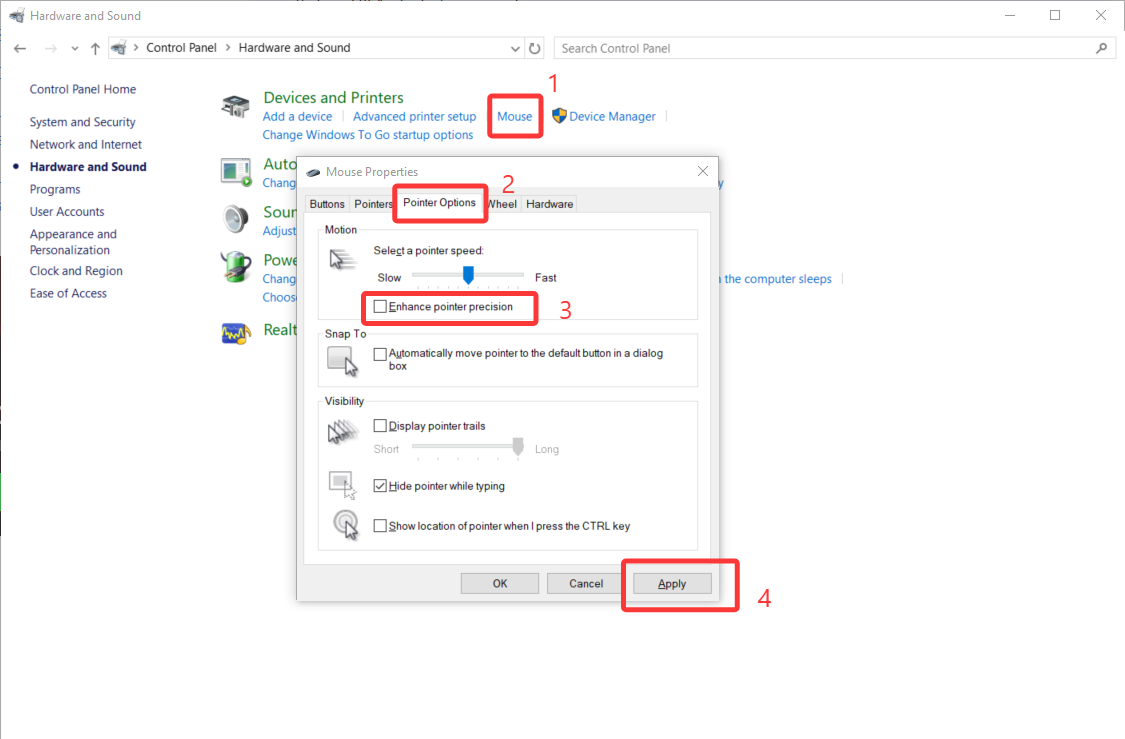
Windows includes built-in mouse sensitivity and acceleration features that can sometimes conflict with mouse polling rates, causing noticeable input lag or jittery movement.
Open the Control Panel on your PC and click Mouse.
Navigate to the Pointer Options tab.
Under Motion, uncheck Enhance pointer precision.
Adjust the pointer speed slider to a comfortable middle level and click Apply.
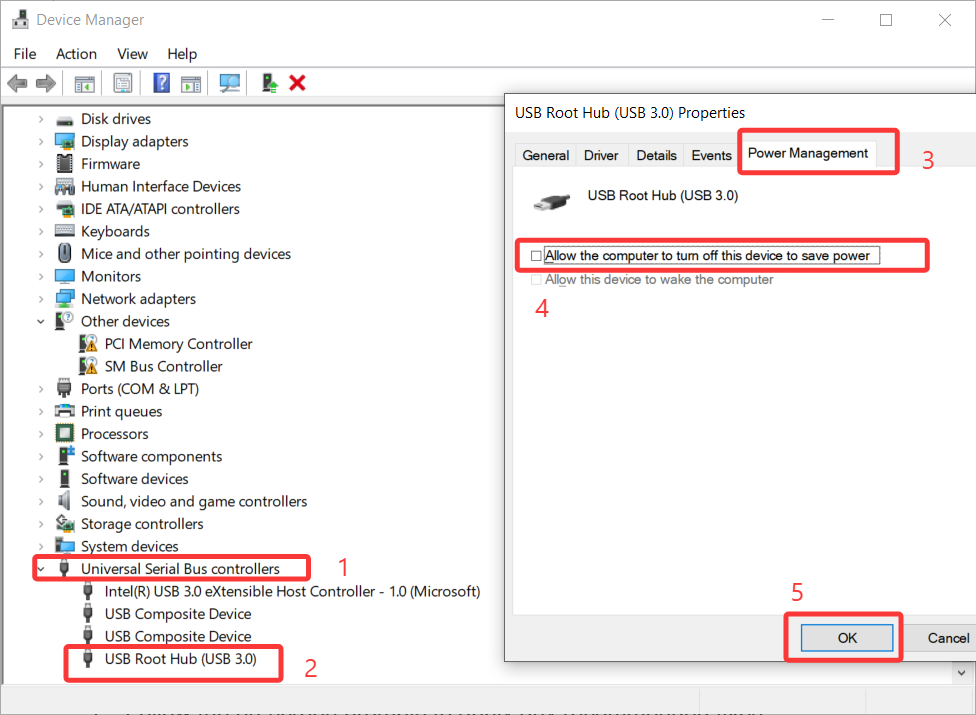
Windows may power down inactive USB ports to save energy, which can cause temporary lag or delays when you move your mouse after a brief pause.
Right-click the Start menu and select Device Manager.
Expand Universal Serial Bus controllers.
Right-click your USB Root Hub (or USB Controller) and choose Properties.
Go to the Power Management tab and uncheck Allow the computer to turn off this device to save power. Click OK.
The Windows diagnostic tool can scan for underlying hardware conflicts and attempt to resolve them automatically.
Open the Run dialog box by pressing Win + R.
Type msdt.exe -id DeviceDiagnostic and press Enter.
Click Next to run the automated diagnostic scan.
Follow the on-screen prompts to apply any recommended fixes.
Outdated or corrupted chipset, USB hub, or mouse drivers are leading causes of input lag and poor responsiveness. Keeping drivers updated ensures optimal hardware communication.
Press Win + X and select Device Manager.
Expand Mice and other pointing devices.
Right-click your mouse and select the Update driver.
Select Search automatically for drivers and restart your PC after installation.
An easier alternative to manual updates is Driver Booster—a reliable driver updater tool for Windows. Instead of checking devices individually, Driver Booster automatically scans your entire system to detect outdated, missing, or faulty drivers, installing the latest matched versions in a single click.
1. Download and launch Driver Booster.
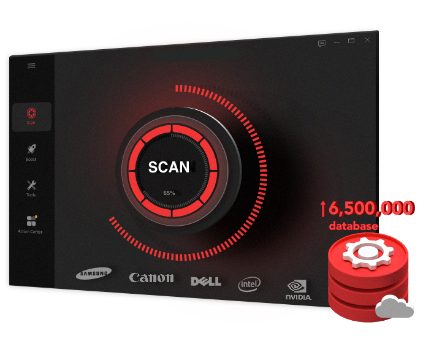
2. Click the large SCAN button on the home interface.
3. Locate your mouse or USB controller drivers in the list and click Update (or click Update Now to refresh all outdated system drivers at once).
4. Restart your computer to complete the process.
Tip: Driver Booster also includes built-in hardware repair tools to help fix device errors and latency issues quickly.
Fixing a lagging mouse on Windows is straightforward once you identify the cause. Checking physical connections, tweaking pointer settings, and updating your device drivers will solve the problem in most cases. However, if the issue persists across multiple computers, the lag may stem from a worn-out sensor or hardware failure, requiring a replacement device.
 People Also Ask
PC stuck on boot screen? Learn how to fix pc stuck on boot screen with proven methods like Safe Mode, SFC scan, and driver updates.
Yes. You can try 3 ways on how to uninstall the Realtek audio driver and reinstall it to solve the problem that PC sound is not working generally.
What do driver updates do? Check this all-in-one guide inside.