

- Support Center
- Multiple Languages
- Language
- Help Us Translate
Expert in
PC Health Solution

All-in-one PC health solution: clean, optimize and secure

Comprehensive PC cleaning, optimization and protection

Keep drivers always up-to-date

More stable performance with less system crashes

Protect millions of computers against malware

Top computer security with full-round protection

Protect against viruses & boost PC performance
Automatically scan and update drivers.
Update game ready drivers for peak gaming performance.
Identify and fix various common of hardware issues.
Boost 30% of system performance for fast & smooth running.

Learn how to check monitor refresh rate in Windows 10/11 and Mac, test it online, change from 60Hz to 144Hz or higher, and fix common display issues.



Check your monitor refresh rate in Windows 10/11 and Mac.
Test your actual refresh rate online with free browser-based tools.
Change your monitor from 60Hz to 120Hz or 144Hz.
Fix common issues when your monitor is stuck at 60Hz.
Check display cables, ports, and graphics drivers for missing refresh-rate options.
To check your monitor's refresh rate, open the display settings and look for the value in Hz. It takes under a minute on Windows or Mac. Below are the steps to verify the actual refresh rate and quick fixes if your screen is stuck at 60Hz.
Windows lets you check your monitor's refresh rate directly in Display settings. Here is how to:
Right-click an empty area of your screen and select Display Settings.
Scroll down and click Advanced display.
Check the Refresh rate (Hz) value under Display information.
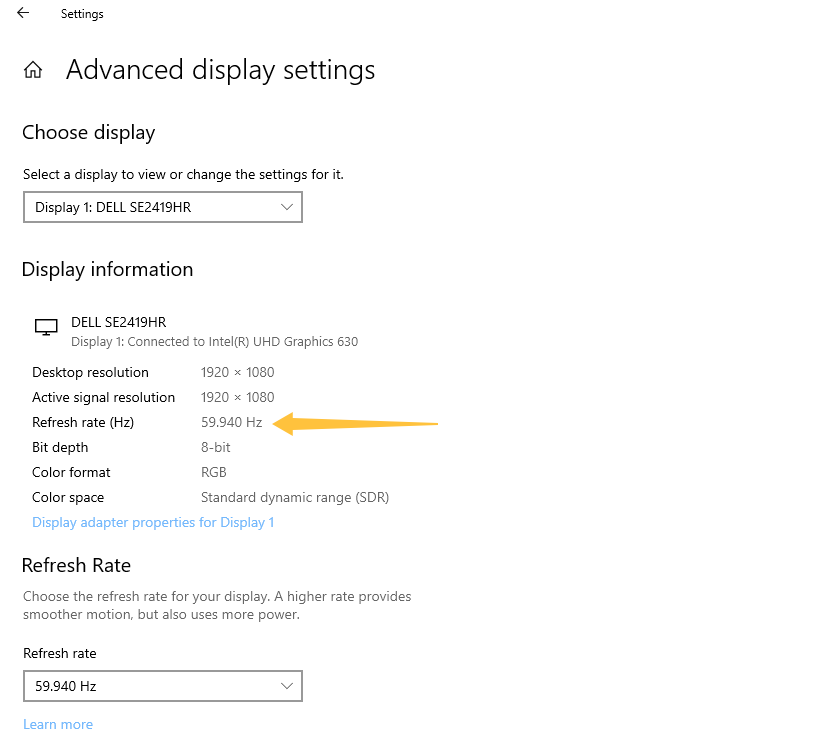
Tip: If you use more than one monitor, pick the right one from the display selector at the top first.
On a Mac, you can check your refresh rate through System Settings:
Click the Apple menu in the top-left corner and select System Settings.
Click Displays in the sidebar.
Open the Refresh Rate drop-down to view your display’s current setting.
Tip: If you cannot find a refresh-rate option, check your Mac and monitor specifications to confirm which settings are supported.
An online refresh-rate test can help you check how your display behaves in real time. You can try browser-based tools like What Is My Refresh Rate or TestUFO Refresh Rate Test. For a more reliable result, close unnecessary browser tabs and applications, and wait a few seconds for the reading to settle.
Online results could vary with browser sync, system load, and other settings, so compare them with your display settings rather than treating them as a definitive hardware measurement.
On Windows 10/11:
Open Advanced display as shown above.
Select 120Hz, 144Hz, or another supported option from Choose a refresh rate.
Click Keep changes.
On a Mac, open System Settings > Displays and choose an available value from the Refresh Rate menu. If the higher option is not available, check the next part.
If your monitor is stuck at 60Hz or higher refresh rate options are missing, several factors could be responsible. Try these checks:
Check the monitor specifications: Confirm that your model supports the refresh rate you want at your current resolution.
Inspect the cable and connection: An older HDMI cable or a port may limit the available refresh rates at certain resolutions. Check your monitor and graphics card documentation for supported connection modes.
Review your display settings: Make sure you selected the correct monitor and resolution. Remember to click Keep changes.
Check your graphics drivers: Outdated or incompatible drivers may cause display issues or missing options. IObit Driver Booster can scan for outdated drivers and simplify the driver-update process. It can also update graphics drivers for games, so your GPU supports the display options you expect. After updating, restart your PC and check Advanced display settings again.
How to check monitor refresh rate? Start with your operating system's display settings, use an online test as a secondary check, and confirm your hardware specifications if the expected refresh rate is unavailable. Open Display settings now and see what your monitor is running at.
 People Also Ask
Learn how to update drivers via CMD in Windows 10/11 with PnPUtil and DISM commands. Back up drivers, fix common errors, or update all drivers automatically.
Why is my second monitor not being detected? Learn the common causes and how to fix a missing second display on Windows, including how to update your monitor driver.
Learn possible causes of why does my computer monitor keeps going black. Get quick solutions to fix random black screen error on Windows.
Discover Tiny10, a lightweight version of Windows 10 built for low-spec devices. Learn its features, benefits, requirements, and limitations.
Forgot your Wi-Fi password? Learn “how to find out my WiFi password” on PC and mobile devices (Windows, Mac, Android, iOS) and easily regain access.
Yes. You can try 3 ways on how to uninstall the Realtek audio driver and reinstall it to solve the problem that PC sound is not working generally.