

- Support Center
- Multiple Languages
- Language
- Help Us Translate
Expert in
PC Health Solution

All-in-one PC health solution: clean, optimize and secure

Comprehensive PC cleaning, optimization and protection

Keep drivers always up-to-date

More stable performance with less system crashes

Protect millions of computers against malware

Top computer security with full-round protection

Protect against viruses & boost PC performance
Automatically scan and update drivers.
Update game ready drivers for peak gaming performance.
Identify and fix various common of hardware issues.
Boost 30% of system performance for fast & smooth running.

Why is my second monitor not being detected? Learn the common causes and how to fix a missing second display on Windows, including how to update your monitor driver.



Check Cables and Connections
Force Windows to Detect the Display
Choose the Right Display Mode
Restart the Graphics Driver
Update Monitor and Graphics Drivers
Why is my second monitor not being detected? It's a common problem for anyone using a dual-screen setup. You plug in the monitor, but the screen stays black or shows "No Signal." The cause can be a loose cable, a wrong display setting, or an outdated driver. Here are a few simple fixes to get your second screen working again.
Start with the basics, because a loose or faulty cable is one of the most common causes.
Make sure the second monitor is turned on and set to the correct input source (HDMI, DisplayPort, or DVI) using its menu buttons.
Unplug the video cable from both the monitor and the PC, then plug it back in firmly.
Try a different cable or a different port on your graphics card.
If you use an adapter or dock, connect the monitor directly to the PC to rule it out.
Sometimes Windows simply doesn't look for the new monitor. You can ask it to search again.
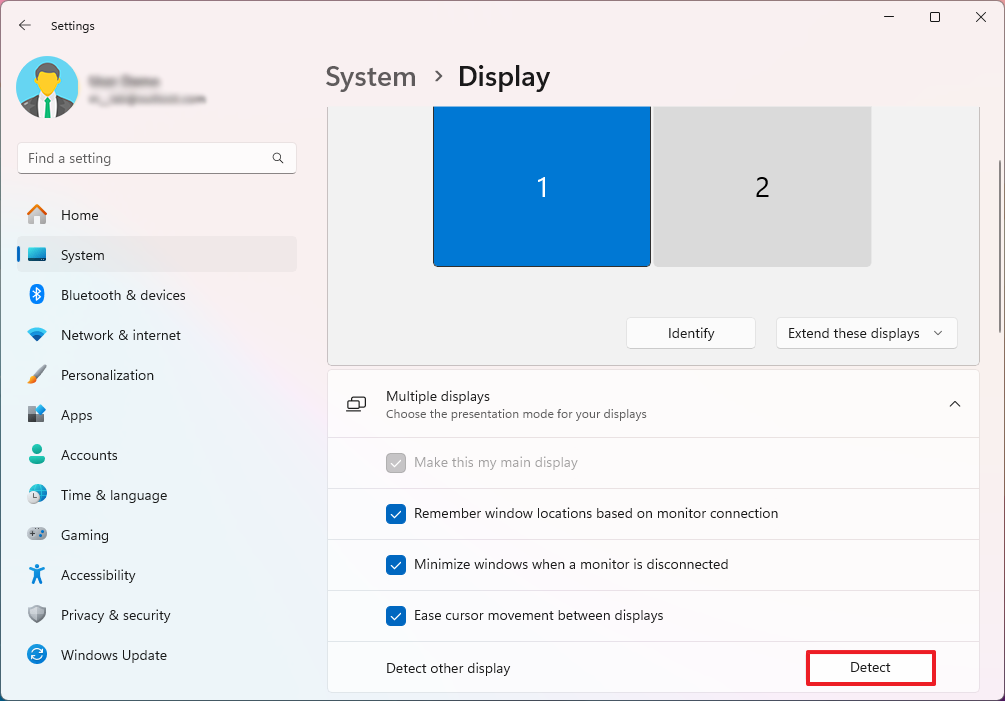
Right-click an empty area of your desktop and select Display settings.
Scroll down and click Multiple displays.
Click Detect (on some versions, Detect other display).
Wait a moment and see if the second screen appears.
Your monitor may be connected but set to the wrong mode, so Windows isn't showing anything on it.
1. Press Win + P to open the projection menu.
2. Select Extend to use both screens as one large desktop, or Duplicate to show the same picture on both.
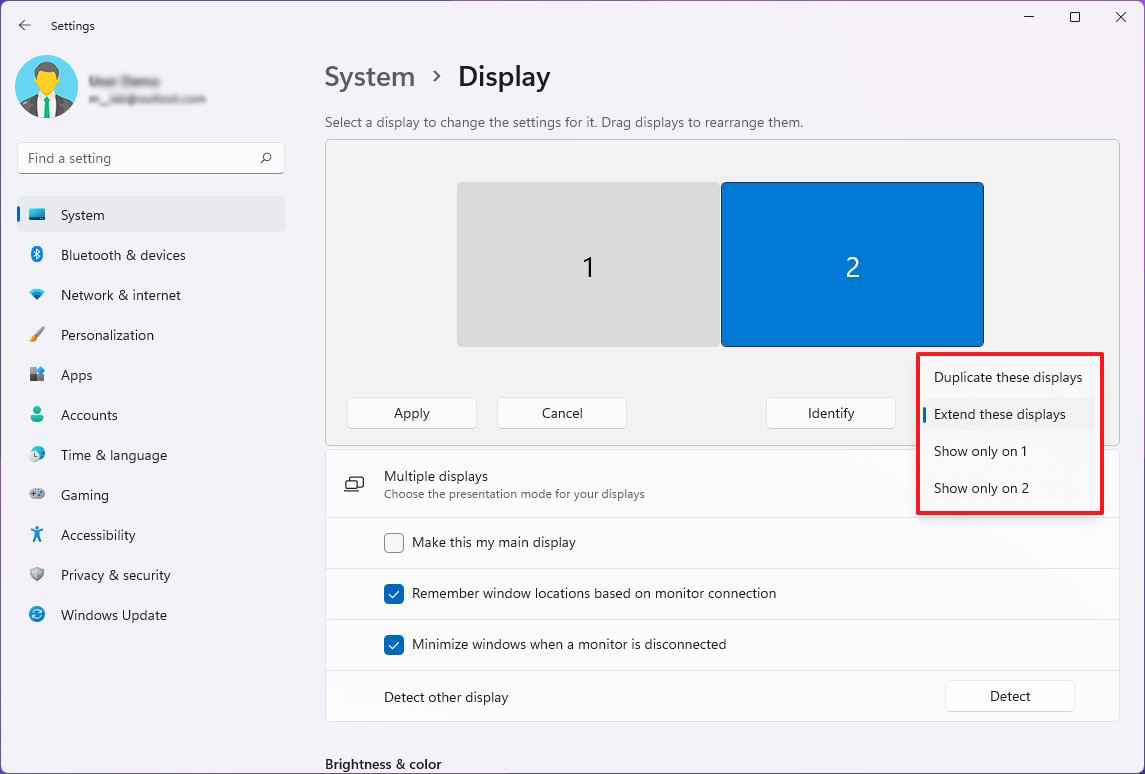
3. Avoid "Show only on 1" and "Show only on 2," which can leave one display blank.
A quick driver refresh can clear temporary glitches that stop Windows from seeing a monitor.
Press Win + Ctrl + Shift + B.
Your screen will flicker for a second and you may hear a beep. This restarts the graphics driver.
Check whether the second monitor is now detected.
Outdated, missing, or corrupted monitor and graphics drivers are leading causes of a second monitor not being detected. Keeping your drivers up to date helps Windows and your hardware communicate properly.
Press Win + X and select Device Manager.
Expand Monitors and Display adapters.
Right-click your monitor or graphics card and select Update driver.
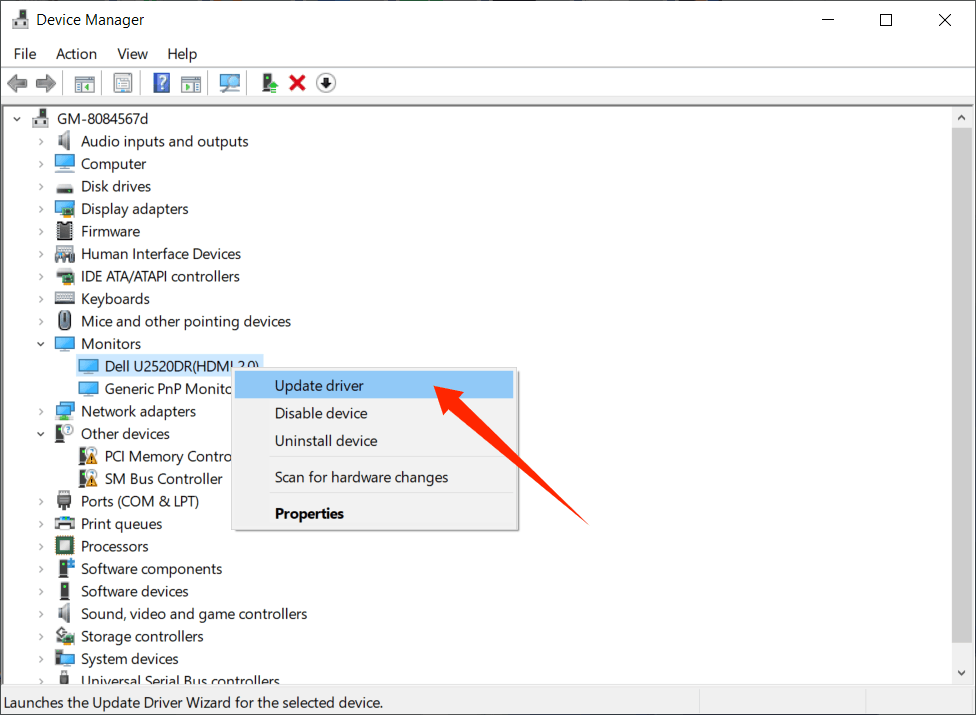
4. Choose Search automatically for drivers, then restart your PC after installation.
An easier option is Driver Booster, a reliable driver updater for Windows. Instead of checking each device by hand, it scans your whole system for outdated, missing, or faulty drivers and installs the latest matching versions in one click.
Step 1. Download and launch Driver Booster.
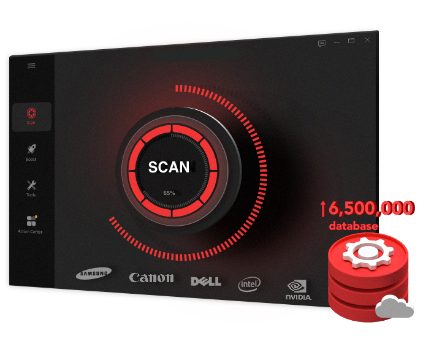
Step 2. Click the large SCAN button on the home screen.
Step 3. Find your monitor and graphics drivers in the list and click Update, or click Update Now to refresh all outdated drivers at once.
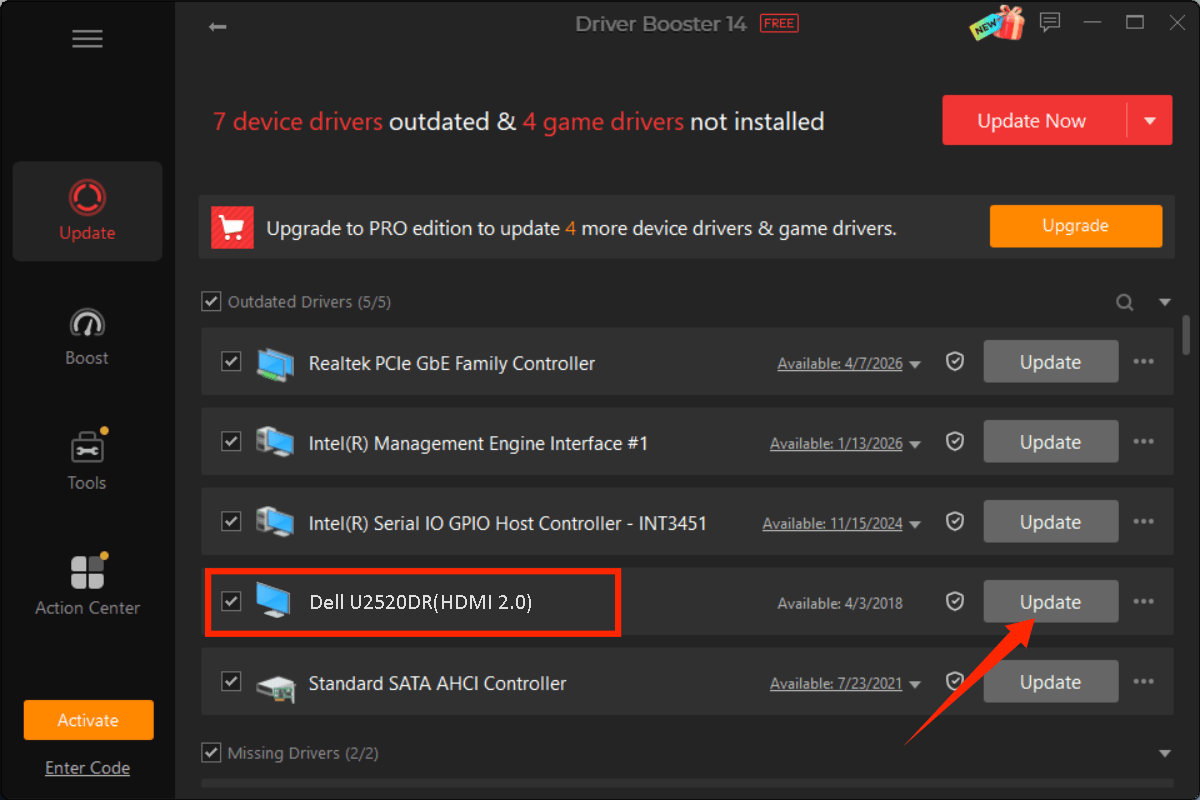
Step 4. Restart your computer to finish the process.
Fixing an undetected second monitor is usually simple once you find the cause. Check your cables, make Windows detect the display, pick the right display mode, and keep your drivers up to date, and that will solve the problem in most cases. If the monitor still isn't detected after all of this, and it also fails on another computer, the monitor or its cable may be faulty and need replacing.
 People Also Ask
Learn possible causes of why does my computer monitor keeps going black. Get quick solutions to fix random black screen error on Windows.
PC stuck on boot screen? Learn how to fix pc stuck on boot screen with proven methods like Safe Mode, SFC scan, and driver updates.
Yes. You can try 3 ways on how to uninstall the Realtek audio driver and reinstall it to solve the problem that PC sound is not working generally.