

- Support Center
- Multiple Languages
- Language
- Help Us Translate
Expert in
PC Health Solution

All-in-one PC health solution: clean, optimize and secure

Comprehensive PC cleaning, optimization and protection

Keep drivers always up-to-date

More stable performance with less system crashes

Protect millions of computers against malware

Top computer security with full-round protection

Protect against viruses & boost PC performance
Complete forced uninstallation for stubborn programs.
Uninstall a batch of programs at once.
Scan and remove leftover files, folders, and registry entries.
Support the management of Universal Windows Platform apps.

Looking for CMD uninstall program steps on Windows 11/10? Follow easy command-line workflows to remove apps quickly and free up disk space from your PC.



How CMD uninstall program works on Windows
How to uninstall programs using winget command
How to troubleshoot CMD uninstall program issues
How to uninstall programs using IObit Uninstaller
How to choose: CMD uninstall vs IObit software removal
Removing software through the command line offers a fast, direct way to manage applications on your PC. CMD uninstall program workflows let you delete unwanted software without navigating multiple GUI menus. This guide walks you through reliable command-line approaches for Windows 11 and Windows 10. You will also learn troubleshooting tips and how to clean residual program data after removal.
Command-line tools do not delete program files directly. Command Prompt uninstall program commands call each app’s native uninstall routine registered in Windows.
Once executed, Windows activates the built-in removal sequence of the target software. Different command tools use distinct system interfaces to finish this task. Standard uninstall processes often leave residual folders and registry entries. Let’s learn how to uninstall programs with CMD.
Windows winget serves as the native package manager built directly into modern Windows systems. It works within Command Prompt to help users uninstall unwanted programs with simple text commands. You skip the regular GUI uninstall menus and remove software in fast, silent, or bulk operations.
Winget pulls official package information and supports straightforward removal tasks. Read the steps below to learn how to uninstall a program using CMD.
Step 1: Type CMD in the Windows search, right-click the best match, and choose Run as administrator.
Step 2: Type winget list and press Enter to list all software installed on your PC.
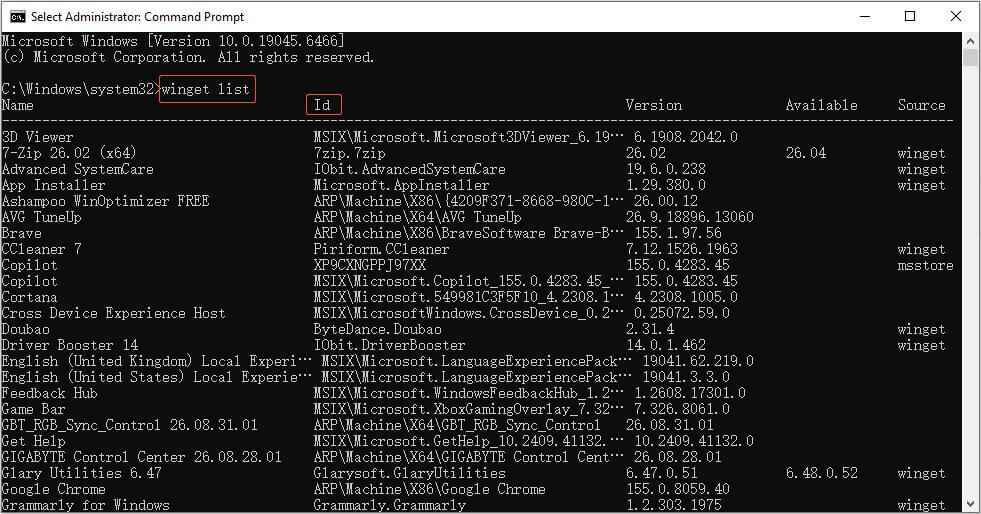
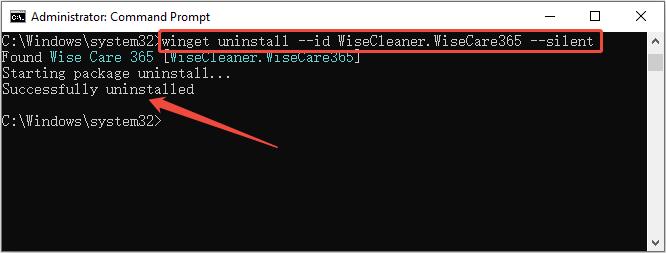
Step 3: Input winget uninstall --id ID --silent and press Enter to uninstall the target software.
Tips: Replace the second ID with your real package ID, as shown in the image below.
CMD uninstall may fail due to syntax errors, permission restrictions, and other common obstacles. Check these matching causes and quick fixes:
Syntax typos → Double-check your command string for incorrect IDs or misspelled words
Insufficient permissions → Launch CMD with administrator privileges
Locked files from running apps → Close or terminate active app processes before uninstall
No command-line uninstall support → Confirm the target program accepts command-line removal
Leftover registry & file traces → Clear residual files and registry entries after removal
Stubborn, corrupted software → Use dedicated uninstall tools for hard-to-remove programs
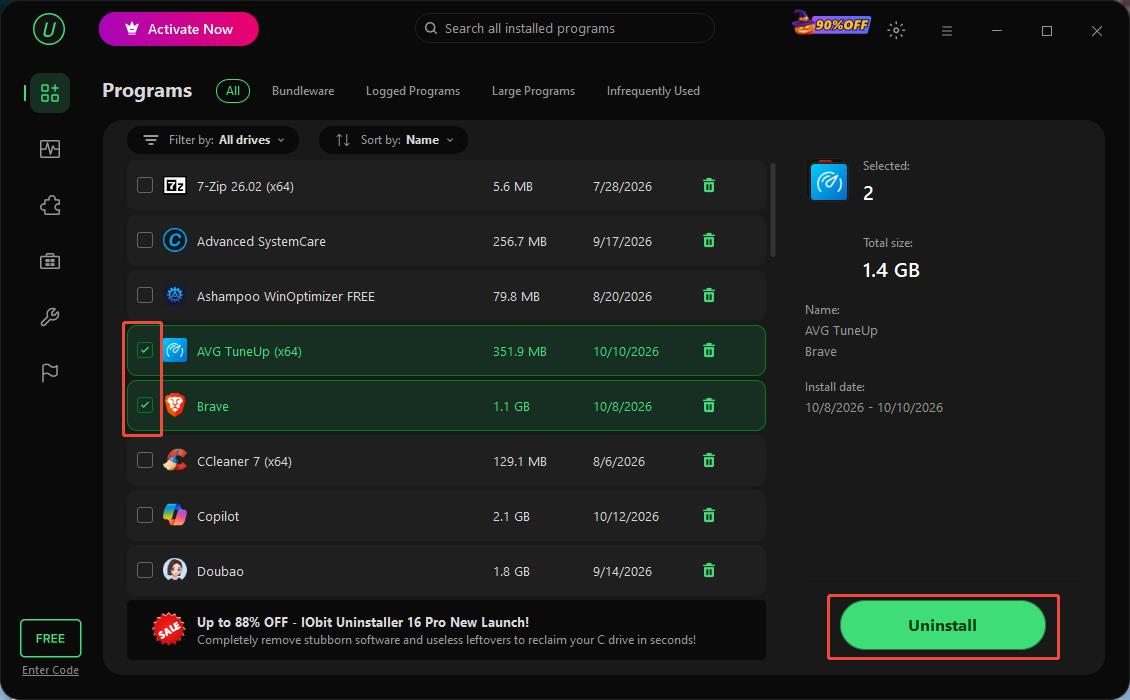
Windows native command-line tools like winget can remove most programs, but they often leave leftover files and registry entries on your system. IObit Uninstaller offers a reliable alternative for full software removal in one click.

It works with both GUI and command-line workflows to uninstall apps, and scans to clean all residual traces after uninstall. This tool handles stubborn apps that fail to remove via CMD. It supports bulk uninstall and force uninstall for damaged programs with missing uninstall entries.
Here are two main ways to delete Windows software: command line uninstall program and IObit Uninstaller. Compare their core differences below to choose the proper one based on your needs.
| CMD Uninstall (winget) | IObit Uninstaller | |
| Dependencies | Native Windows, no extra tools | Requires IObit Uninstaller installation |
| Workflow | Scriptable command-line operation | GUI + CLI support |
| Residual cleanup | No automatic leftover cleanup | Deep scan to erase files and registry traces |
| Stubborn apps | Limited support for corrupted programs | Powerful Uninstall for unremovable software |
| Use case | Bulk & automated uninstall tasks | Complete, thorough software removal |
The Bottom Line
CMD program uninstall delivers fast command-line software removal. Winget works inside CMD for simple uninstall operations. This native tool supports silent and bulk removal tasks but frequently leaves residual files. Use IObit Uninstaller to fully wipe leftover program traces after uninstall.
 People Also Ask
Free up disk space by safe Windows Installer folder cleanup. This guide shows how to use Settings, Disk Cleanup, etc., to remove unwanted installer files.
Stuck with the “This app can’t run on your PC” error? Learn quick fixes, compatibility settings, and advanced ways to make programs run smoothly on Windows.
Why is Windows Defender not turning off? How to remove and uninstall Windows Defender on Windows 11? Can I disable Windows Defender permanently?