How to stop acdsee from auto starting at windows start? ACDSee auto-startup is an annoying issue. When you end its startup program in Windows Task Manager, and then it reappears the next morning again when the PC boots, you know this issue cannot be addressed easily. According to experienced users who successfully stopped ACDSee from endlessly auto-starting, they reveal that this photo editing software seems to have a handful of entries to activate its auto-starting. Let’s take a quick glance:
Automatic update components
Media indexing services
Tray utilities
Preload features for faster startup
Windows update resets your settings in Task Manager
Read on to see all the solutions to stop the annoying startup entries.

Reasons Behind the Stubborn ACDSee Auto Starting at Windows Start
ACDSee is a legitimate photo management software. Auto-start behavior is common for media/database apps. But ACDSee is one of the most complained-about ones due to the excessive entries. Here are some of the reasons that are cited for ACDSee repeatedly auto-starting (info collected from Reddit and ACDSee forums):
This can cause ACDSee to launch again at Windows startup even if you disabled it previously.
It prevents the software from automatically opening when the computer boots into Windows.
These tools are designed to speed up photo access, syncing, or notifications without opening the main app window.
As a result, previously disabled startup behavior may become enabled again after an update.
This behavior helps maintain faster launches, database management, or ongoing background tasks.
How to Stop ACDSee From Auto Starting at Windows Start? Windows Task Manager
If you want to manage all the startup programs, Windows Task Manager is definitely the first thought of most people. This default program lets you preview and confirm which one you want to keep auto-starting and which one you want to ban. But actually, Windows Task Manager can only solve a small portion of readers’ problems since stopping ACDSee from auto-starting via Windows Task Manager is only one entry. ACDSee has more entries to enable its auto-starting. But for most users, this first method should easily cope with the ACDSee auto-starting problem.
Step 1. Press Ctrl + Shift + Esc to access Windows Task Manager.
Step 2. Switch to the Startup apps tab.
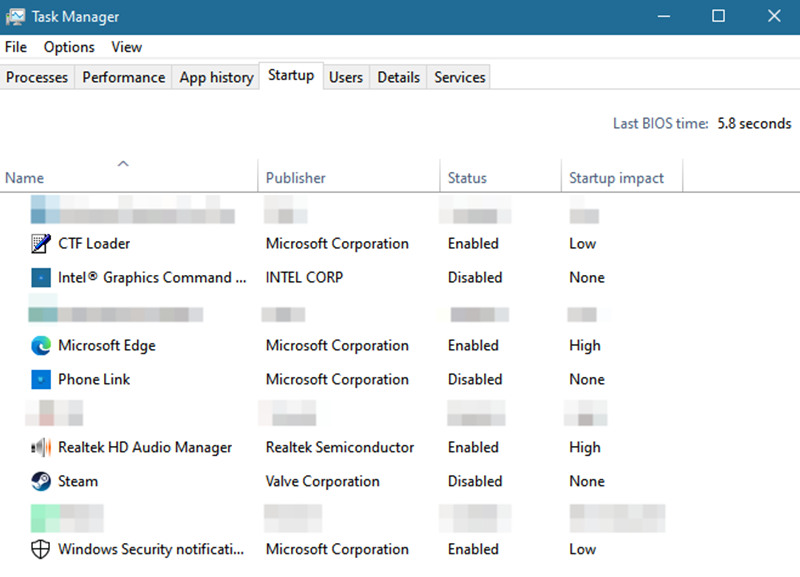
Step 3. Scroll to find the ACDSee related processes, especially pay attention to these processes:
ACDSee
ACDSee Photo Studio
ACDSee InTouch
ACDSee Service
Step 4. Right-click on the entries and select ‘Disable.’
Step 5. Restart your PC to remember the changes.
If ACDSee no longer opens automatically, the issue is solved. But the reality is, ACDSee still auto-starts at Windows start. If your problem is not solved, please read on to find a more powerful solution - via third-party software.
How to Stop ACDSee From Auto-Starting at Windows Start? Disable Using Free Software
Use dedicated system care software to manage your PC’s startup programs. IObit Advanced SystemCare is an all-in-one PC optimization tool that allows you to have root authority to manage all the auto-starting programs.
This specialized program manager detects all malicious auto-starting actions and lists them out for you. The targets, no matter if they are startup software or startup services, can all be ended for good in one click.
What can IObit Advanced SystemCare do?
Stop stubborn browsers from auto-starting
Stop startup services like Google's auto-updating services
Stop scheduled tasks that can activate the disabled auto-starting component
How to use IObit Advanced SystemCare to stop ACDSee from auto- starting?
Step 1. Download IObit Advanced SystemCare for free.
Step 2. From the main interface, switch to the ‘Speed Up’ tab and find the ‘startup optimizer.’
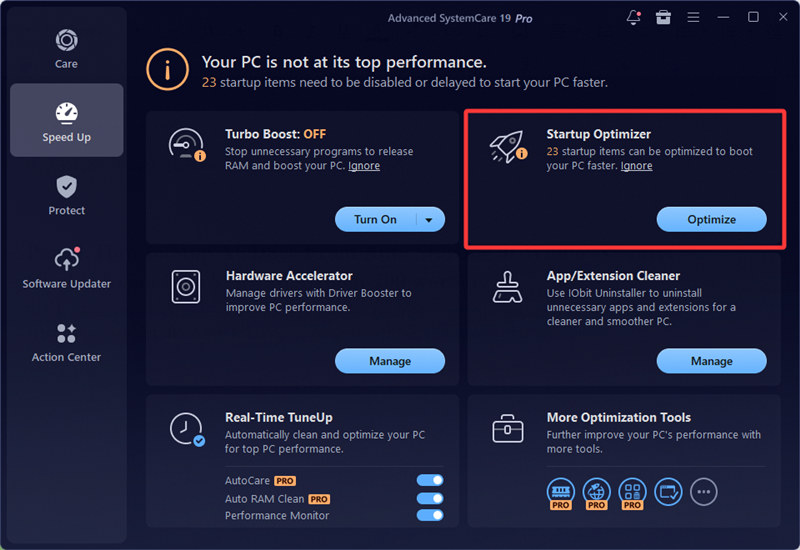
Step 3. Enter this box and wait 30 seconds, and all the startup items, Windows services, scheduled tasks, and browser startups will be all scanned out.
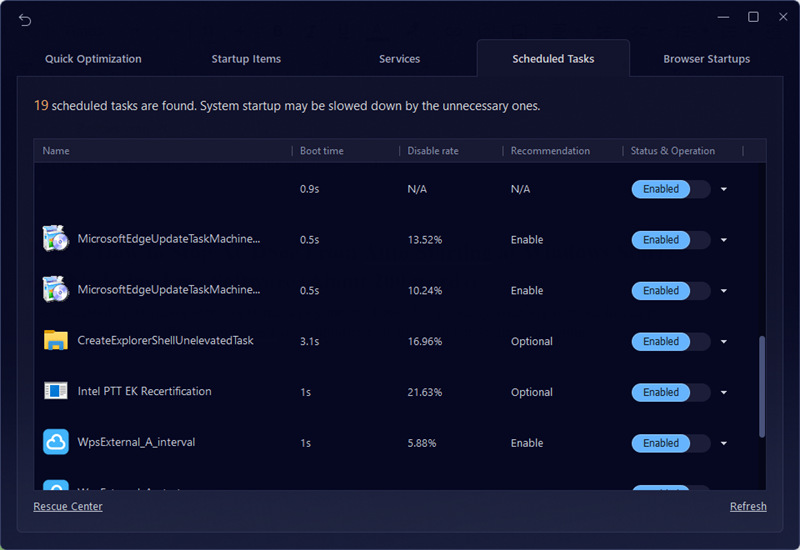
Step 4. Disable any item for free.
IObit Advanced SystemCare’s startup optimizer handles all the most stubborn software, native programs, and plugins. Besides normal startup apps, the tool can also detect hidden startup triggers such as scheduled tasks, background services, registry startup entries, and startup-related processes that are often missed by Windows alone.
How to Stop ACDSee From Auto Starting at Windows Start? Change ACDSee Internal Settings
Disabling auto-start directly inside ACDSee Photo Studio is usually the safest and most stable method. Instead of forcing Windows to block the app, you are telling the software itself not to launch in the background during startup. Common options include “Launch at startup,” “Quick Access,” “Background service,” or “Tray icon.”
Step 1. Open ACDSee.
Step 2. Go to Tools > Options > General.
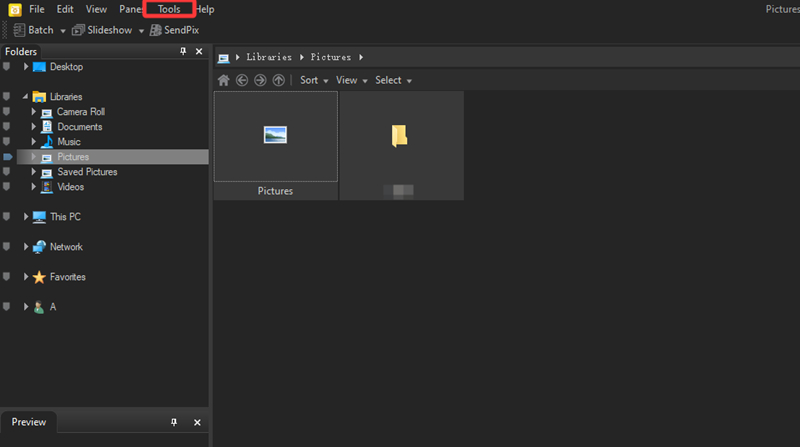
Step 3. Find these startup-related options below:
Step 4. Disable these options and restart your PC.
How to Stop ACDSee From Auto Starting at Windows Start? Manual Delete Scheduled Tasks
Some versions of ACDSee create scheduled tasks in Windows Task Scheduler to launch automatically at startup. Manually deleting these tasks can completely stop ACDSee from running in the background when Windows boots, especially when normal startup disabling methods do not work. This method is effective for stubborn auto-start issues and gives you full control over hidden startup entries.
However, it requires some advanced Windows knowledge, and deleting the wrong scheduled task could affect system functions. In some cases, future ACDSee updates may also recreate the task automatically.
Step 1. Press Win+R to open the Run Command.
Step 2. Input taskschd.msc to open Windows Task Scheduler.
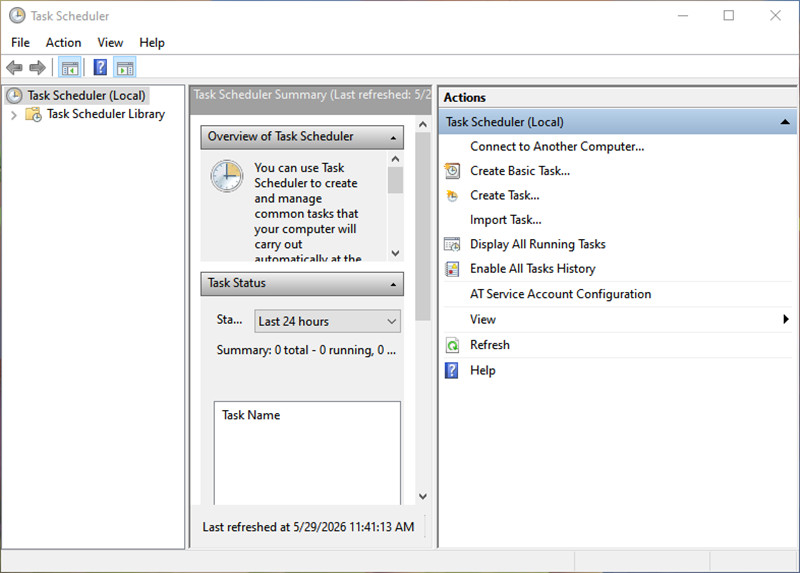
Step 3. Scroll to see all ACDSee-related tasks.
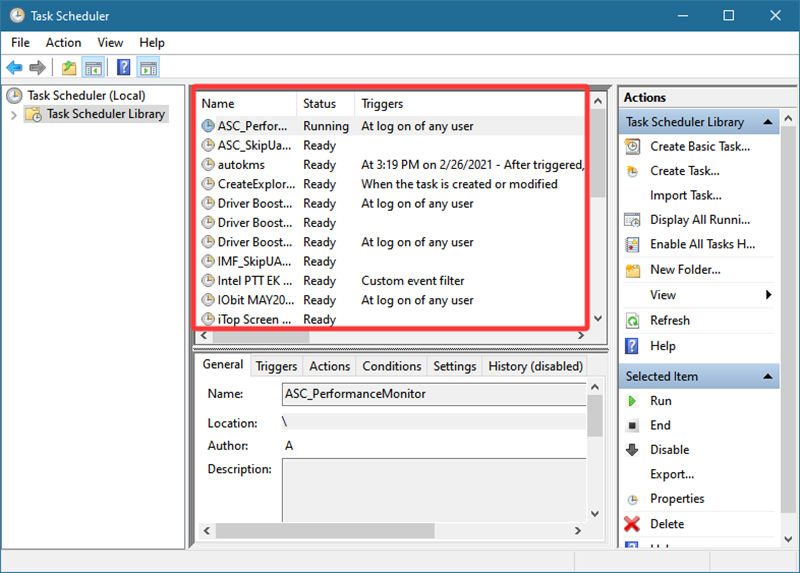
Step 4. Right-click on the tasks and then disable them.
Conclusion
How to stop acdsee from auto starting at windows start? ACDSee auto startup is usually caused by startup entries, background services, scheduled tasks, or hidden helper processes running in Windows. In most cases, disabling the app in Task Manager or adjusting ACDSee’s internal startup settings is enough to stop it from launching automatically. However, some stubborn startup behaviors may require deeper cleanup through Services, Task Scheduler, or advanced tools like Autoruns. If you want an easier all-in-one solution, IObit Advanced SystemCare can help detect hidden startup items, optimize boot performance, and manage troublesome background processes automatically. Try it to keep your PC startup cleaner, faster, and more stable.
Advanced SystemCare Free
- Clean: 420 billion traces removed & 85 EB junk files cleaned
- Protect: 80 million unauthorized access blocked & 20 million bugs fixed
- Speed Up: 6 million hours of startup time saved & Turbo boost
- Optimize: Auto clean and auto care your PC with AI mode