Have you ever started a large game download, a video render, or a system backup late at night, only to discover that you need to keep your computer working until dawn? Many users are upset by long-running PC processes and are unable to stay awake or wait long enough to manually turn off the computer. How to automatically turn off PC after certain time? This article will walk you through numerous tried-and-true techniques for setting up a shutdown timer, including automated repeating schedules and manual one-time configurations, to clear up any uncertainty for good.
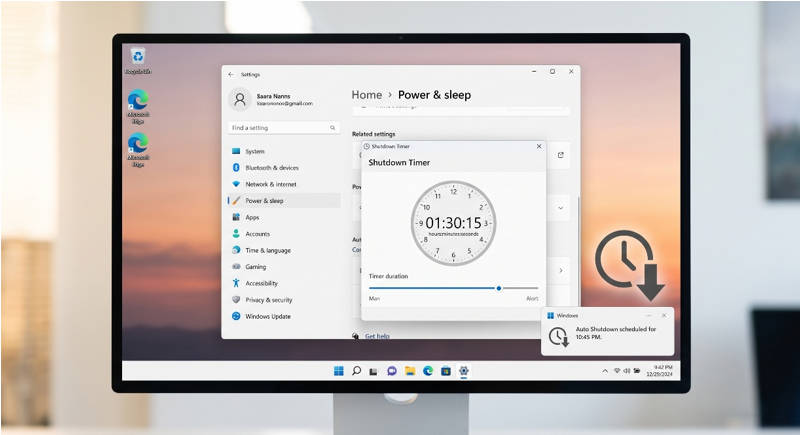
Shutdown Timer: When You Need It & Risks of Not Using It
Sometimes you have to leave a desktop or gaming machine running unattended, but doing so on a frequent basis leads to unnecessary wear and power waste. Here are the most prevalent cases when it becomes a must to put up a shutdown timer for computer:
Running large file downloads, online backups, or video exports that take forever to finish when you walk away or go to sleep.
Running overnight disk defragmentation, virus scans, or system update installations.
Limit total screen time for children or manage shared family workstations.
Playing background music or ambient sounds to fall asleep without keeping the display and hardware on until morning
Failing to schedule a PC shutdown timer can cause real hardware and system issues:
Excessive component wear: 24/7 operation shortens fan, PSU and storage lifespan.
Thermal buildup: Dust blocks airflow; unattended heavy rendering causes overheating.
Wasted electricity: Persistent idle power use raises monthly power costs.
System bloat: Reboots clear memory, apply updates and fix Windows 11 100% disk usage.
Don’t expose your PC to these risks. Set up a PC shutdown timer now using either Windows built-in functions or dedicated optimization software.
Way 1: Set a Recurring Shutdown Timer Using Advanced SystemCare
While manual Windows tricks work for a single session, setting them up every night quickly becomes tedious. When you want a smooth, automated solution, using dedicated optimization software is the easiest way forward. Advanced SystemCare offers an all-in-one approach to schedule recurring power actions without messing with technical scripts.
Advanced SystemCare Free
- Clean: 420 billion traces removed & 85 EB junk files cleaned
- Protect: 80 million unauthorized access blocked & 20 million bugs fixed
- Speed Up: 6 million hours of startup time saved & Turbo boost
- Optimize: Auto clean and auto care your PC with AI mode

Auto Shutdown Timer Functions & Other Practical Tips
Advanced SystemCare comes with a built-in auto shutdown utility for easy power management. Essentially the software allows you to arrange your PC to shut down, resume, hibernate or sleep depending on daily schedules, preset countdowns or idle situations.
Furthermore, it is the best PC optimizer since it clears off clutter and manages background startup items to increase overall system performance. What’s more, As a hard disk cleaner, it can wash the remnant cache files, logs, and temp data before shutting down.
Also, its auxiliary tools, such as Turbo Boost, Startup Optimizer, Real-Time TuneUp, can free up RAM and optimize startup programs to ensure active tasks complete smoothly without memory freezes.
Steps to Schedule PC Shutdown in Advanced SystemCare
Follow these simple steps to automate your daily or recurring shutdown schedule using Advanced SystemCare.
Step 1. Free download and install Advanced SystemCare, then launch the program on your desktop.
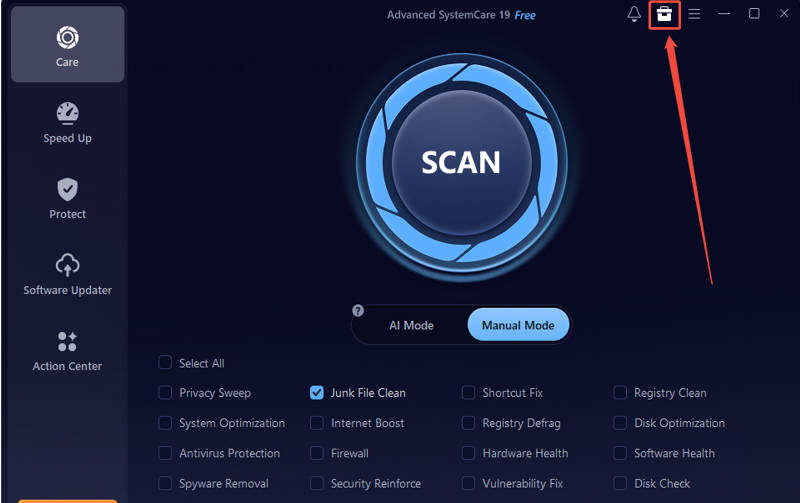
Step 2. Navigate to the Toolbox tab located on the top navigation bar to access the built-in system management utilities.
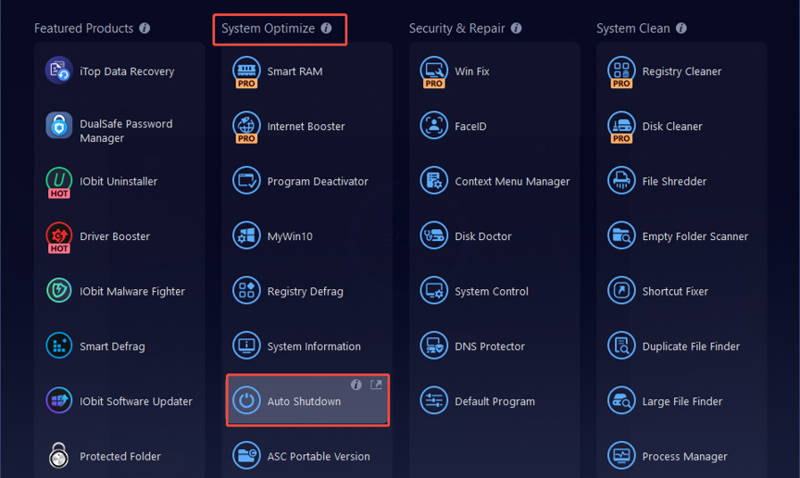
Step 3. Under the System Optimize section, locate and click on the Auto Shutdown utility to open the configuration window.
Step 4. Click Add a Task. In the Auto Shutdown window, choose your schedule type, such as "Every day" or "Weekly," and set your desired target time.
Step 5. Then select Shut down as your primary action. Click the Create button to activate your automated schedule.
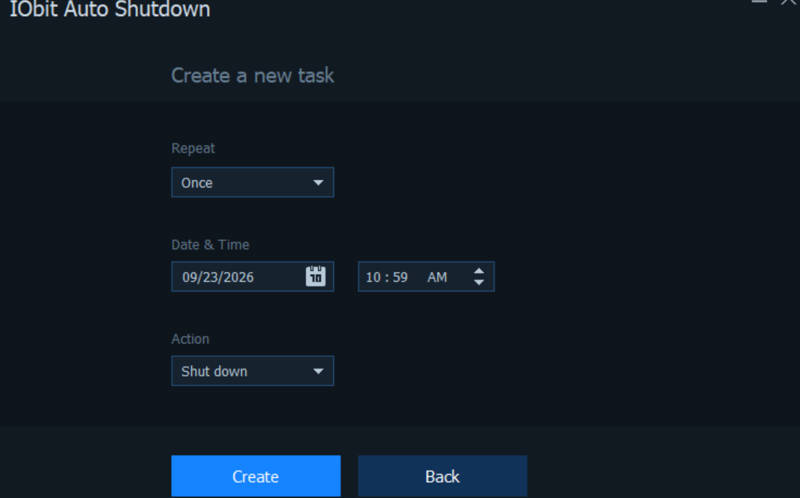
Once active, your PC will safely close apps and shut down on time. To further improve performance, you can also run a quick PC performance test within the toolbox to check system health.
Don’t forget to download Advanced SystemCare today to automate your shutdown routine and optimize your PC with one click.
Way 2: Shutdown Timer Command 1 - Use Command Prompt
If you prefer using built-in Windows shutdown command timer for a quick, one-time schedule, Command Prompt is a fast option. Using a direct CMD shutdown timer provides a reliable zero-install solution whenever you step away.
Step 1. Press Win + S, type cmd, and press Enter to launch the Command Prompt window.
Step 2. Type shutdown after 1 hour command: shutdown -s -t 3600 into the console and press Enter to execute shutdown timer command prompt.
Tips: The value 3600 represents the duration in seconds (shutdown timer 1 hour). You can replace this number with any duration you need.
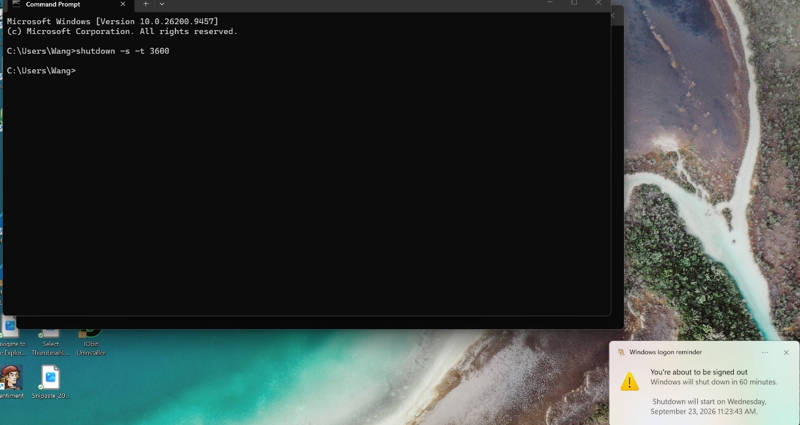
Windows will display a desktop notification confirming that your computer will turn off after the specified time.
Tips: If you need to cancel this action later, simply open Command Prompt again, enter shutdown -a, and hit Enter.
Way 3: Shutdown Timer Command 2 - Use Windows PowerShell
Windows PowerShell is another Windows shutdown command timer. For users seeking a lightweight native method, this built-in automatic shutdown command timer for Windows 10 and 11 requires no extra software.
Step 1. Right-click the Start menu icon or press Win + X, then choose Terminal or Windows PowerShell.
Step 2. In the PowerShell prompt, enter shutdown in 2 hours command: shutdown /s /t 7200 and press Enter. This tells Windows to initiate a complete system shutdown in 7,200 seconds (shutdown timer 2 hours).
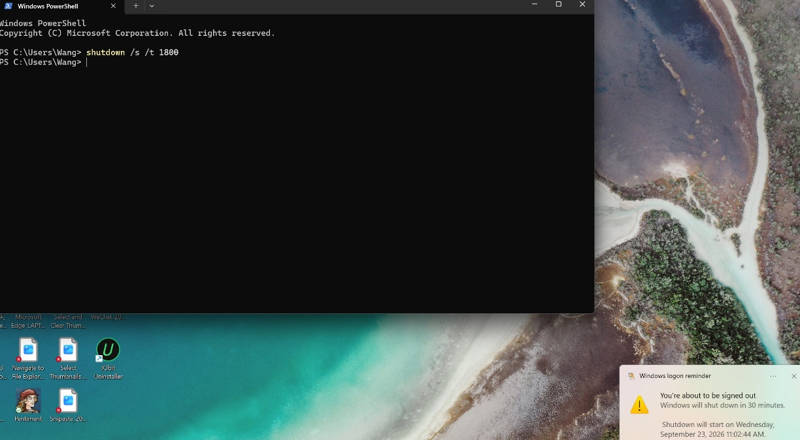
A pop-up notification will appear in the lower-right corner of your screen, letting you know the schedule is active. To abort the shutdown, type shutdown /a and press Enter.
Way 4: Set Shutdown Timer Through Task Scheduler
Windows Task Scheduler is an ideal cmd shutdown timer if you want to create recurring automated power routines natively without keeping command terminals open.
Step 1. Press Win + R, type taskschd.msc, and press Enter to launch the Task Scheduler.
Step 2. In the Actions panel on the right side, click Create Basic Task.
Step 3. Enter a clear name, such as "Nightly PC Shutdown," and click Next.
Step 4. Choose your preferred trigger (such as Daily or Weekly), set the specific trigger time, and click Next.
Step 5. Select Start a program as the action. In the Program/script box, enter shutdown.exe.
Step 6. In the Add arguments field, type auto shutdown command: /s /f /t 0, then click Next followed by Finish.
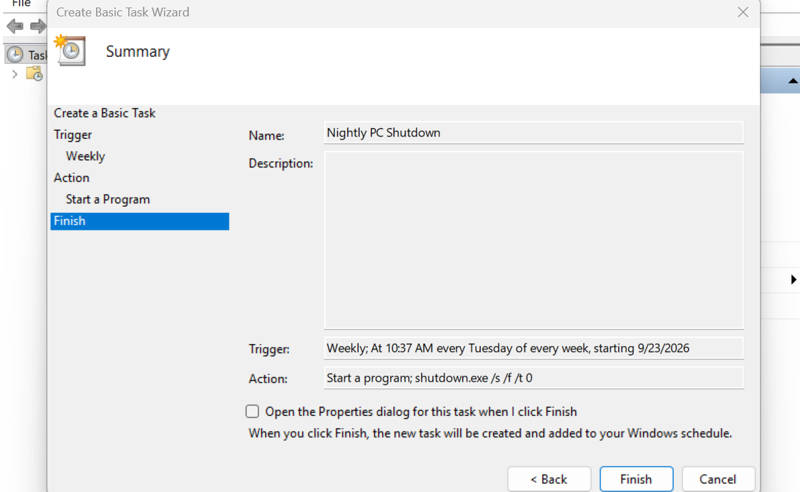
Your computer will now execute the power-off sequence reliably at your selected time every day.
Way 5: Set Shutdown Timer by Creating a Desktop Shortcut
If you frequently shut down your machine after a specific duration, setting up a clickable desktop shortcut saves you from typing terminal commands every time.
Step 1. Right-click any empty space on your desktop, hover your cursor over New, and choose Shortcut.
Step 2. In the location field, type auto shutdown command: shutdown -s -t 7200 (shutdown timer 2 hours), and click Next.
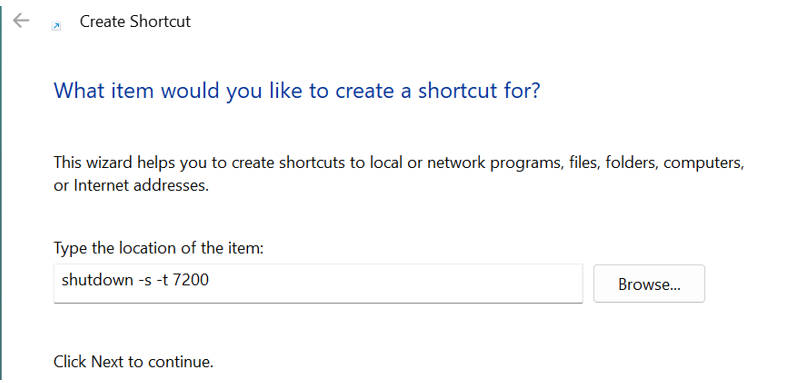
Step 3. Name your shortcut something recognizable, such as "2-Hour Shutdown Timer," and click Finish.
Step 4. (Optional) Right-click your new shortcut, select Properties, click Change, and choose the classic red power button icon for easy recognition. Whenever you need that timer, double-click the shortcut to activate it.
Bonus: How to Force a Shutdown (Even If Programs Are Running)
Occasionally, stubborn background processes, frozen spreadsheets, or unsaved dialog boxes can block Windows from shutting down normally, keeping your monitor and fans running all night. Here is how to force an immediate power-off that overrides frozen applications.
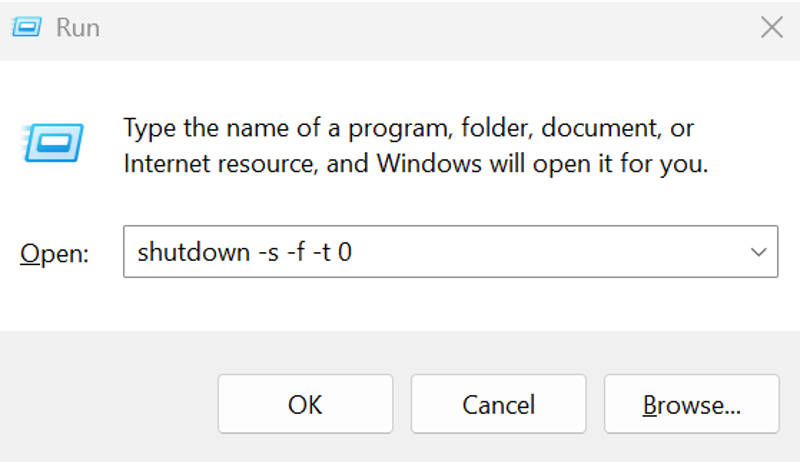
Step 1. Press Win + R on your keyboard to bring up the Windows Run dialog box.
Step 2. Type shutdown timer command: shutdown -s -f -t 0 into the box and press Enter to force shutdown your PC.
Final Thought
An automated shutdown timer removes the pain of waiting for long downloads or risking extra hardware wear overnight. While Windows terminal commands and shortcuts handle quick manual tasks, dedicated auto shutdown Windows 10/11 software like Advanced SystemCare gives you complete freedom with flexible, recurring schedules and one-click maintenance. Learn these techniques today to protect your hardware, cut down on energy waste, and take complete charge of your everyday PC power routine.