High RAM usage is one of the most common reasons that make your Windows PC slow. You might find memory fills up, apps take longer to open, multitasking becomes sluggish, and the system may freeze. This is when a memory cleaner comes into play, which helps release temporary data from RAM to make your computer run more efficiently.
It is important to note that memory cleaning targets RAM (random access memory), not disk storage on your hard drive. In this guide, you can discover 5 practical methods to free up memory. Read on to learn more about the built-in Windows tools and an automatic solution that truly works.
What Is a Memory Cleaner and Do You Really Need One?
A memory cleaner tool is software that can identify and release RAM occupied by inactive programs or background tasks. Even though Windows already manages memory automatically, the system can become overloaded when too many apps are running at the same time. For Windows 11 users experiencing frequent high RAM usage, a dedicated RAM optimizer for Windows 11 can also help manage memory more efficiently.
Here are the signs that you need to clean memory on PC:
Consistently High RAM Usage: Task Manager shows memory above 80-90% even when only a few programs are open.
Slow Multitasking: It feels unresponsive when switching between apps.
Apps Freezing or Lagging: Programs stutter or take a long time to respond.
Too Many Background or Startup Apps: Numerous processes launch with Windows and then stay resident in memory.
A memory cleaner cannot increase your physical RAM capacity. It only frees resources that are being held unnecessarily. So, how do you clean RAM on your PC? Read on to find the 5 proven methods.
How to Clean Memory on PC: 5 Effective Methods
To clean memory on your PC, you can use Windows built-in tools, adjust system settings, or try a dedicated Windows memory cleaner. A reliable Windows optimizer can also help manage unnecessary background activity and improve overall system performance. Here are five effective methods to try.
Method 1. Free Up Memory with Task Manager
Task Manager is a built-in memory cleaner Windows tool that shows how much RAM each application and process is using. You can close unnecessary apps that consume unusually large amounts of memory and reduce the number of programs that launch automatically when Windows starts.
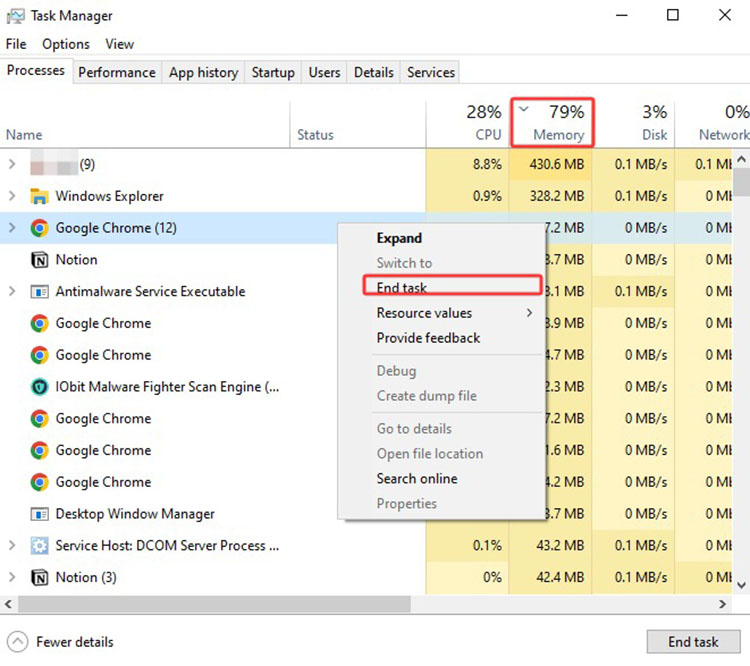
Close Apps Using Too Much Memory:
Task Manager helps you identify which applications are taking up the most RAM. Before ending a task, make sure you have saved any open work. Do not end unfamiliar Windows system processes, which might affect system stability.
Step 1. Press Ctrl + Shift + Esc to open the Task Manager.
Step 2. Select the Processes tab and click the Memory column to sort running processes by RAM usage.
Step 3. Identify applications that use more memory than expected. Select the app and click End task.
Disable Unnecessary Startup Programs:
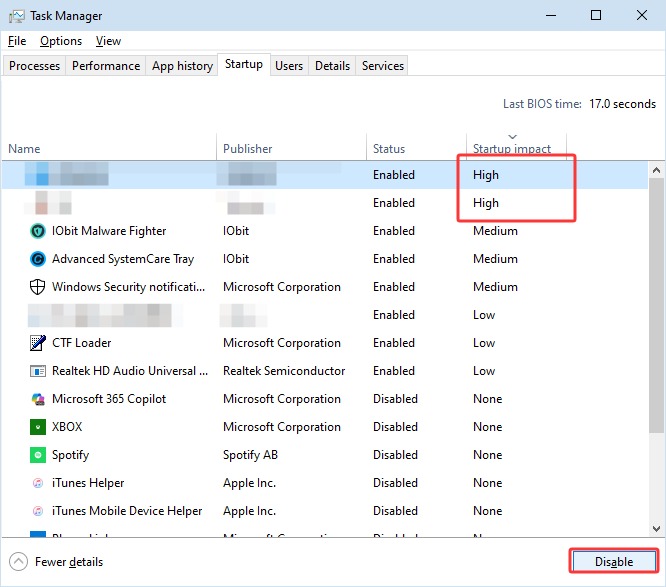
Some applications might automatically launch when Windows starts and continue running in the background. You can disable programs you rarely need to reduce background memory usage and make startup smoother.
Step 1. Still use the Task Manager. Select Startup from the top menu.
Step 2. Check each program's startup impact. Decide whether you need it to launch automatically.
Step 3. Select the app you don't want to auto-launch and click Disable. Do not disable essential security software and programs at startup.
Method 2. Reduce Browser Memory Usage
Your web browser can consume substantial RAM when you keep too many tabs open or use multiple extensions. Background browser processes can also continue using memory even when you are not actively browsing. You will need to reduce browser activity to free up RAM. Here, we will use Google Chrome as an example.
Step 1. Open Chrome. Close tabs you no longer need, especially those running video, games, or resource-heavy content.
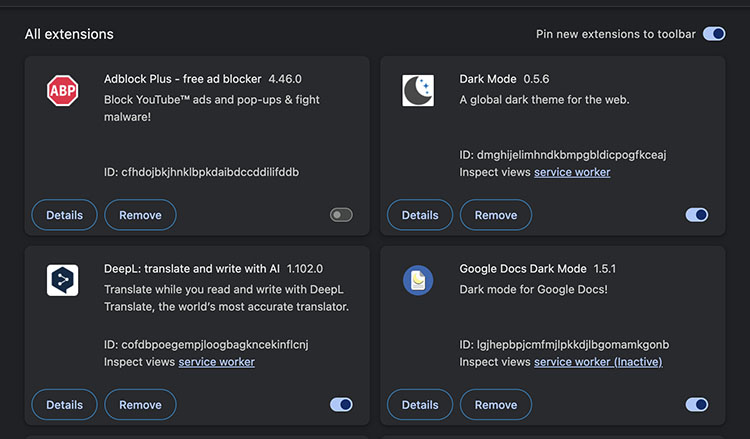
Step 2. Open your browser's extensions page and remove extensions you rarely use.
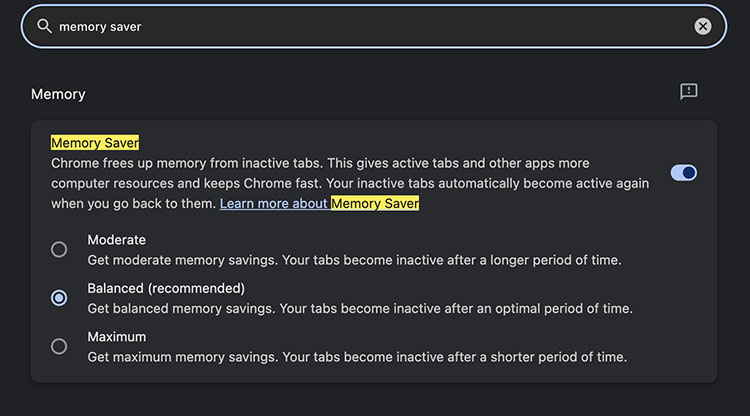
 Step 3. Go to Chrome's settings and search for Memory Saver, choose Balanced or Maximum based on your needs.
Method 3. Restart Windows to Release Temporary Memory
In many cases, restarting Windows can fix some temporary glitches on your PC. It can also close accumulated processes and release RAM temporarily occupied by applications and background tasks. Here's how.
Step 1. Save your open documents and close any applications you are using.
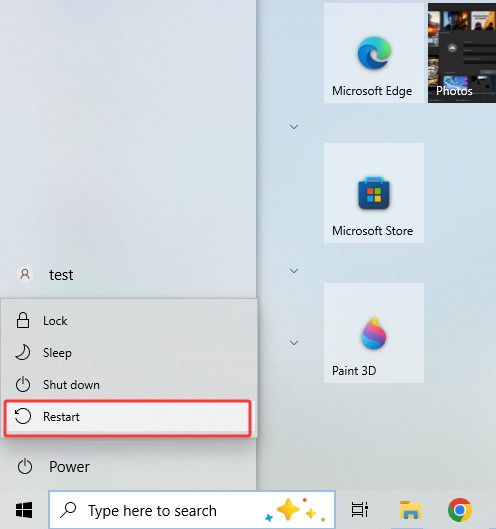
Step 2. Click Start, select Power, and choose Restart. After that, check RAM via Task Manager again.
Method 4. Adjust Virtual Memory When RAM Is Frequently Full
When physical RAM is heavily used, Windows can use a paging file on your storage drive as virtual memory. This does not increase physical RAM, but it can help Windows handle temporary memory pressure and reduce out-of-memory errors. In most cases, Windows should manage the paging file automatically.
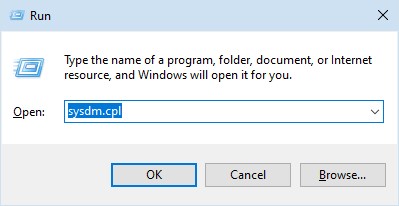
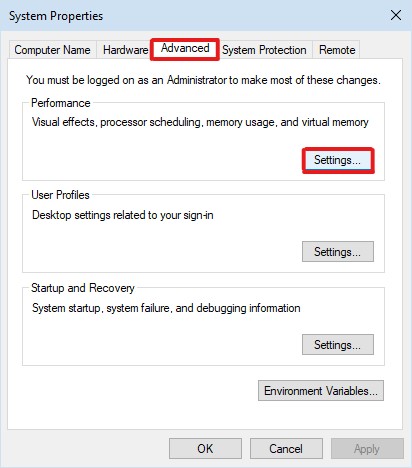
Step 1. Press Win + R, type sysdm.cpl, and press Enter to open System Properties.
Step 2. Open the Advanced tab and click Settings under Performance.
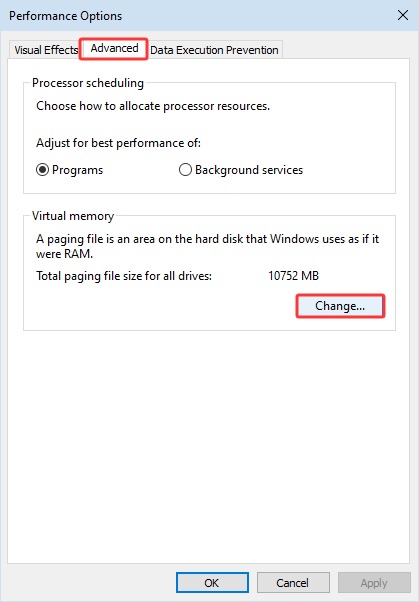
Step 3. Open Advanced > Virtual memory > Change.
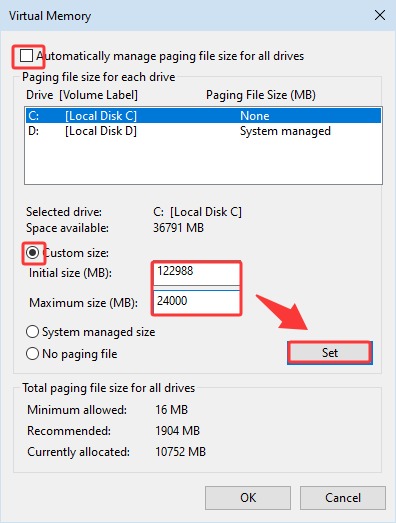
Step 4. Make sure Automatically manage paging file size for all drives is enabled. Restart Windows if you changed the setting.
Method 5. Use Advanced SystemCare as a Windows Memory Cleaner
While the previous methods help to release RAM, they can be time-consuming and challenging for beginners. If you regularly experience high RAM usage, Advanced SystemCare is a more convenient solution. This powerful PC optimization tool can identify resource-heavy processes, release occupied memory, and reduce unnecessary background activity.
Advanced SystemCare Free
- Clean: 420 billion traces removed & 85 EB junk files cleaned
- Protect: 80 million unauthorized access blocked & 20 million bugs fixed
- Speed Up: 6 million hours of startup time saved & Turbo boost
- Optimize: Auto clean and auto care your PC with AI mode

As a solid memory cleaner for Windows, Advanced SystemCare provides several tools to help manage system resources:
Real-time TuneUp – Monitor and Optimize Memory: Monitors RAM and CPU usage and helps optimize system resources in the background.
Turbo Boost – Release Resources for Active Tasks: Temporarily stops nonessential services and background apps to free resources for demanding tasks.
Startup Optimizer – Reduce Startup Memory Usage: Identifies unnecessary startup items and lets users disable or delay them to reduce resource usage.
Performance Monitor – Track System Resource Usage: Displays RAM, CPU, and disk usage in real time to help identify resource-heavy processes.
To evaluate your PC's overall performance beyond RAM usage, you can also run a PC performance test to identify potential system bottlenecks.
Memory Clean Windows with Advanced SystemCare:
Step 1. Download Advanced SystemCare for free, install it on your PC, and launch the app.
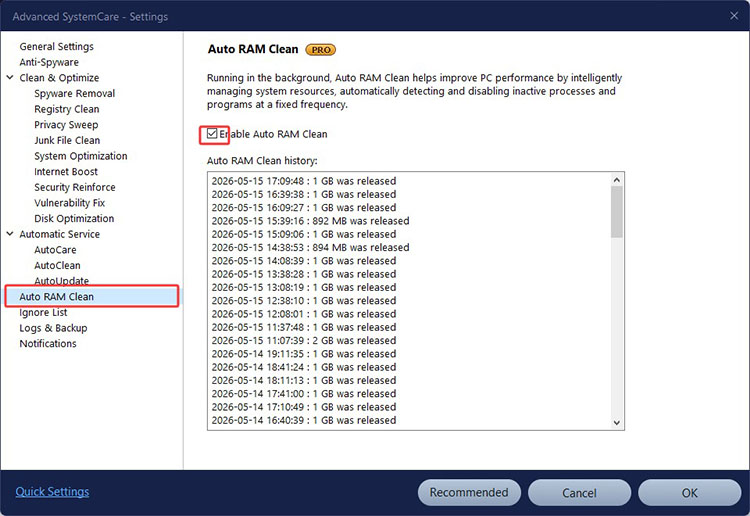
Step 2. Go to Speed Up > Real-Time TuneUp and turn on Auto RAM Clean.
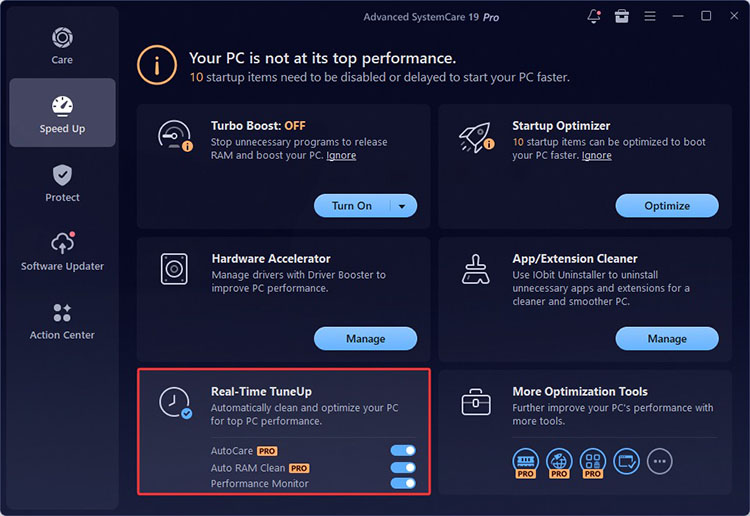
Step 3. Click the three-line menu icon in the top-right corner and select Settings > Auto RAM Clean. Check Enable Auto RAM Clean to activate automatic memory cleaning.
When a Memory Cleaner Cannot Fix High RAM Usage
A memory cleaner can reduce unnecessary RAM usage, but it cannot resolve every memory-related problem. Here are some of the common issues:
Memory Leaks: An application keeps using more RAM over time.
Malware or Unwanted Background Software: Hidden or malicious programs may run background processes that consume your system memory.
Too Many Resource-Heavy Programs: Running several demanding applications at once can exceed your available RAM.
Insufficient Physical RAM: Your PC may not have enough installed memory to handle your usual workload.
Malfunctioning Applications: A faulty application may consume excessive RAM or continue running processes unnecessarily.
If RAM usage quickly climbs again after cleanup, investigate the underlying cause and consider upgrading your physical RAM if necessary. If your PC also experiences slow online performance, you can explore ways to boost internet speed on PC.
Conclusion
How to manage and optimize RAM? Generally, you can close unnecessary applications, disable startup programs, reduce browser activity, restart Windows, and adjust virtual memory settings. While these manual methods work well for occasional optimization, they can be time-consuming and inconvenient. If you prefer a simpler fix, Advanced SystemCare offers memory monitoring, RAM optimization, and startup management tools in one place, making it a convenient memory cleaner for Windows. Just use it to optimize system resources and keep your PC running smoothly!
Advanced SystemCare Free
- Clean: 420 billion traces removed & 85 EB junk files cleaned
- Protect: 80 million unauthorized access blocked & 20 million bugs fixed
- Speed Up: 6 million hours of startup time saved & Turbo boost
- Optimize: Auto clean and auto care your PC with AI mode