How to keep your information safe online? The internet makes work, shopping, learning, and entertainment easier than ever, but it also exposes users to scams, malware, phishing websites, and privacy risks. If you're wondering how to stay safe on internet, you're not alone. More people are looking for practical ways to protect themselves while browsing without needing advanced technical knowledge.
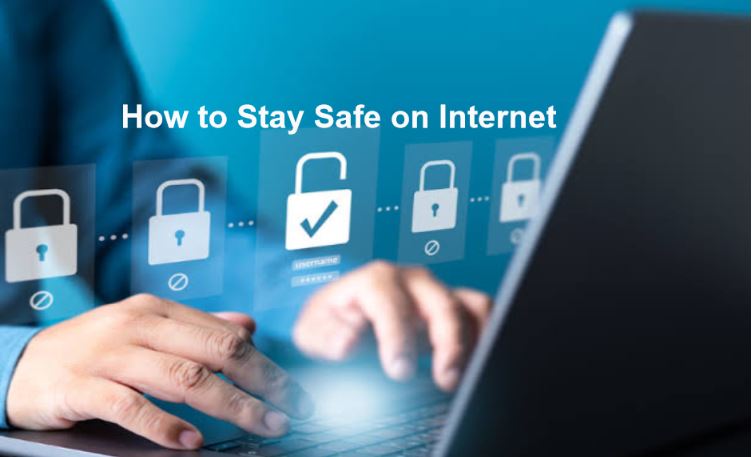
Learning how to be safe using internet doesn't have to be complicated. By following a few simple habits and keeping your computer well maintained, you can significantly reduce online risks. This guide explains how to browse the internet safely while protecting your personal information and privacy every day.
What Are the Biggest Risks When Using the Internet?
Before learning how to stay safe on internet, it's important to understand what you're protecting yourself from. Cyber threats have become more sophisticated, and even everyday browsing can expose users to unnecessary risks.
Some of the most common online dangers include:
Phishing websites that imitate legitimate services to steal passwords or payment information.
Malware and ransomware hidden inside downloads, email attachments, or fake software installers.
Browser tracking through cookies, advertising scripts, and online trackers that collect browsing habits.
Identity theft caused by weak passwords or leaked personal information.
Fake downloads from unofficial websites that install unwanted programs.
Public Wi-Fi risks, where unsecured networks make it easier for attackers to intercept data.
Understanding these threats is the first step toward how to stay safe on internet and build safer browsing habits. Then, what is the next? Keep reading.
12 Simple Tips to Browse the Internet Safely
Staying safe online isn't about relying on a single security tool - it's about building smart daily habits. Whether you're shopping, working, or simply browsing, the following safe surfing tips can help reduce online risks and make how to browse the internet safely much easier to put into practice.
1. Use Strong and Unique Passwords
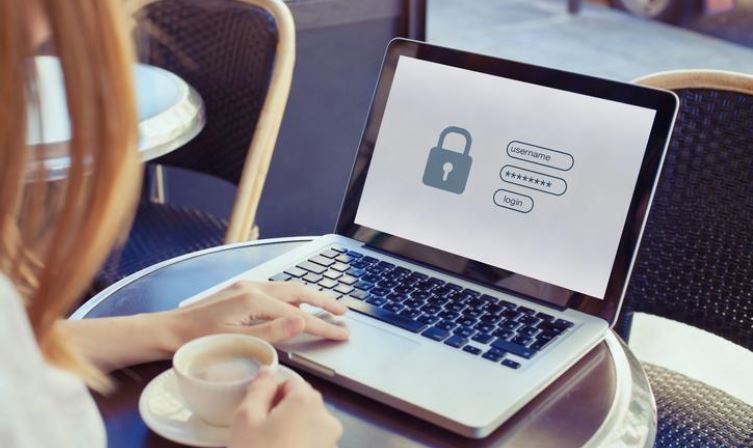
Create passwords with at least 12 characters using a mix of uppercase and lowercase letters, numbers, and symbols. Avoid reusing passwords across multiple websites. A password manager can securely generate and store unique passwords for each account.
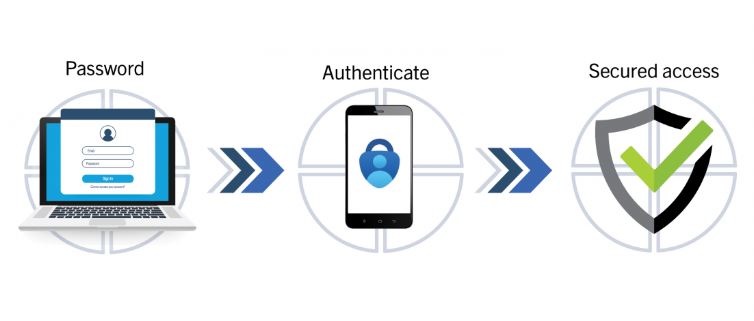
2. Turn On Multi-Factor Authentication
Multi-factor authentication (MFA) adds an extra layer of protection by requiring a verification code in addition to your password. Even if your password is compromised, attackers still can't access your account without the second verification step.
For most online accounts, setup only takes a minute:
Open your account's Security settings.
Enable Two-Factor Authentication (2FA) or Multi-Factor Authentication.
Choose an authentication app, SMS, or email verification.
Save your recovery codes in a safe place.
3. Keep Windows and Applications Updated
Software updates don't just add new features - they often fix security vulnerabilities. Turn on automatic updates for Windows, your browser, and frequently used applications so critical patches are installed as soon as they're available.
4. Download Files Only from Trusted Sources
Only download software from official websites or well-known publishers. Be cautious of download buttons on third-party sites, as they may bundle unwanted software or malware with legitimate installers.
If you also want to improve overall system stability while browsing, a reliable Windows optimizer can help keep Windows running efficiently.
5. Check Website URLs Carefully
Before entering passwords or payment details, carefully check the website address. Look for misspelled domain names, unusual characters, or fake login pages designed to imitate trusted brands.
6. Think Before Clicking Links
Unexpected emails, text messages, and social media messages often contain phishing links. If you're unsure whether a message is legitimate, visit the company's official website directly instead of clicking the embedded link.
7. Choose Secure HTTPS Websites
Always check for HTTPS and the padlock icon before submitting sensitive information. While HTTPS doesn't guarantee a website is trustworthy, it does encrypt the connection between your browser and the website.
8. Be Extra Careful on Public Wi-Fi
Public Wi-Fi networks at airports, cafés, and hotels are convenient but often less secure. Avoid logging into banking accounts or making online payments when connected to public networks, especially if the network doesn't require a password.

9. Limit the Personal Information You Share Online
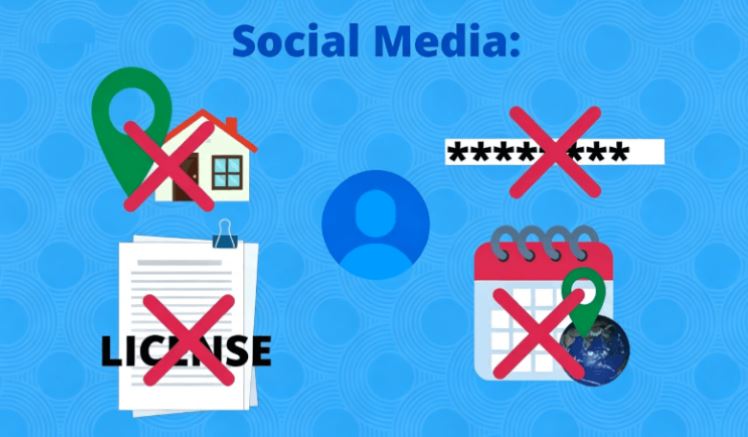
Avoid publicly sharing your full birth date, home address, phone number, or travel plans. Review the privacy settings on your social media accounts regularly to control who can see your personal information.
10. Remove Unnecessary Browser Extensions
Browser extensions can improve productivity, but they may also collect browsing data or introduce security risks. Review your installed extensions every few months and remove browser extensions that you no longer use or don't recognize.
11. Back Up Important Files Regularly
Store important files on an external drive or trusted cloud storage. Regular backups make it much easier to recover from ransomware attacks, hardware failures, or accidental file deletion.

You should also monitor your computer's health with a periodic PC performance test to identify issues before they affect your browsing experience.
12. Clear Privacy Data Regularly
Your browser stores cookies, cached files, download history, and saved site data every time you go online. Cleaning these files regularly helps reduce tracking and protects your privacy.
A simple routine is:
Open your browser's Settings.
Go to Privacy & Security.
Select Clear browsing data.
Remove browsing history, cookies, and cached images and files.
Making this a monthly habit supports how to stay safe on internet by reducing the amount of personal information stored on your device.
How Advanced SystemCare Helps Improve Online Safety and Privacy
Safe browsing isn't just about avoiding dangerous websites. A clean, optimized Windows system and browser environment also reduces privacy risks and improves overall security. Tools like Advanced SystemCare help simplify routine maintenance so you can focus on how to stay safe on internet instead of manually checking dozens of settings.
Advanced SystemCare Free
- Clean: 420 billion traces removed & 85 EB junk files cleaned
- Protect: 80 million unauthorized access blocked & 20 million bugs fixed
- Speed Up: 6 million hours of startup time saved & Turbo boost
- Optimize: Auto clean and auto care your PC with AI mode

Useful internet security features include:
Removes browsing history, cookies, cache files, download traces, and other privacy leftovers from popular browsers.
Helps prevent unauthorized changes to your homepage, search engine, and browser settings. And secures your online surfing, no more ads, scams, etc.
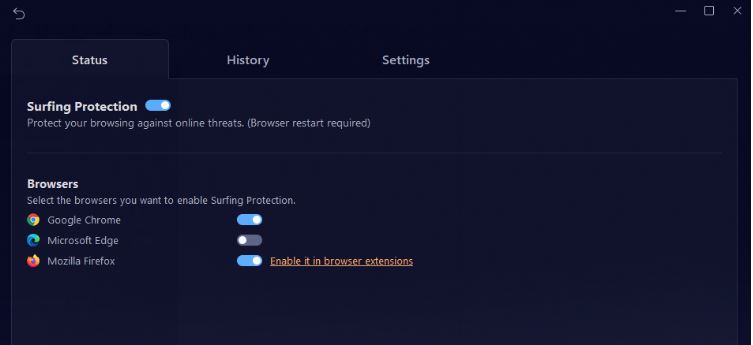
Protects your browsing against online threats. Supports Google Chrome, Microsoft Edge, and Mozilla Firefox.
Protects your web emails against spam, phishing scams, and other email-borne threats. Currently supports Gmail, Outlook, and Yahoo.
Strengthens Windows security settings and repairs common system vulnerabilities that may increase security risks.
Deletes temporary files and unnecessary system clutter. Pairing this with a dedicated hard disk cleaner can further free up storage space and improve system and browser responsiveness.
Optimizes startup items and system resources for smoother browsing. Users looking to improve memory usage can also learn more about a RAM optimizer Windows 11 solution.
How to Use Advanced SystemCare
Step 1. Download and install Advanced SystemCare.
Step 2. Launch the program and select AI Mode or Manual Mode, and customize the features you want to scan. Enable Privacy Sweep, Security Reinforce, Junk File Clean, and other recommended options.
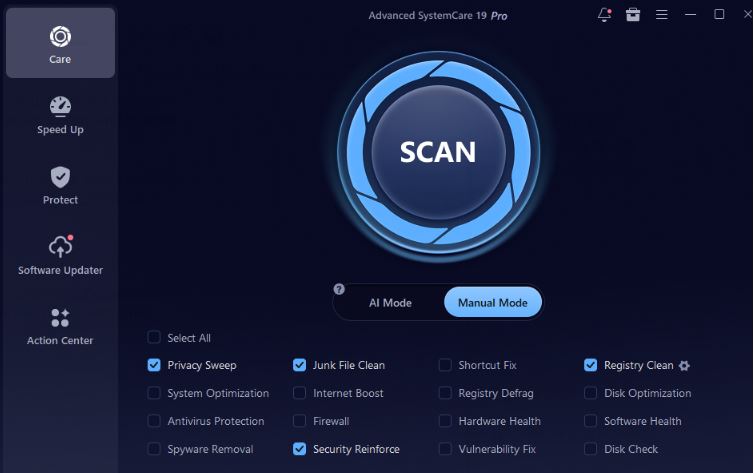
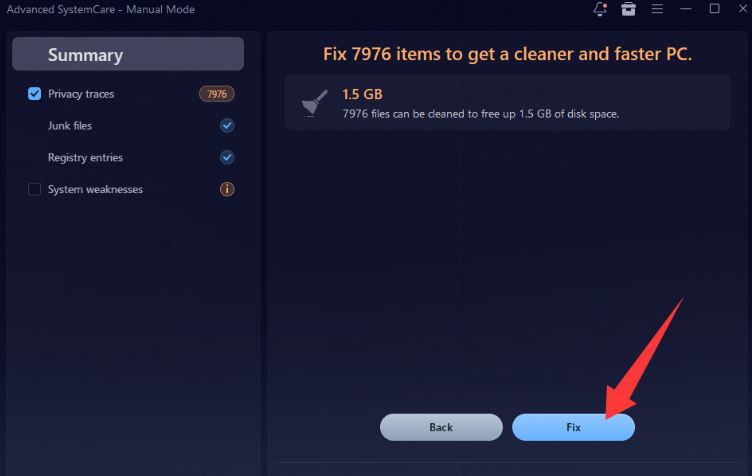
Step 3. Click Scan, review the results, and click Fix to clean privacy traces and optimize your PC.
Step 4. Also, you can select Protect, find Browser Protection, and enable all online protection.
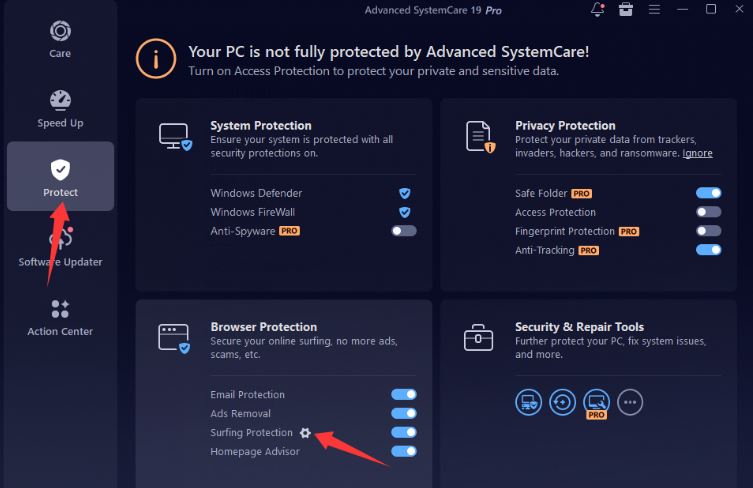
Step 5. Click the Gear icon of Surfing Protection; next, further refine your internet protection settings. Once all the protections are enabled, both your computer and your online browsing activities will be constantly protected.
Common Mistakes That Make Internet Browsing Less Safe
Even users who know how to stay safe on internet sometimes develop habits that increase security and privacy risks. Some mistakes can also make it harder to understand how to keep your browsing private, especially when browsers retain unnecessary data or users share too much information online. So, knowing and trying to avoid some mistakes is necessary.
Common mistakes include:
Reusing the same password across multiple websites.
Ignoring Windows and browser updates.
Downloading software from unofficial sources.
Clicking unknown links without verification.
Installing too many browser extensions.
Sharing excessive personal information on social media.
FAQs about Staying Safe on Internet
1. Is Private Browsing completely private?
No. It only removes local browsing records and doesn't prevent websites or internet providers from collecting data.
2. How often should I clear my browsing history?
For better privacy, clearing cookies, cache, and browsing history every few weeks is a good habit.
3. Does deleting cookies improve privacy?
Yes. Removing cookies reduces some forms of online tracking and helps protect your browsing activity.
4. What is the easiest way to stay safer online?
Practice good browsing habits, keep software updated, clean privacy traces regularly, and consistently follow the principles of how to stay safe on internet.
Conclusion
Knowing how to stay safe on internet is about combining smart browsing habits with regular system maintenance. By protecting your privacy, keeping Windows updated, and following these practical tips, you can enjoy a safer, faster, and more secure online experience every day.