If your PC becomes slow when gaming, browsing, or multitasking, limited memory could be the cause. Learning how to increase RAM in a PC involves more than simply buying new hardware. You can install additional physical RAM for a permanent capacity increase or optimize existing memory when an upgrade is not possible. Below, we explain which methods actually add RAM and which simply help you use your current memory more efficiently.
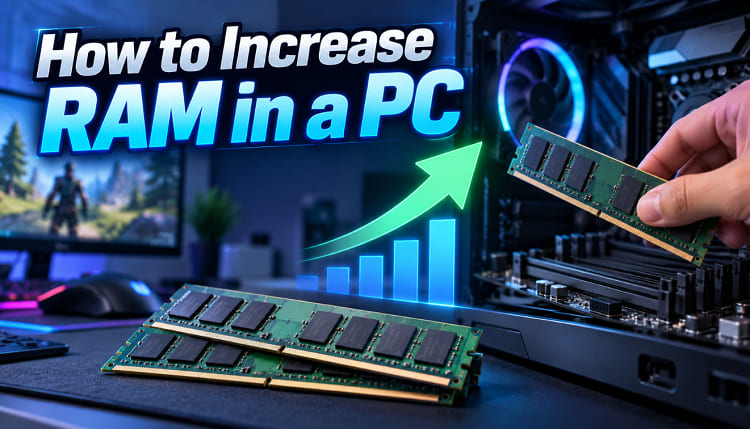
1. Upgrade Physical RAM from 4GB to 8GB or More
If you want to know how to increase PC RAM from 4GB to 8GB, a physical upgrade is the only method that actually increases installed RAM capacity. This is the best option when memory usage frequently approaches 100%, applications struggle during multitasking, or modern games require more memory than your PC currently provides.
Before purchasing RAM, check these specifications:
RAM generation, such as DDR3, DDR4, or DDR5
Current RAM capacity
Number of occupied and available memory slots
Maximum RAM supported by the motherboard or laptop
Supported RAM speed
Desktop DIMM or laptop SO-DIMM form factor
How to Check Your Current RAM
Step 1. Press Ctrl + Shift + Esc to open Task Manager.
Step 2. Select Performance > Memory.
Step 3. Check the installed memory, speed, and Slots used information.
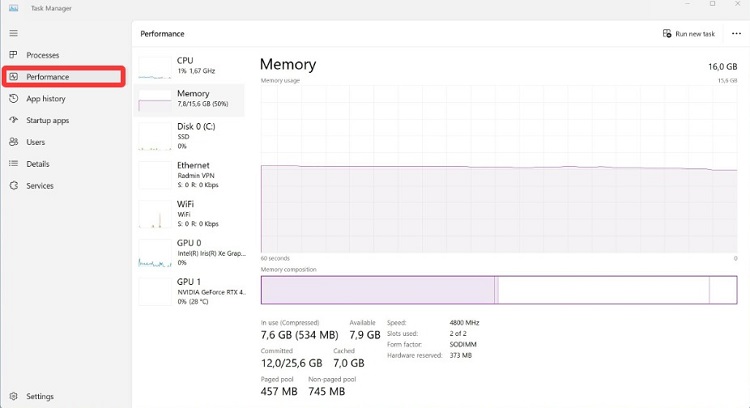
Step 4. Check your PC or motherboard specifications to determine the supported RAM type and maximum capacity.
How to Upgrade from 4GB to 8GB
Step 1. Buy RAM that is compatible with your motherboard or laptop.
Step 2. Shut down the computer and disconnect its power source.
Step 3. Open the case or memory-access panel according to the manufacturer's instructions.
Step 4. Install the additional RAM module into an available compatible slot. If necessary, replace the existing module with a higher-capacity one.
Step 5. Reassemble and restart the PC.
Step 6. Open Task Manager > Performance > Memory and confirm that Windows recognizes the new capacity.
If you are learning how to increase RAM in PC for gaming, upgrading from 4GB to 8GB can make a major difference on a memory-constrained PC. However, 16GB is a more practical target for many current gaming systems and heavier multitasking.
2. Free Up Existing RAM with IObit Advanced SystemCare
What if you are searching how to increase RAM on PC without buying new memory? Software cannot physically transform 4GB into 8GB, but freeing RAM occupied by unnecessary processes can give active programs more usable memory. IObit Advanced SystemCare provides a convenient way to clean and optimize system resources without manually checking every process.
Advanced SystemCare Free
- Clean: 420 billion traces removed & 85 EB junk files cleaned
- Protect: 80 million unauthorized access blocked & 20 million bugs fixed
- Speed Up: 6 million hours of startup time saved & Turbo boost
- Optimize: Auto clean and auto care your PC with AI mode

Advanced SystemCare is particularly useful when the PC has sufficient installed RAM but too much of it is being consumed by unnecessary background activity.
For RAM-related performance, it can help with:
Free RAM for Faster Downloads. Releases memory occupied by unnecessary background processes, allowing game launchers and other active applications to run more smoothly. It can also serve as a practical RAM optimizer Windows 11 users can use when high memory usage affects PC responsiveness.
Manage Resource-Heavy Startup Programs. Identifies unnecessary programs that launch automatically with Windows and consume RAM, CPU, or network resources. Disabling unneeded startup items can reduce background competition while downloading or installing large games.
Clean Junk Files and Free Storage. Removes temporary files, caches, logs, and other unnecessary data. Acting as a hard disk cleaner, it helps reclaim storage space and keeps the drive better prepared for large game downloads and installations.
Optimize Windows for Better Performance. Adjusts selected Windows settings to reduce unnecessary resource consumption and improve overall system responsiveness, providing an additional optimization option for users researching how to improve Steam download speed or other game-launcher downloads.
Monitor CPU and RAM Resource Usage. Provides resource monitoring to help identify unusually high CPU, RAM, or disk usage. This makes it easier to spot background activity that may slow your PC while games are downloading, installing, or updating.
How to Optimize RAM with Advanced SystemCare
Step 1. Install and launch IObit Advanced SystemCare on your Windows PC.
Step 2. From the main Care interface, select the relevant cleanup and optimization options, then click Scan to check the system.
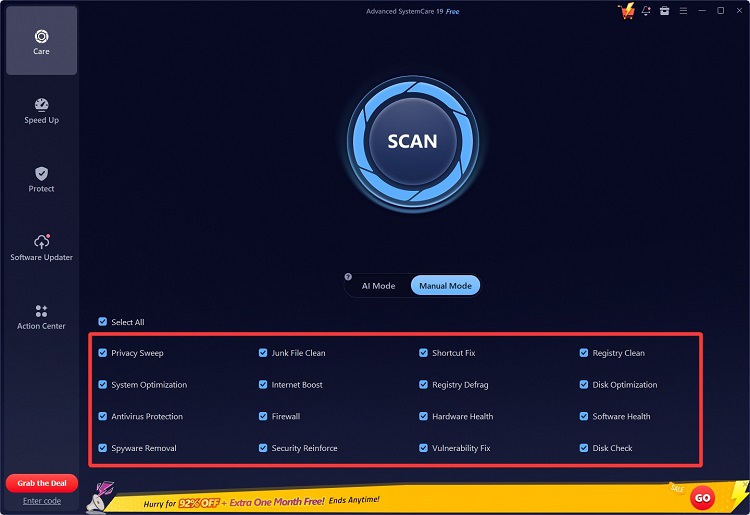
Step 3. Review the detected problems and optimization recommendations, then click Fix to clean and optimize the selected items.
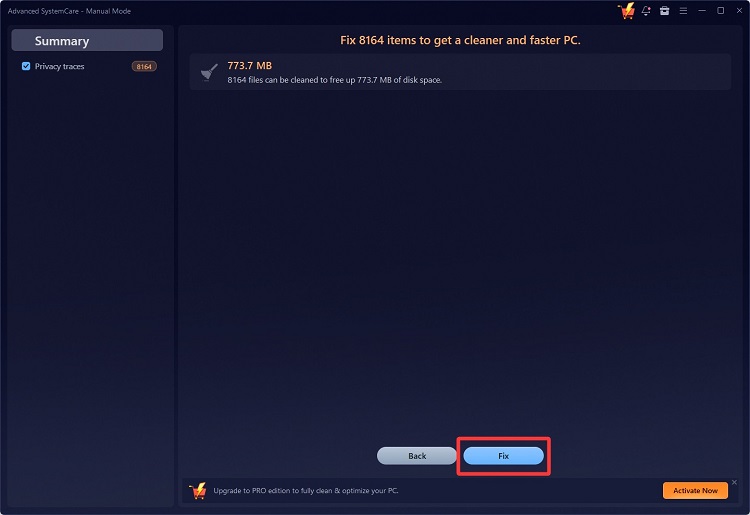
This approach is useful for everyday multitasking and gaming, but keep expectations realistic: optimization can free existing RAM, not increase the physical amount installed.
3. Increase Virtual Memory in Windows
If upgrading RAM is not currently possible, Windows virtual memory can provide additional breathing room. When physical memory becomes insufficient, Windows can use a paging file on your storage drive. It is considerably slower than physical RAM, but it can help prevent applications from crashing when memory demand temporarily exceeds installed capacity.
How to Increase Virtual Memory
Step 1. Press Windows + R.
Step 2. Enter sysdm.cpl and click OK.
Step 3. Select the Advanced tab.
Step 4. Under Performance, click Settings.
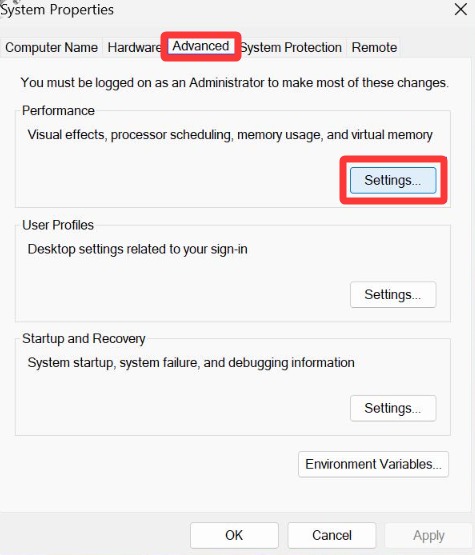 Step 5. In the Performance Options window, select Advanced, then click Change under Virtual memory.
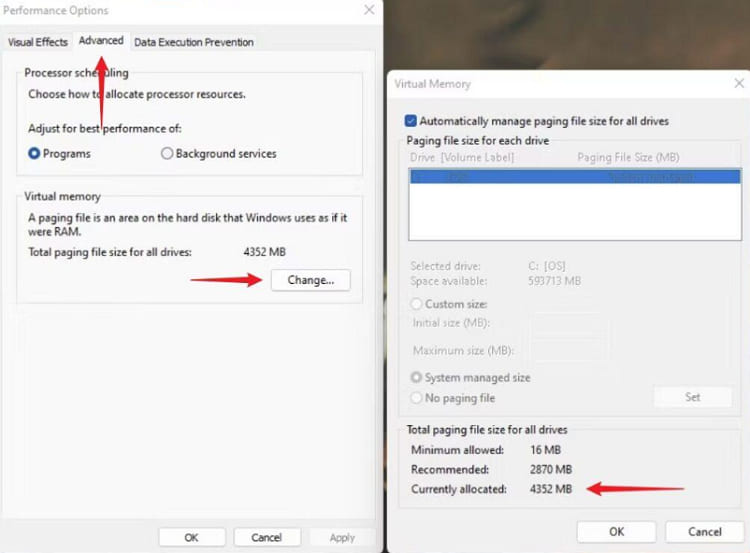
For most users, keeping Automatically manage paging file size for all drives enabled is the simplest choice because Windows can manage the paging file according to system requirements.
Advanced users can configure a custom size when there is a specific need, but setting an excessively large paging file will not give you the performance of equivalent physical RAM.
This method applies when researching how to increase RAM in a PC Windows 10 or Windows 11. Similar paging-file settings are also available for users searching how to increase RAM in a PC Windows 7, although Windows 7 itself is no longer supported.
4. Use ReadyBoost on Compatible Older PCs
ReadyBoost is another option sometimes suggested when people ask how to get more memory without installing RAM. It allows certain Windows PCs to use compatible USB flash storage as a cache. However, its benefits are mainly relevant to older systems with limited RAM and slow hard drives, rather than modern computers equipped with SSDs.
How to Enable ReadyBoost
Step 1. Insert a compatible USB flash drive into the computer.
Step 2. Open File Explorer and locate the USB drive.
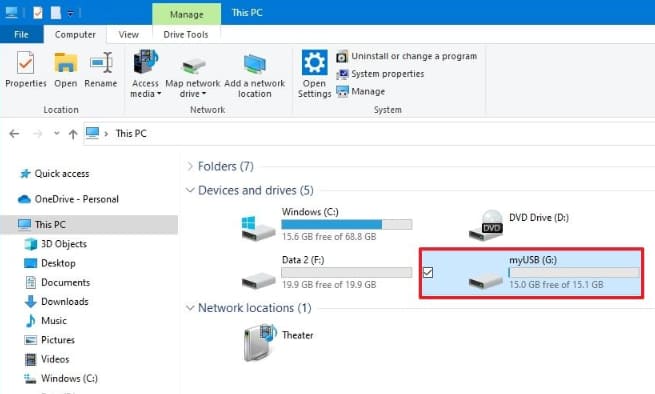
Step 3. Right-click it and select Properties.
Step 4. Open the ReadyBoost tab if it is available.
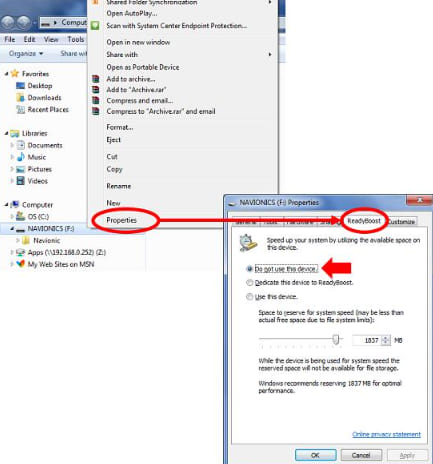 Step 5. Select Use this device.
Step 6. Choose how much storage Windows can reserve.
Step 7. Click Apply > OK.
ReadyBoost should not be confused with physical RAM. It uses flash storage for caching and does not turn an 8GB PC into a PC with 16GB of RAM. Windows may also tell you that ReadyBoost is unavailable or unnecessary, especially when your system already uses a sufficiently fast SSD.
5. Improve RAM Performance for Gaming with XMP or EXPO
Sometimes gamers have enough RAM capacity, but their memory is operating below its advertised speed. If your compatible RAM and motherboard support a memory profile such as XMP or EXPO, enabling the appropriate profile in BIOS/UEFI can allow the memory to run at its intended profile settings. This improves memory performance rather than adding capacity.
The exact process varies significantly between motherboard manufacturers, but generally you need to:
Step 1. Restart the PC and enter BIOS/UEFI.
Step 2. Locate the memory, overclocking, or performance settings.
Step 3. Find the supported XMP or EXPO memory profile option.
Step 4. Select the appropriate profile supported by your hardware.
Step 5. Save the changes and restart the PC.
Step 6. Check memory speed in Task Manager > Performance > Memory.
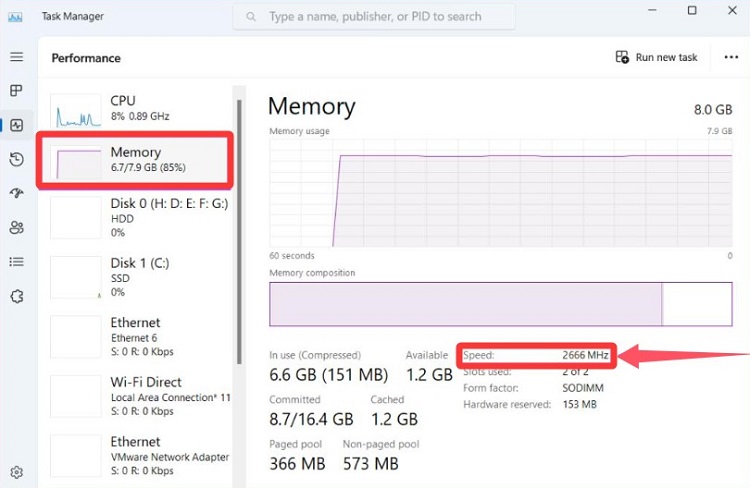
This method can be helpful when researching how to increase RAM in PC for gaming, but it should not be described as increasing RAM capacity. It simply helps compatible memory operate at its configured performance profile. If you are unfamiliar with BIOS settings, consult your motherboard or PC manufacturer's documentation before changing them.
How to Choose the Right Way to Increase PC RAM
The right solution depends on what is actually limiting your computer. If you only have 4GB and regularly run out of memory, upgrade the physical RAM. If your PC has enough RAM but unnecessary processes consume too much of it, Advanced SystemCare, this Windows optimizer, can help free existing memory.
If you cannot upgrade immediately, virtual memory can help handle temporary memory shortages. ReadyBoost is best for older HDD-based PCs, while XMP or EXPO is for compatible systems where the goal is better memory performance, not more capacity.
Most importantly, software cannot physically convert 4GB of installed RAM into 8GB. Be cautious of any "RAM booster" that claims otherwise.
FAQs About How to Increase RAM in a PC
Q1. Can I increase my PC RAM from 4GB to 8GB?
Yes. If your motherboard supports 8GB or more, you can add a compatible 4GB module or replace your existing RAM with a compatible higher-capacity configuration.
Q2. How can I increase RAM on PC without buying RAM?
You cannot increase physical RAM capacity without hardware. However, you can free existing memory with RAM cleaner tools such as Advanced SystemCare and use Windows virtual memory when physical RAM becomes insufficient.
Q3. Does increasing virtual memory make my PC faster?
Not necessarily. Virtual memory can help prevent low-memory errors and crashes, but storage is slower than physical RAM. Consider it a fallback, not a replacement for more RAM.
Q4. How much RAM should a gaming PC have?
It depends on the games and other applications you run. 8GB can still handle some lighter games, while 16GB provides more room for many modern games and multitasking. Check each game's recommended requirements before upgrading.
Q5. Can I increase RAM on Windows 10 or Windows 11?
Yes. How to increase RAM in a PC Windows 10 and Windows 11 follows essentially the same hardware principle: install compatible physical memory. Both systems also support virtual memory and software-based resource optimization.
Final Words
The most effective answer to how to increase RAM in PC is a physical upgrade, especially if you are moving from 4GB to 8GB or need more memory for gaming. If upgrading is not possible, Advanced SystemCare can help free existing RAM, while virtual memory provides additional support when physical memory runs low. Choose the method based on whether you need greater capacity, availability, or performance.
Advanced SystemCare Free
- Clean: 420 billion traces removed & 85 EB junk files cleaned
- Protect: 80 million unauthorized access blocked & 20 million bugs fixed
- Speed Up: 6 million hours of startup time saved & Turbo boost
- Optimize: Auto clean and auto care your PC with AI mode