Slow upload speeds can ruin your entire PC experience. For example, you may have to wait longer when sending large files to the cloud, joining a video call, streaming live, or uploading game content. Common causes can lead to the problem, including limited internet plans, weak Wi-Fi signals, bandwidth-hungry background apps, and more.
So, how to boost upload speed? This guide will introduce 8 practical ways to improve your upload speed. After identifying the causes and applying the right methods, you can improve connection stability and enjoy the maximum upload speed your ISP provides.
Why Is My Upload Speed So Slow?
Fast download speeds don't necessarily mean fast upload speeds. Many ISP plans provide significantly less upload bandwidth than download bandwidth. Before diving into the fixes for how to increase upload speed, let’s take a look at the most common causes behind the issue.
Your internet plan may have a low upload speed limit.
Wi-Fi interference, distance from the router, or thick walls may weaken your signal.
Background apps such as cloud sync tools, game launchers, or Windows Update may quietly consume bandwidth.
Outdated/corrupted network drivers and Windows Delivery Optimization settings may affect performance.
Router congestion, outdated firmware, or poor overall PC performance may further affect your online experience.
Tip: If your whole computer also feels slow, a PC performance test can help you check whether system performance is part of the problem.

How to Boost Upload Speed: 8 Practical Methods
So, how to boost upload speed? Different causes require different solutions. This part will introduce 8 practical methods that can help you improve your connection effectively. Start with the simple connection checks first, then move on to Windows settings, drivers, and PC optimization if the problem continues.
1. Test Your Upload Speed First
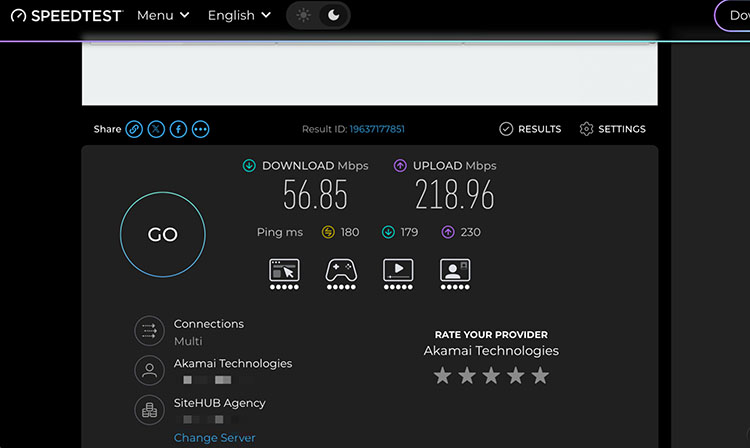
Before making any changes, test your current upload speed. It helps establish a baseline to determine whether the slowdown is temporary or consistent. You can use a reliable tool, for instance, Speedtest by Ookla. Make sure to test under different conditions, including Wi-Fi, Ethernet, and different times of day.
How to Test Your Upload Speed:
Step 1. Open a browser and search “speedtest” on Google.
Step 2. Close other bandwidth-heavy apps. Click “Go” to perform a speed test for download and upload.
Step 3. Note the upload result. Repeat the test on Ethernet if possible and at different hours.
2. Restart Your Router and Modem
Routers and modems can develop temporary glitches, cached errors, or performance dips after running for a long while. So, how to boost internet speed in this case? A simple restart can clear these temporary problems and help restore more stable upload performance.
How to Restart Your Router and Modem:
Step 1. Unplug the power cords from both your modem and router.
Step 2. Wait 30-60 seconds. Then plug the modem back in and wait for it to reconnect completely.
Step 3. Plug the router back in and wait about another minute before testing your connection again.
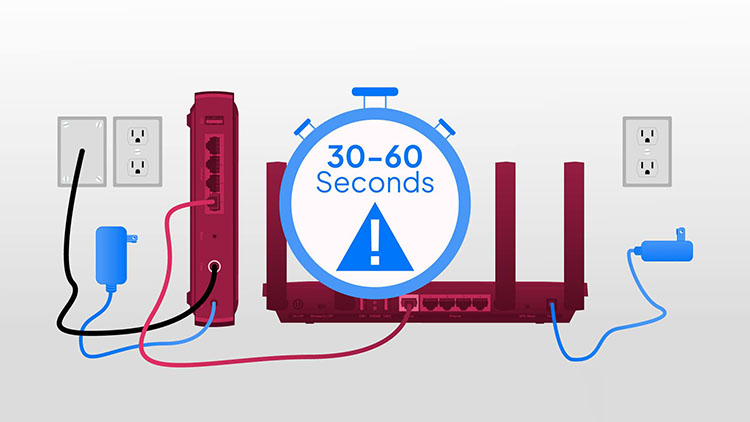
That’s how to boost upload speed for sudden slowdowns. If your upload speed remains low after restarting your network hardware, move on to the next methods.
3. Use Ethernet or Improve Your Wi-Fi Signal
Weak Wi-Fi, long distance from the router, thick walls, or crowded channels can often affect upload stability. You can switch to a wired Ethernet connection for a more stable experience. If Ethernet is not possible, it’s best to improve your Wi-Fi signal. This is also a useful tweak if you want to know how to boost download speed.
How to Improve Your Network Connection:
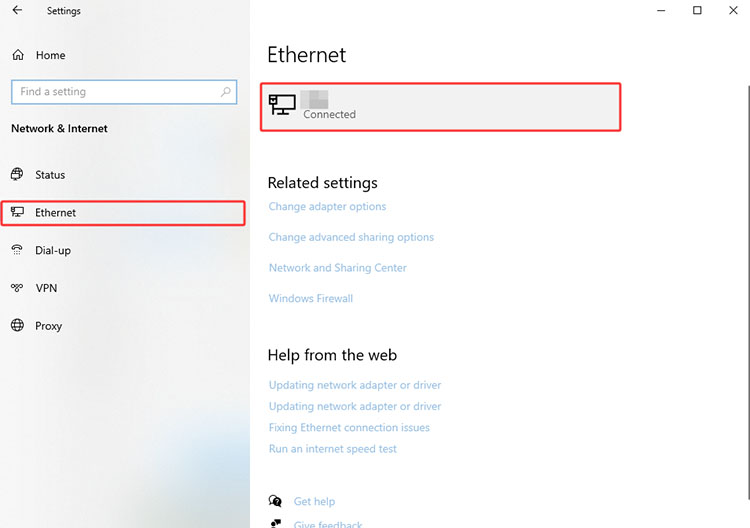
Step 1. Connect your PC directly to the router with an Ethernet cable for the most reliable link.
Step 2. If Ethernet is not available, improve your Wi-Fi signal. For instance, move closer to the router, switch to the 5 GHz or 6 GHz band, and reduce physical obstacles.
Step 3. Do not connect too many devices to the same network at once, as they can compete for available bandwidth.
4. Close Background Apps That Use Bandwidth
Cloud sync tools (OneDrive, Google Drive), Steam, other game launchers, browsers with many tabs, Windows Update, video apps, and backup software can quietly consume upload or download bandwidth. You can close non-essential tasks to free up bandwidth and improve network performance. If high memory usage is also slowing down your PC, check this RAM optimizer Windows 11 guide for more ways to reduce unnecessary resource usage.
How to Close Bandwidth-Hungry Apps in Task Manager:
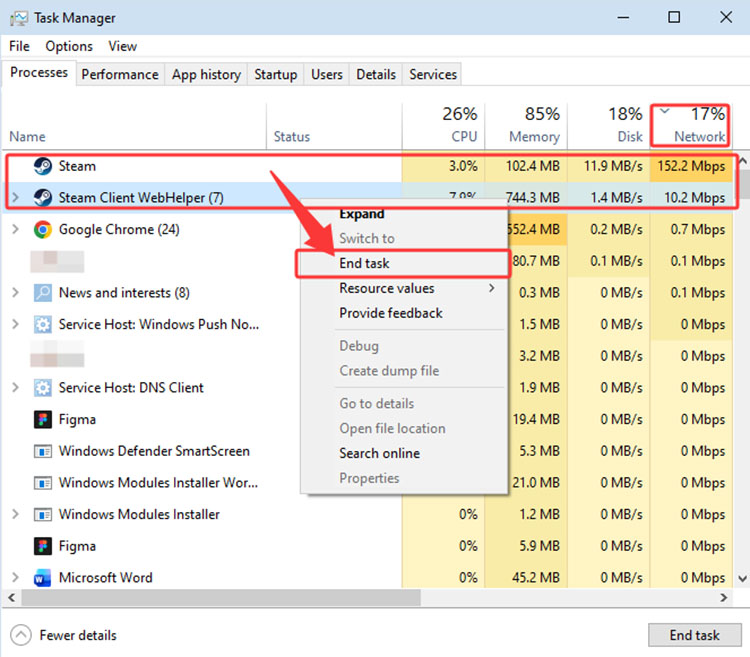
Step 1. Search for Task Manager and open it.
Step 2. Go to the Processes tab and sort by Network usage.
Step 3. Select high-bandwidth apps and click End task.
5. Limit Windows Delivery Optimization Uploads
Windows Delivery Optimization can upload update files to other PCs on the internet, which is noticeable during Windows updates. It consumes your upload bandwidth, and it’s recommended to limit this feature to reclaim capacity.
How to Limit Delivery Optimization Uploads:
Step 1. Open Settings > Windows Update > Advanced options.
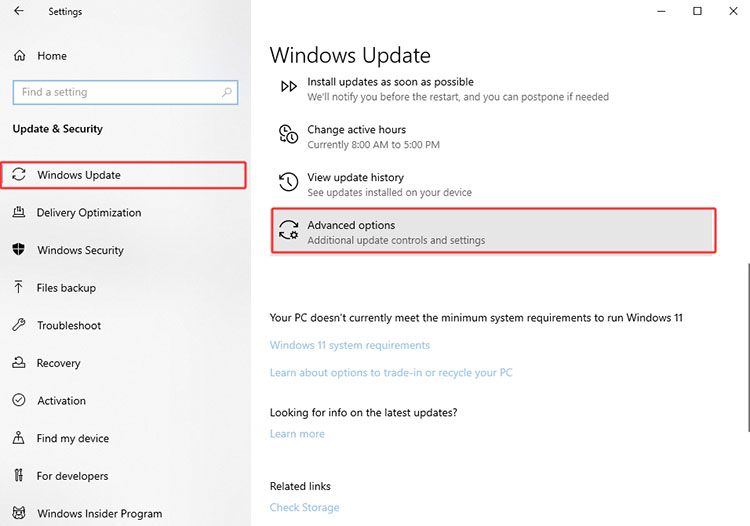
Step 2. Click on Delivery Optimization to see more settings.
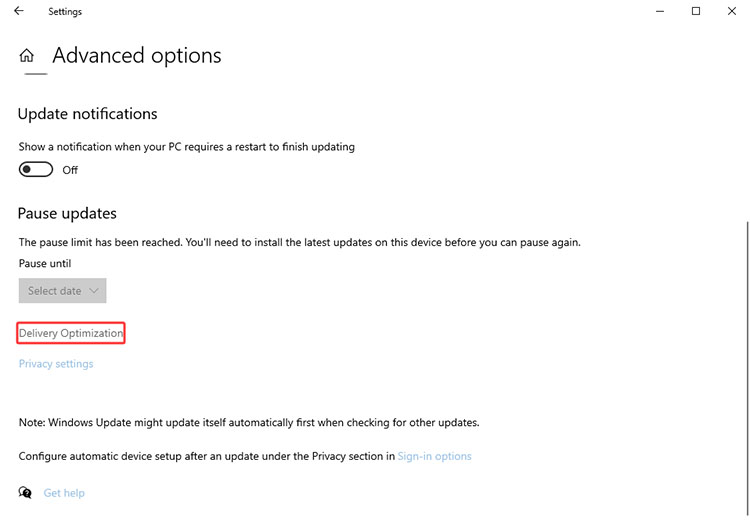
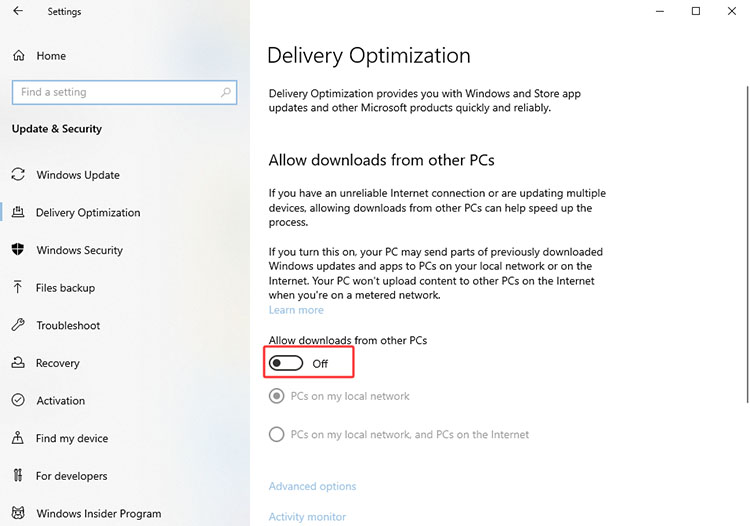
Step 3. Turn off “Allow downloads from other PCs” or set it to devices on your local network only. They help prevent background sharing from slowing your uploads.
6. Update or Reinstall Your Network Driver
If your network driver is outdated, corrupted, or incompatible, it might cause slow upload speed, random disconnections, or unstable Wi-Fi performance. Here’s how to increase upload speed by updating your driver natively.
How to Update Your Network Driver:
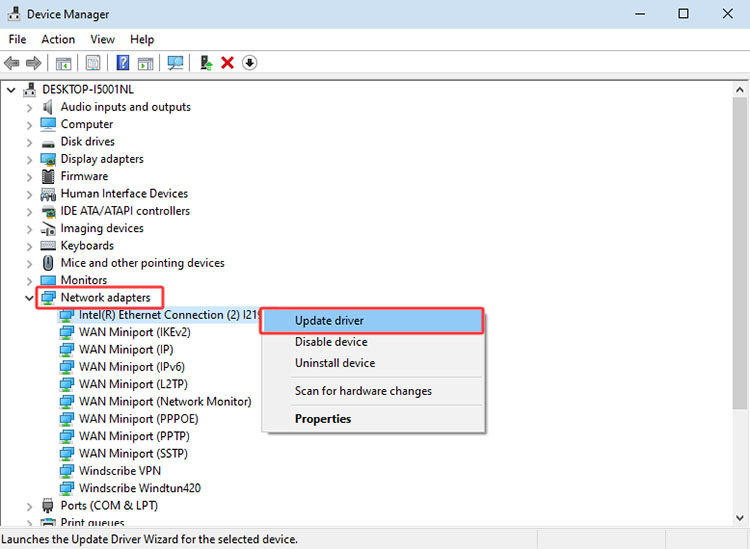
Step 1. Press Windows + X and select Device Manager.
Step 2. Expand Network adapters, right-click your Wi-Fi or Ethernet adapter, and choose Update driver.
Step 3. Select “Search automatically for drivers.” Restart the PC afterward.
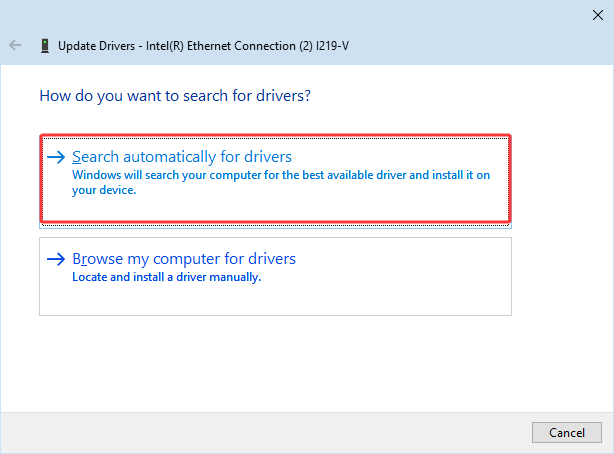
Please note that it might not find the latest driver. You will need to download it yourself from the manufacturer’s site. If updating does not help, right-click the adapter, choose Uninstall device, and restart Windows to reinstall the driver automatically.
7. Use Advanced SystemCare Internet Boost
For PC users looking for how to boost upload speed, a dedicated Windows optimizer tool is a simpler solution. For instance, Advanced SystemCare comes with an excellent Internet Boost feature, which helps optimize network-related settings and improve network performance. If you also want to know how to boost download speed, its optimization features can help improve your overall internet experience and keep your connection running more smoothly. But just keep in mind that it can not exceed the hard limit set by your ISP plan.
Advanced SystemCare Free
- Clean: 420 billion traces removed & 85 EB junk files cleaned
- Protect: 80 million unauthorized access blocked & 20 million bugs fixed
- Speed Up: 6 million hours of startup time saved & Turbo boost
- Optimize: Auto clean and auto care your PC with AI mode

How to Boost Upload Speed with Advanced SystemCare:
Step 1. Get Advanced SystemCare from the official website for free.
Step 2. Launch the program. Go to Care > Manual mode and tick Internet Boost.
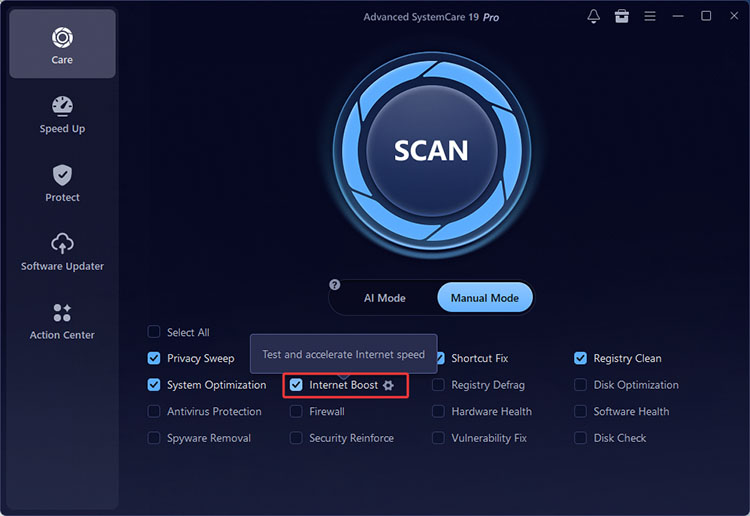
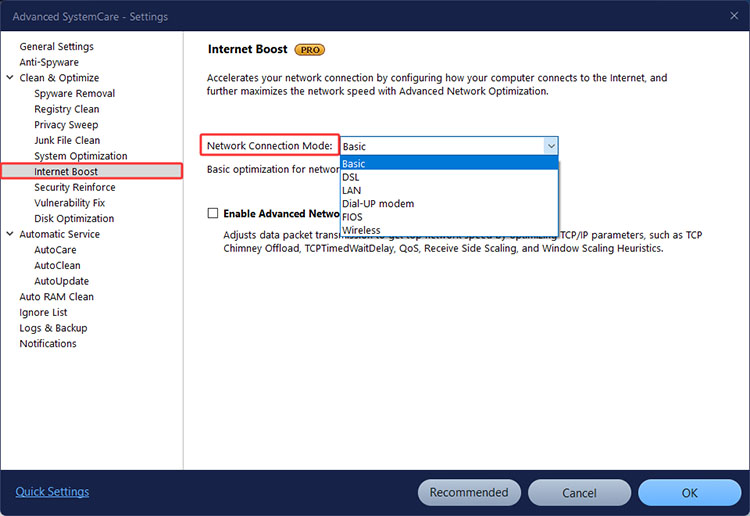
Step 3. In the Internet Boost settings. Choose the Network Connection mode. Also tick the box next to Enable Advanced Network Optimization.
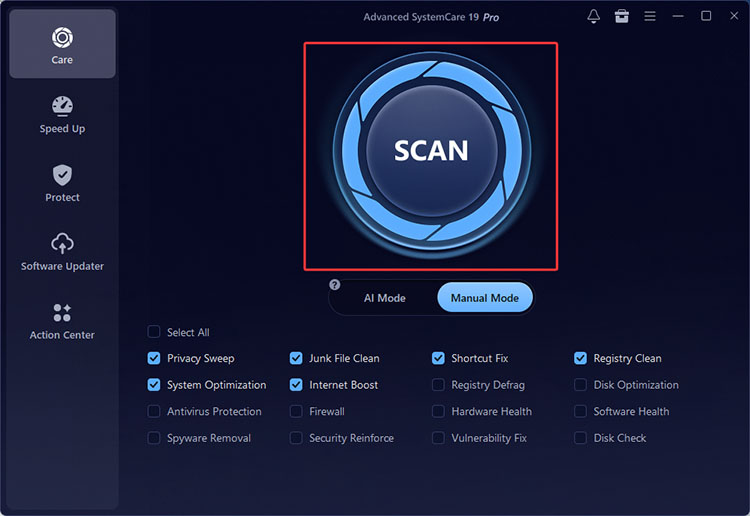
Step 4. Go back to the main interface and click the Scan button. Tick other PC optimization options if needed.
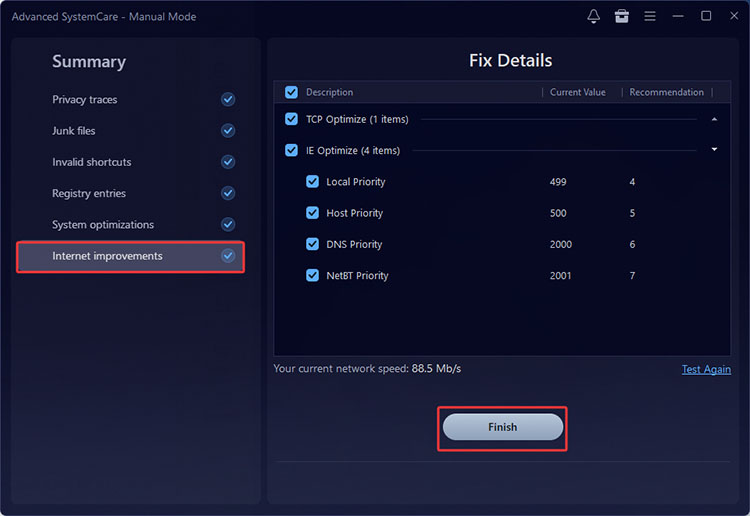
Step 5. Advanced SystemCare will scan your PC and apply internet optimization that helps boost upload speed.
Beyond network settings, a Windows optimizer can also help reduce unnecessary background activity and keep the PC responsive during uploads and other online tasks.
Key Features of Advanced SystemCare
Internet Boost: Optimizes network-related and TCP/IP settings to help maintain a smoother connection for uploading, downloading, browsing, and other online activities.
Turbo Boost: The feature can temporarily prioritize system resources for demanding tasks, helping reduce interference during online activities.
Startup Optimizer: Manages unnecessary startup programs to reduce background resource usage and keep more system resources available for online tasks.
Real-Time TuneUp: Helps optimize system resources in real time so the PC stays responsive during uploads, streaming, and other demanding tasks.
Program Deactivator: It temporarily disables unused programs to reduce unnecessary background processes and system resource usage.
8. Check Router QoS, ISP Plan, or Hardware Limits
If the previous methods do not work, the issue may not be on the PC side. Router Quality of Service (QoS) settings, hardware limitations, or your internet plan can all affect your upload speed. If you're not sure whether the slowdown comes from your PC or network equipment, you can also test computer performance before deciding whether a hardware upgrade is necessary.
Check your router's QoS settings and the bandwidth control via the admin page. You can also contact your ISP to confirm your plan's upload-speed limit and ask whether network congestion is affecting your connection.
If your network adapter is outdated, consider upgrading to a newer one. Older adapters may have hardware limitations that prevent them from reaching higher speeds.
Which Method Should You Try First?
If you have read this far and are still not sure where to start, we have included how to boost upload speed for the first step, based on your specific situation.
Situation |
Recommended First Steps |
Sudden slowdown |
Restart router/modem + test speed |
Weak or unstable Wi-Fi |
Use Ethernet or improve Wi-Fi signal |
Background apps or updates are active |
Close apps + limit Delivery Optimization |
Suspected driver issues |
Update or reinstall the network driver |
Want a simple all-in-one optimization |
Try Advanced SystemCare Internet Boost |
Still slow after PC-side fixes |
Check your ISP plan, router QoS, or hardware limits |
Tip: Want to know how to increase download speed on Steam? The solution is slightly different. You can check the Steam download region, clear the download cache, and close bandwidth-heavy apps running for better speeds.
Conclusion
How to boost upload speed? Now you have 8 useful fixes, ranging from basic solutions to advanced troubleshooting steps. Just follow them step by step to resolve the issue easily. If you want a simpler way to address PC-side network and performance issues, Advanced SystemCare is the best tool that comes in handy. It can help optimize network settings, reduce unnecessary background activity, and keep your PC running more smoothly during uploads. Get Advanced SystemCare and enjoy a more responsive PC experience from now on!