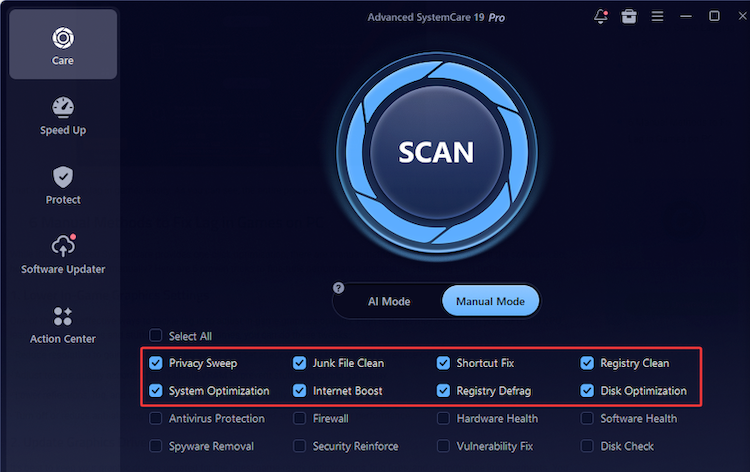
Months of browsing can leave behind a surprisingly large trail: visited pages, cached files, cookies, and other stored data. Besides making your history harder to manage, some of this information may expose where you have been online. Clearing these traces regularly is a simple way to keep your browser cleaner and more private. The post covers both built-in browser options for quick manual cleanup and specialized browser history cleaner tools for convenient ways to remove browsing traces.
Why You Need a Browser History Cleaner
Your browser history is essentially a record of the websites and pages you've visited. It makes browsing more straightforward by helping you return to a page you opened earlier. Over time, however, that record grows alongside cached data, cookies, and other browsing files. A regular cleanup can be useful for several reasons:
Protect privacy: Other people using the same computer may be able to see recently visited websites, searches, or saved browsing traces.
Keep browsing data under control: Old history, cookies, and cached files can accumulate over months or years and make stored browser data large.
Troubleshoot browser problems: Clearing cached files and site data sometimes resolves stale-page issues, broken website elements, or login problems.
Remove unwanted traces: Shared, public, or temporary computers may retain browsing information that you would rather not leave behind.
The next sections cover both manual methods and cleanup software, so you can choose between a quick one-time cleanup and a more handy routine.
Manual: Fastest Keyboard Shortcut to Clear Browser History
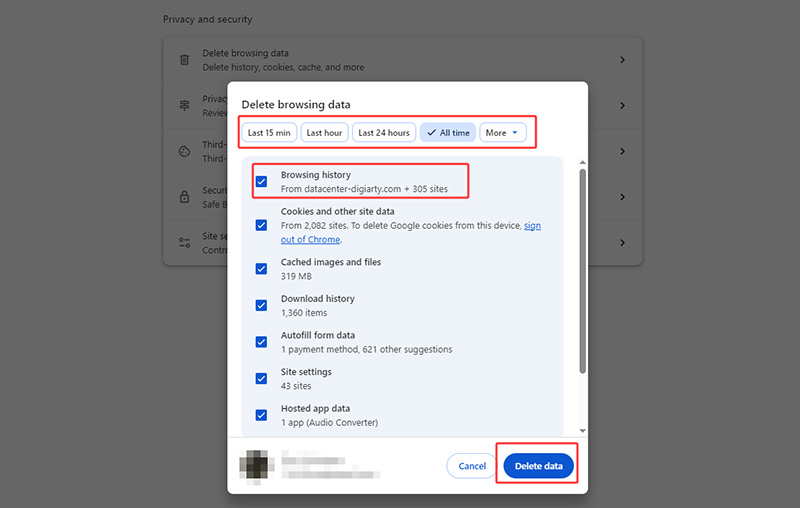
For a quick cleanup, you don't need to dig through the browser's settings. Ctrl+Shift+Delete opens the browser's Clear browsing data panel directly to clear browser history without a third-party PC optimizer. The shortcut works in Google Chrome, Microsoft Edge, Mozilla Firefox, and other browsers, although it requires manual selection.
Edges:
Fast & simple, no third-party software or extra setup required.
Flexible; choose a time range from recent activity to all history.
Selective; remove the types of data you want to clear.
Drawbacks:
Manual, repeat the process whenever you want to clean up.
Limited, only clears data managed by the browser.
Potentially disruptive, clearing cookies may sign you out of some websites.
How to Clear Browser History Quickly & Manually
Step 1. Open your web browser and press Ctrl + Shift + Delete on your keyboard.
Step 2. In the Clear browsing data window, select a Time range.
Step 3. Select Browsing history. Add cached images and files, cookies, or other data only when you actually want to remove them.
Step 4. Click Delete data to clear the selected browser history.
Auto Clean: Best Browser History Cleaner Programs for PC
Manual cleanup is a good way to delete browser history when you only need to remove a few days of browsing activity. It becomes less convenient when you want to clean browser traces and clear PC cache regularly, especially across several browsers and Windows applications.
PC cleanup software takes a broader approach by scanning these locations from one interface and, with supported automatic features, reducing the need to repeat the same steps.
Advanced SystemCare Free
- Clean: 420 billion traces removed & 85 EB junk files cleaned
- Protect: 80 million unauthorized access blocked & 20 million bugs fixed
- Speed Up: 6 million hours of startup time saved & Turbo boost
- Optimize: Auto clean and auto care your PC with AI mode

1. Advanced SystemCare: All-in-One Auto Browser History & PC Cleaner
Advanced SystemCare is a Windows utility that combines privacy cleanup with system maintenance rather than browser history alone. Its Privacy Sweep can remove browsing traces from supported browsers and applications, while AI Mode, Startup Optimizer, Turbo Boost, and other maintenance tools cover different aspects of PC cleanup and performance.
Free Web Browser History Delete from All Places
The Privacy Sweep module scans web browsers, Windows apps, multimedia programs, iTunes, etc. for browsing history, download records, cache, cookies, and other privacy traces, all for free.
Clear Browser History Automatically for Top Privacy
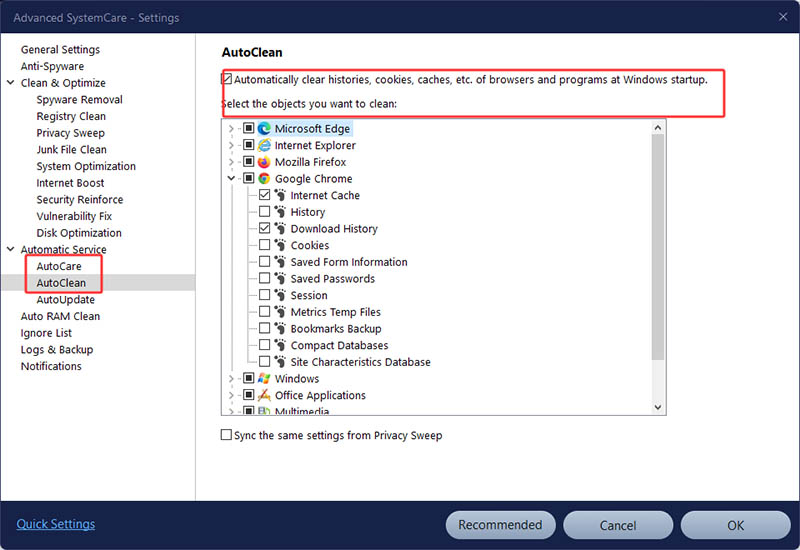
AutoCare and AutoClean reduce repeated manual cleanup by scanning and removing selected browser histories regularly and on a schedule, ensuring privacy without manual work.
All-in-One PC Cleanup & Optimization for Maintenance
Beyond privacy protection, this program comes with PC performance boost features, like AI Mode that identifies and cleans junk files, cache, and leftover files, and Startup Optimizer to manage unnecessary startup items, while Turbo Boost temporarily frees system resources for demanding tasks.
Advanced Privacy Protection for Extensive Security
The privacy tools go beyond browser history, with anti-tracking, fingerprint protection, and a safe folder available for protecting online activity and sensitive local files, building all-round protection.
How to Delete Browser History Completely & Automatically?
Step 1. Download Advanced SystemCare. Install the automatic browser history cleaner on your Windows PC and open the program.
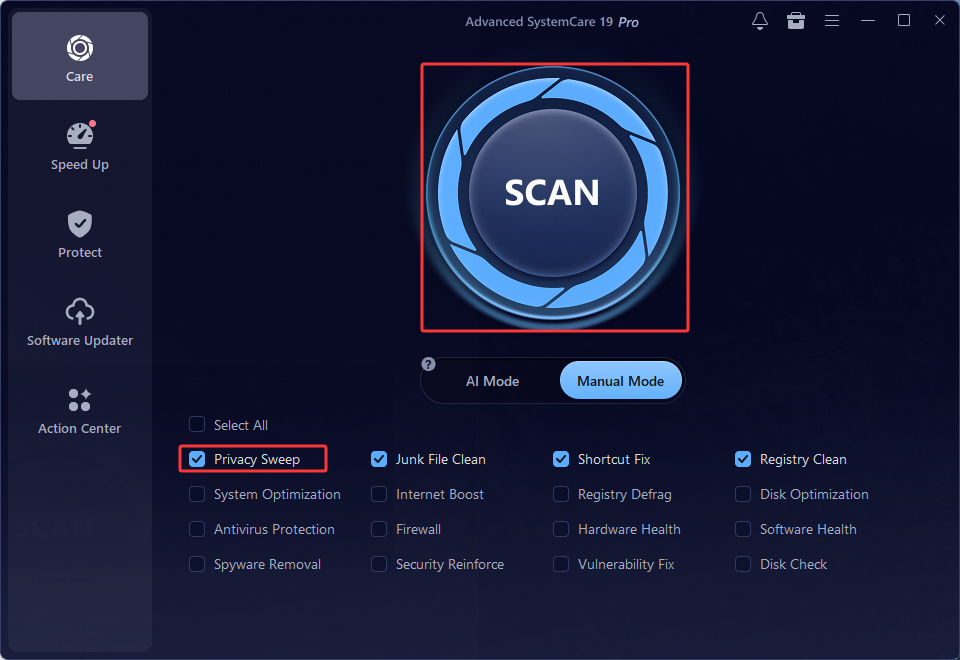
Step 2. Click the Privacy Sweep settings icon, choose what to clean. Select the browser history and other data you want to remove, then click OK to save your choices.
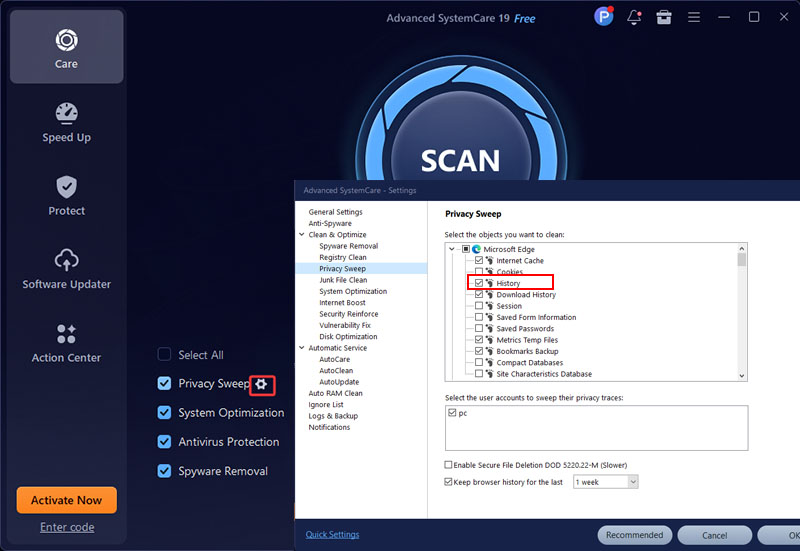
Step 3. Return to the main screen and click the SCAN button. Advanced SystemCare will check for the selected browser data and privacy traces.
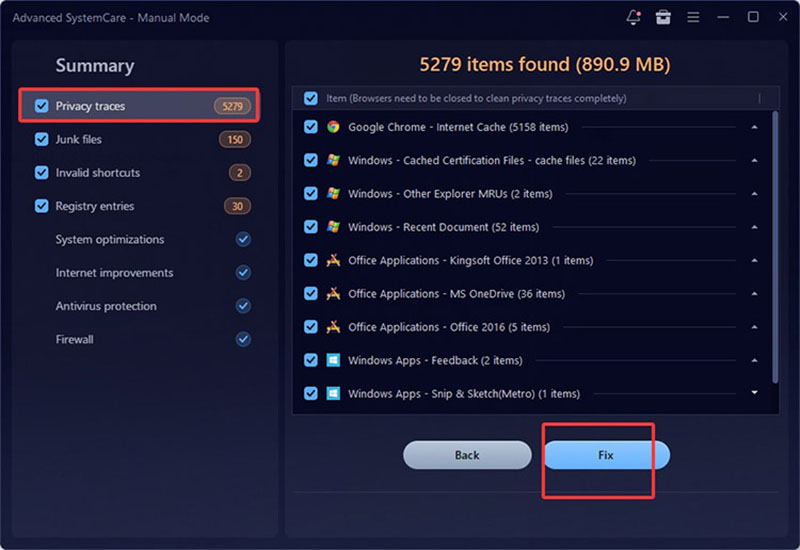
Step 4. Review the scan results, then click Fix to remove the selected browser history files and other detected data.
Tips: The AutoClean feature provides a more hands-off option in the Pro version of Advanced SystemCare. You can configure the automatic cleanup preferences in an automatic manner. Download one of the best RAM optimizers for Windows 11/10 now and start your hands-free privacy traces cleanup.
2. Privacy Eraser: Dedicated App to Delete Browser History
For users who care more about privacy cleanup than PC optimization, Privacy Eraser takes a more focused approach. This all-in-one browser history and hard disk cleaner scans major browsers and Windows activity traces, covering more than the visible history list.
Key Features:
Remove browsing history, visited URLs, cache, cookies, download records, autocomplete data, and other stored traces.
The plugin system extends cleanup to traces left by hundreds of supported Windows applications.
Include additional tools for permanently removing selected files and other sensitive data.
Drawbacks:
How to Delete Search History on PC
Step 1. Open Privacy Eraser Free. Click “Browser” on the left panel to select browsing data to remove on PC.
Step 2. Select Scan on the main screen. Privacy Eraser will check for browser history, cached files, and other internet-related data.
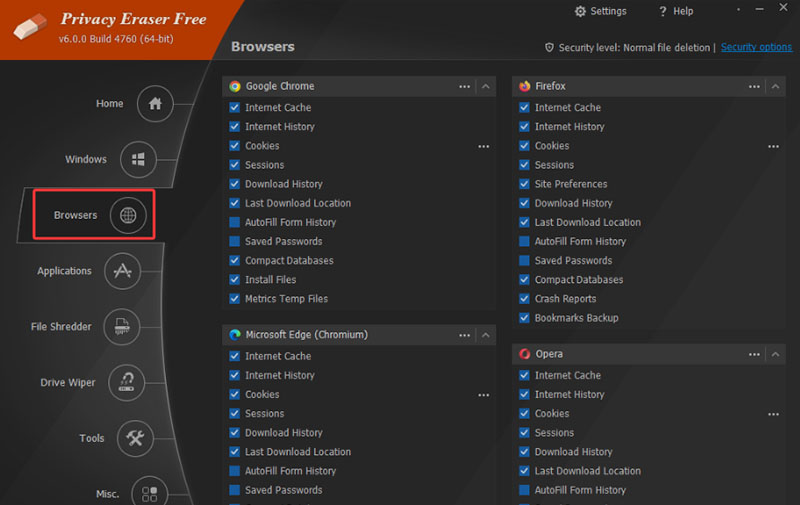
Step 3. Once the scan is complete, review the detected items and the categories selected for removal.
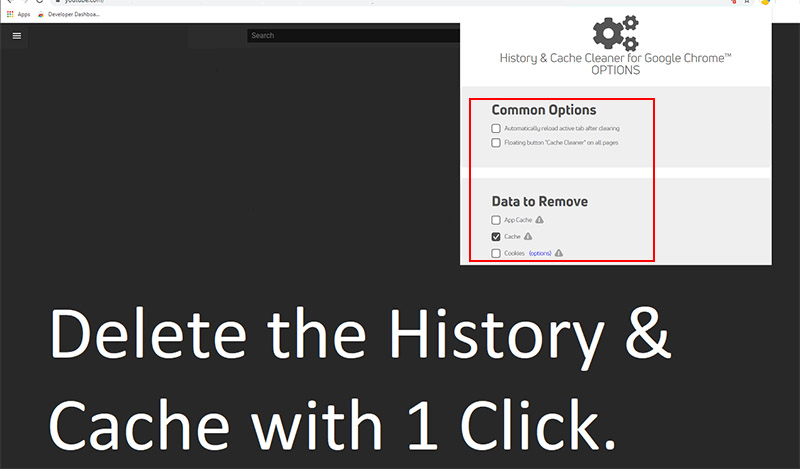
3. History & Cache Cleaner: Web Browser History Delete Extension about 150 words
History & Cache Cleaner takes the lightweight route: it runs as a Chrome extension to remove browsing history, cookies, and other site data, saved passwords, and stored form information, without installing a separate Windows application. It is the best option for those who mainly want a simple browser history cleaner inside their everyday browser.
Key Features:
Lightweight; remove directly from Chrome without a separate PC program.
Convenient, clears browsing history, cache, cookies, and other supported browser data.
Flexible, with options for saved passwords and form data when selected.
Drawbacks:
How to Clear Browser History on PC
Step 1. Add History & Cache Cleaner from the Chrome Web Store.
Step 2. Open the extension and choose the types of browsing data you want to remove.
Step 3. Start the cleanup and confirm that the selected history and data have been cleared.
FAQs About Web Browser History Delete
What happens after you clear browser data? These common questions cover permanent deletion, site-specific cleanup, saved passwords, and more.
1. Can Browsing History Be Deleted Permanently?
Yes. You can permanently remove search history from your accounts and devices, although some residual data may remain on a physical drive until overwritten or exist in network-level records.
2. Can I Delete Browsing Data from a Specific Site?
Yes. Most major browsers let you remove individual history entries and delete cookies or stored data from a particular website without clearing all your browsing information.
3. How Often Should You Clear Browsing History on Chrome?
For most personal users, clearing Chrome browsing history once a month is usually enough. On a shared or public computer, deleting it after each use is the safer choice.
4. Does Clearing Browsing History Delete Saved Passwords?
Not necessarily. Saved passwords will remain unless you specifically select passwords when choosing what to delete, so always review the cleanup options before confirming.
Final Thoughts
Clearing browser data manually works for occasional cleanup, while an automated browser history cleaner makes regular maintenance easier. For broader auto privacy cleanup and PC optimization, download IObit Advanced SystemCare and let it handle routine browser and system cleanup from one place.
Advanced SystemCare Free
- Clean: 420 billion traces removed & 85 EB junk files cleaned
- Protect: 80 million unauthorized access blocked & 20 million bugs fixed
- Speed Up: 6 million hours of startup time saved & Turbo boost
- Optimize: Auto clean and auto care your PC with AI mode