You're in the middle of an intense gaming session or an important video call, and suddenly your screen stutters, freezes, or takes seconds to respond. Few things are as frustrating as a laggy PC right when you need it most. The good news is that how to fix lag on pc is simpler than you might think. This article covers 7 manual methods plus one all-in-one solution that addresses every possible cause. Keep reading to get your PC back to peak performance.
Why Is My PC Lagging
Before diving into solutions, let's identify the enemy. Common signs of a laggy PC include delayed response when clicking, stuttering during gaming, applications taking forever to launch, and random freezing. If you've been asking yourself, "Why is my pc lagging?", here are the most common culprits:
Software Issues: Too many resource-consuming background apps, dozens of browser tabs eating RAM, or viruses and malware silently consuming CPU cycles.
Hardware Issues: Outdated drivers (especially graphics drivers), thermal throttling due to dust buildup, or old hardware for modern applications.
Insufficient Storage: Low disk space on your C drive (under 10-15% free space) forces Windows to struggle with temporary file operations.
Network Issues: Unstable Wi-Fi connection, high latency, or server-side problems for online games.
Understanding the root cause helps you apply the right fix.
How to Fix Lag on PC with All-in-One PC Lag Fix Solution
Now that you know what causes lag, let's start with the most efficient solution. Manually hunting down every issue takes time and technical know-how. IObit Advanced SystemCare offers a complete, one-click approach to restoring your PC's speed.
Advanced SystemCare Free
- Clean: 420 billion traces removed & 85 EB junk files cleaned
- Protect: 80 million unauthorized access blocked & 20 million bugs fixed
- Speed Up: 6 million hours of startup time saved & Turbo boost
- Optimize: Auto clean and auto care your PC with AI mode

• 1-Stop Solution to Fix PC Lag
Advanced SystemCare addresses all lag-inducing issues in a single scan: junk files, registry errors, startup hogs, and outdated drivers. No manual hunting through menus. One click, and the AI engine identifies exactly what's slowing you down.
• Boost PC Speed to Its Top Performance
The Turbo Boost feature temporarily shuts down unnecessary background services and visual effects, freeing up system resources for gaming. The Performance Monitor gives you real-time visibility into CPU, RAM, and disk usage so you can spot bottlenecks instantly.
• Fix Computer Lag and Maintain Automatically
The AutoCare feature runs scheduled maintenance automatically, preventing lag before it starts. Auto RAM Clean continuously monitors memory usage and releases resources when they drop below optimal levels, ensuring smooth performance without manual intervention.
• Provide All-Round Protection Beyond Issue Addressing
Beyond optimization, Advanced SystemCare protects your PC from ads, spyware, and tracking attempts, keeping your system clean and responsive.
How to Fix Lag on PC in 1 Go?
Step 1: Download and install IObit Advanced SystemCare Free from the official website.
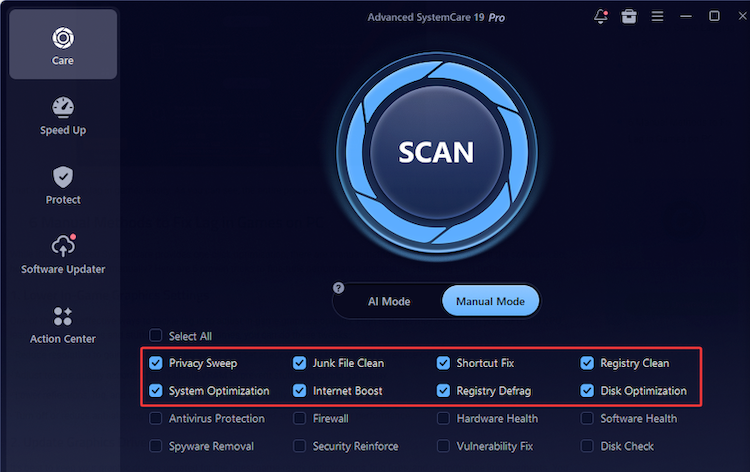
Step 2: You may start an AI Scan that smartly analyzes and carries out the optimization. Or, you might choose the Manual Scan and customize your scan: select Junk File Clean, System Optimization, and Disk Optimization to free up disk space and release system resources to boost speed. Click the large "Scan" button on the dashboard.
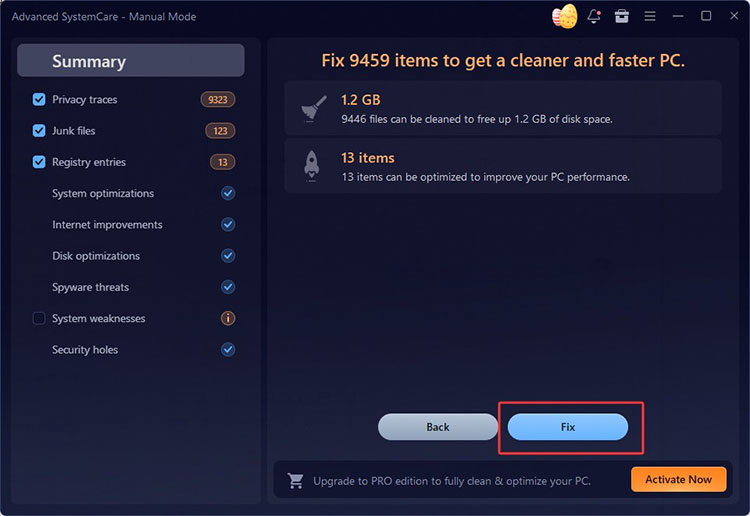
Step 3: Once the scan completes, click "Fix" to resolve all detected issues. Your PC will immediately feel more responsive.
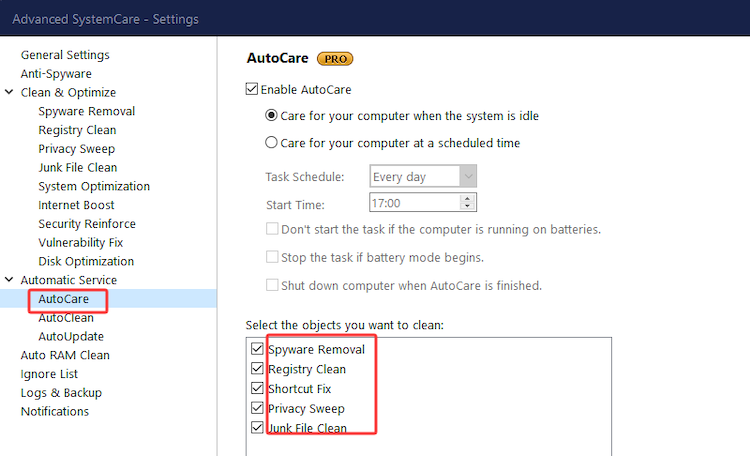
The one-click scan fixes existing issues, but to prevent lag from coming back, you need automatic maintenance. That's where the PRO features come in. With AutoCare and Auto RAM Clean enabled, your PC stays optimized in the background, with no manual effort required.
Download IObit Advanced SystemCare and experience smoother performance today.
7 Methods: How to Reduce Lag on PC Manually
If you prefer hands-on control, these manual methods will help you how to reduce lag on pc step by step. Each targets a specific cause of lag.
#1 Fix PC Lag by Quitting Unnecessary Apps
Every background app consumes CPU cycles and RAM. Windows Task Manager helps identify and close resource hogs.
How to Fix PC Lag with Task Manager
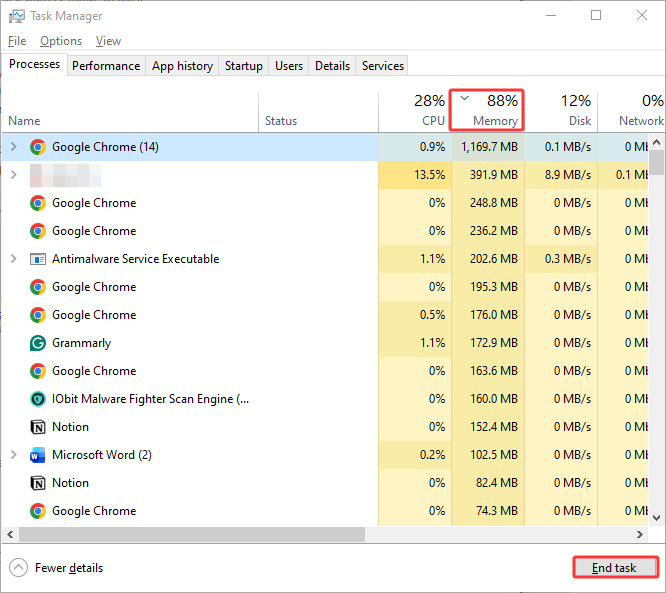
Step 1: Hit Ctrl + Shift + Esc on your keyboard to open Task Manager.
Step 2: Click the "Processes" tab and sort by "Memory" or "CPU".
Step 3: Right-click on any unnecessary app and select "End Task".
The drawback? You need to repeat this every time you restart your PC.
#2 Fix Computer Lag via Malware Removal
Malware is a silent performance killer. Some cryptocurrency miners can consume 80-100% of your CPU without showing visible windows. Windows Security provides basic protection.
How to Fix PC Lag via Scanning & Fixing Malware
Step 1: Open Windows Security from the Start menu.
Step 2: Click "Virus & threat protection," then "Quick scan".
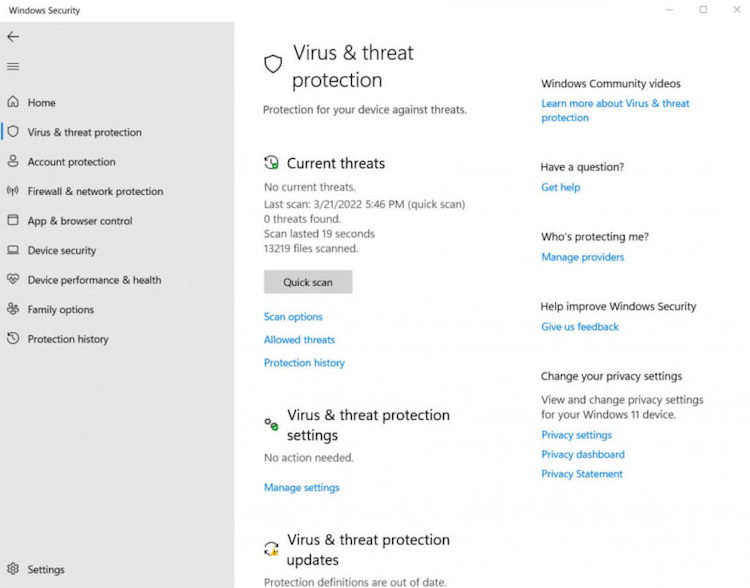
Step 3: Follow prompts to remove any detected threats.
For stronger protection, consider IObit Malware Fighter. It combines three anti-malware engines (IObit Anti-malware Engine, BitDefender Engine, and IObit Anti-ransomware Engine) for maximum detection rates. The Behavior Guard analyzes program actions in real-time to block suspicious activities before they infect your system.
IObit Malware Fighter Free
- Quick and deep system scanning throughout PC system.
- Smart defense against all malicious infestations.
- High-level security and privacy protection in real time.
- Leading anti-malware and anti-virus engines.

#3 Upgrade RAM or Use RAM Clean Tools
When your PC runs out of physical RAM, Windows uses your hard drive as "virtual memory," which is dramatically slower.
How Do I Know If RAM Is Causing Lag?
Step 1: Press Ctrl + Shift + Esc to open Task Manager.
Step 2: Click the "Performance" tab, then select "Memory".
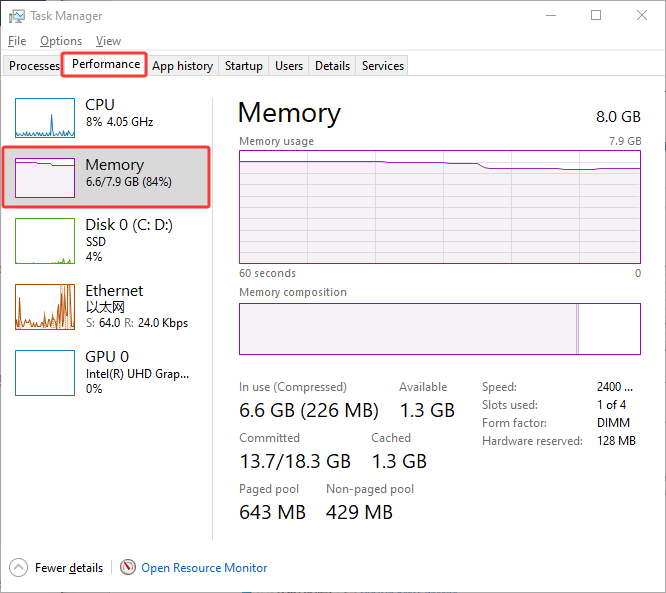
Step 3: If the "In use" percentage is consistently above 85-90%, you need more RAM or better memory management.
If upgrading isn't feasible, the RAM booster for Windows, Advanced SystemCare's Auto RAM Clean, automatically releases memory from closed applications. Enable it under Options > Settings > Auto RAM Clean.
#4 Cool Down Your P-C with Cleaning
When CPUs and GPUs get too hot, they automatically slow down (throttle) to prevent damage. If your PC feels fast for 10-15 minutes then becomes sluggish, thermal throttling is likely.
How to reduce heat:
Clean fans and vents – Use compressed air every 3-6 months.
Use a cooling pad – Lowers laptop temperatures by 5-10°C.
Ensure proper ventilation – Don't place laptops on soft surfaces like beds.
For persistent high disk usage, learn about Windows 11 100 disk usage troubleshooting.
#5 Update Outdated Drivers
Outdated graphics drivers are a top cause of gaming lag. Windows Device Manager can update drivers, but it only finds basic versions, often months or years old.
How to Fix PC Lag via Updating Drivers
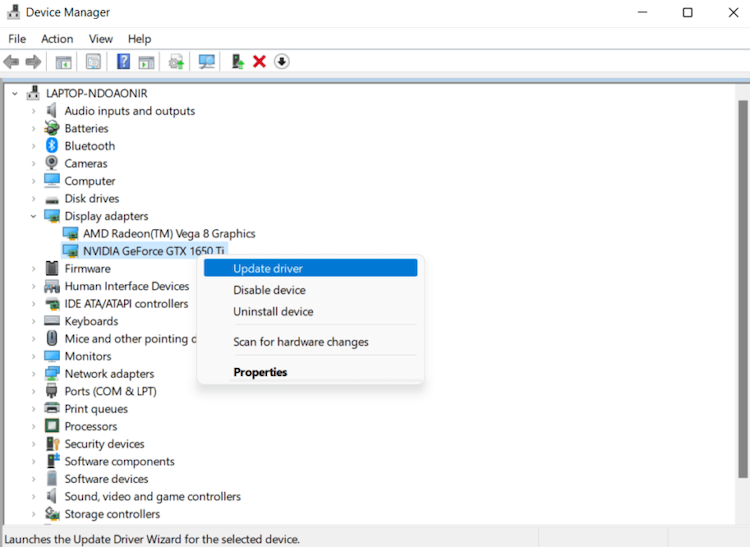
Step 1: Right-click Start and select "Device Manager".
Step 2: Expand "Display adapters" to find your graphics card.
Step 3: Right-click your GPU and select "Update driver" > "Search automatically".
IObit Driver Booster solves this with a database of over 15 million drivers, all WHQL certified. One click updates all outdated drivers simultaneously. Download Driver Booster to ensure every driver is optimized.
Driver Booster Free
- Automatically scan and update drivers.
- Update game ready drivers for peak gaming performance.
- Identify and fix various common of hardware issues.
- Boost 30% of system performance for fast & smooth running.

#6 Free Up Disk Space to Fix PC Lag
When your hard drive has less than 10-15% free space, Windows struggles with temporary file operations, causing noticeable lag.
How to Reduce Lag on PC by Freeing Up Disk Space
Step 1: Open Settings > System > Storage.
Step 2: Turn on Storage Sense and click "Run Storage Sense now".
Step 3: Click "Cleanup recommendations" to see large, unused files.
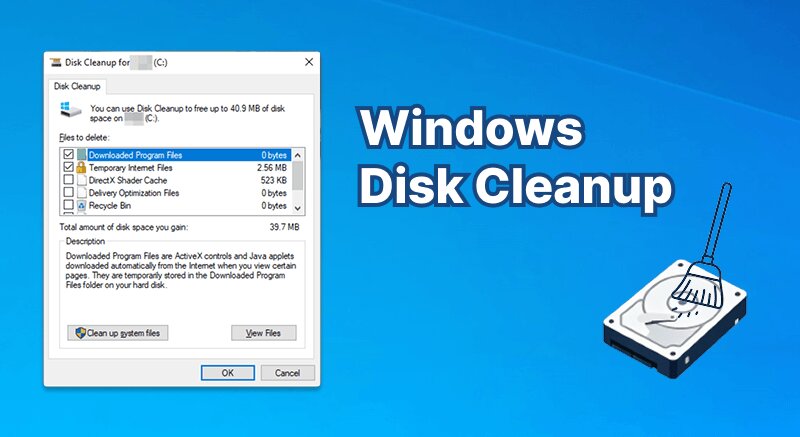
For a deeper clean, use Disk Cleanup. Type "Disk Cleanup" in Start, select the C drive, click "Clean up system files", then check "Windows Update Cleanup".
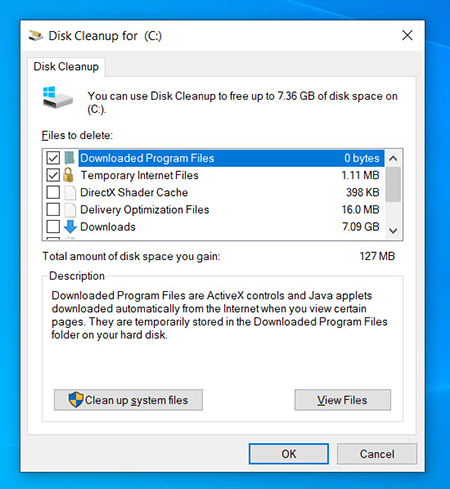
If you're struggling with a full drive, check our guide on how to free up disk space.
#7 Check Network Connection
For online gaming and video calls, network lag (high ping) feels different from system lag—characters teleport, voices cut out.
How to improve network stability:
Use Ethernet instead of Wi-Fi – Reduces latency by 5-20ms.
Restart your modem and router – Unplug for 30 seconds.
Change to a closer server – In online games, manually select the nearest server.
Limit other network activity – Pause downloads and streaming while gaming.
Check Network Connection – Check network status in Windows Settings.
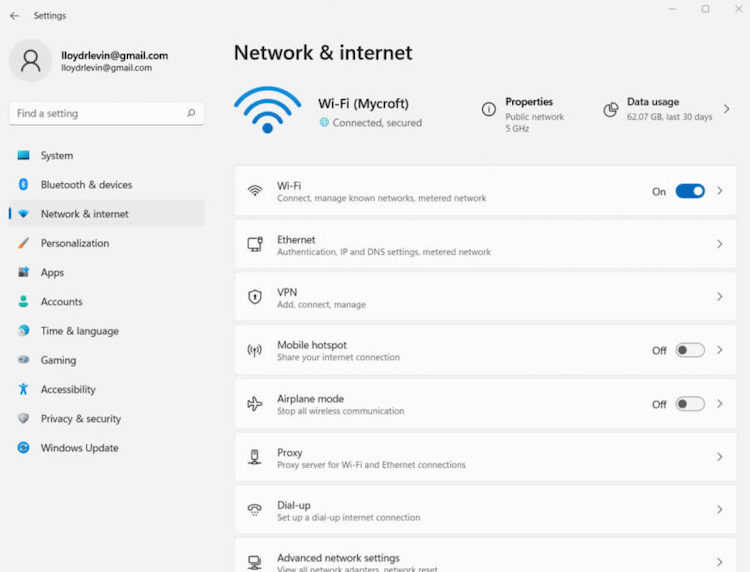
For detailed guidance, read our full guide on how to boost internet speed on PC.
Final Thoughts
Dealing with a laggy PC is frustrating, but you now have a complete toolkit to solve the problem. From manually closing background apps to updating drivers and freeing up disk space, these methods address every possible cause. If manual troubleshooting feels overwhelming, how to fix lag on pc becomes effortless with IObit Advanced SystemCare. Its AI-powered scan, Turbo Boost, AutoCare, and Auto RAM Clean features work together to eliminate lag and keep your PC running at peak performance.