- Support Center
- Multiple Languages
- Language
- Help Us Translate
Expert in
PC Health Solution

All-in-one PC health solution: clean, optimize and secure

Comprehensive PC cleaning, optimization and protection

Keep drivers always up-to-date

More stable performance with less system crashes

Protect millions of computers against malware

Top computer security with full-round protection

Protect against viruses & boost PC performance
Clean: 420 billion traces removed & 85 EB junk files cleaned
Protect: 80 million unauthorized access blocked & 20 million bugs fixed
Speed Up: 6 million hours of startup time saved & Turbo boost
Optimize: Auto clean and auto care your PC with AI mode

What temperature should my GPU be while gaming or streaming? A good and safe GPU temp range is between 60-85°C. Learn more about GPU temp now!



The temperature range when idle is 30°C - 45°C.
The temperature range when gaming/meduim load is 65°C - 85°C.
The temperature range under heavy load is 85°C - 95°C.
Check GPU Temperature using Task Manager, NVIDIA Performance Overlay, and Third-Party Tools.
What Happens If Your GPU Overheats?
What Affects Your GPU Temperature?
How to Lower and Maintain Idle GPU Temperature
What is a good GPU temperature? GPU (Graphics Processing Unit) is a significant part of your computer that handles visuals and graphics. If your GPU is getting too hot while gaming or running heavy loads, it’s risky to lead to thermal throttling, unexpected crashes, and other system damage.
So what is the ideal GPU temp? This GPU temperature guide covers the average GPU temp range, how to check it, tested ways to keep it safe, and everything you will need.
Here are the normal GPU temperature ranges when idle, under gaming load, and the maximum safe limit for the system.
Temperature Range When Idle: 30°C - 45°C
When your computer is idle, like running basic desktop tasks and browsing, the normal GPU temperature should be 30°C - 45°C.
Temperature Range When Gaming/Meduim Load: 65°C - 85°C
What temperature should my GPU be when gaming? You should keep your GPU temperature between 65°C and 80°C under load, and ensure it stays below 85°C when running demanding titles or under heavy load.
Temperature Range When Heavy Load: 85°C - 95°C (Throttle Point)
If your GPU temp rises to 85°C - 95°C under heavy load, your system will reduce performance to protect hardware, which is also called Thermal Throttling.
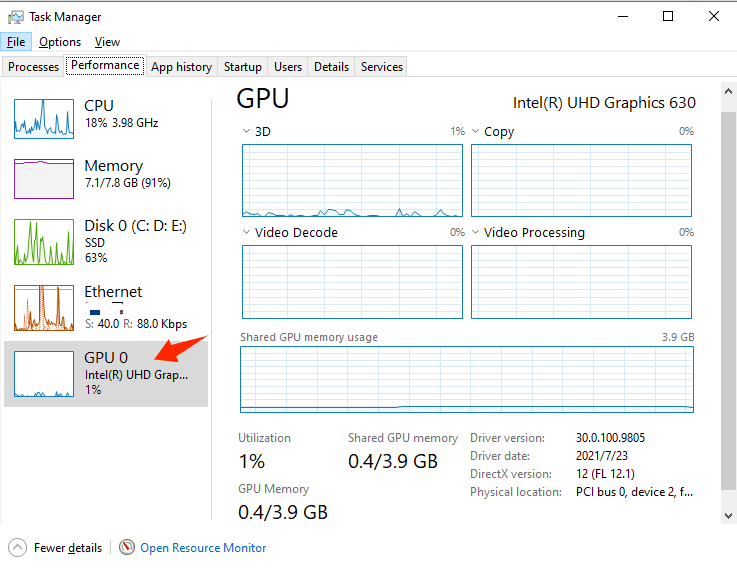
Press Ctrl + Shift + Esc to open Task Manager.
Click the Performance tab (if you don't see tabs, click More details at the bottom).
Select GPU 0 (or GPU 1 if you have multiple graphics cards) from the left sidebar.
Now, you’ll see the real-time GPU Temperature near the bottom of the window alongside usage metrics.
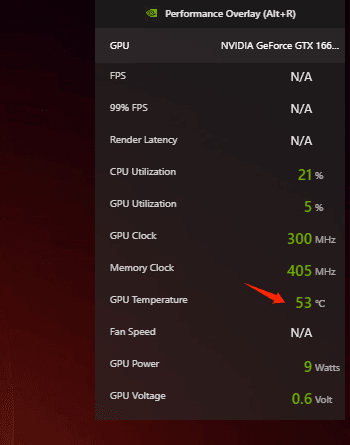
Open GeForce Experience or the NVIDIA App.
Go to Settings > General and ensure In-Game Overlay is toggled ON.
While gaming, press Alt + R to bring up the performance overlay showing live GPU temperature, fan speed, and clock speeds.
If you don’t like the built-in features to check GPU temp, you can rely on free and dedicated tools, like HWMonitor and MSI Afterburner to get detailed temperature logs and customizable monitoring.
What is ideal temperature for GPU Fahrenheit? The good and safe GPU temperature should be 140°F - 194°F (60°C - 85°C). Check what happens if it’s getting too hot:
Thermal Throttling: Modern GPUs will automatically reduce their clock speed and performance once temperatures are over 85°C to prevent hardware damage.
Fan Noise & Lag: Fans will run at maximum speed (100%) at high temps, and you may experience severe FPS drops or stuttering in games.
System Shutdowns: Worse, if the temperature reaches critical limits (typically 95°C to 100°C), your PC will crash, restart, or show a black screen to protect the graphics card.
You May Like: How to Improve Download Speed on Steam: 12 Steps to Make Steam Download Faster >>
Workload Intensity: Running demanding 4K video games or editing high-resolution videos forces the chip to use more power, generating extra heat.
Airflow & Dust: Accumulated dust inside your PC will block cooling fans. And poor case ventilation makes your graphics card hotter.
Room Temperature: Higher room temperatures directly raise baseline internal hardware temperatures.
Cooling Efficiency: Slow fan speeds or old, dried-out thermal paste prevent heat from escaping the GPU core effectively.
No worries. Here are some tips to help you reduce GPU temperature and keep it in ideal condition!
Use compressed air to remove dust buildup from the GPU heatsink and fans regularly.
Ensure your PC case has sufficient intake and exhaust fans running properly.
Use software like MSI Afterburner to set fans to spin up faster at lower temperatures.
A cold room will directly decrease internal PC temperatures.
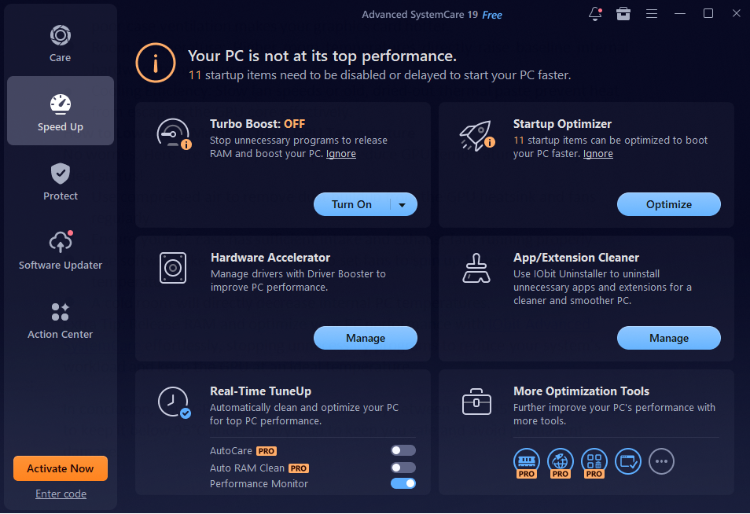
Extra Tip: Release RAM and optimize your PC performance with IObit Advanced SystemCare effortlessly, stopping unnecessary programs to reduce your system’s workload and keep the GPU at an ideal temperature.
In conclusion, your GPU temperature should stay between 30°C-85°C, and you need to keep it below 95°C under heavy load to keep you safe and avoid permanent damage.

 People Also Ask
Learn how to test your PC power supply step-by-step using a paperclip, digital tester, multimeter, or software to safely diagnose power issues and crashing.
PC stutters while gaming, watching videos, or using Windows? Check the quick fixes for overheating, driver issues, high CPU usage, RAM bottlenecks.
Is your computer overheating? Learn how to check CPU temperature is the first step toward a healthier, faster PC. Also, learn how to cool your computer down.