- Support Center
- Multiple Languages
- Language
- Help Us Translate
Expert in
PC Health Solution

All-in-one PC health solution: clean, optimize and secure

Comprehensive PC cleaning, optimization and protection

Keep drivers always up-to-date

More stable performance with less system crashes

Protect millions of computers against malware

Top computer security with full-round protection

Protect against viruses & boost PC performance
Complete forced uninstallation for stubborn programs.
Uninstall a batch of programs at once.
Scan and remove leftover files, folders, and registry entries.
Support the management of Universal Windows Platform apps.

Not sure how to uninstall application in Ubuntu? Check these 4 easy methods to remove unwanted or broken software without hassle.



Figure out Whether You Can Uninstall Applications from Ubuntu
4 Methods to Uninstall Application in Ubuntu
Method 1: Use Ubuntu App Center
Method 2: Use the Terminal
Method 3: Remove Snap Packages
Method 4: Uninstall Flatpak Applications
Learn how to uninstall application in Ubuntu with 4 easy methods: Ubuntu App Center, APT commands, Snap commands, and Flatpak commands. Whether you’re a complete new learner who likes GUI operations or an experienced user familiar with quick terminal commands, these 4 methods let you delete unwanted programs effortlessly.
When your apps can’t run on PC or are useless and eat up Ubuntu’s memory, you may want to uninstall them. Can You Uninstall Applications from Ubuntu? Yes. You can easily remove them with the following methods. Continue learning how to remove application from Ubuntu.
Ubuntu App Center (formerly Ubuntu Software Center) is Ubuntu’s default GUI software manager. It allows you to uninstall apps in a few clicks, no terminal commands needed.
Step 1. Click the App Center icon in the Dock, then click the Installed button at the top.
Step 2. Find and select the unwanted application, and click Remove.
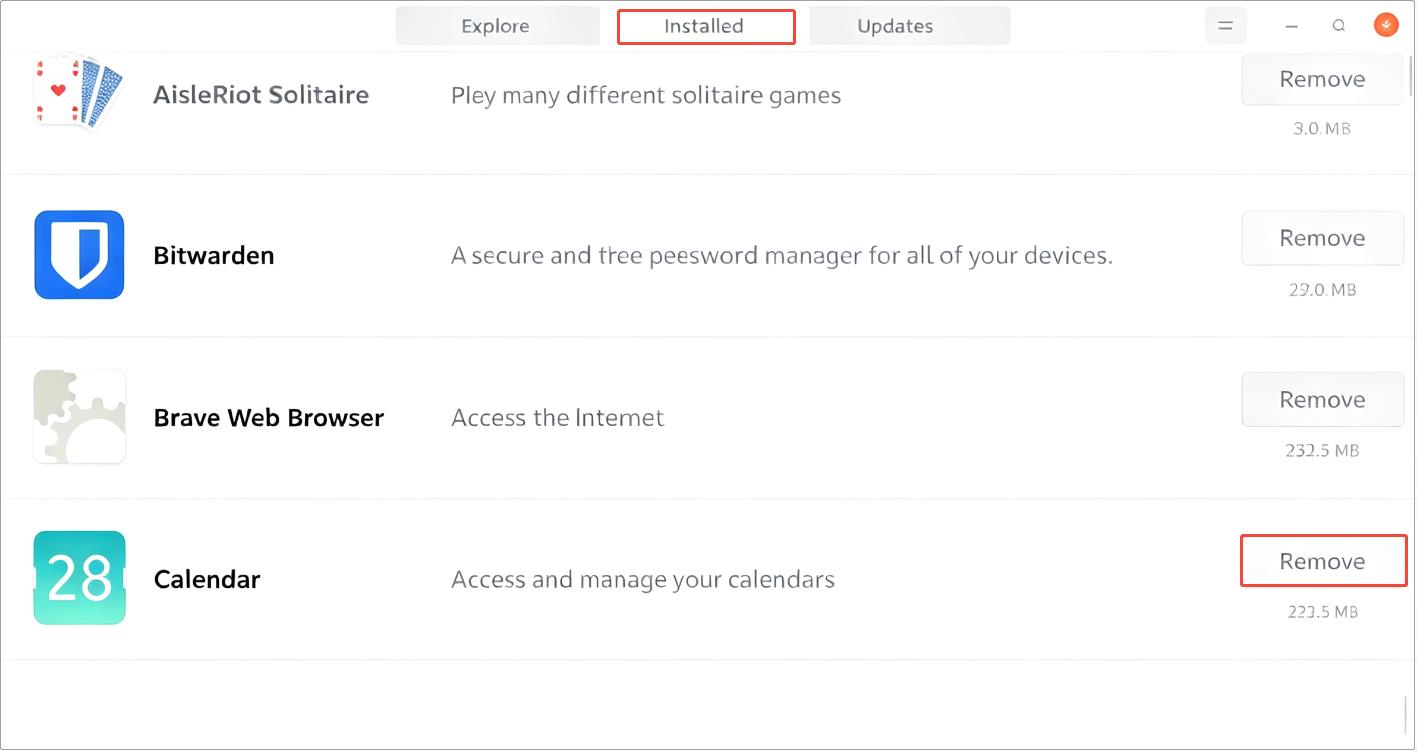
Step 3. Enter your password to authenticate, and the app will be removed.
For users comfortable with text input, Terminal offers simple commands to remove package from Ubuntu. Let’s see how to uninstall app in Ubuntu using APT commands.
Step 1. Press Ctrl + Alt + T to open the Terminal.
Step 2. Run apt list -installed to locate the target package name.
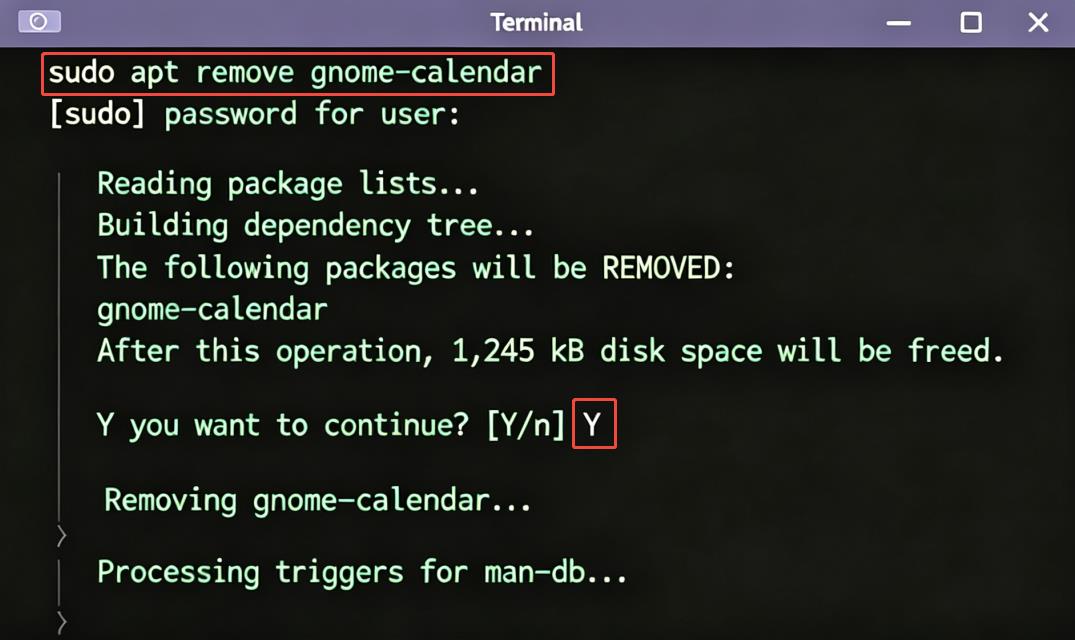
Step 3. Run the following commands based on your needs. (Replace package_name with the actual name of your app.)
sudo apt remove package_name (keeps config files)
sudo apt purge package_name (deletes config files)
Step 4. Enter your account password when prompted, then type Y and press Enter to confirm it.
As Ubuntu’s native package format, Snap lets you remove installed Snap apps via terminal commands. Here is how to uninstall a package in Ubuntu using snap commands.
Step 1. Open the Terminal and run snap list to list package names.
Step 2. Run sudo snap remove package_name to uninstall the application. (Use your real package name in place of package_name.)
Flatpak uses an independent package system separate from Ubuntu’s native packages. Here is how to uninstall app from Ubuntu using Flatpak terminal commands.
Step 1. Launch Terminal and run flatpak list to check the application ID.
Step 2. Run flatpak uninstall appid to remove the app. (Appid should be replaced by the actual ID.)
Now, Ubuntu software uninstall issues are solved. In case you’re wondering how to uninstall software on Windows, download IObit Uninstaller to have on hand. It removes all traces - deletes hidden programs, stubborn apps, and all leftover files for a clean PC in one click.

The Bottom Line
Unwanted software consumes system memory and may slow down your computer. This post explains how to uninstall application in Ubuntu. Choose GUI clicks or terminal commands as you like to remove them and free up disk space.
 People Also Ask
Check how to uninstall Claude Code and details both the manual terminal commands and a free uninstaller tool to cleanly remove it from your system.
Free up disk space by safe Windows Installer folder cleanup. This guide shows how to use Settings, Disk Cleanup, etc., to remove unwanted installer files.
Why is Windows Defender not turning off? How to remove and uninstall Windows Defender on Windows 11? Can I disable Windows Defender permanently?