

- Support Center
- Multiple Languages
- Language
- Help Us Translate
Expert in
PC Health Solution

All-in-one PC health solution: clean, optimize and secure

Comprehensive PC cleaning, optimization and protection

Keep drivers always up-to-date

More stable performance with less system crashes

Protect millions of computers against malware

Top computer security with full-round protection

Protect against viruses & boost PC performance
Clean: 420 billion traces removed & 85 EB junk files cleaned
Protect: 80 million unauthorized access blocked & 20 million bugs fixed
Speed Up: 6 million hours of startup time saved & Turbo boost
Optimize: Auto clean and auto care your PC with AI mode

GPU fans not spinning? Learn why it happens, how to check GPU temperature and fan speed, and how to fix the issue with these practical tips.



Whether GPU fans not spinning is normal with Zero RPM mode.
Common reasons why GPU fans fail to spin under load.
How to check GPU temperature and fan speed with monitoring tools.
How to fix GPU fans not spinning through settings, drivers, and hardware checks.
When to seek professional GPU repair and protect your warranty.
GPU fans not spinning is quite normal. Most modern graphics cards use Zero RPM mode and keep the fans off when the card is cool or under a light workload. This guide explains when it’s normal, how to check your GPU status, and what to do if the fans really aren’t working.
Yes, in most cases. Many modern graphics cards use Zero RPM (or 0dB) mode, which automatically stops the fans when the GPU temperature is low to reduce noise and unnecessary wear. The fans usually start on their own once the GPU reaches roughly 50-60°C under a heavier load, such as gaming or rendering.
So, if your fans stay still while the PC is idle or running light tasks like browsing or watching videos, that is not a problem. What matters is whether the fans start spinning as the GPU temperature rises under load.
If the fans should be running but aren’t, several factors may be responsible:
Outdated or corrupted graphics drivers could interfere with fan control and temperature reporting.
A custom fan curve profile may keep the fans off or set the start temperature too high.
A PCIe or 12VHPWR cable that isn’t fully seated can stop the card from running properly.
Built-up dust, debris, or a stray cable can block the fan blades.
A failed fan motor or damaged hardware may prevent the fans from starting.
Before changing anything, check what your GPU is actually doing. Advanced SystemCare makes this easy with its Performance Monitor, which shows your system’s temperatures and fan speed in one dashboard.
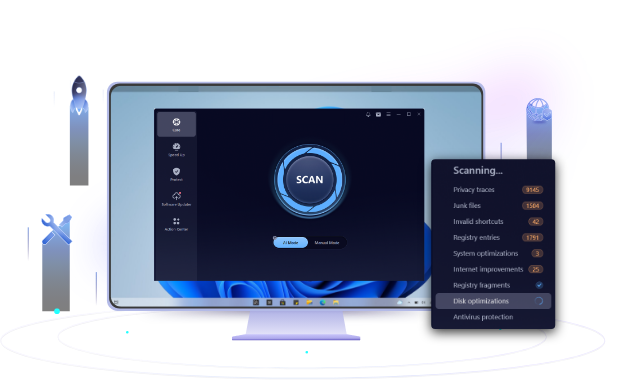
Download and open Advanced SystemCare.
In the Speed Up tab, toggle on the Performance Monitor.
Click the TEMP tab to view the GPU temperature, as well as the temperature and fan speed of the CPU, motherboard, hard drive, and fan speed.
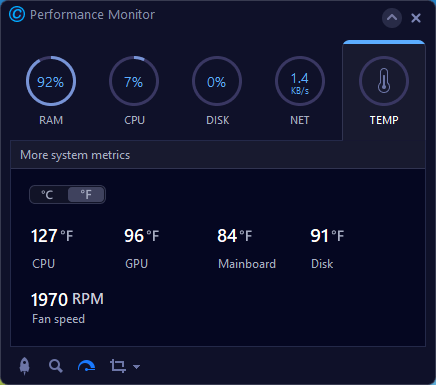 Keep it open while you run a game or another demanding task for a few minutes. If the GPU stays cool, the fans are probably just resting in Zero RPM mode. However, if the temperature continues to rise under heavy load while the fan speed stays at 0 RPM, your GPU may need further troubleshooting. Please refer to the solutions below to deal with it.
Work through these steps in order, starting with the simple checks:
1. Check fan settings. Open your GPU manufacturer’s software or MSI Afterburner, and check whether Zero RPM mode is on and how the fan curve is set. Temporarily disable fan-stop mode or use a more responsive curve to see if the fans start.
2. Update or reinstall graphics drivers. Download the latest version from the official NVIDIA, AMD, or Intel website, or use Driver Booster for a quicker update. If the problem began after an update, roll back to the previous version.
3. Clean dust and obstructions. Shut down and unplug your PC, then use compressed air to clear dust, debris, and loose cables from the fan blades.
4. Check power connections and reseat the card. With the PC unplugged, make sure the PCIe or 12VHPWR cables are firmly attached, then remove the card and reinsert it until the clip clicks. If you’re unfamiliar with PC hardware, seek professional help.
5. Test the fans. Run them at different speeds in MSI Afterburner or your GPU utility. If they respond, the issue is likely settings, drivers, or temperature thresholds. If they stay still, the fans or their control circuitry may be damaged and need professional inspection.
Consider professional GPU repair if the fans remain unresponsive after troubleshooting, especially if you notice other warning signs, such as excessive GPU temperatures, unusual fan noises, a black screen with no display output, or obvious fan-blade damage. If the GPU is overheating or you notice a burning smell or smoke, shut down your computer right away and unplug it, if it is safe to do so.
Notice: If your graphics card is still under warranty, contact the manufacturer or retailer before attempting to open or repair it yourself. Disassembling the card may void your warranty.
 People Also Ask
What temperature should my GPU be while gaming or streaming? A good and safe GPU temp range is between 60-85°C. Learn more about GPU temp now!
MS Edge is not opening on your Windows PC? Try these 8 effective fixes, including restarting Edge, repairing the browser, and reinstalling it.
Stuck with the “This app can’t run on your PC” error? Learn quick fixes, compatibility settings, and advanced ways to make programs run smoothly on Windows.