Many users suddenly encounter Ad-Aware Web Companion without knowing exactly where the program came from or why it starts automatically with Windows. It often causes altered browser settings, unwanted pop-ups, or even slower system performance. If you want to get rid of the program, you should uninstall Web Companion to restore a clean and stable system. This article will show you how to completely remove it, step by step.
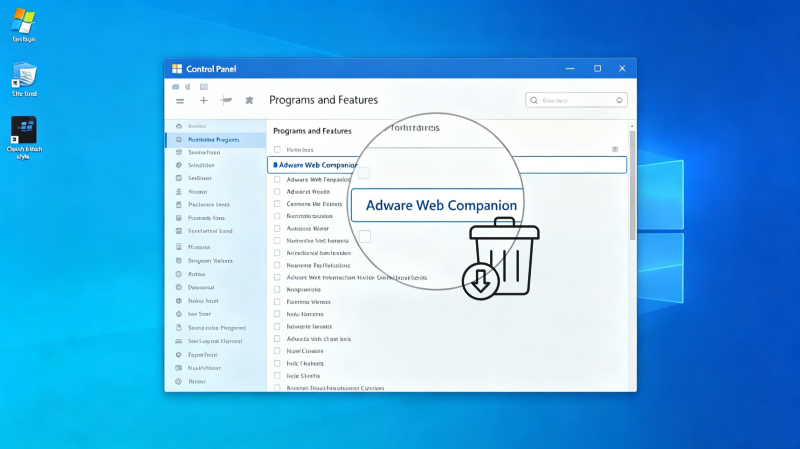
Why Would You Delete Web Companion?
Ad-Aware Web Companion is often installed alongside other software without the user's knowledge. According to its manufacturer, Avast, the program is supposed to protect the browser and prevent phishing , but in practice it frequently changes homepages or search engines and collects data about browsing behavior.
Why Can't I Uninstall Web Companion?
Many users also report that Web Companion is difficult to uninstall or reactivate after a restart. If Web Companion cannot be uninstalled, this may be due to remaining services or background processes – therefore, a thorough removal using the correct steps is recommended.
In many cases, the uninstallation fails for the following reasons:
The background process is still running;
Autostart entries force a restart of the program;
Files or registry entries are corrupted.
How Do I Uninstall Web Companion?
If Web Companion Windows 11 won't uninstall or reappear after every restart, this is usually due to leftover services or startup entries. Fortunately, there are several ways to completely remove the program – both through Windows settings and with professional tools. The following methods work reliably on Windows 10/11 and older Windows systems.
Method 1: Uninstall Web Companion via Windows Settings (conventional methods)
The easiest way to uninstall Web Companion is via the built-in Windows app manager. This method is particularly suitable if the program is still displayed normally in the program list.
Here's how to proceed:
Open the settings via the Start menu or using the keyboard shortcut Windows + I.
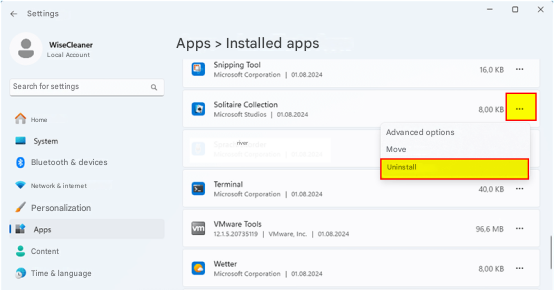
Click on Apps > Installed apps (in Windows 10: Apps & Features).
Look for Ad-Aware Web Companion in the list.
Select the entry and click Uninstall.
If Web Companion cannot be uninstalled or the entry doesn't appear at all, the program may be corrupted or has been partially removed manually. In this case, the following methods will help you completely remove Web Companion from Windows 10/11 and delete all remaining traces.
Method 2: Remove Web Companion via the Task Manager (for advanced users)
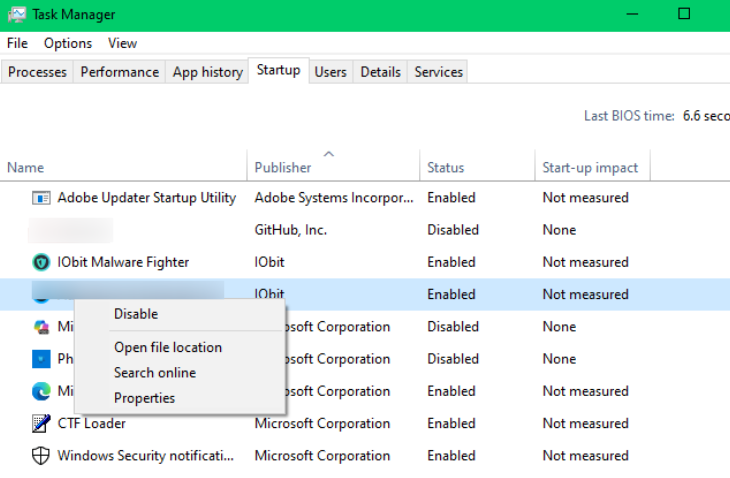
If Web Companion Windows 11 cannot be uninstalled or reappears after a restart, background services or startup entries are often active. In this case, the Task Manager can help. Use it to delete any remaining files and disable startup processes that prevent automatic reinstallation.
Step-by-step instructions:
-
Next, open File Explorer and delete the following folders, if they exist:
C:\Program Files (x86)\Lavasoft\Web Companion
C:\Users\<Name>\AppData\Local\Lavasoft
Press Windows + R, type regedit and open the Registry Editor. Search for entries containing "Web Companion" and carefully delete them (Tip: create a backup beforehand).
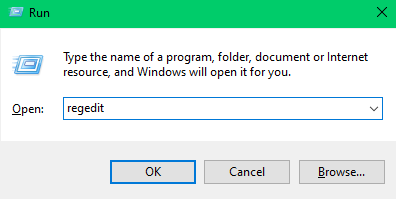
This method is suitable for experienced users. If you are unsure about using the Registry Editor or system folders, or if uninstalling Web Companion on Windows 10/11 still doesn't work, you should use professional uninstallation software – for example, IObit Uninstaller, which automatically removes hidden remnants.
Method 3: Completely remove Web Companion using IObit Uninstaller (recommended)
If all previous methods fail, or if Web Companion cannot be uninstalled under Windows 10/11 , a specialized tool like IObit Uninstaller is particularly useful. It allows you to quickly and thoroughly remove the program, including all hidden files, registry entries, and browser extensions.
IObit Uninstaller Free
- Complete forced uninstallation for stubborn programs.
- Uninstall a batch of programs at once.
- Scan and remove leftover files, folders, and registry entries.
- Support the management of Universal Windows Platform apps.

Step-by-step instructions:
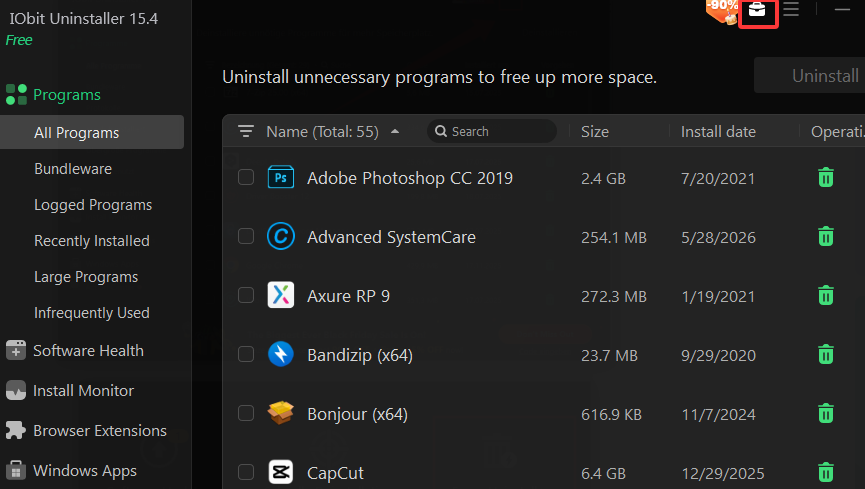
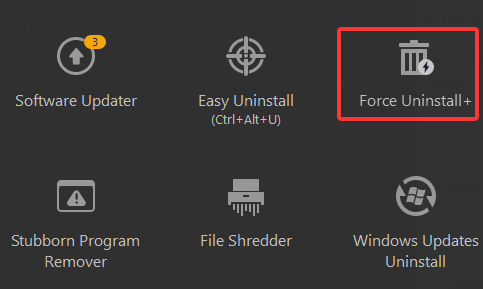
This method ensures that Web Companion is completely and reliably deleted – even if the program cannot be removed via Windows settings or Task Manager.
FAQ on uninstalling Web Companion
Is Web Companion really necessary?
Web Companion is advertised as anti-spyware and is supposed to protect your PC from hijackers and adware. In practice, however, the program usually proves to be superfluous and offers little added value.
What can I do if a program cannot be uninstalled?
If Web Companion cannot be uninstalled, you can use IObit Uninstaller to quickly resolve the problem. This tool completely removes stubborn programs, including all leftover files and registry entries. This ensures that no traces remain and the system stays clean.
Should I uninstall Lavasoft Web Companion?
Whether you should remove Lavasoft Web Companion depends on whether it interferes with your system or makes unwanted changes to your browser. Many users remove it to keep their computer cleaner and faster.
Why does Web Companion install automatically?
It is often bundled with free software and installed without your knowledge.
Is Web Companion dangerous?
It is not inherently dangerous, but it can slow down your system and affect your browser.
What if the program cannot be uninstalled?
In this case, an uninstaller can help to completely remove all traces.
Conclusion
Anyone experiencing problems with Web Companion or wishing to remove it can do so via Windows Settings, Task Manager, or a free tool like IObit Uninstaller. Even if Web Companion cannot be uninstalled on Windows 10/11, these methods allow for a quick and complete Adware Web Companion removal, keeping the system clean and the browser unaffected.