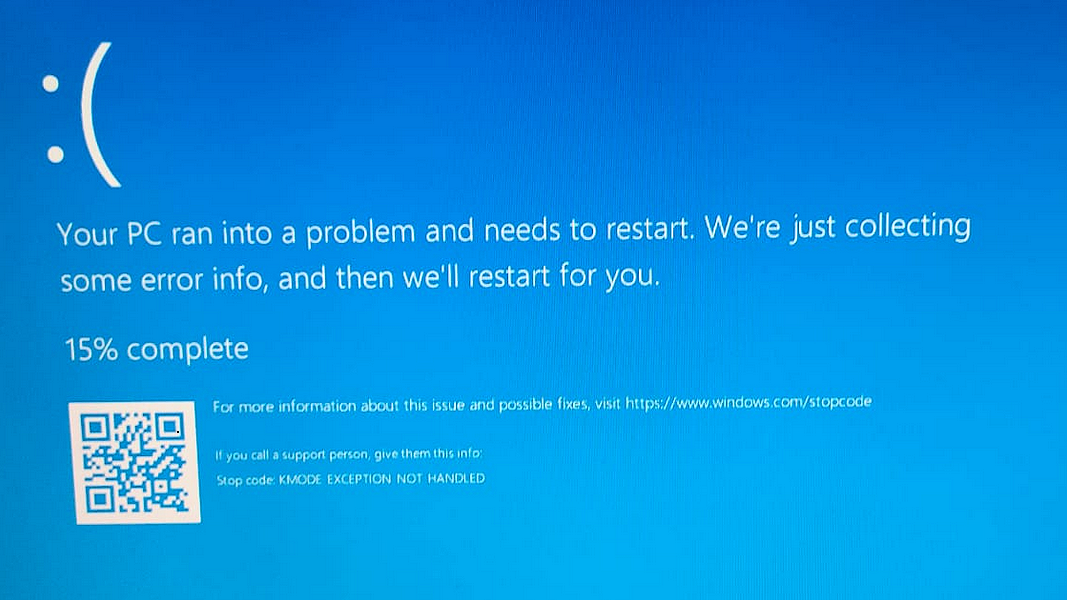
You’ve just downloaded the latest NVIDIA driver. You double-clicked the installer and watched the progress bar crawl, yet found it stopped with an “installation failed” message or froze completely. The frustration is real, and it can be super annoying when you need the update for a better gaming experience.
This common issue can affect NVIDIA graphics drivers, GeForce cards, Game Ready Drivers, and other NVIDIA graphics packages on Windows 10 or 11. If you are facing the NVIDIA drivers installation failed issue, don’t worry; this guide will introduce 7 practical fixes to help you get your NVIDIA drivers installed and working properly again.
Why Is My NVIDIA Driver Not Installing?
Before jumping into fixes, let's have a look at the most common causes behind NVIDIA drivers not installing.
Incorrect or incompatible NVIDIA driver version: When your NVIDIA drivers installation failed, it can be that you got a desktop driver for a laptop GPU (or vice versa) or chose the wrong Windows version.
Corrupted or incomplete driver installation files: Interrupted downloads, incomplete extractions, or damaged temporary files might leave the installer unable to finish.
Windows Update or system compatibility issues: Pending Windows updates, an outdated build, or conflicts with the Windows Driver Store can also block installation. This is especially common when you find NVIDIA drivers not installing on Windows 11.
Insufficient administrator permissions: The installer often needs administrators’ permissions to write files into protected system folders.
Antivirus or security software interference: If you can't install NVIDIA drivers, it can be that Windows protection/antivirus silently flags legitimate NVIDIA components and stops the process without notice.
Many factors can cause the NVIDIA drivers not installing issue, so there is no single fix that works for everyone. We recommend starting with basic checks and moving on to advanced methods. But if you prefer to skip manual troubleshooting entirely, you may jump straight to Fix 7 for a reliable automated solution.
7 Fixes to Solve NVIDIA Drivers Won’t Install Error
Why is my NVIDIA driver not installing? The previous parts have covered general causes. In this part, let’s look at how to fix NVIDIA drivers not installing with 7 useful methods.
Fix 1: Download Correct Driver & Check Basic Requirements
One of the most important steps is to confirm you have installed the right package. NVIDIA offers different branches (Game Ready, Studio, etc.), and each one is tailored to specific GPUs and use cases. For most gaming systems, the Game Ready Driver is the correct choice. To verify your hardware and download the proper file, you can follow these steps:
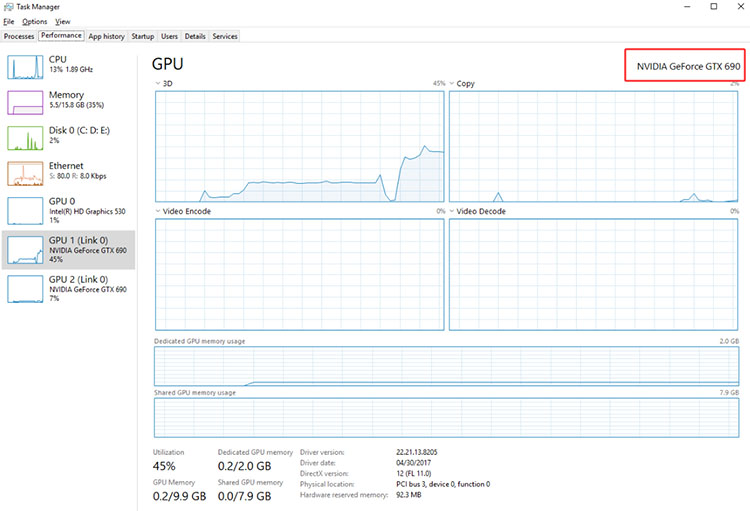
Step 1. Search for and open Device Manager > expand Display adapters to note your exact NVIDIA GPU model. Alternatively, open Task Manager > Performance > GPU to see the model name.
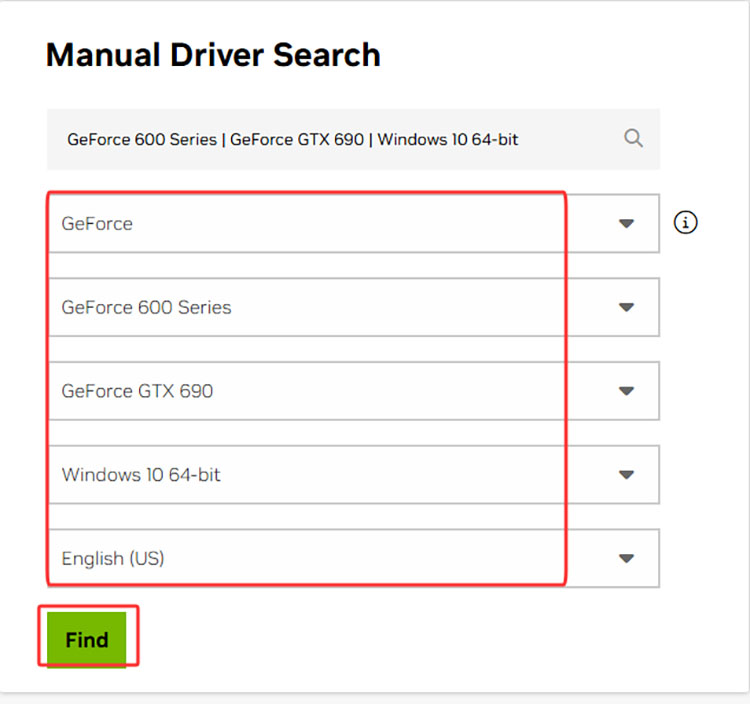
Step 2. Visit the official NVIDIA drivers page, select your product type, series, model, and Windows version, then download the matching package.
Step 3. Ensure you have at least 3-5 GB of free space on the system drive because the installer extracts temporary files there.
Step 4. After all information are confirmed, reinstall the driver to see if the issue is resolved.
Fix 2: Restart Your PC and Try the Installation Again
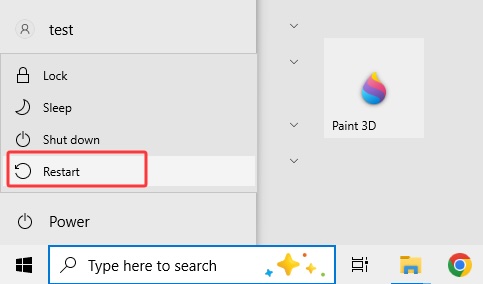
In many cases, you can restart your computer to solve the NVIDIA drivers installation failed issue. This practice can clear temporary locks, stop background services that may be interfering, and release files held by previous installer attempts. Here’s how to restart your PC
Step 1. Click the Start menu. Select the power icon. Choose Restart and wait for the system to reboot.
Step 2. After the PC boots back up, try the installation once more.
Fix 3: Run the NVIDIA Installer as Administrator
Permission problems can prevent an installer from writing files to protected Windows directories. You can run the package with elevated permissions to resolve the NVIDIA drivers installation failed issue.
Step 1. Locate the downloaded NVIDIA driver.exe file.
Step 2. Right-click it and select “Run as administrator.”
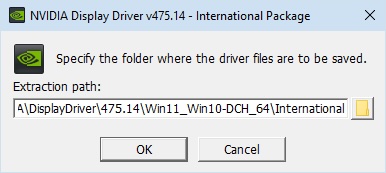
Step 3. Click Yes if User Account Control appears. Proceed with the installation wizard.
If this does not resolve the problem, the issue may involve existing NVIDIA files rather than permissions.
Fix 4: Temporarily Disable Antivirus and Firewall Software
Windows Security and third-party antivirus software can sometimes interfere with NVIDIA driver installation. Some security programs may mistakenly flag legitimate NVIDIA installer components or block them from accessing certain system locations. You can disable them temporarily to see whether it helps fix the NVIDIA drivers installation failed issue.
Step 1. Go to Settings > Windows Security. Click Open Windows Security on the right.
Step 2. Go to Firewall & network protection and select a network profile: Domain, Private, or Public.
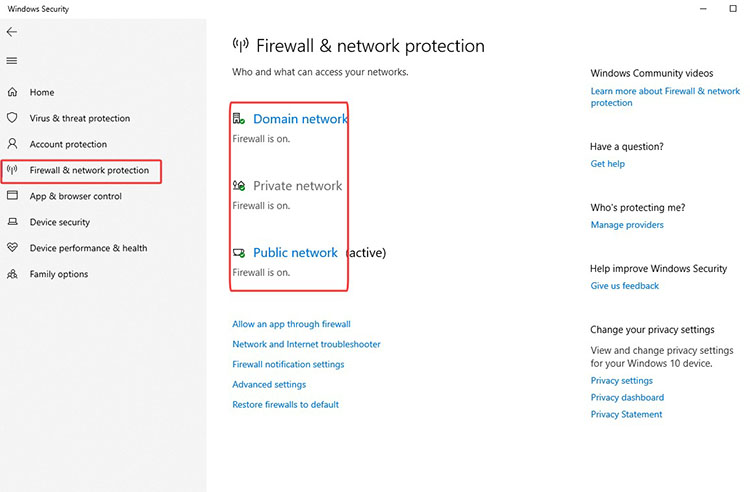
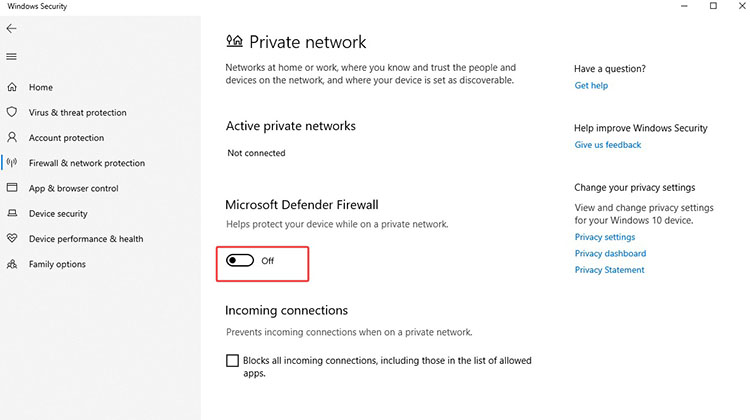
Step 3. Turn the Microsoft Defender Firewall off.
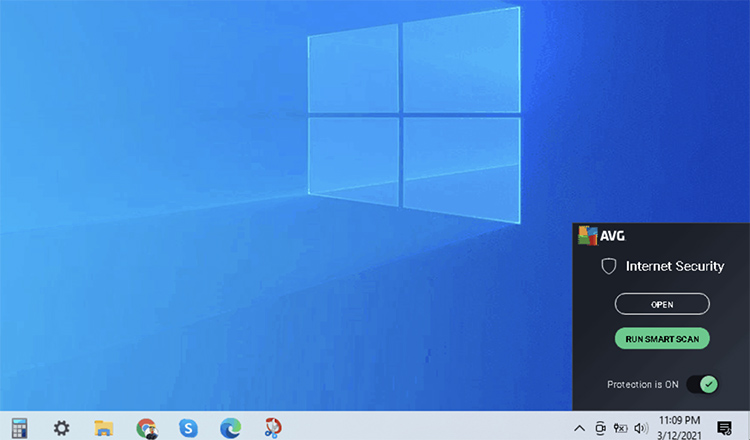
Step 3. For third-party antivirus software, for instance, right-click the AVG icon in the Windows taskbar. Toggle the green slider to the left (Off).
Note: Once the installation is complete, it’s best to immediately re-enable your antivirus and firewall protection.
Fix 5: Update Windows Before Reinstalling Drivers
An outdated Windows build is a common reason behind NVIDIA drivers not installing on Windows 11 errors. It is recommended to update the Windows system to fix the issue.
Step 1. Press Windows + I to open Settings.
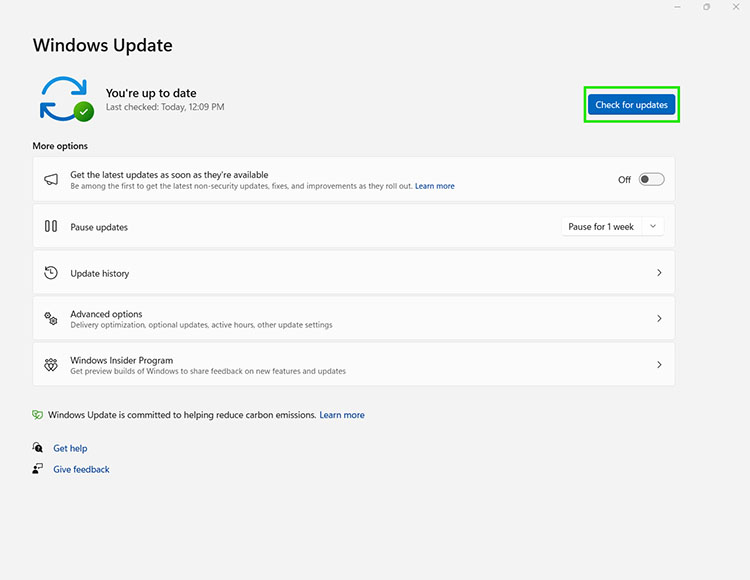
Step 2. Go to Windows Update and click “Check for updates.”
Step 3. Install all available updates and optional driver updates if offered.
Fix 6: Perform an NVIDIA Driver Clean Installation
One of the most frequent causes of NVIDIA drivers installation failed issue is a partial or corrupted leftover from a previous installation. Old files, configuration data, or conflicting components can interfere with a new driver. In this case, a clean install can often resolve it. Here are two methods.
Method 1 – Use the NVIDIA installer’s clean option
Step 1. Run the downloaded installer as administrator.
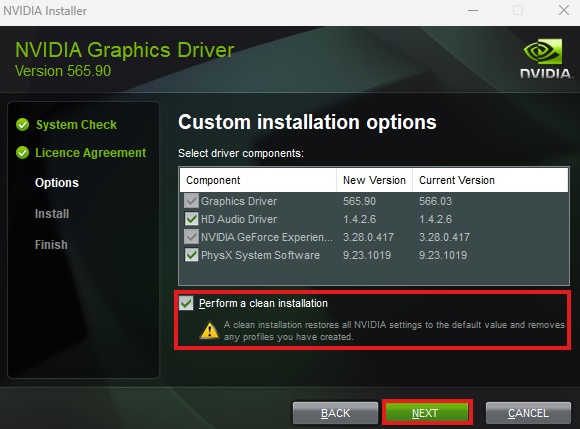
Step 2. Accept the license and choose “Custom Installation Options.”
Step 3. Check the box labeled “Perform a clean installation.” Continue and allow the PC to restart.
Method 2 - Display Driver Uninstaller to Uninstall Problematic NVIDIA Graphics Driver
What if my NVIDIA drivers won't install after attempting Method 1? Don’t worry, you can use Display Driver Uninstaller (DDU) to completely remove the existing NVIDIA graphics driver before reinstalling a fresh one. Here’s how.
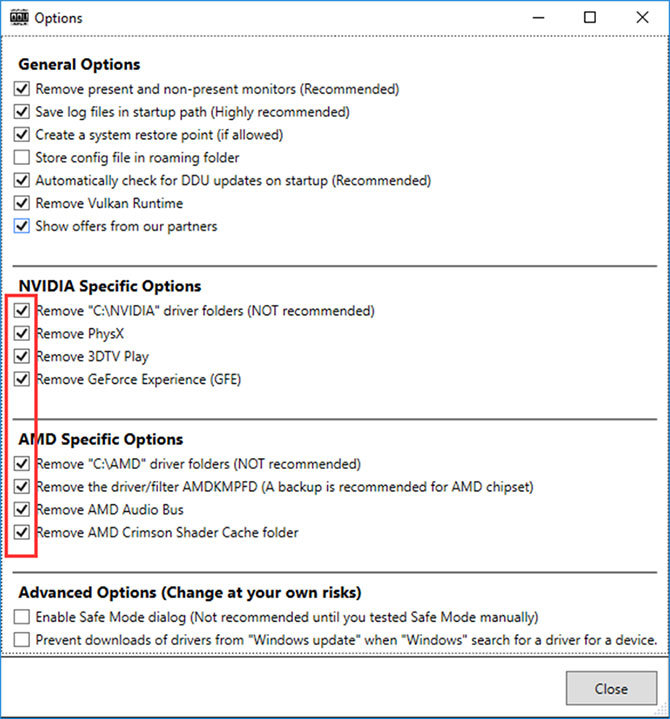
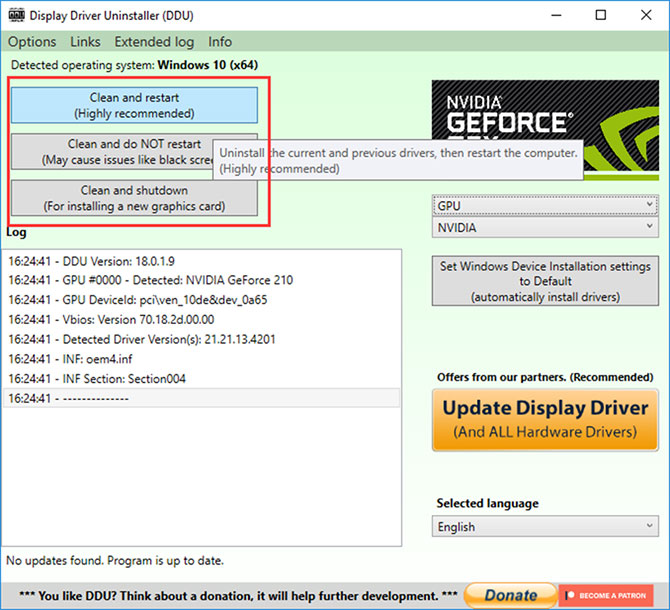
Step 1. Run DDU and select the appropriate options as shown in the screenshot.
Step 2. Select GPU as the device type and NVIDIA as the device.
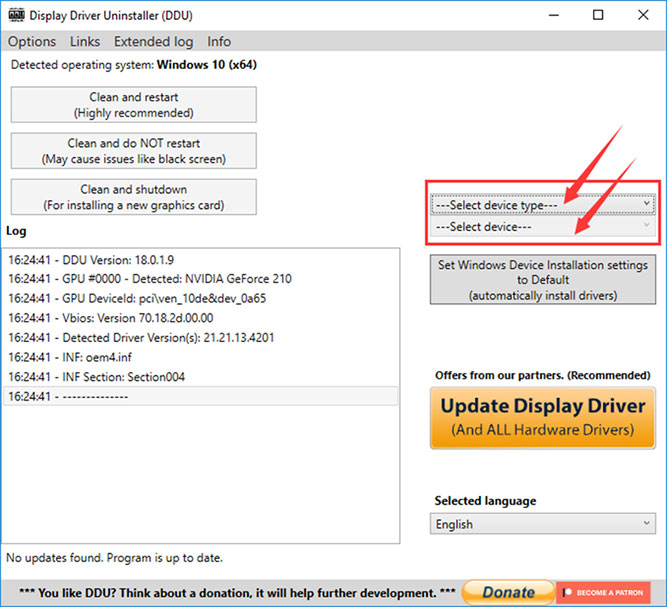
Step 3. Select Clean and restart to uninstall NVIDIA drivers. Then reinstall the latest compatible NVIDIA driver.
Fix 7: Quick Automatic Fix for NVIDIA Drivers Installation Failed with Driver Booster
For average users who want to avoid complicated manual operation, Driver Booster offers a reliable and automated solution. It’s the most efficient driver management tool that can fix NVIDIA driver not installing errors and update hardware and game-ready drivers efficiently.
Why Choose Driver Booster
The automatic driver updater scans your system and matches compatible drivers, so you can avoid the risk of using the wrong drivers.
Each driver is verified by Microsoft WHQL and the IObit Security Test Team, ensuring the safety of the entire update process.
Driver Booster automatically creates a restore point for your current drivers. You can roll back the changes if an update causes problems.
It can identify outdated chipset, audio, network, and other drivers in batches, which helps fix overall system compatibility issues.
You can set Driver Booster to check for updates regularly in case an outdated version becomes a bigger problem.
Driver Booster supports updating over 18,000,000+ verified drivers from 1,200+ leading brands worldwide.
Its repair tools let you fix missing audio, network problems, device errors, and incorrect display resolution in one click.
How to update drivers with Driver Booster (step-by-step)
Step 1. Download and install Driver Booster from the official site.
Step 2. Launch the program and click the big “Scan” button.
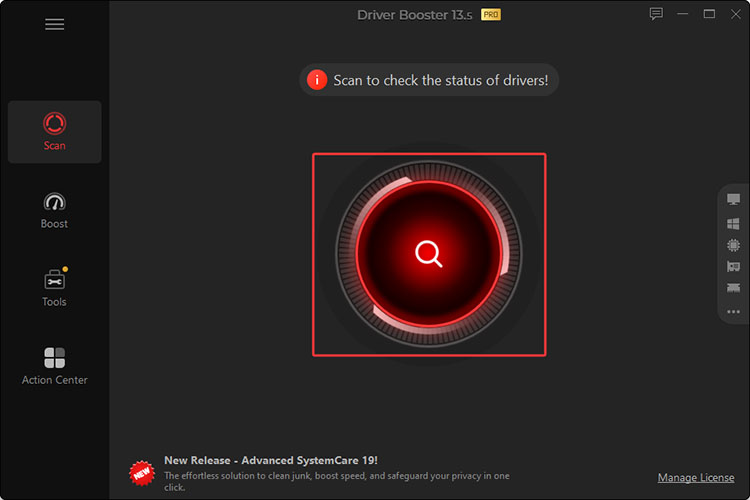
Step 3. Wait for the scan to finish, and you will see a list of outdated drivers, including the NVIDIA driver. Click the Update button to proceed.
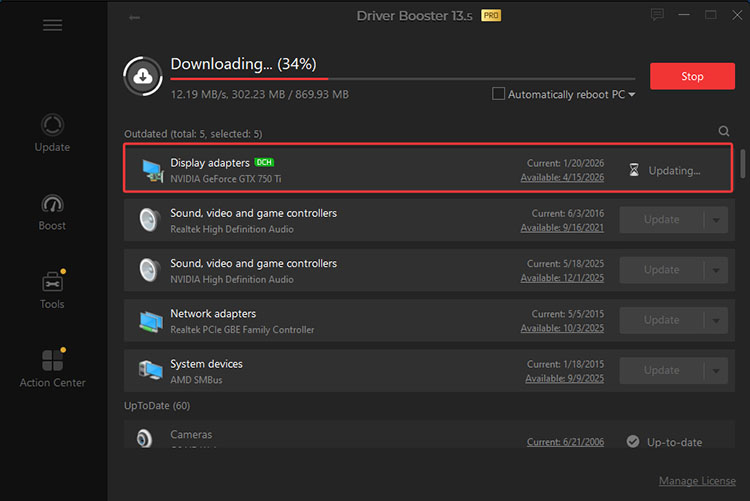
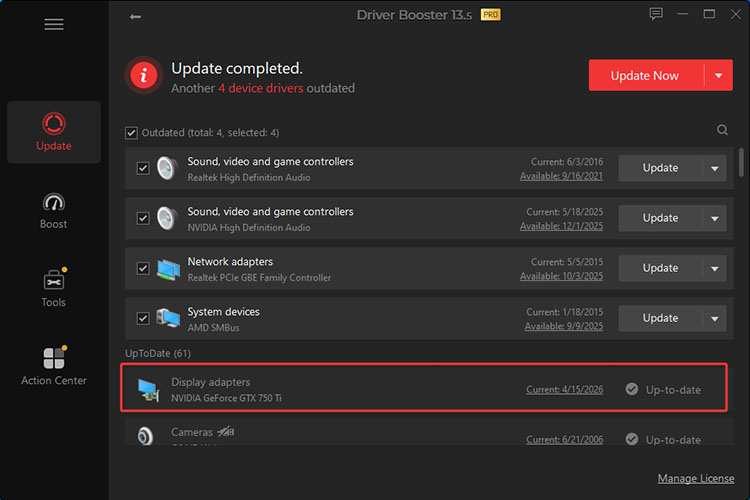
Step 4. After a while, your NVIDIA driver will be updated.
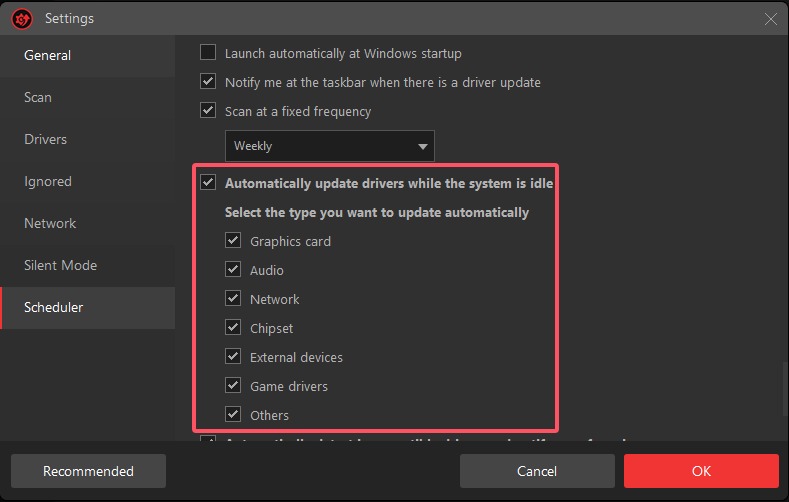
Note: You can also make Driver Booster update drivers automatically. Just head to Options at the top left > Settings > Scheduler > Select “Automatically update drivers while the system is idle”, and then select the type you want to update automatically.
FAQs About NVIDIA Drivers Won't Install
1. Why is my NVIDIA Game Ready Driver not installing?
If you find your NVIDIA Game Ready driver is not installing, verify if you have selected the correct GPU and Windows version. You can also run the installer as administrator or perform a clean installation. Overall, just follow the troubleshooting guide above to fix the issue step by step.
2. What should I do if my NVIDIA GeForce drivers are not installing?
If the NVIDIA GeForce drivers not installing issue persists, restart your PC. Verify the downloaded driver and remove problematic existing drivers before another fresh installation.
3. How often should I update NVIDIA drivers?
Generally, you should update when a new Game Ready Driver is released for a title you play, or when you experience stability/performance issues.
4. Is it safe to disable antivirus temporarily?
Temporarily disabling antivirus protection can help determine whether security software is interfering with the NVIDIA installer. Just make sure to re-enable the protection immediately after testing.
5. Why is my NVIDIA driver not installing even after a clean install?
If the driver still won’t install after a clean installation, the problem may be related to Windows Update, an incompatible driver package, corrupted system files, or other hardware and software conflicts. Double-check your GPU and Windows version. You can also consider Driver Booster for automatic compatible driver updates.
Conclusion
When you encounter the NVIDIA drivers installation failed issue, don’t panic. Just follow the troubleshooting guide above to solve it step by step. However, it might require time and effort to perform all these methods. Here, Driver Booster is deemed the simplest solution, which can automatically scan your hardware and find compatible driver updates. Get Driver Booster to keep your NVIDIA and other system drivers up to date hassle-free now!
Driver Booster Free
- Automatically scan and update drivers.
- Update game ready drivers for peak gaming performance.
- Identify and fix various common of hardware issues.
- Boost 30% of system performance for fast & smooth running.