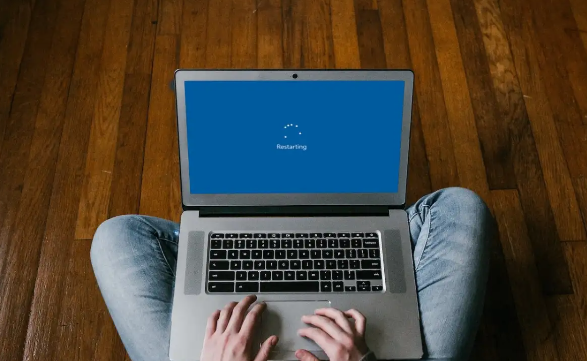
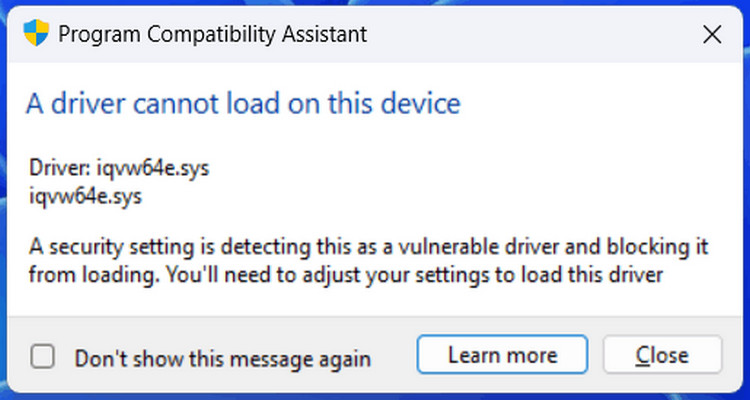
The Blue Screen of Death (BSOD) problem is common for many Windows users and can cause system failures in several different ways. Common BSOD problems include errors related to nvlddmkm.sys, igdkmd64.sys, and SYSTEM SERVICE EXCEPTION. These problems usually appear with an error code that helps determine the type of hardware issue the system is experiencing. In Windows 11/10, the "Kmode Exception Not Handled" error frequently occurs and affects a large number of users. These errors were also present in Windows 8, but here we will introduce several effective ways to fix them in Windows 11/10.
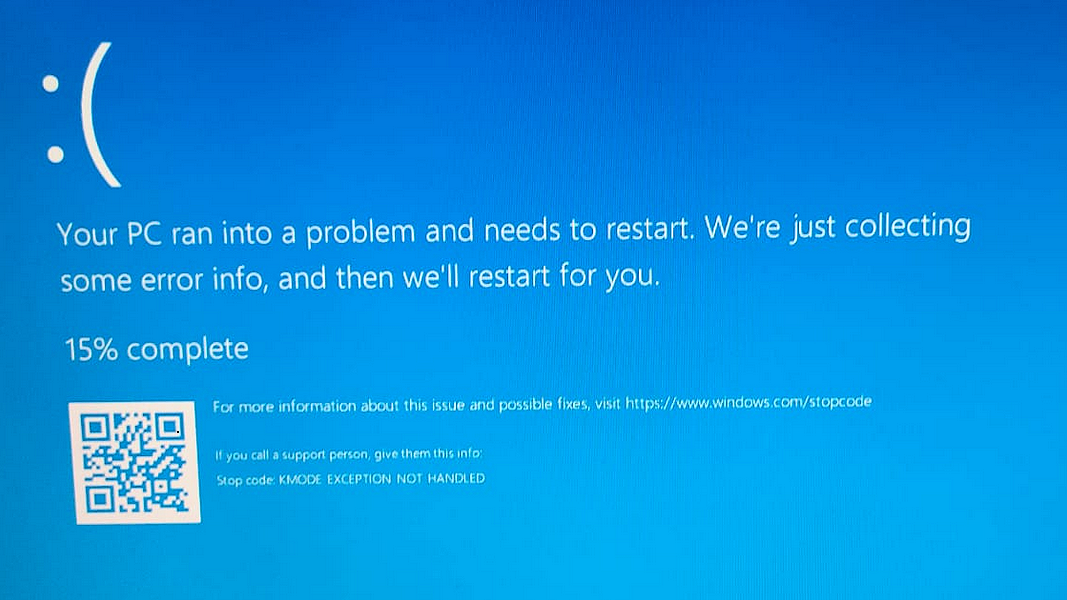
What does Kmode Exception Not Handled mean?
Kmode Exception Not Handled is a system failure. The failure occurs when a kernel program throws an exception that cannot be identified by the error handler. There will usually be an error code of 0x0000001E, and occasionally the system may enter a reboot loop.
How to fix the Kmode Exception Not Handled error?
To correct the error effectively, you can try the following solutions:
Method 1: Disable Fast Startup
Windows Fast Startup is a feature that allows users to customize their startup preferences. Available in Windows 8 and Windows 10, it functions similarly to Hibernate mode in earlier versions of Windows. By saving the operating system to a hibernation state, Fast Startup can make your computer boot even faster.
On the other hand, fast startup can also cause system errors when it fails to run kernel drivers. Sometimes a Blue Screen of Death (BSOD) occurs; you may need to disable fast startup for a normal system boot.
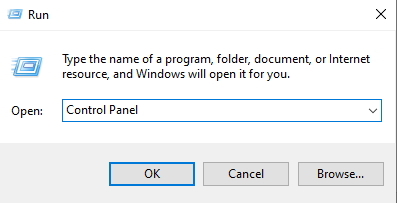
1. Press Win + R and type "Control Panel", and click OK to open the Control Panel
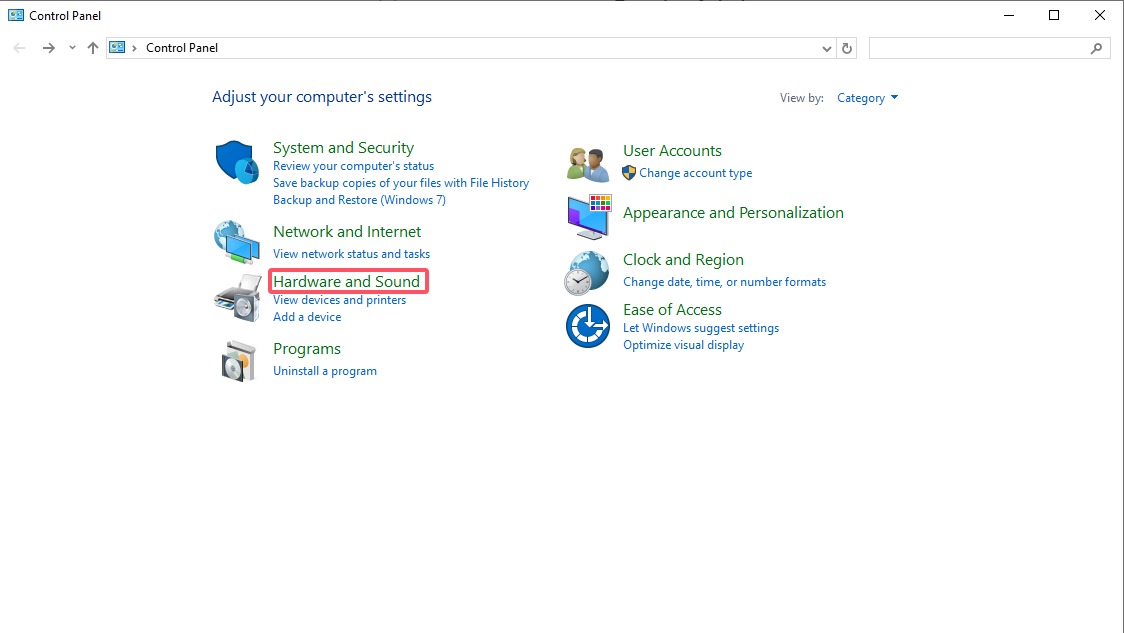
2. Click "Hardware and Sound"
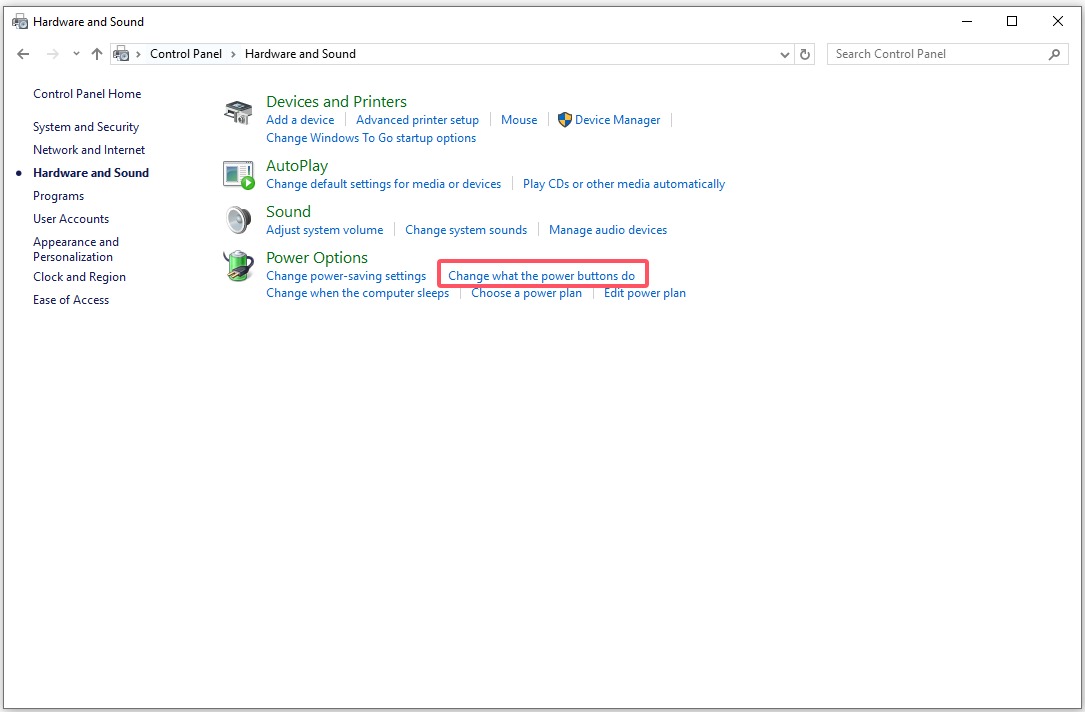
3. Click "Change what power buttons do" under Power Options
4.Click on "Change settings that are currently unavailable"
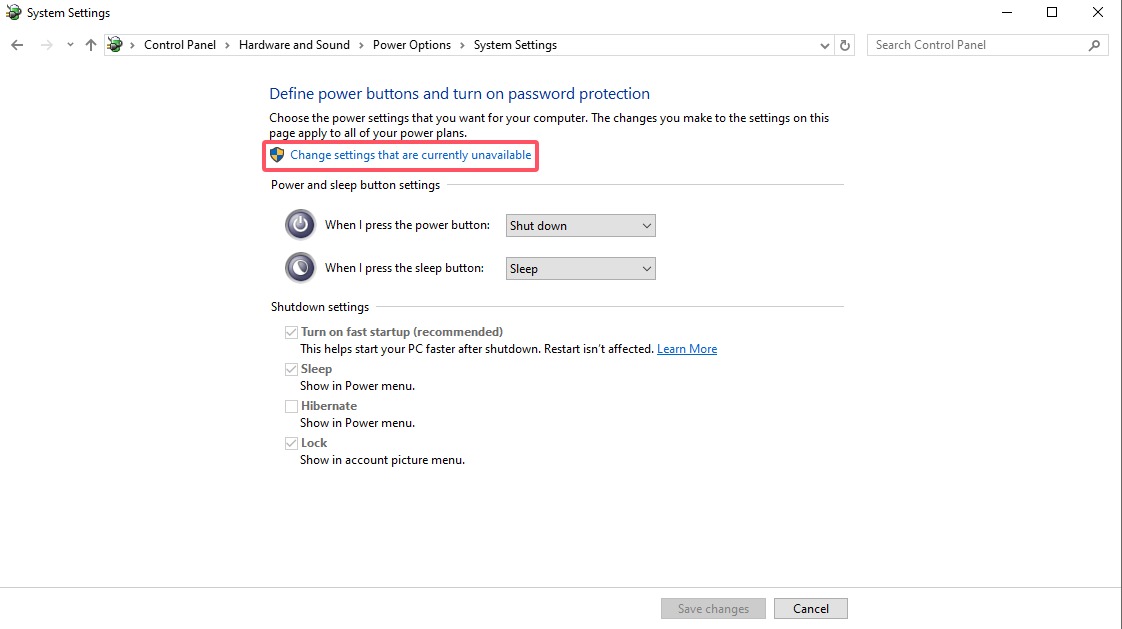
5. Uncheck the checkbox of "Turn on fast startup (recommended)" and click Save changes.
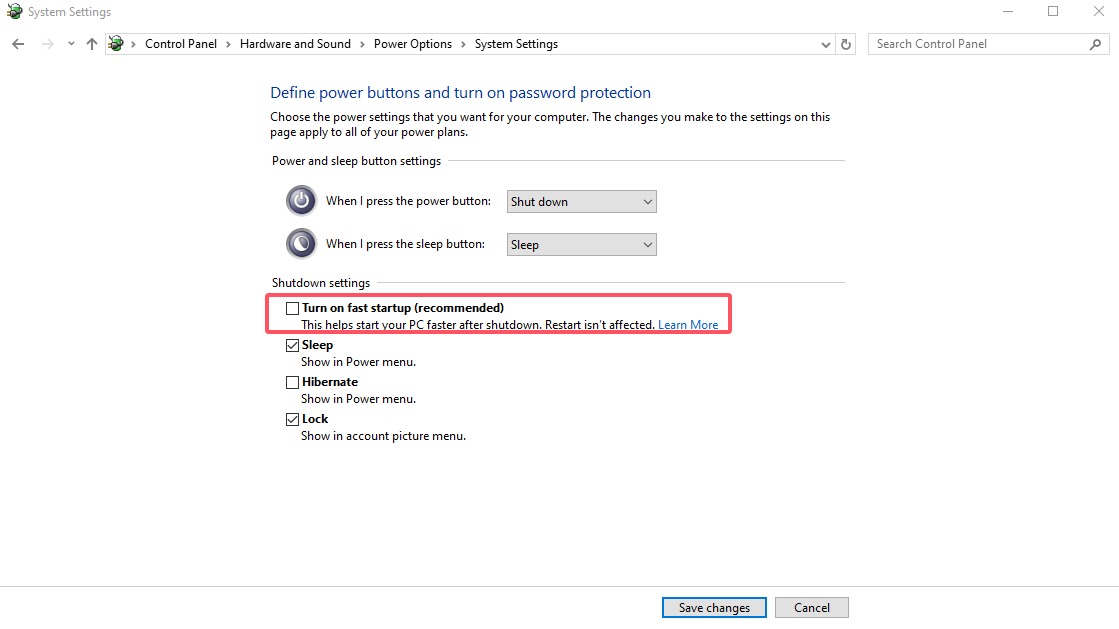
You can now restart your computer and check that the error has been fixed.
Method 2: Run the Windows Memory Diagnostic
Windows Memory Diagnostic is a system memory test. It can help you identify problems with your computer's RAM. During the process, a progress bar will display the status, showing if any problems have been detected. Additionally, Windows Memory Diagnostic can help you troubleshoot the "Kmode Exception Not Handled" error.
1. Open the Windows Memory Diagnostic through the Windows 10 search box
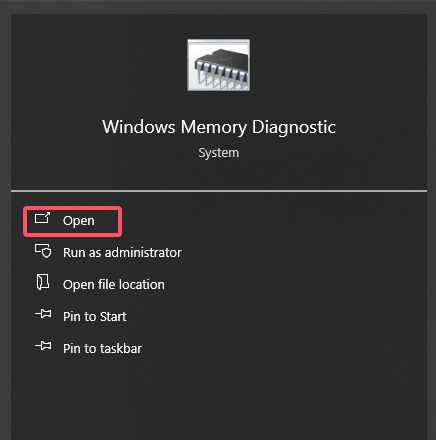
2. Click on "Restart now and check for problems (recommended)".
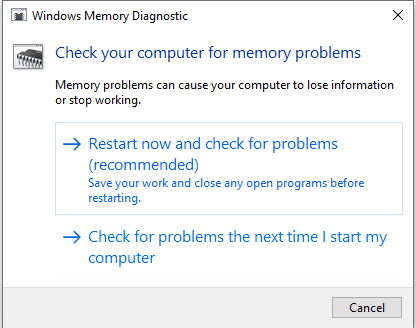
Repair any problems that have been detected and restart Windows.
Method 3: Update Device Drivers
If the "kmode exception not handled" error is caused by outdated drivers, you can choose to update the drivers manually from Device Manager, or update them automatically with a driver update program.
Update the drivers through Device Manager
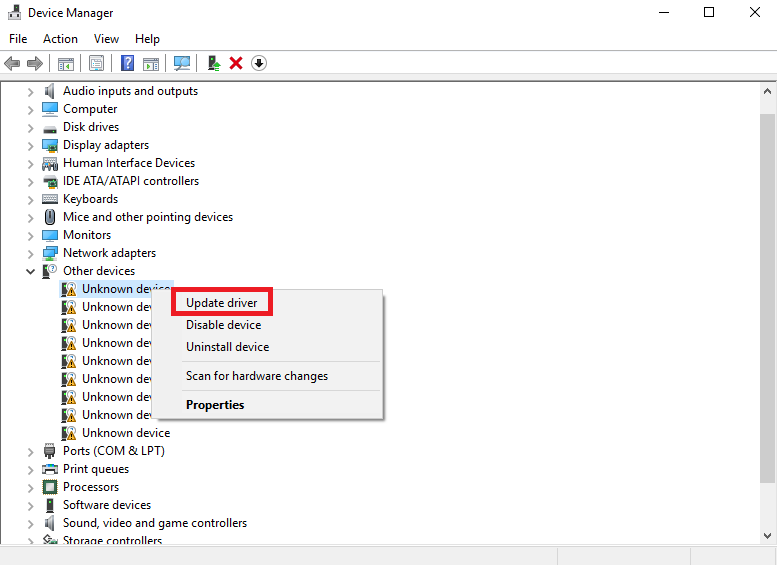
1. Press Win + X and click on Device Manager
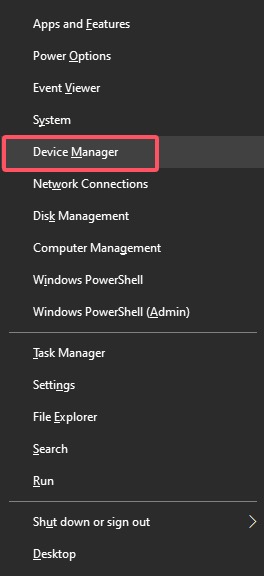
2. Locate ”other devices” and right-click on update driver
3. Click on "Search automatically for drivers" and wait for the search to finish.
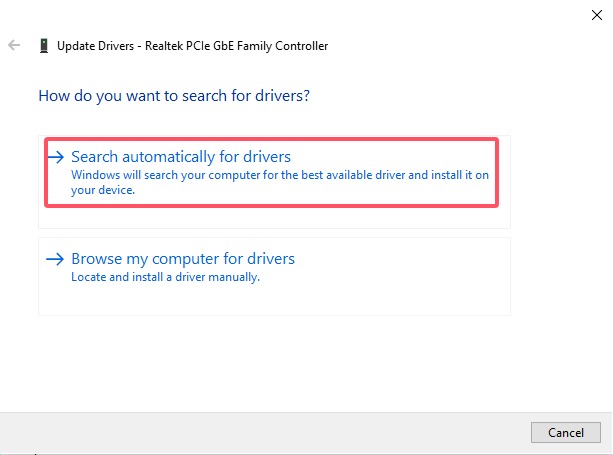
Pay attention to the driver's compatibility with your system.
Update the driver with a driver updater - Driver Booster
Many users find it frustrating to update their device drivers manually, so a driver updater is essential to help them automatically update outdated drivers. Driver Booster is a tool that can update over 15,000,000 device drivers and efficiently fix common driver issues.
With Driver Booster, you can update your drivers in just 3 steps:
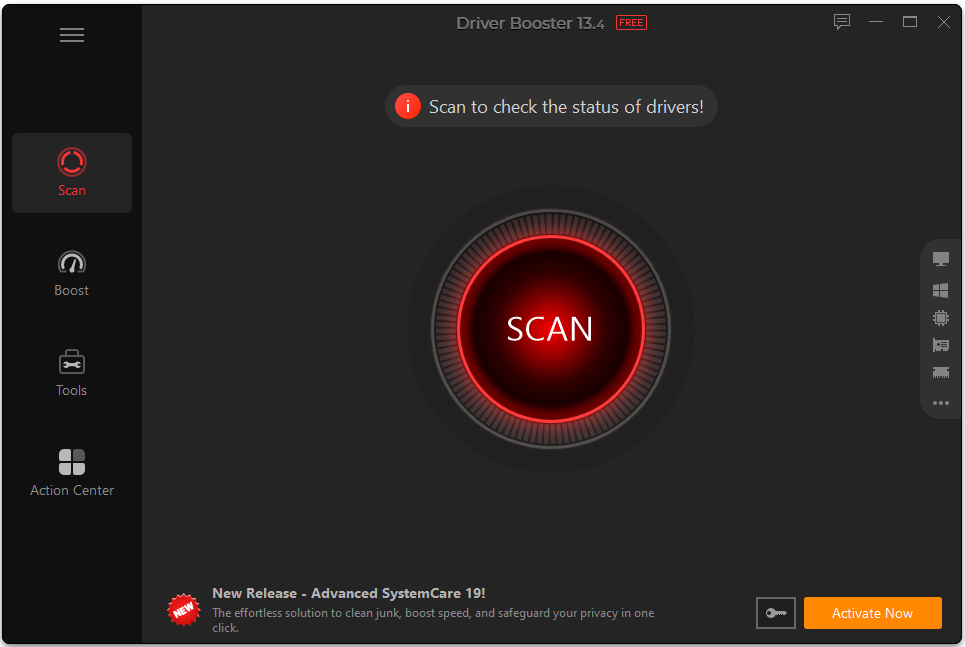
1. Download Driver Booster and launch it.
2. Run a scan with Driver Booster and wait for the scan results.
3. Update all outdated drivers with a single click.
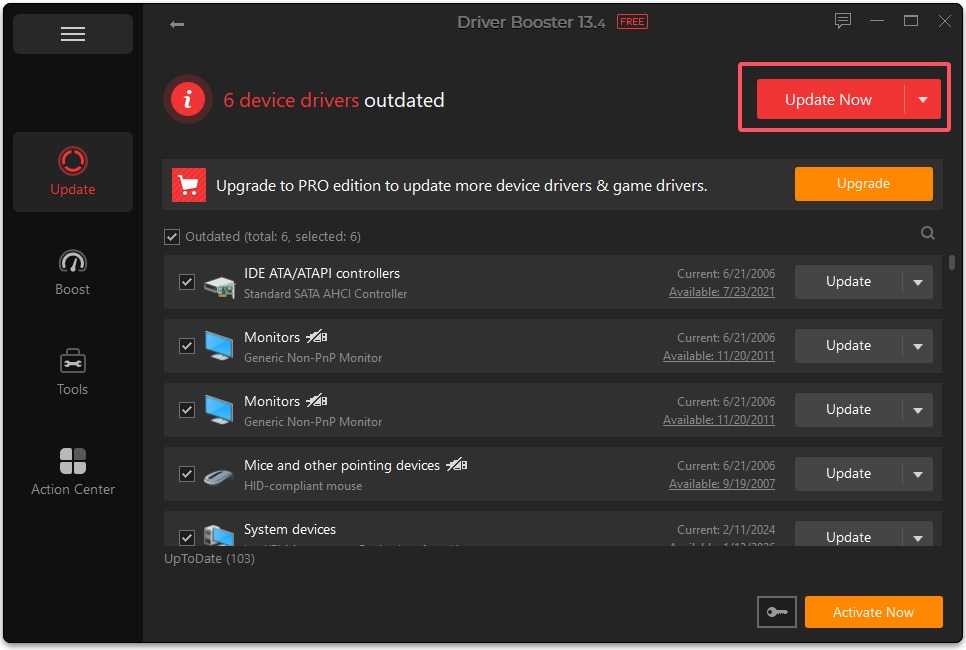
After updating the drivers, you can restart your computer and check if your problems have been resolved.
Conclusion
The "Kmode Exception Not Handled" error can be annoying, but it doesn't necessarily mean your PC is damaged. In most cases, it can be resolved without complications, and the system will return to normal operation. The important thing is not to ignore it to prevent it from recurring. If the problem persists after trying several solutions, it could indicate a hardware failure, and it's best to consult a professional.
Driver Booster Free
- Automatically scan and update drivers.
- Update game ready drivers for peak gaming performance.
- Identify and fix various common of hardware issues.
- Boost 30% of system performance for fast & smooth running.