Is your Windows PC taking forever to open files or often showing slowdowns? This could be largely caused by unoptimized hard drives. As you use your PC over time, file fragmentation, accumulated junk, and system clutter will reduce read/write speeds and overall responsiveness.
That’s why regular hard drive optimization is essential to keep data organized, free up space, and maintain peak performance. So, how to optimize hard drive? This blog will introduce practical methods, including Windows built-in features and the best hard drive optimizer software. Just read on to learn more!
Why You Need to Optimize Your Hard Drive
Your hard drives don’t stay fast forever. Every time you install programs, download files, or browse the web, the system creates temporary files, cache data, and registry entries. Whether for HDDs or SSDs, these practices will make the hard disks less efficient over time.
Here are the common reasons to optimize your hard drive:
File fragmentation scatters file pieces across an HDD, which forces the read/write head to work harder and increases access times.
Junk files(temporary data, caches, and Recycle Bin contents) can consume storage space and reduce overall system efficiency.
System clutter from installed, updated, or removed programs leaves unnecessary files behind. This makes storage management more difficult.
Large unused files take up valuable storage space unnecessarily, which leaves less room for Windows, applications, and frequently accessed data.
SSDs and HDDs require different optimization approaches. It’s best to use a dedicated hard drive optimizer, which can intelligently detect the drive type and apply the correct strategy for professional optimization.
Solution 1: Best Hard Drive Optimizer for Optimal PC Performance - Advanced SystemCare
Advanced SystemCare is a free and comprehensive optimization tool for Windows PCs. It can successfully help users clean unnecessary files, improve system performance, and maintain overall PC health. Combining rich optimization features and cleanup functions, the software is an excellent hard drive optimizer for users who want to maintain their computers with minimal effort.
Why Advanced SystemCare Stands Out for Hard Drive Optimization
SSD & HDD Adaptive Optimization: Advanced SystemCare intelligently identifies the type of your drive and applies the most appropriate optimization method. For instance, it performs defragmentation for HDDs and TRIM-related optimization for SSDs to avoid unnecessary disk errors.
Deep Disk Optimization Technology: It optimizes Windows and organizes drive data to improve disk performance. This helps reduce file loading times and deliver a more responsive experience when launching programs.
Disk Storage Space Enlarger: Its AI-powered deep cleaning scans for unnecessary files, junk data, invalid registry entries, and even residual files that can consume storage space. It’s great for recovering valuable disk space for more important usage.
Advanced Disk Doctor: Advanced SystemCare not only helps optimize hard drive performance. It comes with a Disk Doctor tool that checks your disk and file system for potential errors. It will help repair detected issues and keep your disk operating smoothly.
Real-Time Disk Protection: Advanced SystemCare can monitor disk status in real time and help clean junk files and optimize system performance regularly. This makes it easier to prevent accumulated clutter/errors from affecting PC function.
How to Optimize Hard Drive with Advanced SystemCare
Step 1. Download and install Advanced SystemCare Free from the IObit official website.
Step 2. Launch the program and go to the Care tab. Select the options: Junk File Clean, Registry Clean, Disk Optimization, and Disk Check.
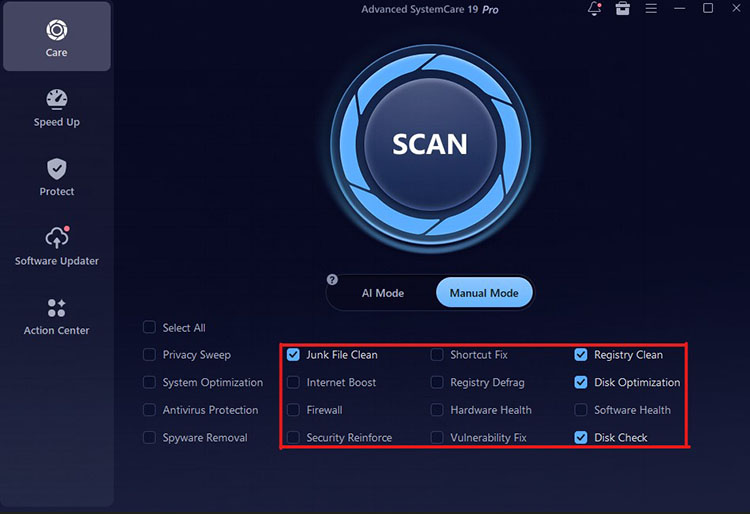
Step 3. Click SCAN to analyze your system. Review the results and click Fix to clean junk files and optimize the drive.
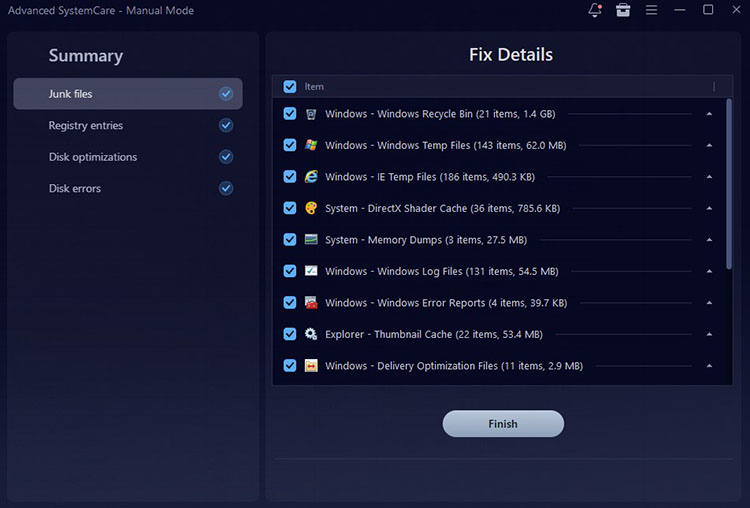 After the scan, Advanced SystemCare provides additional tools to further optimize your PC. For instance, you can use Turbo Boost to temporarily end unnecessary background programs and free system resources. Startup Optimizer is also a great feature to disable programs that slow boot times. In addition, you may try App/Extension Cleaner to uninstall unused applications and browser extensions that consume space and resources.
Manual Solution: 6 Steps to Optimize Hard Drive Performance (Windows Built-in Tools)
Aside from specialized hard drive cleaner software, you can try Windows’ built-in tools to clean up unnecessary files and optimize drives. Let’s see how to optimize hard drive performance using several Windows built-in utilities.
Step 1: Manually Clean Up Disk Junk Files via Windows Disk Cleanup
1.Search for “Disk Cleanup” in the Start menu and then open the utility.
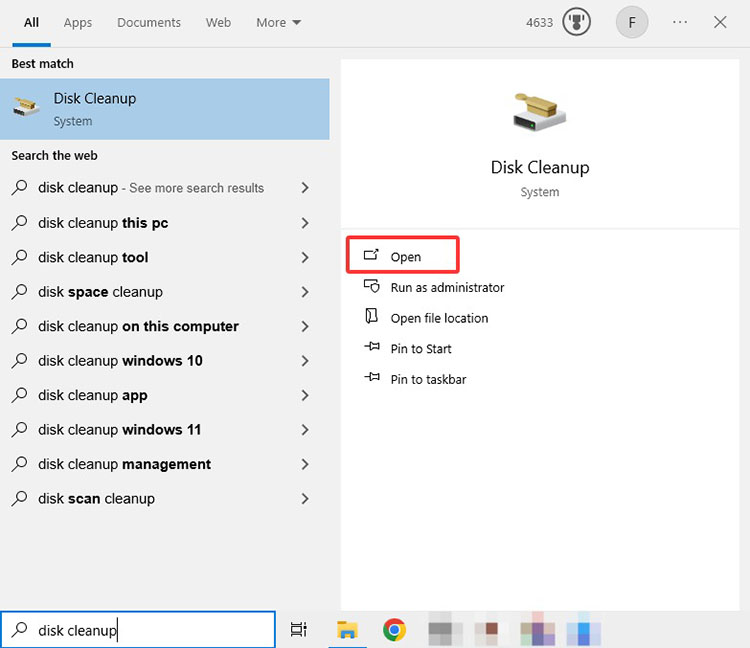
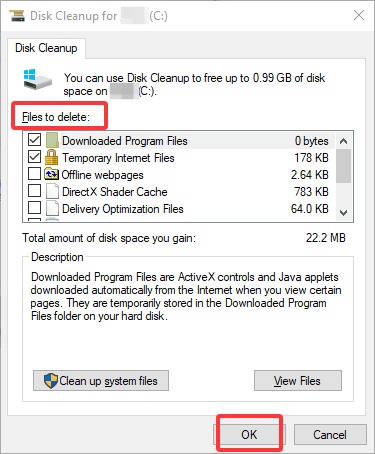
2.Select the drive, choose the file categories you want to remove (Temporary files, Downloaded files, etc.), and click OK.
Tip: Check out how to clean C drive Windows 11 for more ways to safely free up storage space.
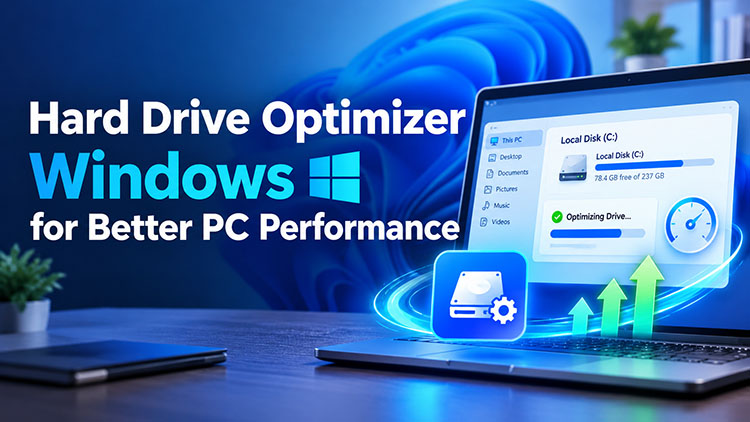
Step 2: Defragment and Optimize Drives with Windows Built-in Optimize Drives Tool
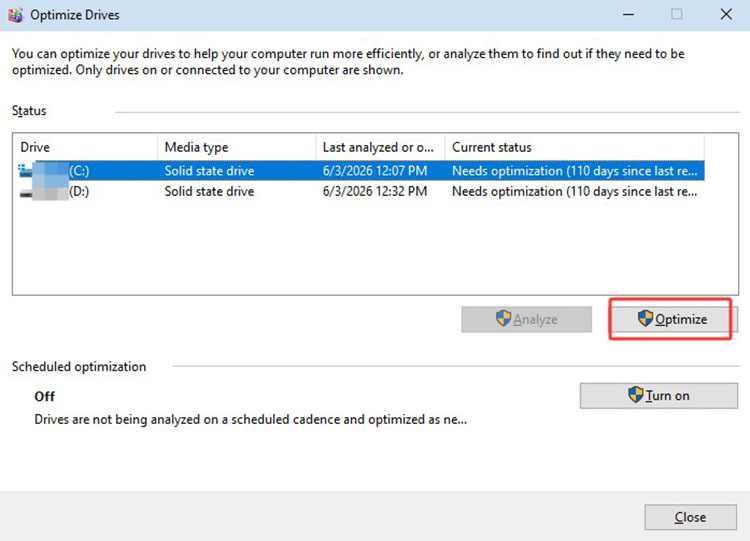
1.Search for “Defragment and Optimize Drives” and thenopen the tool.
2.Select your drive and click Optimize. Windows automatically detects HDD vs. SSD and applies the correct action.
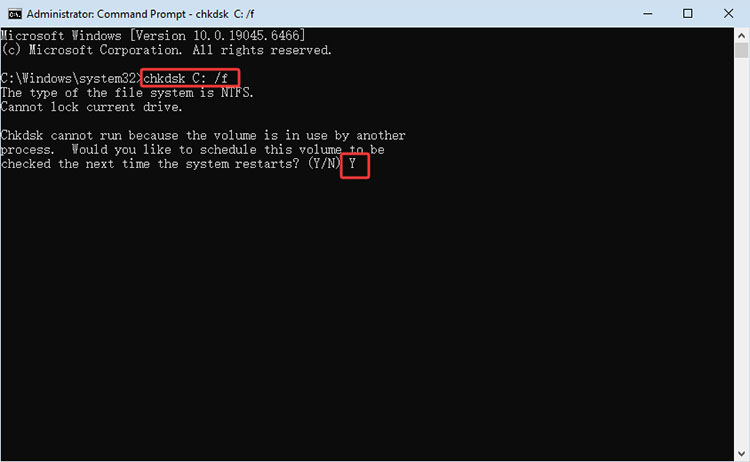
Step 3: Check & Repair Hard Drive Errors via CHKDSK Command
1.Search for and open Command Prompt as administrator.
2.Type chkdsk C: /f (replace C: with the target drive letter) and press Enter. Confirm that you want to schedule the scan on the next restart if the drive is in use.
Step 4: Clean Invalid Registry via Windows Registry Editor
1.Search and open the Registry Editor in the Start menu. Click File > Export to back up your current registry settings.
2.Navigate to HKEY_LOCAL_MACHINE\Software, find the target program’s registry key, right-click it, and select Delete.
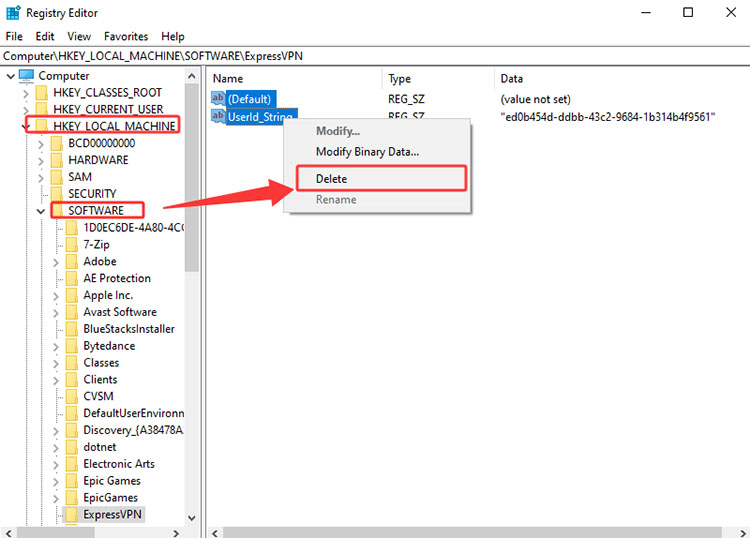
Important Warning: The Windows Registry is a core system database. Deleting the wrong registry entries can cause software crashes, boot failures, blue screens, or system corruption. It is not recommended to delete registries manually; it is better to back up your registry first.
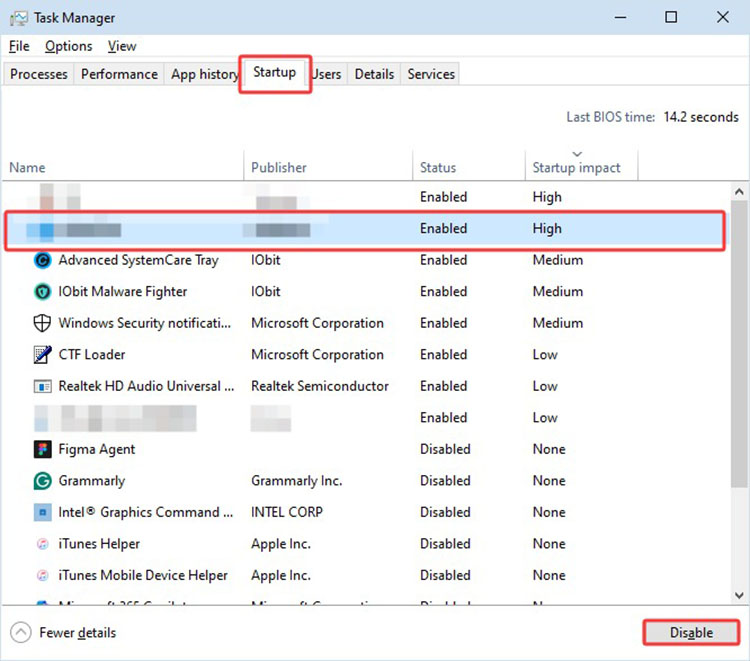
Step 5: Disable Unnecessary Startup Programs with Task Manager
1. Search for and open Task Manager and go to the Startup apps tab.
2. Right-click any non-essential program and choose Disable to stop the app from launching when Windows starts.
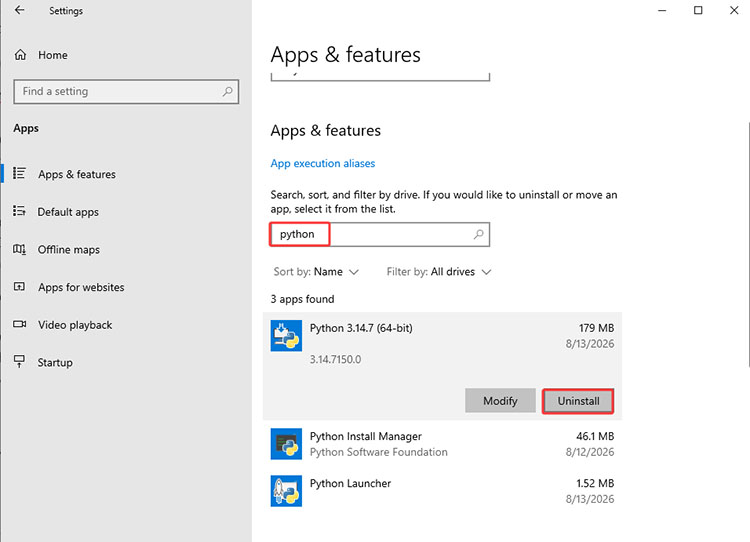
Step 6: Uninstall Unused Applications with Windows Settings
Open Settings > Apps > Apps & features. Search and locate your unused programs. Click Uninstall to remove them.
FAQs About How to Optimize Hard Drive
1. How long does it take to optimize drives?
It depends on drive size, type, and level of fragmentation. A quick Disk Cleanup may finish in minutes; a full defrag or deep optimization on a large HDD can take 30 minutes to several hours. SSDs usually complete TRIM much faster.
2. How to optimize a Windows hard drive for the best results?
You can start with built-in tools first. Then go with a professional hard drive optimizer software like Advanced SystemCare for intelligent disk optimization.
3. Is hard drive optimization software safe for SSDs?
It can also be safe when the software correctly identifies the drive type and uses SSD-appropriate operations(TRIM, not defragmentation).
4. How often should I optimize my hard drive?
For HDDs, weekly or monthly optimization is helpful. For SSDs, you can use Windows’ automatic TRIM schedule and perform deep cleaning every few weeks or when free space drops below 15-20 %.
5. Can optimizing the hard drive fix a slow PC completely?
Hard-drive optimization can solve storage-related slowdowns, but other factors may also affect performance, for instance, excessive startup programs, insufficient RAM, outdated drivers, malware, etc. In these cases, you may need additional troubleshooting instead.
Conclusion
How to optimize hard drive performance? This blog has introduced both a powerful third-party tool and native Windows methods. You can start with built-in tools for basic maintenance. But when it comes to the simplest hard drive optimizer solution, Advanced SystemCare is an ideal choice. It’s also a comprehensive solution for PC maintenance and optimization, offering automated features that help optimize system resources and maintain overall PC performance. Try it to simplify routine maintenance and keep your Windows PC running smoothly with ease now!
Advanced SystemCare Free
- Clean: 420 billion traces removed & 85 EB junk files cleaned
- Protect: 80 million unauthorized access blocked & 20 million bugs fixed
- Speed Up: 6 million hours of startup time saved & Turbo boost
- Optimize: Auto clean and auto care your PC with AI mode