Ever wonder what’s secretly draining your PC’s speed, hogging RAM, or causing sudden lags in the middle of a game or video streaming? The answer lies inside your Process Manager in Windows. Whether you rely on the built-in Task Manager or want advanced tools, mastering Windows processes is the key to taking back control of your system.
How to optimize your process manager to boost your PC performance? Here is everything you need to know to monitor, manage, and master Windows processes like a pro!
What is a Process Manager for Windows?
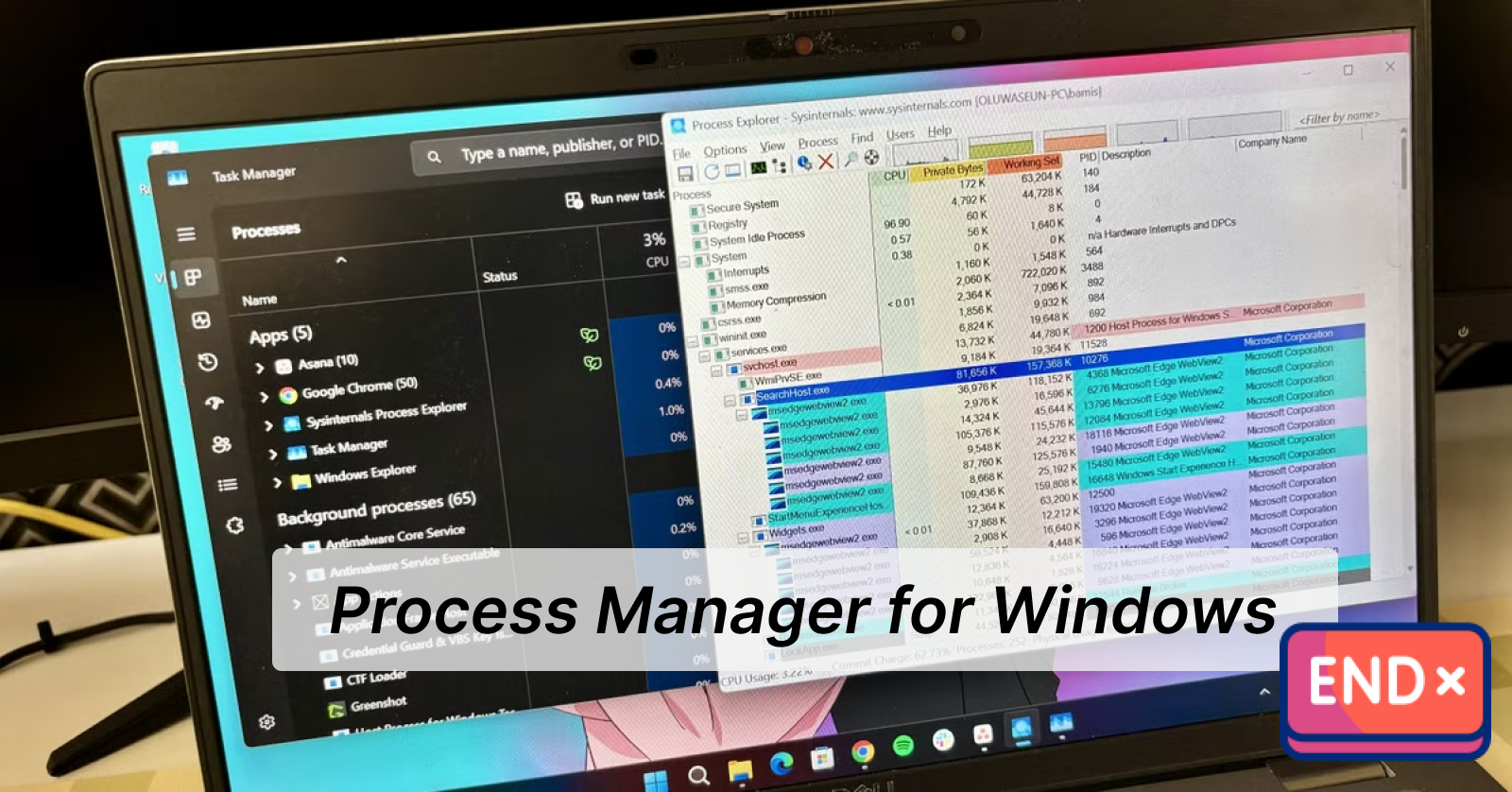
A process manager Windows refers to a system utility that monitors and controls active software, background services, and hardware resource usage on a Windows PC.
It allows you to view all running processes, track CPU, memory, and disk usage, end unnecessary applications, and kill unauthorized software to keep your PC running efficiently and securely.
Windows provides a default Task Manager that manages and monitors running processes. Check how to use Task Manager on Windows:
How to Open the Default Task Manager on Windows
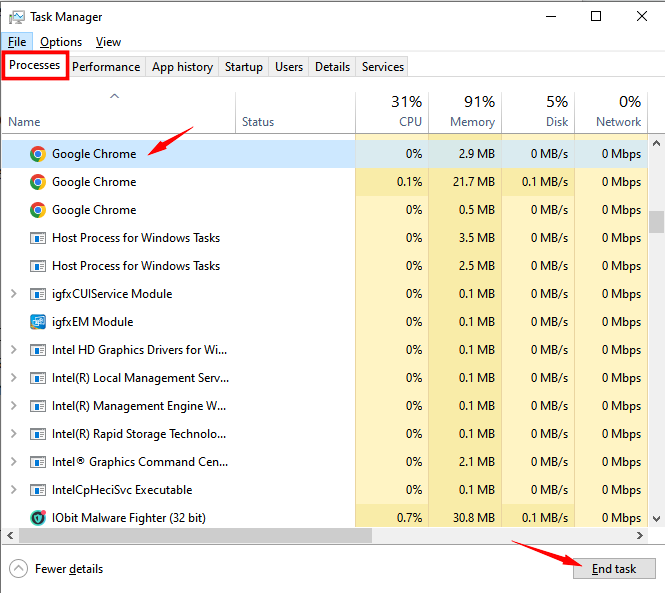
Step 1. Press “Ctrl+Shift+Esc” or input “Task Manager” in the search box to open Task Manager.
Step 2. In the Task Manager, you’ll see all running processes, right-click the unresponsive apps and select “End Task”. Or directly choose the app and click on “End Task”.
If you’re looking for advanced process managers, this guide will show you 4 best free process and task managers to fix high CPU usage and reduce system lags efficiently.
Process Manager Chrome: Free Built-in Browser Task Manager
Chrome Task Manager is a Google Chrome built-in browser tool that helps manage browser processes and optimize the browsing experience. It allows you to monitor and control individual tabs, extensions and browser processes as well as system resources within the browser. It’s easy to boost browser performance without a third-party tool download.
Pros
Targeted Process Control: Identifies and closes specific frozen tabs or stops extensions without crashing the entire browser.
Detailed System Analytics: Monitors per-tab/extension RAM usage, CPU consumption, and network bandwidth usage in real time.
Suspend Resource-Heavy Tabs: Reviews extensions regularly and suspends resource-heavy tabs to enhance browser experience.
System Optimization: Releases system resources quickly to improve overall PC performance and reduce Windows memory drag.
Cons
Only manages tasks within Chrome, not other system-wide Windows applications.
How to Go Task Manager in Google Chrome
Keyboard Shortcut (Fastest Way): Press Shift + Esc while Chrome is open.
Step 1. Open Google Chrome, click the three dots icon in the top-right corner of the site.
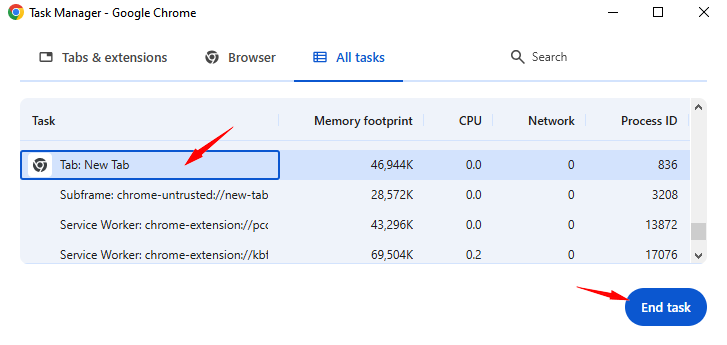
Step 2. Scroll down to select More Tools, and click Task Manager. Now you can see browser processes in separate categories.
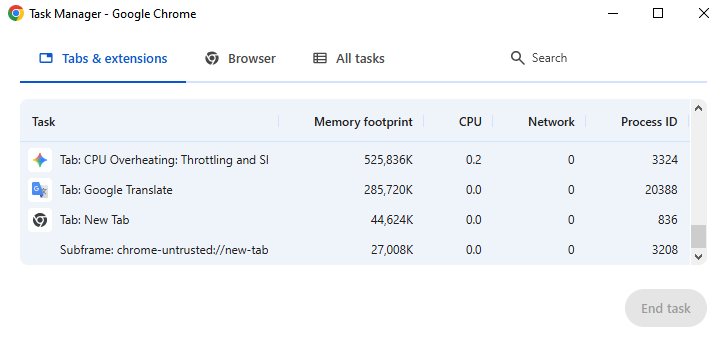
Step 3. Right-click on the unnecessary tasks and click End task to stop the process without bringing down the entire Chrome.
IObit Process Manager: Best PC Process Monitor & Manager
Expect an advanced process manager with premium features? IObit Advanced SystemCare provides a perfect task manager background processes for all Windows running browsers and programs. With IObit Process Manager, you can take full control of your processes, track CPU, RAM, and disk usage, and stop unresponsing or unnecessary services to optimize system performance.
Not just Process Manager, the best Windows optimizer offers more useful tools, like File Shreder, Disk Cleaner, Registry Cleaner, DNS Protector, Shortcut Fixer, etc.
Advanced SystemCare Free
- Clean: 420 billion traces removed & 85 EB junk files cleaned
- Protect: 80 million unauthorized access blocked & 20 million bugs fixed
- Speed Up: 6 million hours of startup time saved & Turbo boost
- Optimize: Auto clean and auto care your PC with AI mode

Pros:
Free Process Manager download in Toolbox.
Easy-to-use to optimize your background processes and hard disk space.
Check all running processes and services with one click instantly.
Show details and properties of any process to help adjust priorities fast.
End unnecessary processes at any time and manage background tasks as you need to free up disk space quickly.
Real-time CPU and RAM usage monitor and system performance manager.
AI-powered PC cleanup to free up & optimize your disk space, including junk files clean, registry clean & defrag, privacy sweep, shortcut fix, etc.
Powerful PC boost and system optimization, such as Turbo Boost, Startup Optimizer, and Internet Boost.
Strong security protection for PC: System Protection, Privacy Protection, and Browser Protection.
Cons:
How It Works to Optimize Background Processes
Step 1. Free download and install Advanced SystemCare on PC.
Step 2. Click the Toolbox icon on the Care tab, find “Process Manager” to get a free and safe download.
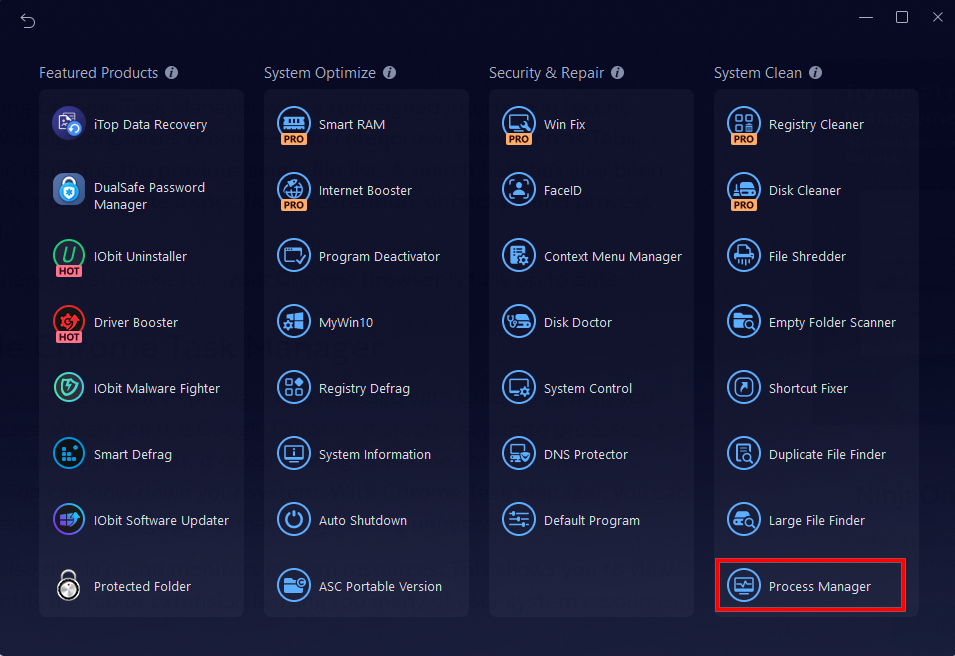
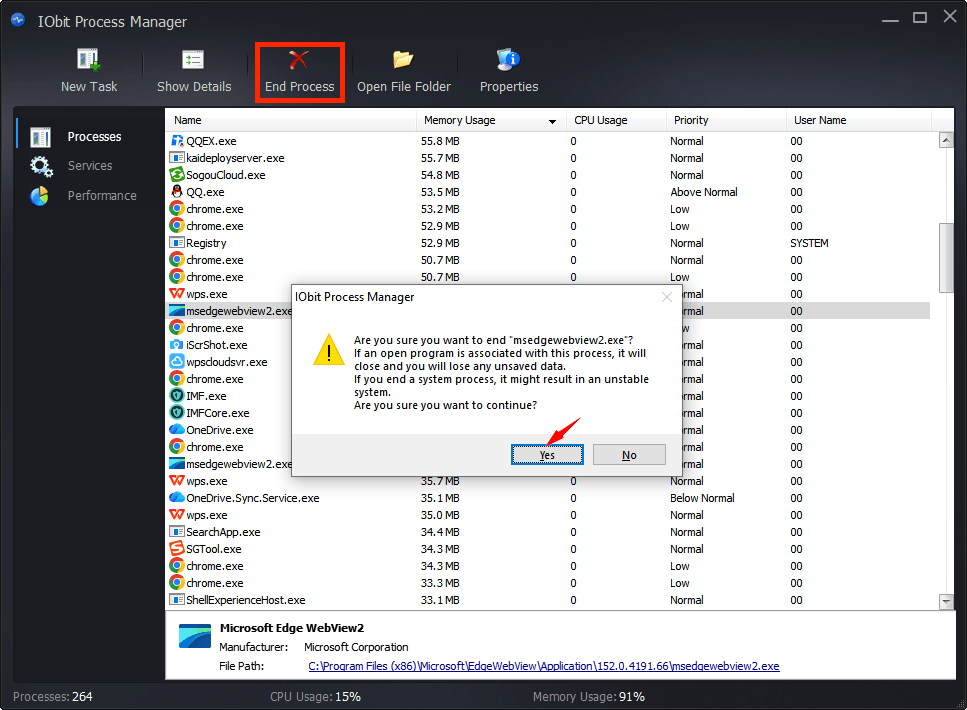
Step 3. Launch Process Manager, review the running processes on Windows. Select the unnecessary app that takes up high memory or CPU usage, and click on “End Process”. Click “Yes” to stop the process instantly.
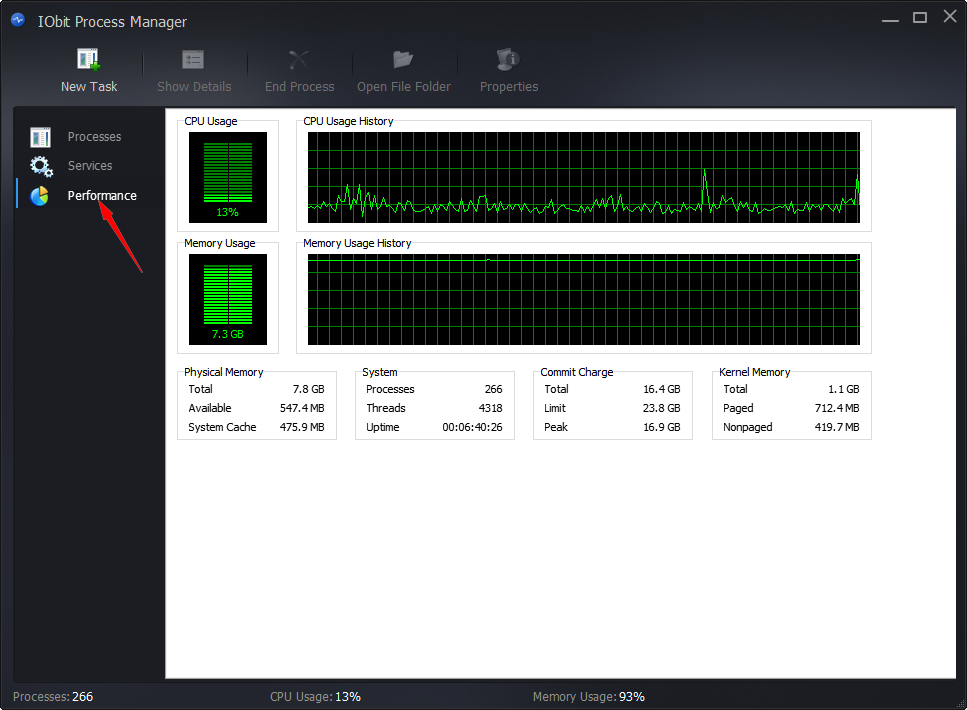
Step 4. Go back to “Performance” to track the system resources and manage running processes for better PC performance.
System Informer: Smart Business Process Manager
SourceForge System Informer is a free and open-source business process manager software that enables you to manage transparency, priority and visibility of running processes. It can quickly kill one or all processes that slow down your computer with just a shortcut key, and solve the 100 disk usage Windows 11 issue significantly.
Pros
Resource Optimization: Easily identifies and terminates power-hungry applications, releasing CPU and RAM.
Troubleshooting Tasks: Helps locate and close unresponsive or lagging software and services instantly.
Security Inspection: Allows you to stop suspicious background processes and hidden malware on your PC.
Other Useful Features: Offers debugging, analysis, and malware detection software.
Cons
An accidental end of essential system tasks can cause Windows to crash or restart.
Requires technical understanding.
How to Use Process Manager for Windows
Step 1. Download and install the tool from the official website.
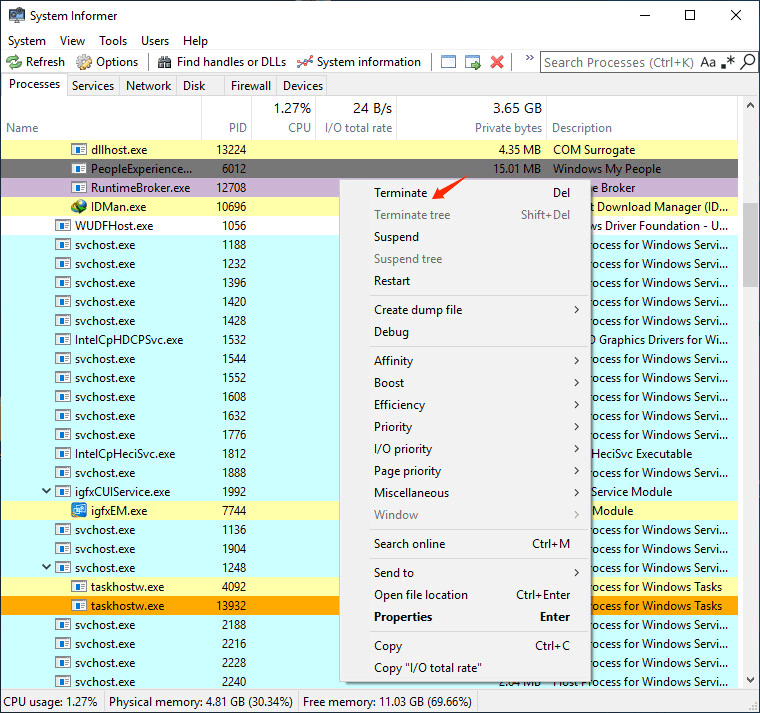
Step 2. Launch System Informer and view the running process. Right-click on the process and click “Terminate” to stop the process.
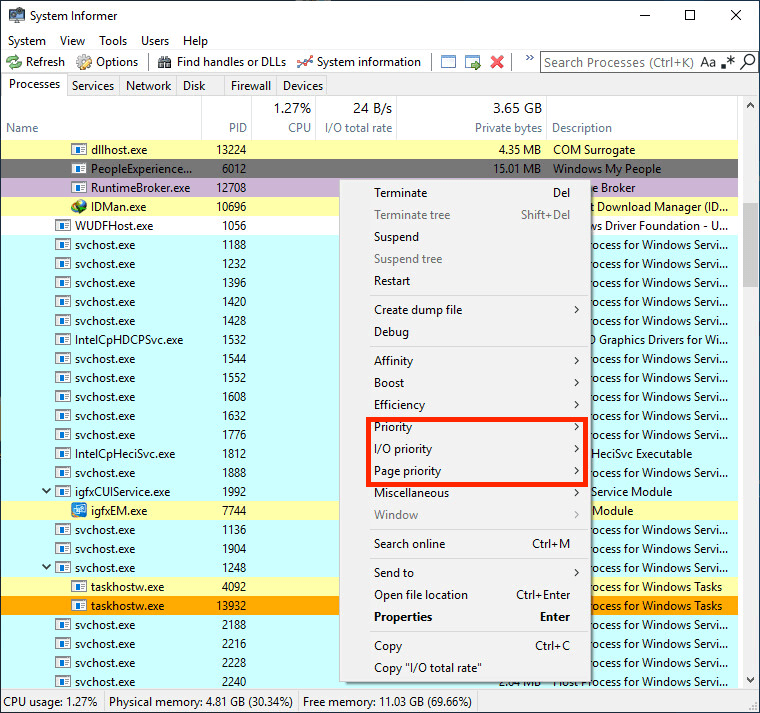
Step 3. Select Priority and more features to manage your system processes.
Process Explorer for Windows: Advanced System Task Manager
Besides the above, Process Explorer for Windows can also be regarded as an excellent task manager processes 100 disk cleanup tool. It is an expert process manager and system monitor for advanced users and IT professionals. It supports live and accurate CPU and memory tracking, and provides a hierarchical process view and built-in VirusTotal checks, which streamlines your workflow significantly. Optimize your RAM with the best RAM optimizer Windows 11.
Pros
Deep Process Visibility: Displays detailed hierarchical views showing process relationships and associated DLLs or handles.
VirusTotal Integration: Features built-in hash scanning that automatically checks running processes against VirusTotal's database to prevent malware.
Advanced Diagnostics: Shows real-time GPU, CPU, & RAM metrics, and a handy target icon to identify which process owns any open window.
Cons
It may be difficult to understand technical data for casual users.
How to Manage Windows Background Processes
Step 1. Download Process Explorer from the official website.
Step 2. Open the procexp.exe file to run Process Explorer for Windows.

Step 3. Now you can view all the running processes on your Windows.
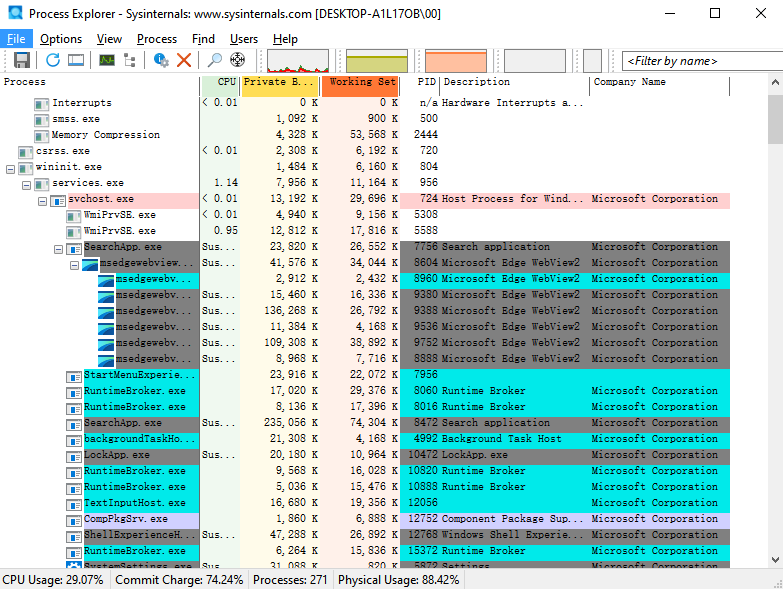
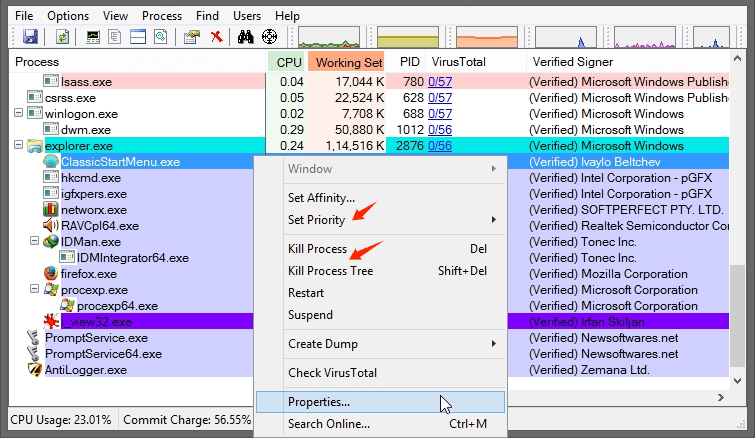
Step 4. Select one process and right-click it to choose Set Priority or Kill Process to optimize your system easily.
To get a deep and comprehensive disk cleanup, rely on a professional hard disk cleaner for free without data loss.
FAQs About Process Manager Free
How Can I Check All Running Processes on Windows?
With IObit Process Manager, you can check all running processes by just launching the tool. Navigate to the task to view the details, properties and end task instantly.
Is Free Process Manager Safe to Use?
Yes, built-in free tools like Windows Task Manager, Chrome Process Manager and advanced tools like IObit Process Manager are completely safe. But ensure you download them from official websites.
How Do I List All Processes in CMD?
Show a list of all Windows processes via this command prompt:
Press Win + R, type cmd, and press Enter.
Type tasklist and press Enter to see an immediate list of active tasks, process IDs (PIDs), and memory usage.
To export the list to a text file on your desktop, run: tasklist > %userprofile%\Desktop\process_list.txt.
Final Thoughts
What’s the best process manager Windows? Try the free built-in Task Manager or powerful process manager software to optimize your Windows processes and boost performance instantly! Free download Advanced SystemCare to get IObit Process Manager for highly efficient process management.
Advanced SystemCare Free
- Clean: 420 billion traces removed & 85 EB junk files cleaned
- Protect: 80 million unauthorized access blocked & 20 million bugs fixed
- Speed Up: 6 million hours of startup time saved & Turbo boost
- Optimize: Auto clean and auto care your PC with AI mode