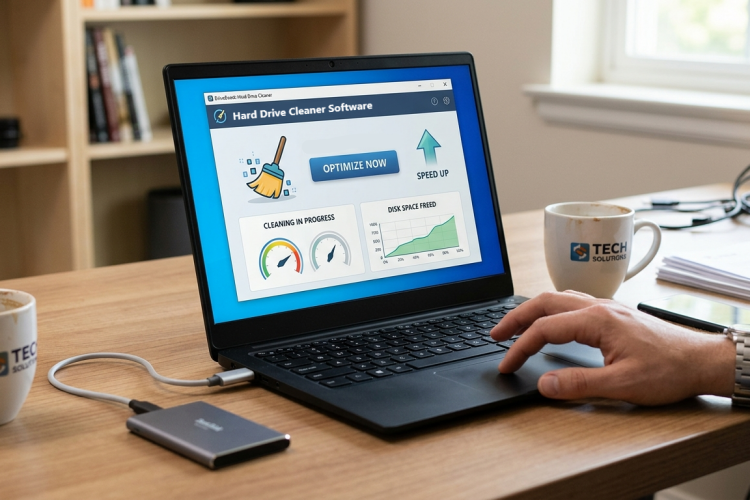
Is your old laptop going slow down and down? Slower startup, slower application launch, and more. But you still want to seek ways to make your old laptop faster rather than buying a new one. In many cases, strip away hidden system bloatware, adjust how your laptop allocates its hardware resources, and tackle a few simple physical maintenance steps, you can get your fast laptop back.
Then how to speed up an old laptop? In this guide, we will dive straight into actionable, step-by-step methods to help you free up space, remove potential risks, and make your laptop fast.
Tips: Backup important files in case of wrong deletion
Freeing up space is a common way to speed up an old laptop. To avoid deleting something important wrongly, backup your files before starting any action by connecting an external hard drive or USB to your laptop. And manually copy and paste contents.
How to Free Up Space to Speed Up Old Laptop
The first and very easy thing to speed up your old laptop is to free up your computer space. When space is critically low, an old laptop will often get stuck in a loop, which causes a sluggish PC.
To free up space, you can consider from the following aspects:
Clean junk files
Clean temp files
Clear cache
Empty Recycle Bin
You can clear them one by one manually in different places, or adopt our advice to install a free PC cleaner for Windows 11/10/8/7/Vista/XP - Advanced SystemCare - to automatically free up space. We’ll introduce the PC cleaner first, and then tell you manual ways if you still persist in freeing up space without downloading any third-party apps.
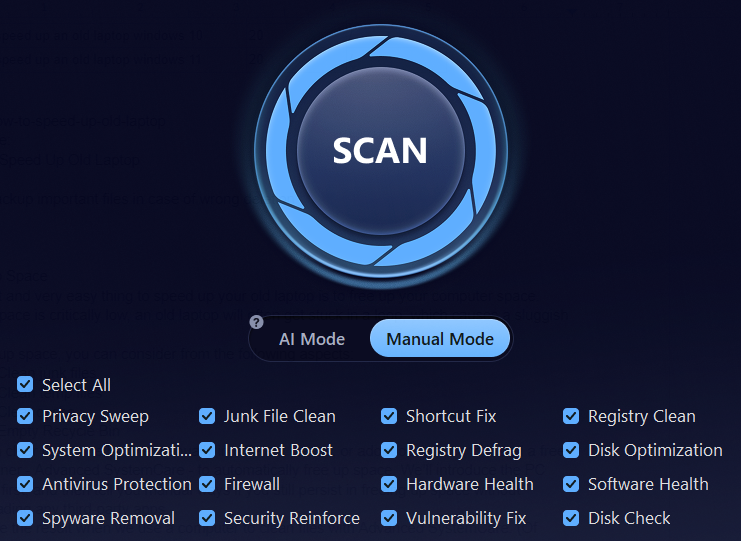
Use PC clear to free up space:
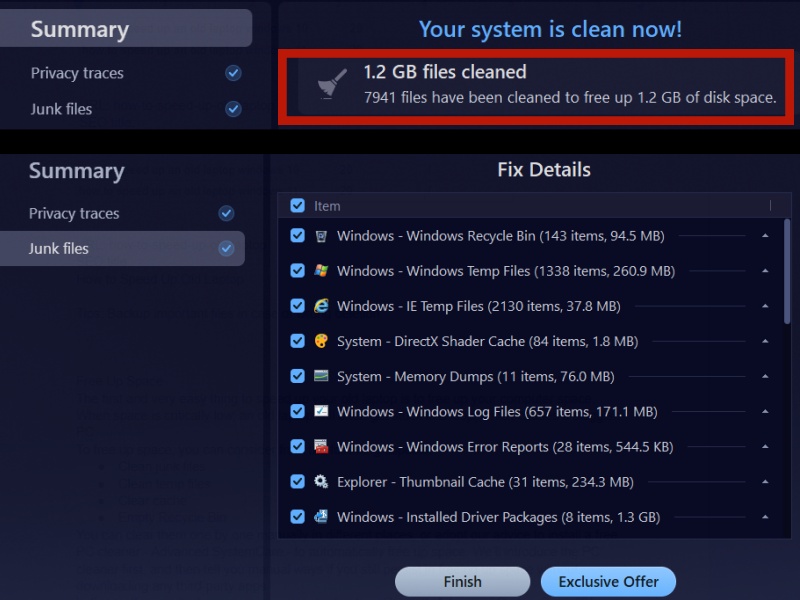
Let’s see the result when we use a computer to clean files with Advanced SystemCare. (Of course, the final result depends on your laptop’s situation.)
Why recommend Advanced SystemCare to free up space?
One click to remove junk files and browser cache
Advanced SystemCare auto scans your junk files, temp files as well as browser cache. A fast scan takes only seconds. Then you can clear them with one click to free up disk space.
Advanced SystemCare Free
- Clean: 420 billion traces removed & 85 EB junk files cleaned
- Protect: 80 million unauthorized access blocked & 20 million bugs fixed
- Speed Up: 6 million hours of startup time saved & Turbo boost
- Optimize: Auto clean and auto care your PC with AI mode

Remove spyware to relieve PC burden
Spyware often hides in the background to cause high CPU usage. Scan with the free PC cleaner and get a clean laptop.
Auto RAM clean to free up memory
Auto clean RAM to close unnecessary background services and backgrounds to free up memory.
Before download Advanced SystemCare, you may concern about:
After downloading Advanced SystemCare, you may need to pay attention:
When installing, don’t agree to install a bundleware at the same time in case of taking up more space;
After installing, go to Task Manager to disable its startup;
If you’ve cleaned browser cache and junk files, uninstall it to free up more space (Don’t forget to %Appdata% to delete residual files).
Download Advanced SystemCare by clicking the button below or go on reading to know manual ways.
Manual way to free up space now:
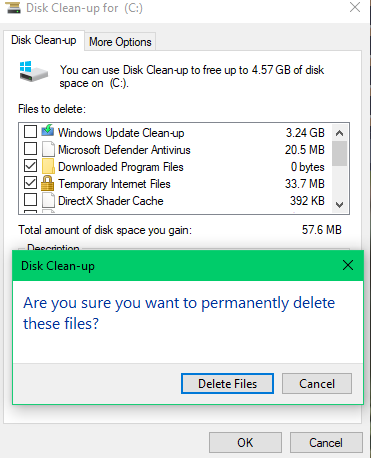
Run Windows Disk Cleanup: clean junk files, temp files and more
Search Disk Clean-up in the search bar in the bottom.
Choose a drive you want to clean up. Here we take C drive as an example.
After scanning, choose files to delete, including downloaded program files, temporary files, thumbnails, and more. Then click OK.
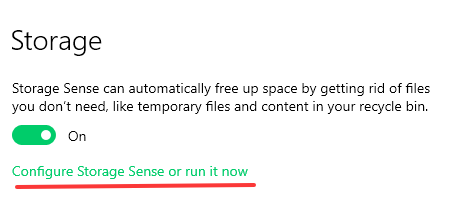
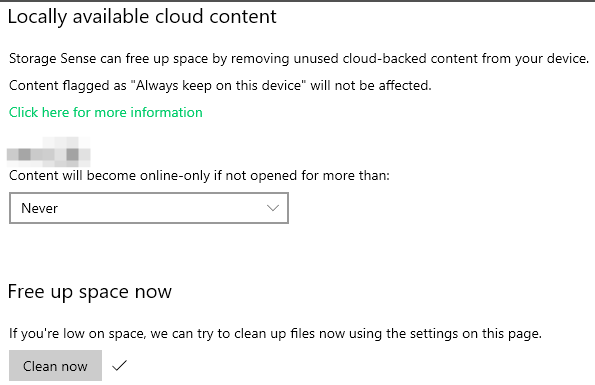
Storage Sense to clean files
Clear Browser Cache
Open a browser, here take Chrome as an example. Go to Settings > Privacy & Security > Delete browsing data > delete data.
Uninstall Programs to Speed Up Old Laptops
Uninstall unnecessary programs, third-party apps as well as pre-installed Universal Windows Platform (UWP) apps to free up space and reduce CPU usage, hence speeding up the laptop. If you have large apps to uninstall, download IObit Uninstaller (the size of 32.0 MB) to remove all unnecessary files and bundleware. Then delete the uninstaller to save space.
Delete bundleware
The best Windows uninstaller detects and deletes bundleware instantly.
Delete Windows apps
Delete pre-installed Windows apps or apps downloaded from Microsoft Store easily.
Delete leftovers
Delete uninstallation leftovers and installation files to free up more disk space.
Stop Unnecessary Startup Services
Startup items take up CPU and RAM. Stop unnecessary startup services in the Task Manager and choose to disable services.
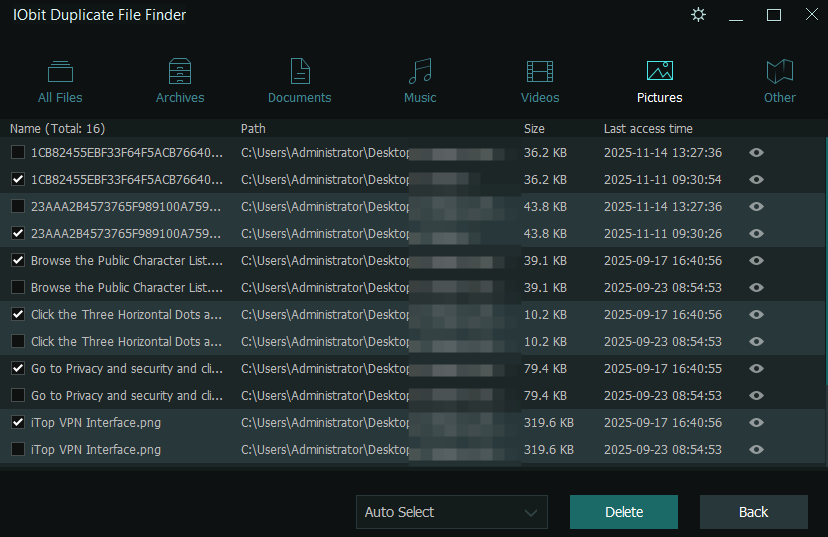
Find and Remove Duplicate Files
Find and remove duplicate files to improve your old laptop. Use Windows Explorer to sort files by size. Or use Advanced SystemCare to scan your drive and identify duplicate files.
Update Drivers for Better Laptop Performance
Update graphics drivers, network drivers, and other drivers to speed up old laptops by fixing specific performance bottlenecks, glitches, and inefficiencies. Open Device Manager and click drivers to update manually. Or download Driver Booster on your new PC to install recent drivers automatically.
Driver Booster Free
- Automatically scan and update drivers.
- Update game ready drivers for peak gaming performance.
- Identify and fix various common of hardware issues.
- Boost 30% of system performance for fast & smooth running.

Check for Virus to Avoid High Usage
Viruses would cause high processor usage, memory hogging, nearly 100% disk usage, and network bloat, hence your laptop is slower than ever.
Use Microsoft Defender to scan the virus on your laptop to check and remove it to prevent further damage.
How to Improve Hardware to Speed Up Old Laptops?
Replace HDD with SSD for Faster Laptop Performance
Hard Disk Drive (HDD) is a traditional, non-volatile data storage device. Solid State Drive (SSD) is a storage device that uses flash memory to read and write data. Compared with HDD, SSD is faster, quieter and more durable.
How to check your laptop’s type of storage drive? Go to Task Manager > Performance. Click on Disk and the type shows SSD or HDD.
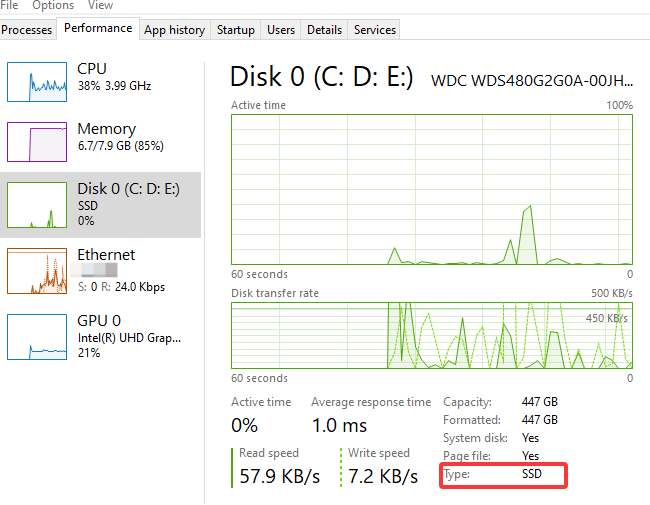
To change HDD to SSD, you need to buy an SSD first and let professionals replace HDD with it.
Upgrade RAM to Speed Up Laptop
Slowdown is obvious when the memory is very high and your system lacks RAM. Upgrading RAM helps to accelerate your laptop speed and reduce freezing, especially when you want to use video editing software and play games.
If your laptop has two slots and one of them is used, you can add a new RAM stick. If two of them are used, you need to replace the current sticks with higher-capacity ones.
To buy a RAM, you need to pay attention to some specifications: see what your motherboard can handle by searching the web using your exact laptop model; purchase the correct generation as they are not interchangeable (laptops usually use smaller SODIMM sticks); to add one on a vacant slot, match the speed and voltage with the older one.
The ideal combination only for reference: a 512GB or 1TB SSD paired with a total of 8GB or 16GB of RAM.
You May Also Need: How to Clear Your RAM Cache on Windows >>
Conclusion of How to Speed Up Old Laptop
Freeing up space is definitely necessary, whether to speed up old laptop or to organize a new PC. Advanced SystemCare, the free Windows optimizer, is worth trying. If you plan to spend money, upgrading hardware is a better option by enlarging RAM and replacing HDD with SSD. They could significantly boost computer speed, especially a 512GB paired with 8GB or 16GB.