- Support Center
- Multiple Languages
- Language
- Help Us Translate
Expert in
PC Health Solution

All-in-one PC health solution: clean, optimize and secure

Comprehensive PC cleaning, optimization and protection

Keep drivers always up-to-date

More stable performance with less system crashes

Protect millions of computers against malware

Top computer security with full-round protection

Protect against viruses & boost PC performance
Clean: 420 billion traces removed & 85 EB junk files cleaned
Protect: 80 million unauthorized access blocked & 20 million bugs fixed
Speed Up: 6 million hours of startup time saved & Turbo boost
Optimize: Auto clean and auto care your PC with AI mode

This blog gives solutions to Steam slow download speed, instructs readers to change server, Steam settings, free disk usage to fix slow downloads.



Change the Steam download server to find a faster and more stable connection.
Optimize disk usage to reduce bottlenecks when Steam downloads and installs games.
Check Steam settings to make sure no download limits are slowing you down.
Many of you are confused: why is my download speed so slow on Steam download when Internet is good? Factors can vary a lot, and it is not simply an Internet speed problem; it could be a server problem, congestion, or simply because Steam is occupied with other businesses, etc. One obvious situation you must be familiar with is that when you are launching or playing other games, the download speed becomes super slow.
Please read on to learn some common solutions to fix slow Steam download speeds.
The Steam Content Server you’re connected to may be overloaded, especially during game launches or major updates. And it is not related to your Ethernet connection; instead, you need to change servers. Steam may automatically connect you to a nearby download server that is congested or performing poorly. A different server (further from your current location) can sometimes be much faster.
Step 1. Open Steam, and in the top-left corner, click Steam.
Step 2. On the drop-down menu, click Settings.

Step 3. Find the ‘Downloads,’ and you can see the first option: Download Region. You need to change your current server to a further server.
Note that you should try 2-3 times; try nearby cities first and then try further countries.
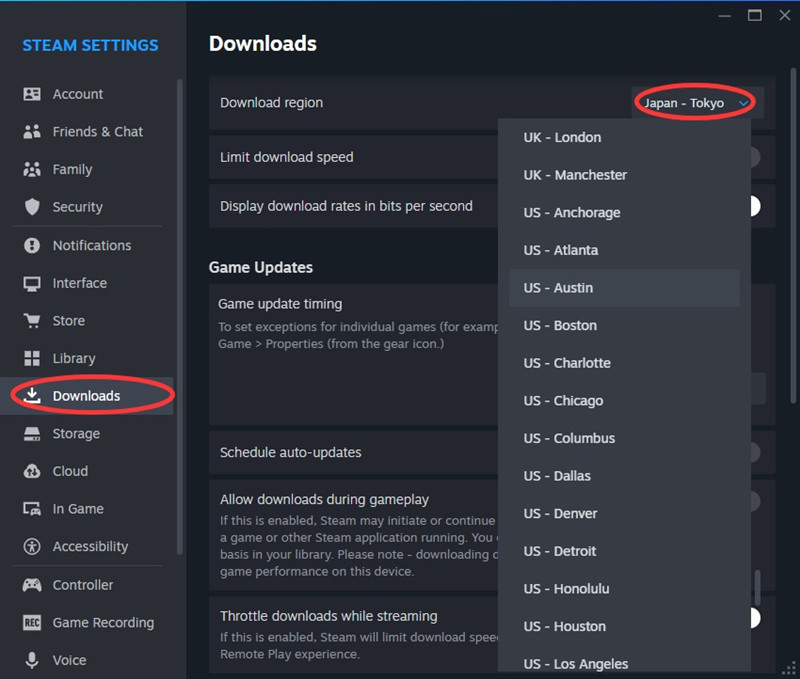
Step 4. When the configuration is finished, restart Steam.
High disk usage can make Steam’s download speed appear very slow, even when your Internet connection is working normally. When your SSD or HDD is busy compressing and patching files, the disk usage hits 100%, and the Internet speed can drop drastically.
#1. Use IObit Advanced SystemCare to auto-clean your disk.
Clean up unnecessary files, temporary data, and other junk that takes up valuable storage space.
Freeing disk space can give Steam more room to download, unpack, and install game files smoothly.
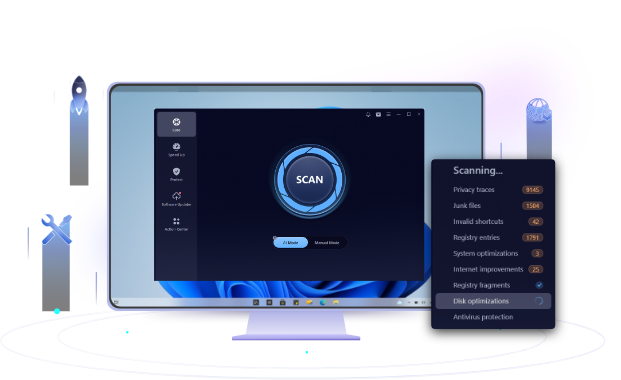
#2. Install games on SSD instead of HDD.
SSDs offer much faster read and write speeds than traditional HDDs, helping Steam process game files more efficiently.
This can reduce disk-related bottlenecks when downloading, unpacking, and updating large games.
#3. Uninstall apps to free more disk storage.
Remove unused applications and games that occupy unnecessary space on your drive.
Keeping enough free storage can help maintain drive performance and give Steam more space for game installations and updates.
Read Also: Fix Battlefield 6 High CPU Usage >>
You need to go to Downloads and check whether the two options are toggled off or not. When your Steam download speed is so slow all of a sudden, you are very likely doing something else on Steam unconsciously. For example, you are previewing some game trailers, or you are watching game live streams to kill time. These two settings below can help optimize the priority order:
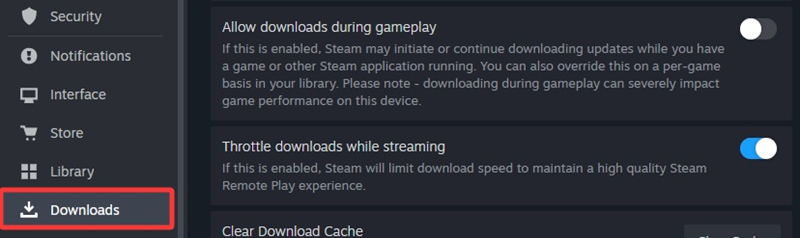
#1. If ‘Allow downloads during gameplay’ is not on, the download is limited to ensure your present gameplay.
(But if this option is toggled on, your gameplay experience will be severely affected to prioritize the download speed)
So to ensure your Steam download speed, you should avoid playing games during downloads. And toggle ‘Allow downloads during gameplay’ in case you forget.
#2. If ‘Throttle downloads while streaming’ is on, the bandwidth promises the priority of your current activities.
So if you are using Steam's Remote Play feature, broadcasting gameplay on Steam, or watching game preview videos while new games are downloading in the background, the speed is very likely compromised.
Why is my download speed so slow on Steam? Steam download speed can become slow because of a busy download server, system junk, high disk usage, or incorrect Steam settings. Try changing the download region, cleaning your system, optimizing disk usage, and adjusting Steam settings to improve download speed.
Want an easier way to clean and optimize your PC? IObit Advanced SystemCare can automatically remove junk files, free up disk space, and optimize your system for smoother Steam downloads.
 People Also Ask