- Support Center
- Multiple Languages
- Language
- Help Us Translate
Expert in
PC Health Solution

All-in-one PC health solution: clean, optimize and secure

Comprehensive PC cleaning, optimization and protection

Keep drivers always up-to-date

More stable performance with less system crashes

Protect millions of computers against malware

Top computer security with full-round protection

Protect against viruses & boost PC performance
Complete forced uninstallation for stubborn programs.
Uninstall a batch of programs at once.
Scan and remove leftover files, folders, and registry entries.
Support the management of Universal Windows Platform apps.

What happens if I uninstall OneDrive? Learn whether the files will be deleted, what happens to cloud-stored and local files, and how to keep data safe.



Is it safe to uninstall OneDrive on Windows 11
What happens to Cloud files, local files, and online-only placeholders
Does uninstalling OneDrive affect my Desktop, Documents, and Pictures folders
Does uninstalling OneDrive free up disk space
How to uninstall OneDrive on Windows 11 safely and completely
Can I reinstall OneDrive after uninstalling it
What happens if I uninstall OneDrive? Uninstalling OneDrive doesn’t affect all your files in the same way. The impact depends on whether files are stored in the cloud, downloaded locally, or displayed as online-only placeholders. Some remain in your OneDrive account, while others may disappear from File Explorer. Understanding these differences helps you protect important data and avoid losing access to your files.
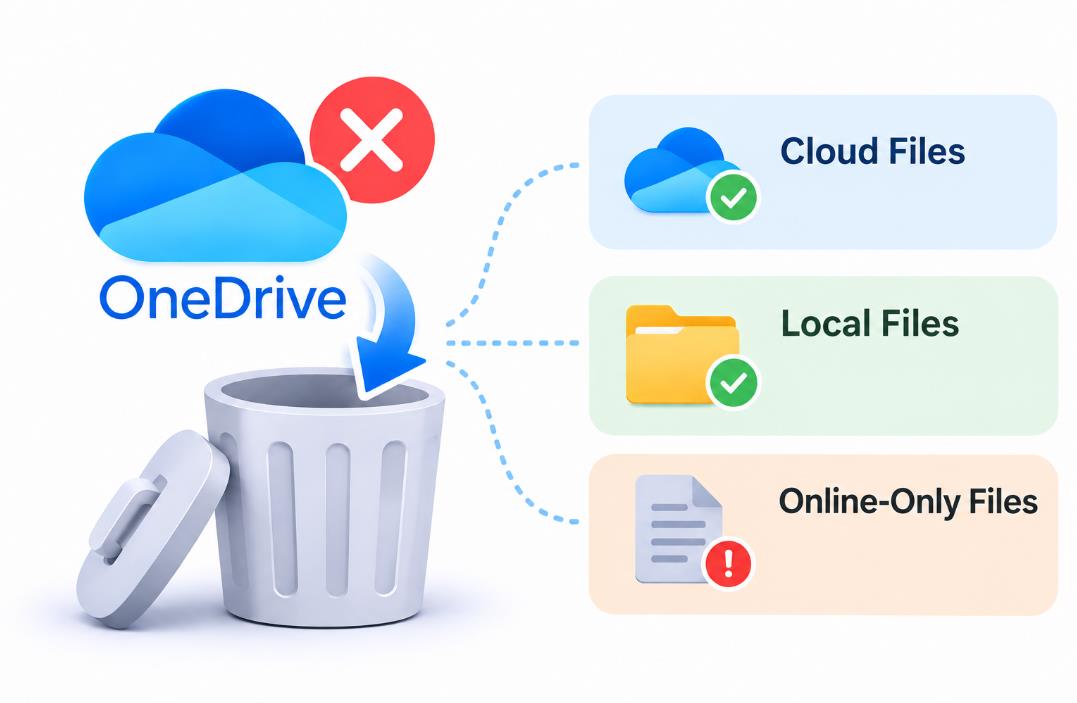
Is it safe to uninstall OneDrive? Yes, it is generally safe to uninstall OneDrive if you no longer need its syncing features. Your cloud files remain in your Microsoft account, and downloaded local files are usually preserved. However, download important online-only files beforehand to ensure you can still access them.
What happens if you uninstall OneDrive? Does it delete files? No. Uninstalling OneDrive does not automatically delete your files from the cloud or your PC. However, online-only files may no longer be accessible through File Explorer, so make sure to download important files before uninstalling.
What happens if I quit OneDrive? Files stored in the OneDrive cloud remain in your Microsoft account after you uninstall the desktop app. Uninstalling OneDrive does not delete your cloud data, so you can still access and download these files by signing in to OneDrive on the web.
Files already downloaded and stored locally on your PC generally remain on your computer after uninstalling OneDrive. You can still open, edit, and manage them through File Explorer without the OneDrive app. However, make sure they are fully downloaded and not just online-only placeholders before uninstalling.
Online-only file placeholders are removed from File Explorer when you uninstall OneDrive because they only represent files stored in the cloud, not actual local copies. However, the original files remain in your OneDrive account and can still be accessed through the OneDrive website.
If you’ve enabled OneDrive folder backup for Desktop, Documents, or Pictures, these folders may be linked to OneDrive. Uninstalling the app does not automatically delete their files, but it stops syncing changes to the cloud. Files already stored locally generally remain on your PC. Make sure you know where your backed-up files are stored before uninstalling OneDrive.
Yes. Uninstalling OneDrive frees up space used by the app itself. However, locally downloaded OneDrive files remain on your PC and may need to be deleted separately to free up more storage.
IObit Uninstaller offers a simple way to uninstall OneDrive from Windows 11. It helps remove the program and scan for leftover files and registry entries, making it easier to clean up residual data after uninstallation. This can help keep your PC free of unnecessary files.

Yes. You can reinstall OneDrive at any time by downloading it from Microsoft’s official website or the Microsoft Store. After installation, sign in with your Microsoft account to access and sync your cloud files again.
If you rarely use OneDrive, uninstalling it can simplify your Windows experience. You can make an informed decision without unnecessary worries since you have a clear answer about “what happens if I uninstall OneDrive”. Of course, you can always reinstall OneDrive later if your needs change.
 People Also Ask
Check how to uninstall Claude Code and details both the manual terminal commands and a free uninstaller tool to cleanly remove it from your system.
Free up disk space by safe Windows Installer folder cleanup. This guide shows how to use Settings, Disk Cleanup, etc., to remove unwanted installer files.
Why is Windows Defender not turning off? How to remove and uninstall Windows Defender on Windows 11? Can I disable Windows Defender permanently?