

- Support Center
- Multiple Languages
- Language
- Help Us Translate
Expert in
PC Health Solution

All-in-one PC health solution: clean, optimize and secure

Comprehensive PC cleaning, optimization and protection

Keep drivers always up-to-date

More stable performance with less system crashes

Protect millions of computers against malware

Top computer security with full-round protection

Protect against viruses & boost PC performance
Clean: 420 billion traces removed & 85 EB junk files cleaned
Protect: 80 million unauthorized access blocked & 20 million bugs fixed
Speed Up: 6 million hours of startup time saved & Turbo boost
Optimize: Auto clean and auto care your PC with AI mode

How much RAM do I need? Grab our 2026 RAM tips for every Windows user. Learn how to check your current RAM and choose the right memory to free up RAM.



What is RAM and why is it important for PC users
How much RAM do I need for different uses
How to check how much RAM your PC has
When should you upgrade to more RAM
How to upgrade RAM on your Windows PC
How to free up RAM on your Windows PC
If your Windows PC slows down when you load browser tabs, launch games, or run editing software, you have likely asked “how much RAM do I need”. Many users also wonder “how much RAM does Windows 11 use and how much RAM does Windows 10 use” under normal operation. This walkthrough explains what RAM is, shares RAM recommendations for common tasks, shows how to check your memory, and covers simple methods to free up RAM and keep your Windows system running smoothly.
RAM (Random Access Memory) is a type of temporary memory that stores data and instructions your computer is actively using. It allows the CPU to quickly access information needed to run programs, browse the web, play games, and handle multiple tasks simultaneously.
RAM is important because it directly affects your PC’s responsiveness and multitasking performance. With enough RAM, applications can run more smoothly, while insufficient RAM may cause slowdowns, lag, or freezing.
How much RAM do I need in a laptop? The amount of RAM you need varies depending on your daily tasks and workload. Here are general recommendations for different uses:
| Usage | Recommended RAM | Explanation |
| Basic tasks | 8GB | Suitable for browsing, email, and streaming |
| Office work | 8GB–16GB | Handles documents, spreadsheets, and light multitasking |
| Gaming | 16GB–32GB | Supports modern games and background applications |
| Video editing | 16GB–32GB | Handles video projects and editing software |
| Graphic design | 16GB–32GB | Supports image editing and design tools |
| Programming | 16GB–32GB | Runs development environments and multiple tools |
| 3D modeling | 32GB–64GB | Handles complex models and rendering tasks |
| Virtual machines | 32GB or more | Provides memory for multiple virtual systems |
How much RAM does my computer have? You can easily check your Windows PC RAM through Settings or Task Manager.
Method 1: Through Settings
1. Press Win + I to open Settings.
2. Go to System > About.
3. Find the Installed RAM section to see your PC’s memory capacity.
Method 2: Through Task Manager
1. Press Ctrl + Shift + Esc to open the Task Manager.
2. Select the Performance tab.
3. Click Memory to view your total RAM, current usage, speed, and available memory.
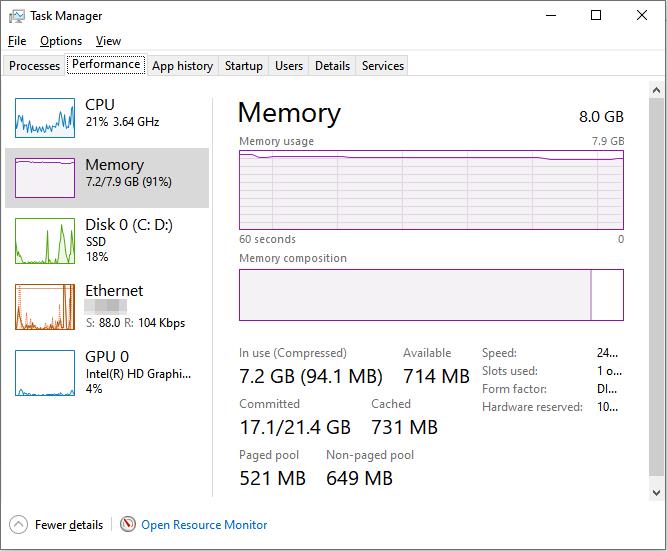
Not sure whether your PC needs more RAM? Certain performance issues may indicate that your current memory capacity is insufficient. Here are some common signs to look out for:
Frequent slowdowns: Your PC becomes sluggish when multitasking.
High memory usage: RAM usage often reaches 90%–100%.
Game stuttering: Games lag when other apps are running.
Slow editing: Video or photo editing becomes unresponsive.
Browser lag: Opening multiple tabs slows down your browser.
App crashes: Programs freeze or close unexpectedly.
Slow multitasking: Switching between applications takes longer.
Upgrading RAM usually requires adding or replacing physical memory modules. Follow these steps:
1. Check compatibility: Identify your RAM type, capacity, and available slots.
2. Choose new RAM: Buy compatible memory modules supported by your PC.
3. Install RAM: Shut down your PC, disconnect the power, and insert the new RAM into the available slots or replace the old modules.
4. Verify the upgrade: Restart your PC and check the installed memory in Task Manager.
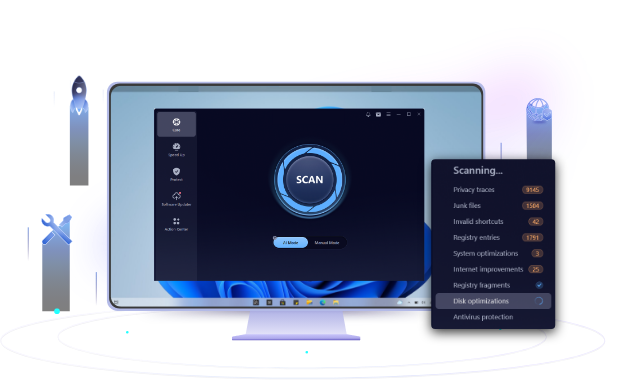
When your PC runs low on memory, upgrading RAM isn’t the only solution. You can free up RAM. For a simpler approach, Advanced SystemCare can help optimize your PC by cleaning junk files and managing startup items, freeing up system resources for smoother performance. This RAM optimizer Windows 11 can also help reduce unnecessary background activity and improve overall PC performance. Besides upgrading RAM, you can also use it to defrag hard disks to optimize your HDD.
After working through this guide, you will know exactly “how much RAM do I need” for your own workflow. You can either upgrade your physical memory or use quick fixes to release occupied RAM. These practical tips help you maintain steady, snappy performance on your Windows computer.
 People Also Ask
Is IObit legit? This IObit review checks whether IObit Windows PC tools are legit and safe. Explore its popular utilities and common user concerns about the software.
How to speed up Steam downloads? Check why Steam download speed slow & how to make Steam download faster: Disable download throttling, switch download server.
Learn everything about the Windows 12 release date, expected features, hardware requirements, pricing, and compatibility. Discover the latest rumors, the possible Windows 12 launch date, and how to prepare your PC.