- Support Center
- Multiple Languages
- Language
- Help Us Translate
Expert in
PC Health Solution

All-in-one PC health solution: clean, optimize and secure

Comprehensive PC cleaning, optimization and protection

Keep drivers always up-to-date

More stable performance with less system crashes

Protect millions of computers against malware

Top computer security with full-round protection

Protect against viruses & boost PC performance
Quick and deep system scanning throughout PC system.
Smart defense against all malicious infestations.
High-level security and privacy protection in real time.
Leading anti-malware and anti-virus engines.

How do you know if your PC has a virus? Sudden slowdowns, computer crashing or freezing... Detect, remove & prevent PC virus with Malware Fighter.



Your computer suddenly slowdowns.
Unusual pop-up ads and messages.
High resource usage of CPU or RAM (100%).
Programs running or closing without your consent.
Your web browser redirects.
New Toolbars or Extensions in your web browser.
Files or folders disappear or become corrupted.
Frequent programs freeze or “Blue Screen of Death”
Unfamiliar apps or programs show on your desktop.
Your antivirus program or Windows Defender is disabled.
What to Do If Your Computer Has a Virus?
How to Prevent Computer Viruses
It’s rather dangerous if your PC gets malware, like spyware, Trojans, and viruses, which can put your personal data at risk. How to see if your computer has a virus? Signs like sudden slowdowns, unusual pop-ups, high resource usage, browser redirects, missing files, and disabled security features can identify if your PC has a virus. And this guide will help you remove all viruses effectively.
Check the 10 key signs that your computer may have a virus:
Your computer is no longer able to start up, open apps, programs, or web browsers.
Frequent pop-up ads, fake system warnings, or unexpected message boxes.
High resource usage of CPU or RAM when you aren't running heavy software.
Programs running or closing without your consent.
Your web browser redirects to strange pages, or changes its homepage.
New Toolbars or Extensions in your web browser.
Files or folders disappear or become corrupted.
Frequent programs freeze or “Blue Screen of Death” (BSOD).
Unfamiliar apps or programs show on your desktop.
Your antivirus program or Windows Defender is disabled.
That’s how to tell if your computer has a virus. If your computer encounters one of these errors, it may be infected by malware or a virus. No worries. Keep reading to learn how to fix it easily.
So what to do if your PC has a virus? Follow this detailed guide to remove all malware and viruses completely.
Disconnect from Wi-Fi or unplug your Ethernet cable immediately. This can prevent the virus from transmitting your data to external servers or spreading to other devices on your home network.
This prevents most viruses from launching automatically in the background.
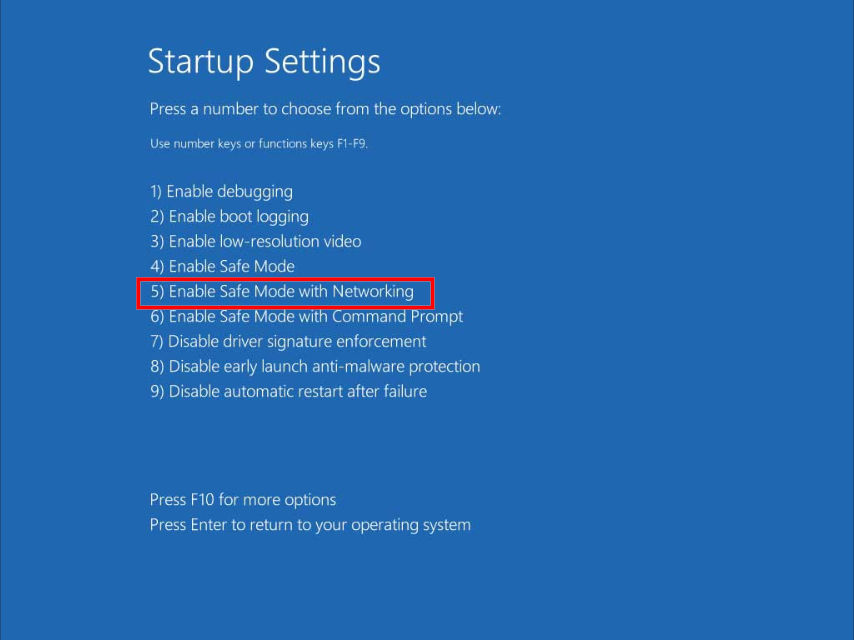
Hold the Shift key while clicking Restart in the Start Menu, then click Troubleshoot > Advanced Options > Startup Settings > Restart, and select Enable Safe Mode with Networking.
iObit Malware Fighter is a powerful free antivirus software that quickly runs a full virus detection and one-click threat removal in seconds. No matter if your PC has hidden malware, Trojans, or any other viruses, it provides automatic virus protection with Bitdefender Engine, Anti-malware Engine, and Anti-spyware Engine, etc.
Step 1. Free download & install on your PC.
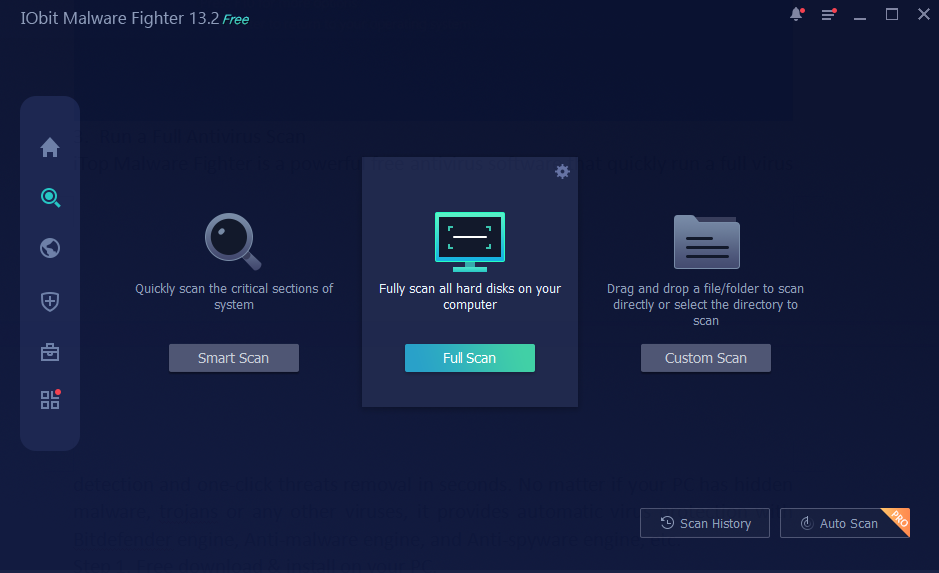
Step 2. Launch it and go to the “Scan” tab, select a scan mode (Full Scan).
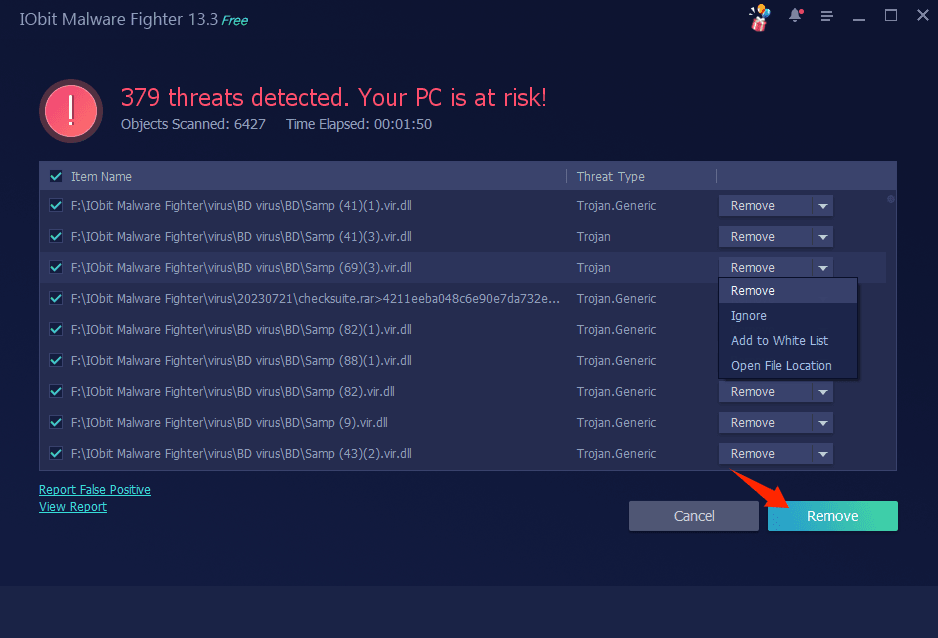
Step 3. After scanning, check all the threats and click “Remove” to clear all viruses on your computer.
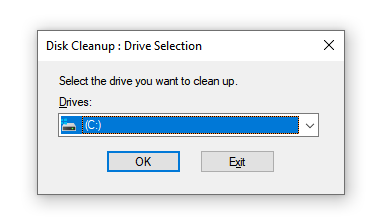
Clearing temporary files and web caches can remove the hidden malware on your PC.
Search for Disk Cleanup in the taskbar, select your main drive, like the C drive, check Temporary files, and click OK.
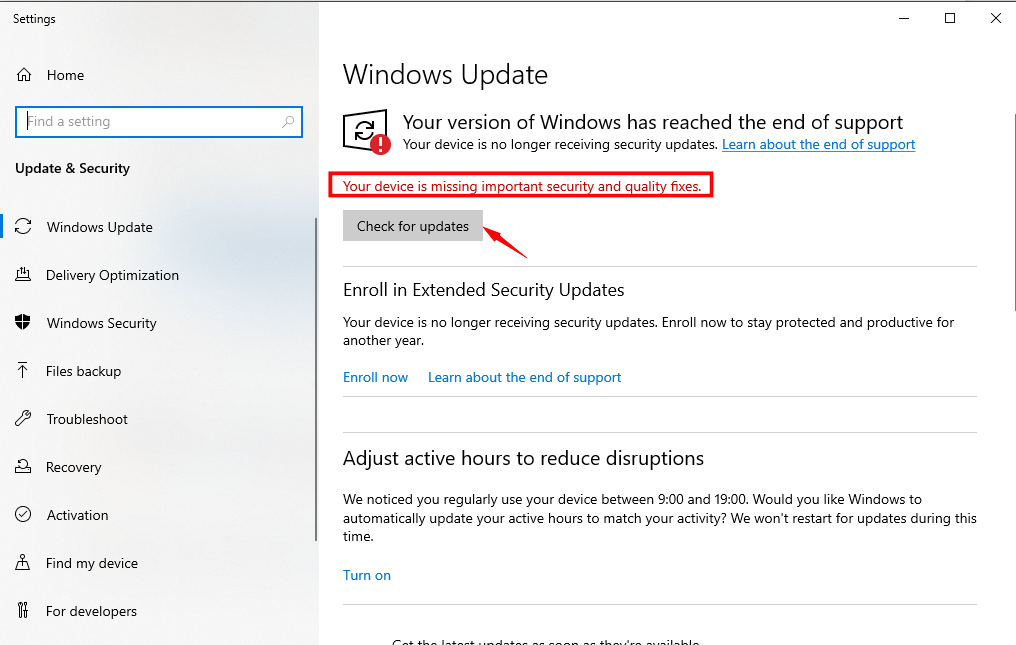
Once the threat is cleared and you reconnect to the internet, run Windows Update to install the latest security patches and programs.
How to protect your computer from viruses? Preventing computer viruses comes down to practicing good digital habits and keeping your software updated.
Do the following things:
Enable automatic updates for your PC and keep your system, web browsers, and installed software updated.
Keep built-in Windows Security or antivirus software real-time protection enabled.
Only install software, apps, and browser extensions directly from official websites.
Enable the pop-up blocker in your web browser.
Avoid clicking on links from unknown senders or suspicious messages and emails.
Back up your data regularly so that you can recover it quickly if viruses occur.
How do you know if your PC has a virus? Check the key 10 signs in this quick guide and fix it with effective solutions. To prevent PC viruses effectively, rely on real-time scanning on iTop Malware Fighter.
 People Also Ask
For those who forget their password and recovery key and fail to remove BitLocker encryption, this blog shares thoughts on how to unlock their hard drives.
Why does my default search engine keep changing to Yahoo? Learn about browser hijacking and reliable fixes to solve it!
How to get rid of virus in PC? If you suspect a virus infection, follow this comprehensive guide and clear virus from computer in Windows 11 and 10.