Steam download cache stores temporary data used when installing or updating games. Most of the time, it does its job quietly, but old or corrupted cache files can sometimes get in the way. Downloads may become unusually slow, freeze at a certain percentage, or fail altogether. Steam may also show inaccurate download speeds or progress, while connection errors can appear during an otherwise stable internet connection.
Clearing the download cache is one of the quickest troubleshooting steps and won’t remove your installed games. This post covers safe ways to learn how to clear steam download cache easily.

What Is the Steam Download Cache and Why Clear It?
The Steam download cache is a collection of temporary files and download-related data that Steam uses to process game downloads and updates. It can help manage download requests, process update files, and keep transfer-related information available between download sessions. Normally, this cache works in the background without requiring any attention.
Problems can arise when cached data becomes outdated or corrupted. Common signs include Steam downloads getting stuck at a certain percentage, download speeds suddenly dropping, updates repeatedly failing, or the download status behaving strangely even though your internet connection works normally. In these cases, knowing how to clear Steam download cache can be an essential troubleshooting step.
Clearing the cache generally does not uninstall your games or erase saved game data. However, Steam may ask you to sign in again, and a download or update in progress may need to be restarted.
The methods below cover both manual steps inside Steam and an automatic approach, so you can choose the option that best fits your situation to clear download cache Steam.
Method 1- How to Delete Steam Download Cache Through Steam
The quickest way to delete Steam download cache is through Steam’s built-in settings. Steam may restart during the process, and you’ll typically need to sign in again afterward.
Step 1. Open Steam and click Steam in the top-left corner.
Step 2. Select Settings, then choose Downloads from the sidebar.
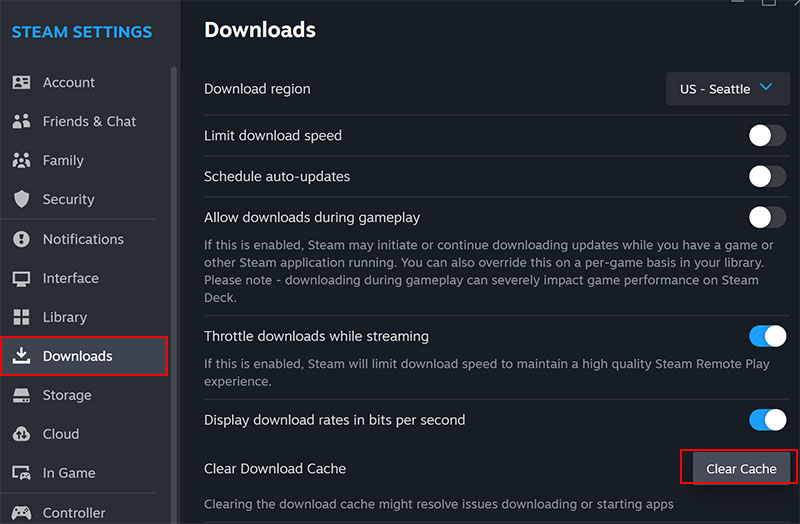
Step 3. Click Clear Download Cache and confirm the action. Sign back into Steam when it restarts.
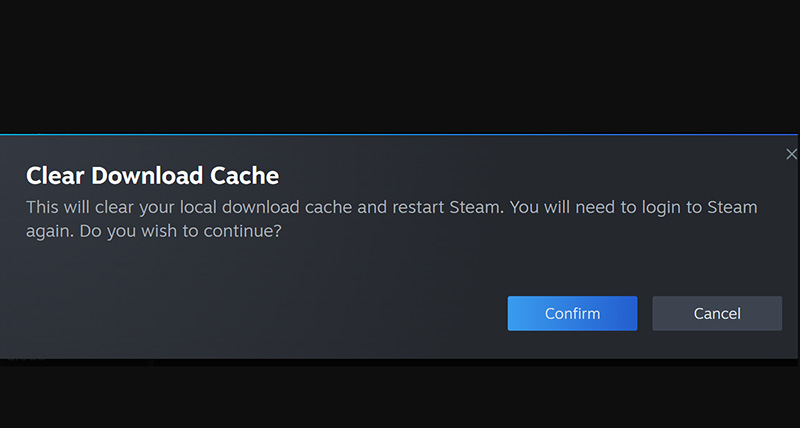
This is the simplest approach for how to clear Steam download cache, especially when downloads are stuck, unusually slow, or failing to update properly.
Method 2 - How to Clear Steam Download Cache Without Opening Steam
When Steam won’t launch properly, you can still trigger its cache-clearing process without opening the main client. The Windows Run dialog provides a quick way to send Steam’s built-in flush command.
Step 1. Press Win + R on your keyboard to open the Run dialog.
Step 2. Type steam://flushconfig into the text field.
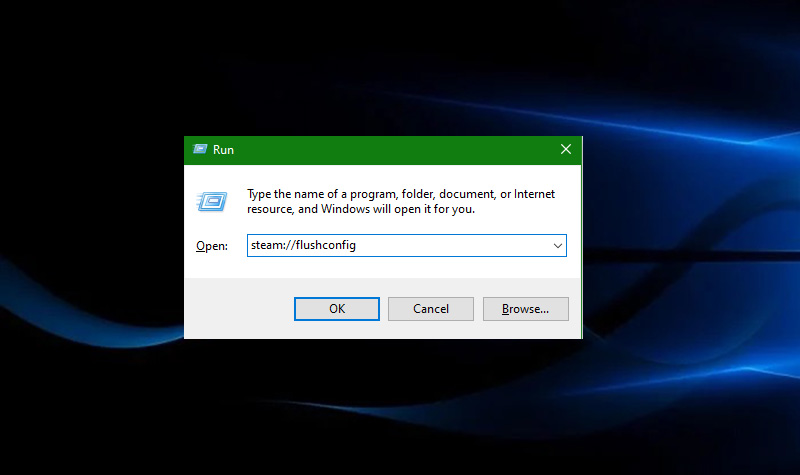
Step 3. Click OK or press Enter. Windows will pass the command to Steam and start the cache-clearing process. Follow the on-screen prompt to proceed.
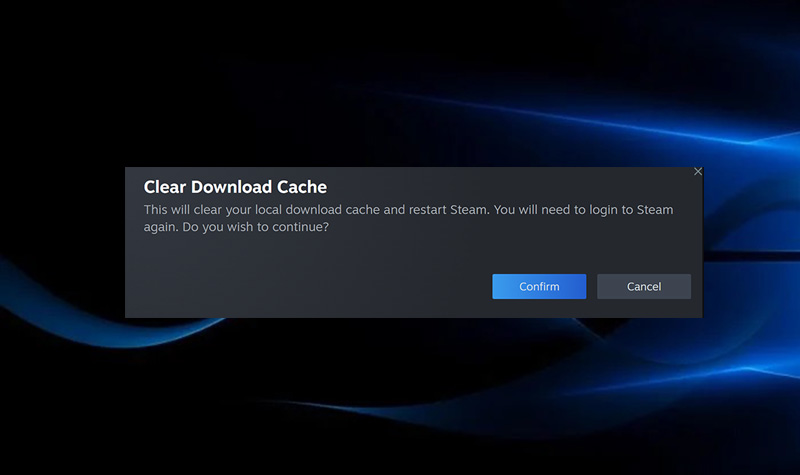
You can also remove Steam's cached files directly from its installation folder via File Explorer.
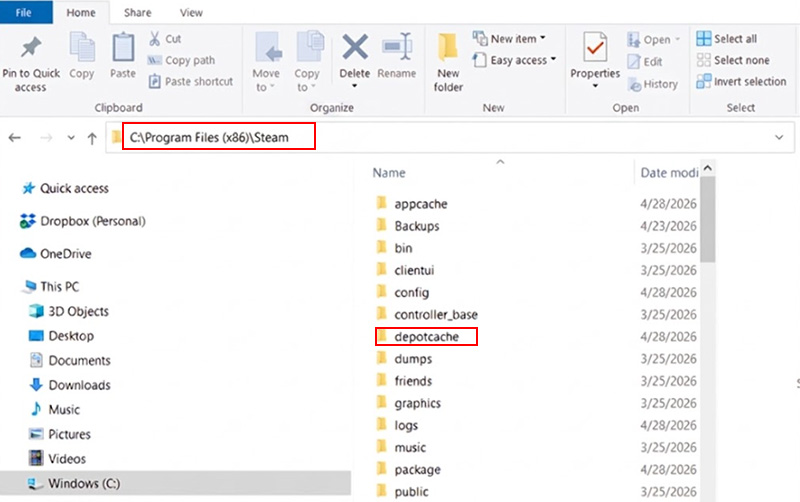
Step 1. Open File Explorer and go to your Steam installation directory, usually C:\Program Files (x86)\Steam.
Step 2. Close Steam completely, find the depotcache folder, and delete the cache files.
When Steam won’t open normally, you can try a few troubleshooting steps before reinstalling it. These methods are useful when you need to know how to clear the download cache in Steam but cannot reach Steam’s Settings.
1. Restart your PC. A restart can close stuck Steam processes.
2. End Steam processes. Press Ctrl + Shift + Esc to open Task Manager, select Steam-related processes, and click End task.
3. Use Command Prompt to close Steam processes before making any manual changes. For example, taskkill /F /IM steam.exe can force-close the main Steam process.
4. Repair or reinstall Steam only as a last resort. Reinstallation involves more risk than simply using the built-in cache-clearing option.
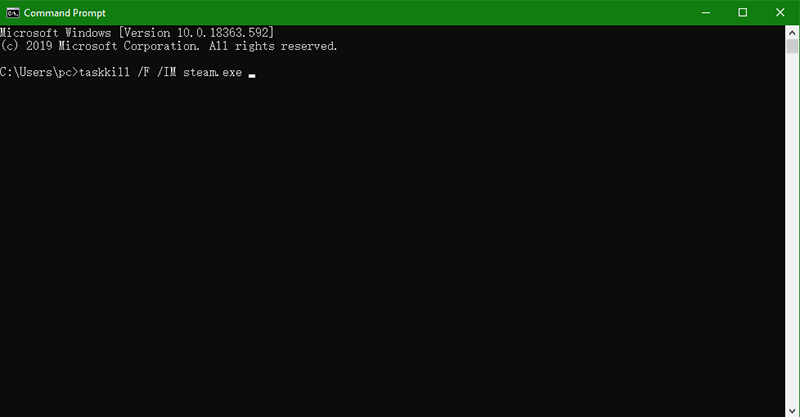
Tips: Be careful when manually deleting Steam files. Do not randomly remove folders, especially steamapps, userdata, or configuration files, as this can affect installed games, saves, or Steam settings. For most users, it’s the safer option to clear Steam download cache through Steam itself.
Method 3 - One-Click Clear Download Cache Steam with Advanced SystemCare
The previous two methods rely on Steam or Windows tools and require manual steps. Manually removing Steam files also requires caution because deleting the wrong folder could interfere with installed games or Steam configuration.
Steam cache can accumulate over time and take up disk space. Cleaning these temporary files can free storage and keep the system running smoothly. Advanced SystemCare is a PC optimization tool that covers junk-file cleanup, cache removal, privacy protection, and system optimization in one interface.
The app cache cleaner provides two ways to clear Steam download cache: Junk File Clean for controlling the cleanup manually and AutoCare for automatic maintenance.
Clear Steam Download Cache Manually with Junk File Clean
Junk File Clean includes a Steam cleanup option selected by default. You can verify it in the feature's settings before running a scan. Use the steps below to learn how to clear Steam download cache with Advanced SystemCare.
Step 1. Free download Advanced SystemCare, install, and open it.
Step 2. Select Junk File Clean. Click the Settings icon and make sure the Steam option is enabled.
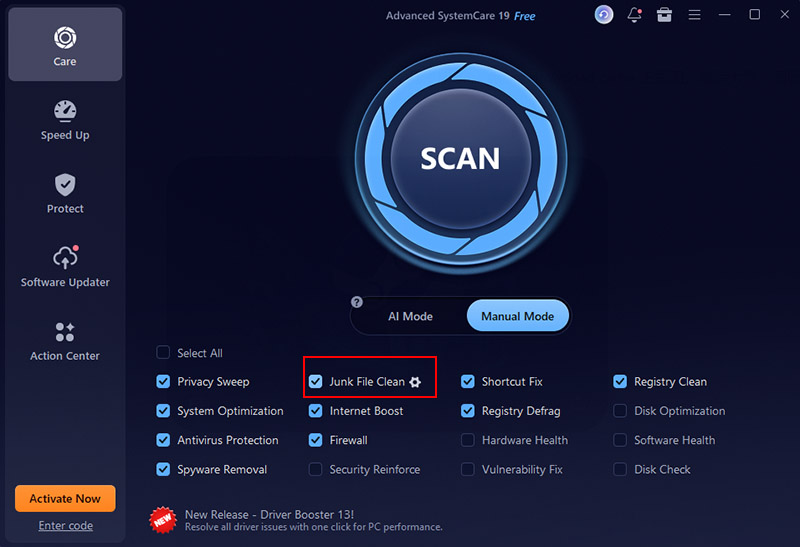
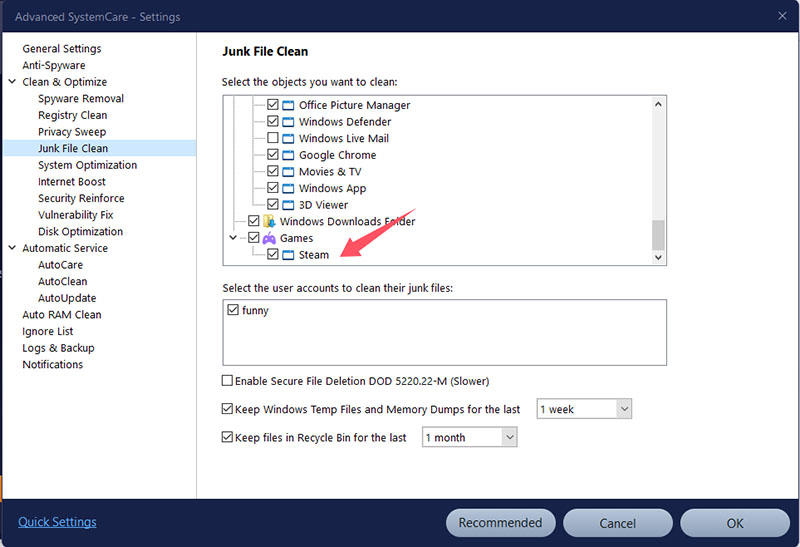
Step 3. The Steam option is under Games on the Junk File Clean settings window. Click OK the save the settings and close the Junk File Clean settings screen.
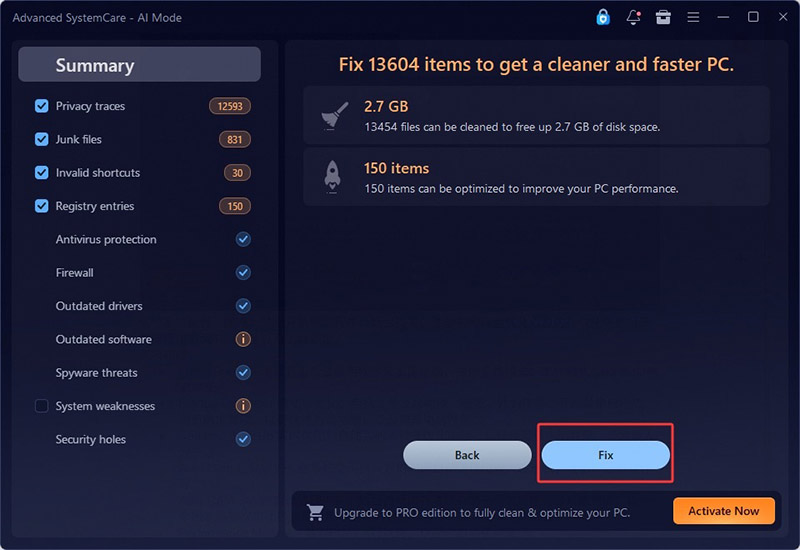
Step 4: Return to Junk File Clean and click Scan. Review the detected junk files, then click Clean to remove the selected Steam cache.
Clear Steam Download Cache Automatically with AutoCare
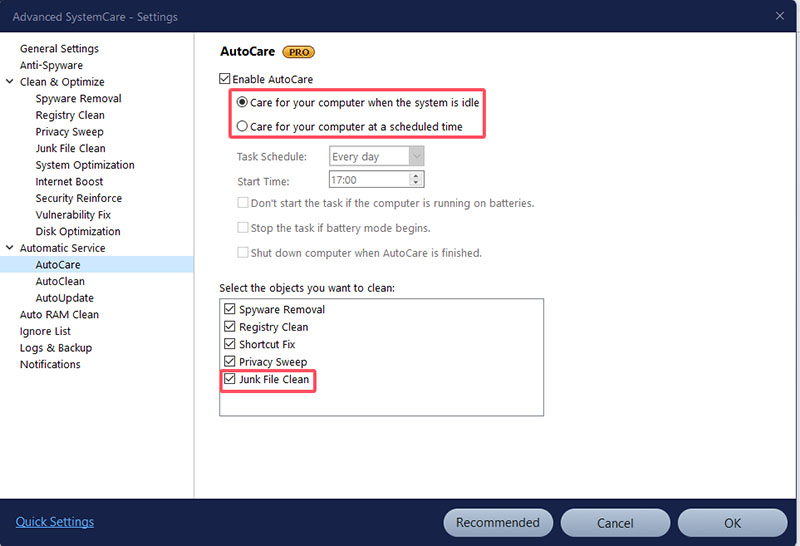
For less hands-on maintenance, AutoCare can automate routine cleanup. Enable AutoCare and configure it to run when your PC is idle or at a time that suits your schedule. Advanced SystemCare can then handle supported junk and cache cleanup automatically instead of requiring you to start each scan yourself.
Beyond Steam, Advanced SystemCare can also clean caches from apps, remove Windows app and system cache, clear browser cache from browsers, etc. As an all-in-one system optimization tool, it combines thorough cleanup and performance-enhancing functions to make your computer run faster and more efficiently.
More Features of Advanced SystemCare
Intelligent AI Scan and Clean: Use AI-powered scanning to identify temporary files, system junk, and other unnecessary data, then clean them with one click.
Third-Party App Cache Clean: Remove cache generated by apps such as Adobe, Spotify, and Zoom to free up storage and keep applications running smoothly.
Windows Apps Cache Clean: Clear Windows update cache, cache created by Windows apps, including Microsoft Store, Windows Maps, and Outlook, which can help resolve cache-related issues and reclaim disk space.
Windows System Cache Clean: Find accumulated Windows Update cache, temporary files, and other system junk that may occupy storage over time.
Browser Cache Clean: Clear cached data from Edge, Google Chrome, and Firefox for a cleaner and safer browsing environment.
Advanced Privacy Clean: Remove browsing history, cookies, and other online traces to reduce unwanted tracking and protect personal privacy.
FAQs on Clearing Steam Download Cache?
1. Does clearing Steam download cache delete my games?
No. Using Steam’s built-in cache-clearing option removes temporary download data, not your installed games or normal save files.
2. How often should I clear Steam's download cache?
Clear it when a download-related issue calls for it rather than doing so routinely. Consider when downloads repeatedly fail, updates get stuck, or Steam’s download behavior becomes unusual. For most users, knowing how to clear Steam download cache is more useful for troubleshooting than routine maintenance.
3. Will clearing cache fix slow Steam downloads?
Yes, when outdated cache data, stalled download tasks, or temporary write issues are slowing Steam downloads down.
4. Is it safe to delete Steam download cache manually?
Yes, clearing your Steam download cache is safe when you use Steam’s built-in option instead of deleting cache folders manually, which can interfere with downloads or other Steam files.
5. Can I clear Steam cache without opening the app?
Yes, you can clear Steam’s download cache without accessing the main Steam window by using the Windows Run dialog or removing the relevant cache files manually.
Conclusion
Clearing Steam’s download cache can resolve problems such as stalled downloads, failed updates, or corrupted temporary data interfering with Steam. The built-in Steam option is a common choice for routine troubleshooting, while Windows-based methods provide alternatives when Steam cannot open normally.
For a simpler approach, try Advanced SystemCare, which combines Steam cache cleanup with broader junk and cache removal. Its Junk File Clean lets you review and clean supported files manually, while AutoCare can handle routine cleanup automatically, requiring no extra time to figure out how to clear Steam download cache.
Advanced SystemCare Free
- Clean: 420 billion traces removed & 85 EB junk files cleaned
- Protect: 80 million unauthorized access blocked & 20 million bugs fixed
- Speed Up: 6 million hours of startup time saved & Turbo boost
- Optimize: Auto clean and auto care your PC with AI mode