Many Windows users overlook clipboard accumulation, which can lead to privacy risks, copy-paste errors, and unnecessary cache buildup that may slow down your PC. From a security standpoint, regularly clearing your clipboard is essential to protect sensitive data. This comprehensive guide will introduce several effective methods to help you manage it. You can find how to clear clipboard on PC with built-in tools and the most powerful automated solution. Just read on to discover practical and easy-to-follow steps!
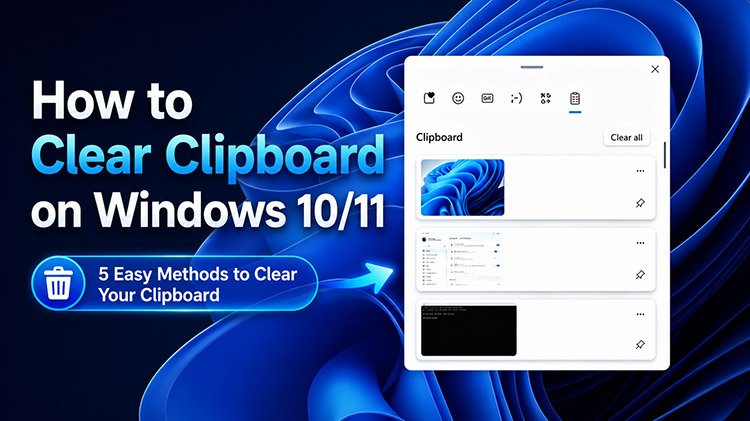
What Is a Clipboard and Why Should You Clear Clipboard?
The clipboard is a temporary storage area in Windows, which holds data you copy/cut: for instance, text, images, links, files, or even passwords. It will be stored there until you paste it elsewhere or replace it with new content.
So, how does the clipboard work? When you press Ctrl+C or use the Cut command, Windows will place the data into this memory buffer, and it holds only the most recent item by default. You can enable the Clipboard History (via Win + V) to allow for multiple items. The data resides primarily in RAM for speed, but can persist in temporary files.
You can enjoy multiple benefits when you clear clipboard:
Enhanced Privacy: Sensitive information, for instance, login credentials, financial details, or personal messages, won’t linger and risk exposure if someone accesses your device.
Malware Protection: Some malicious applications might occasionally read your clipboard data. Hence, it’s best to clear the clipboard to minimize the risk of sensitive data scraping.
Prevent Formatting Issues: The clipboard sometimes brings unwanted styles, fonts, or HTML formatting. After clearing, you can ensure plain-text pasting.
Free Up System Memory: Large images and huge chunks of text can also consume device memory. Even though it seems rare on modern computers, it’s recommended to clear clipboard to free up RAM.
How to Clear Clipboard with Advanced SystemCare (One-Click and Automatic Cleanup)
To clear the clipboard safely and effectively, Advanced SystemCare is your best choice. The software is an excellent PC cleaner that can clear clipboard, remove junk files, invalid shortcuts, and privacy traces quickly and thoroughly. In this part, let’s see how to clear the clipboard in Windows with its 2 useful features.
1. How to Clear Clipboard Manually with Advanced SystemCare
Advanced SystemCare offers a Junk File Clean feature, which allows you to clear the clipboard easily. Just check the clipboard as one of the default options in settings, and you can run a quick scan to clear your clipboard in one click. Here’s how.
Step 1. Free download and install Advanced SystemCare on your computer. It works with most Windows OS.
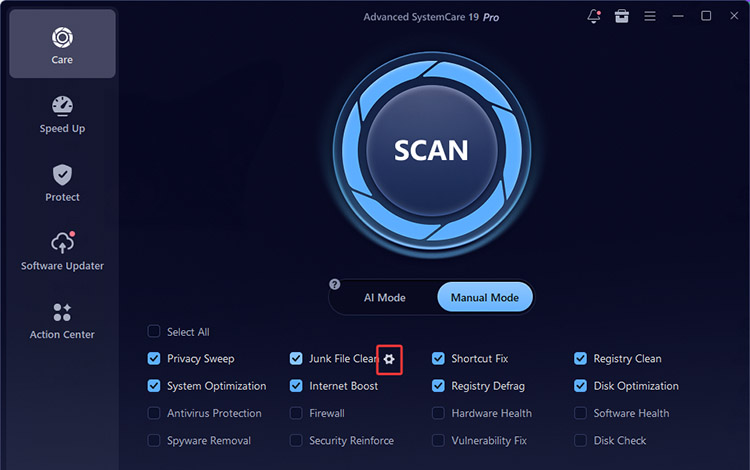
Step 2. Launch the program. Go to Care and select the Manual mode. Click on the settings icon next to the Junk File Clean option.
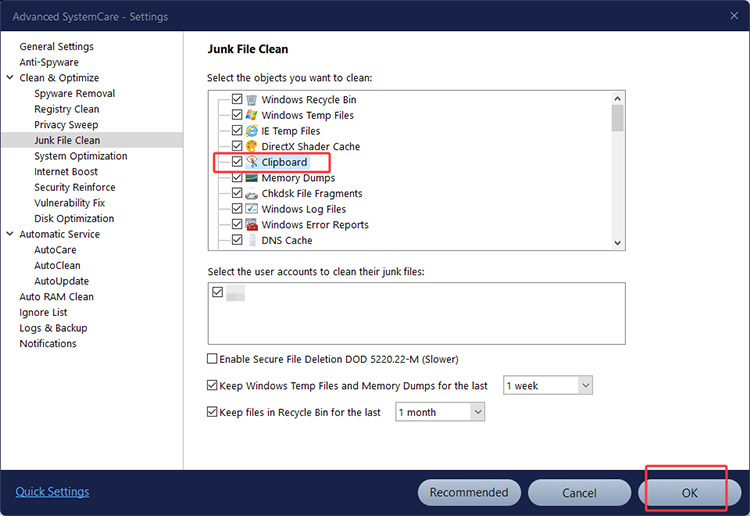
Step 3. Make sure the “Clipboard” is selected in the settings. Click OK to proceed.
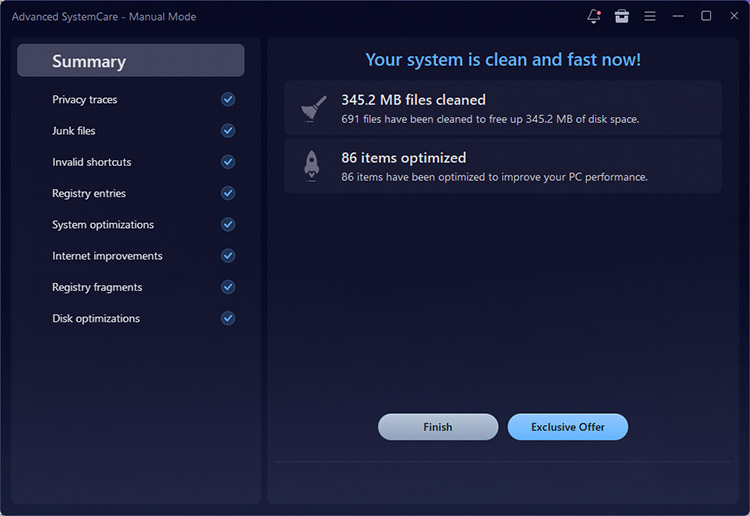
Step 4. Go back to the main dashboard and click on the big Scan button. Advanced SystemCare will run a scan to clear out clipboard history instantly.
2. How to Clear Your Clipboard Automatically with AutoCare
Alternatively, the software offers an intelligent feature that can clear the clipboard automatically when the system is idle or at users’ preferred time. You can simply enable the AutoCare feature to clear your clipboard with less effort! Here’s how:
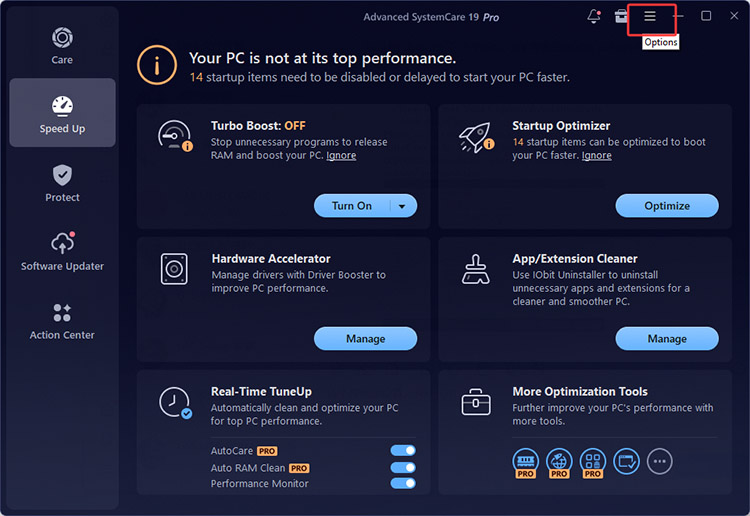
Step 1. On the main dashboard, go to the Settings (Hamburger icon) in the top right.
Step 2. Look for Automatic Service > AutoCare. Enable it on top. Adjust the time for clearing(idle/scheduled time). Make sure the Junk File Clean option is selected.
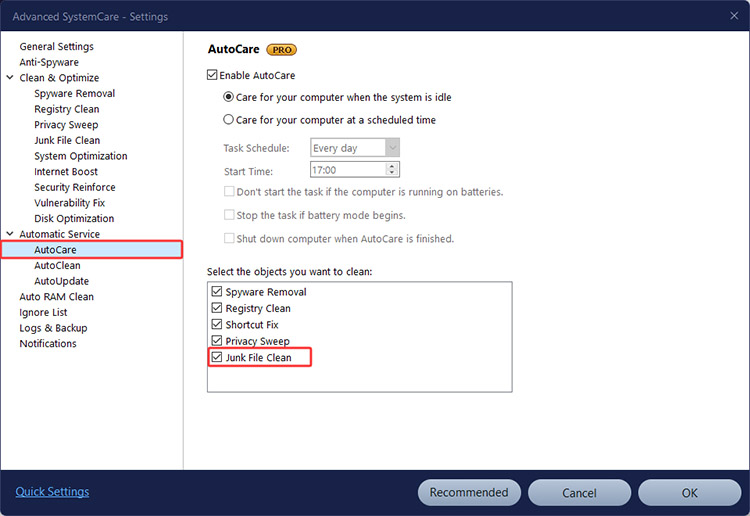
Step 3. Click OK, and Advanced SystemCare will clear clipboard as per your settings.
That’s how to clean junk files in PC with Advanced SystemCare. Regardless of the feature you use, the entire process is fast and hassle-free!
4 Manual Ways to Clear Out Clipboard
Now you know how to clear clipboard on PC with the best PC cleaner software. In addition, Windows offers multiple built-in features that allow you to remove copied data directly. These methods are free and effective. Let’s explore how to clear clipboard data in Windows 11/10 step by step.
Method 1: Clear Clipboard with Win + V Shortcut
The Win + V shortcut is the fastest way to access clipboard history and manage copied items visually. It allows you to check previously copied items and remove unnecessary records quickly. Here’s how to clear the clipboard in Windows 11/10 with the shortcut.
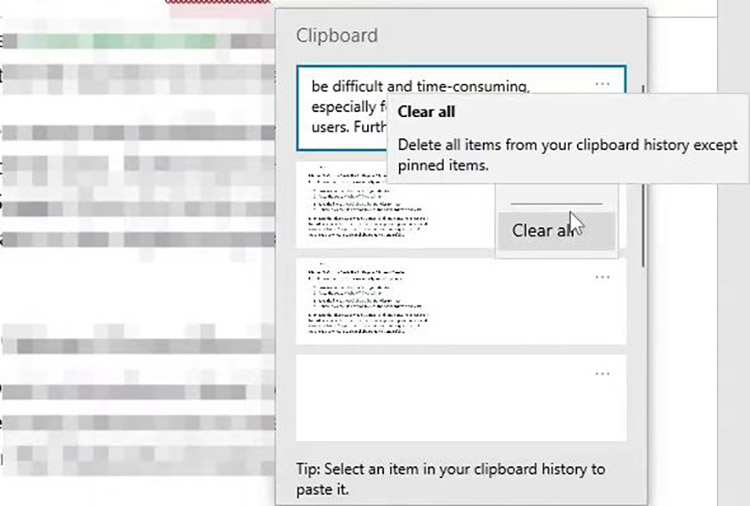
Step 1. Press Win + V to open the clipboard history window.
Step 2. Select Clear all to remove every unpinned item from your clipboard history.
Step 3. If you only want to remove specific content, click the three-dot menu beside the item and choose the delete option.
Method 2: Clear Clipboard via Windows System Settings
Windows also provides an official way to clear both local clipboard history and cloud-synced clipboard data. Let’s see how to clear clipboard Windows 11/10 via the system settings.
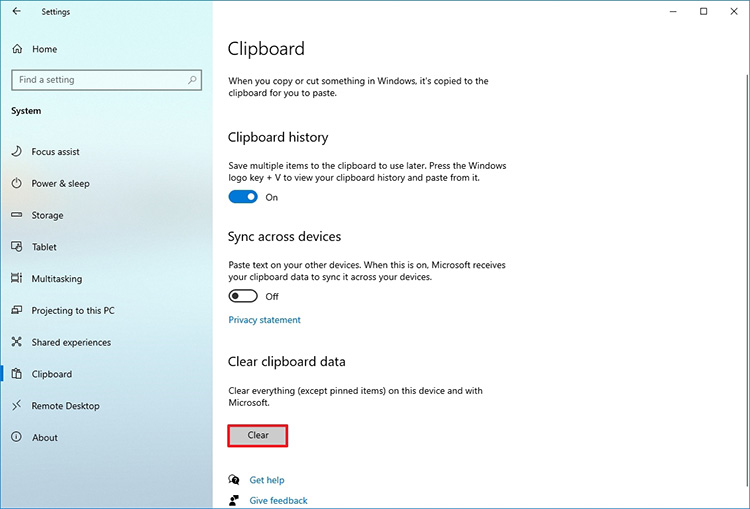
Step 1. Press Win + I to launch Windows Settings.
Step 2. Select System > Clipboard to access clipboard management options.
Step 3. Find Clear clipboard data and click Clear to remove stored clipboard information.
Tip: You can also turn Clipboard history off from the menu. But the computer will still hold the most recent copied item on the clipboard. And to clear that, you still need to follow the steps above to hit the Clear button or go ahead to copy something else to replace it.
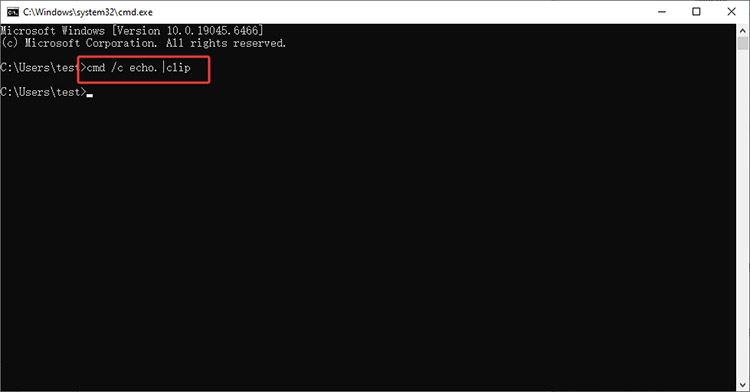
 Method 3: Clear Clipboard with CMD Command
For advanced users who prefer precise control or want to automate clipboard cleanup tasks, Command Prompt provides a quick solution. However, it requires basic command-line knowledge, which might be complicated for beginners.
Step 1. Press Win + R, type cmd, and open Command Prompt.
Step 2. Enter the command: cmd /c echo.|clip.
Step 3. Press Enter, and the clipboard content will be cleared instantly.
Method 4: Reset Clipboard via PowerShell
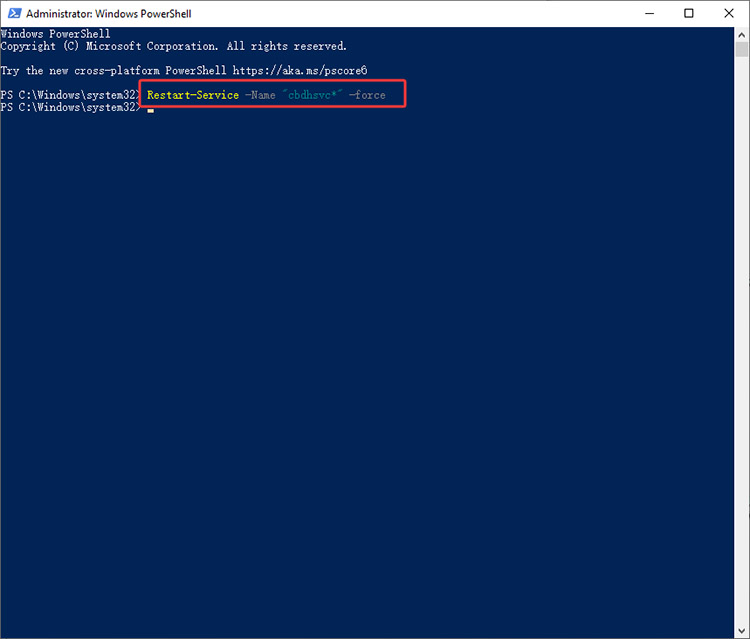
PowerShell is another practical feature that can clear out clipboard history. Besides removing cached clipboard data, it can also help fix certain clipboard failures caused by service glitches. Here’s how to clear your clipboard with PowerShell.
Step 1. Open Windows PowerShell as Administrator.
Step 2. Run the command: Restart-Service -Name "cbdhsvc*" -force.
Step 3. The clipboard service will restart automatically and clear stored clipboard history.
While these manual methods can effectively clear clipboard data, they might be difficult and time-consuming for some users, especially beginners or elderly users who are not familiar with Windows tools. In addition, incorrect commands for CMD/PowerShell might change system settings improperly and cause unexpected system problems. Therefore, the simplest solution remains Advanced SystemCare. Within one click, you can just run a quick scan and clean clipboard data quickly and safely!
Tips to Protect Clipboard Privacy
Aside from clearing, it’s also important to protect your clipboard privacy. We have concluded 3 practical strategies to help you minimize risks of data leaks.
1. Disable Clipboard History and Sync Features: You can turn off Clipboard History and disable cloud syncing. This prevents sensitive copied items from being stored long-term or across devices.
2. Use Dedicated Clipboard Managers with Encryption: Consider using third-party managers to protect your sensitive copied data from being accessed by malicious software.
3. Practice Safe Copy-Paste Habits: Do not copy highly sensitive information, and clear the clipboard immediately after use in public or shared environments.
Bonus Tip: All-in-One Solution for Optimal PC Performance
Advanced SystemCare is not just a simple clipboard cleaner. It’s a comprehensive all-in-one PC optimization software that delivers full-scale cleaning and speedup capabilities. It can perform an in-depth system scan to remove junk files, system logs, temporary files, and invalid registry entries. You can restore your computer to like-new performance easily.
What makes Advanced SystemCare outstanding
Intelligent AI Cleaning: Powered by AI technology, Advanced SystemCare automatically detects and removes unnecessary files, system logs, and redundant registry entries, which helps free up valuable disk space with minimal effort.
Advanced Privacy Sweeper: It can wipe out browsing history, cookies, and other digital traces to protect your sensitive information, which reduces much of the online tracking risks.
Startup and Browsing Accelerator: The all-in-one PC optimizer can also disable unnecessary startup programs. This effectively helps shorten boot time and optimize network settings for smoother browsing.
Real-Time System Optimizer: Its powerful Real-Time Tuneup feature continuously monitors your PC, which applies smart adjustments to eliminate lag and maintain optimal performance.
System Security Protector: It can detect and remove spyware, Trojans, and other threats, ensuring your data and system remain safe and secure.
Conclusion
How to clear your clipboard? This blog has introduced 5 effective methods. While built-in methods work, they can be rather time-consuming. That’s why Advanced SystemCare stands out. It’s a comprehensive solution that can not only clear clipboard data but also optimize system performance. Get it and enjoy a faster and more secure PC experience now!
Advanced SystemCare Free
- Clean: 420 billion traces removed & 85 EB junk files cleaned
- Protect: 80 million unauthorized access blocked & 20 million bugs fixed
- Speed Up: 6 million hours of startup time saved & Turbo boost
- Optimize: Auto clean and auto care your PC with AI mode