If your PC is feeling sluggish, it’s likely that the accumulated cache files are clogging up your system. Meanwhile, low disk space, lagging performance, and even privacy concerns from stored browsing data are all clear signs that it’s time to clear your cache. However, many users still don’t know how to clear PC cache. Worry not. This guide covers all the things you need to know. Just read on to find the most effective tool—a one-click solution, plus manual methods for Windows 11/10!
What Is PC Cache & Why Clear It
How to clear cache on Windows? Before diving into the methods, it’s important to understand what cache actually is. PC cache is temporary data stored by your operating system, applications, and browsers. The most common cache types are:
Software cache: temporary files, logs, thumbnails
Browser cache: images, scripts, HTML pages
Hardware/system cache: CPU, RAM, hard drive, memory caches
While cache improves loading times initially, it accumulates and can cause problems. Here’s why you should clear PC cache regularly.
Free up storage: Cache files can consume gigabytes of space on your hard drive. It’s crucial to clean them periodically to free up disk space.
Protect privacy: Browser cache often stores sensitive browsing history, cookies, and login data that might be accessed by others.
Fix app crashes and stuttering: Corrupted cache can lead to software instability, slow performance, and unexpected freezes.
Improve overall speed: Your PC can access fresh data more efficiently and reduce background resource usage.
How to Clear PC Cache: System Cache & Browser Cache in 1 Go
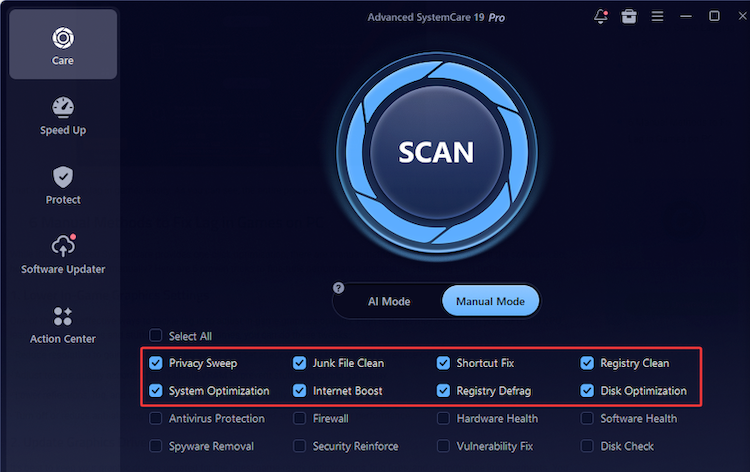
Want to clear PC cache quickly and easily? A professional optimization tool is highly recommended, and Advanced SystemCare is your best bet! This all-in-one PC optimizer can detect and remove cache, junk files, and privacy traces quickly and thoroughly. You can handle different types of cache in one click!
Advanced SystemCare Free
- Clean: 420 billion traces removed & 85 EB junk files cleaned
- Protect: 80 million unauthorized access blocked & 20 million bugs fixed
- Speed Up: 6 million hours of startup time saved & Turbo boost
- Optimize: Auto clean and auto care your PC with AI mode

• Scan & Clear PC Cache Thoroughly & Efficiently in 1 Go
Advanced SystemCare's AI mode automatically performs deep scans across your system. It can detect all kinds of cache, for instance, browser traces, software temp files; besides, it also scans and removes junk files and registry entries to achieve a deep cleanup.
• Auto Clear Cache on PC with Customization
The built-in AutoClean feature allows you to customize what gets cleaned. You can select specific browsers, cache types, and even autoclean frequency to enjoy effortless PC maintenance.
• Comprehensive PC Maintenance Beyond Clearing Cache
The software is a comprehensive optimization tool for Windows. It can clean junk files, optimize startup items, protect privacy, enhance overall PC performance, and even boost internet speed on PC!
How to Clear PC Cache Completely?
Step 1: Download Advanced SystemCare from the official website and install it on your Windows PC.
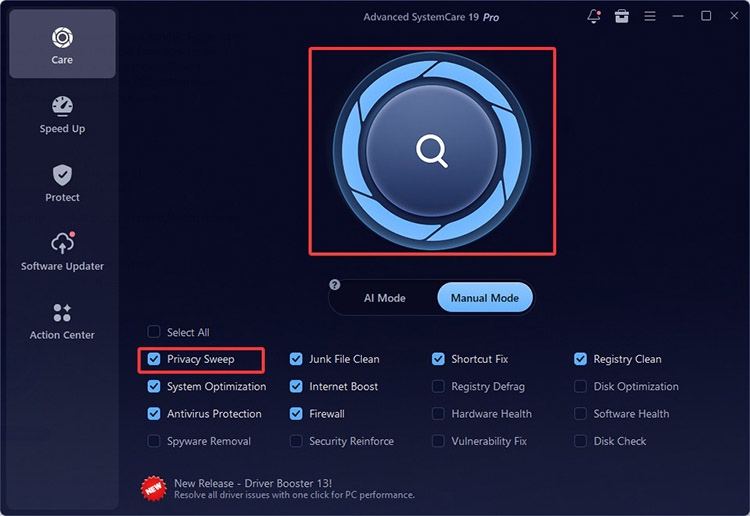
Step 2. On the main dashboard, find the Privacy Sweep option under the Scan icon. Click the Settings (gear) icon next to it.
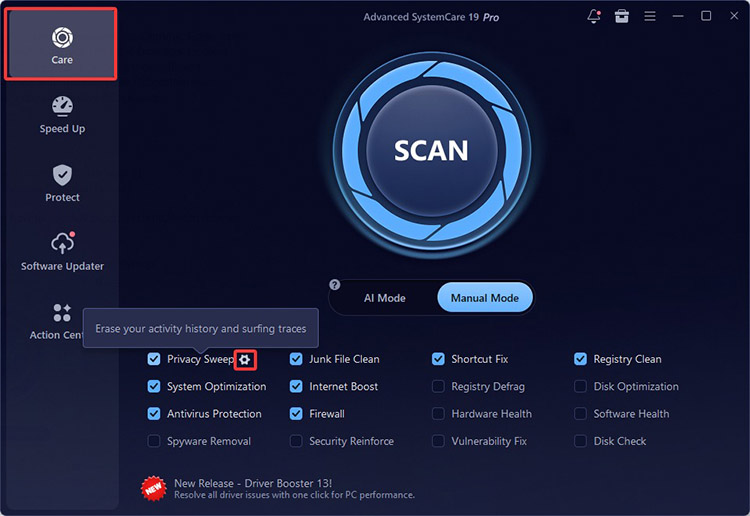
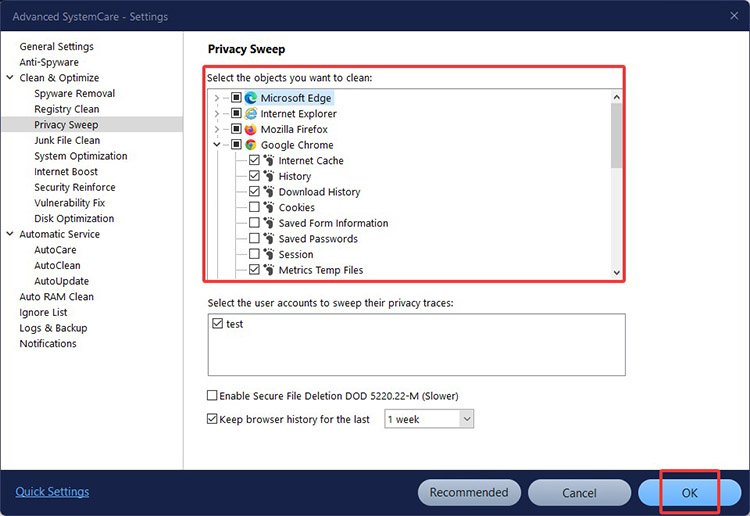
Step 3. Then navigate to Clean & Optimize > Privacy Sweep from the left-hand menu. Here, you can select the specific browser cache, cookies, and privacy traces you want to remove. Click OK to save your preferences.
Step 4. Then return to the main interface, click the large SCAN button. The software will start scanning the PC cache.
Step 5. After a while, you will see a detailed list of detected cache files. Click the Fix button to remove all selected cache instantly.
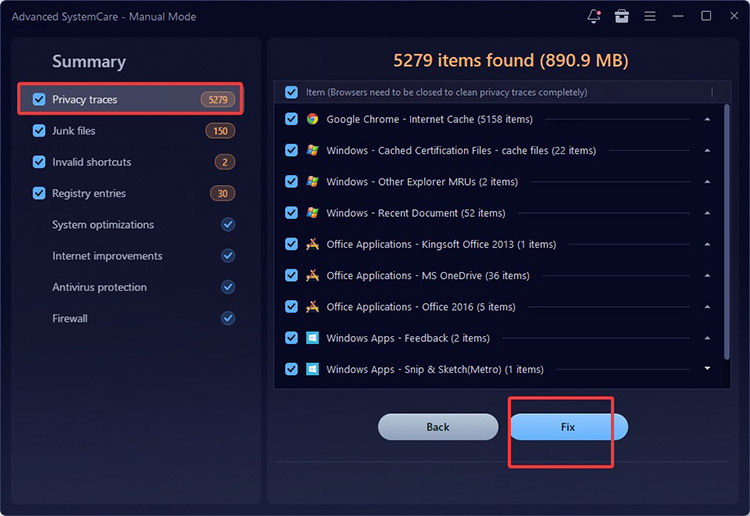
By removing junk files, registry entries, privacy traces, and more using this app, you can easily free up disk space.
That’s how to clear cache on PC effortlessly. But if you are looking for even more convenience, upgrade to Pro for the Auto Clean feature. It can automatically clear histories, cookies, caches, etc. of browsers and programs at Windows startup. It’s the simplest way to keep your PC clean and constantly optimized with minimal effort!
How to Clear Cache on PC Manually
Now you know how to clear cache on Windows 11/10 with the best solution. Meanwhile, you can also make it manually with Windows built-in features. Please note that these methods offer less thorough cleanup and require more time and effort.
#1 How to Clear PC Cache from System
To begin with, the system cache includes temporary installation files, thumbnails, system logs, update remnants, etc. Along with other files and apps, many users might face a sluggish issue, especially on the C drive.
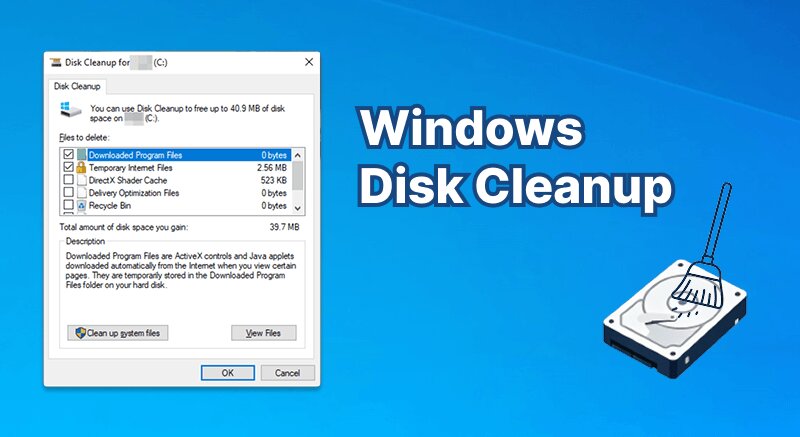
But worry not. Windows has two built-in tools to tackle the problem: Storage Sense and Disk Cleanup. Storage Sense is an automated feature that periodically clears temporary files and manages storage usage in the background. Disk Cleanup, on the other hand, allows users to manually select and delete unnecessary system files.
However, these two features come with obvious limitations. Storage Sense may not detect all types of junk files or browser-related cache, and Disk Cleanup often requires manual selection and repeated runs for deeper cleaning. As a result, you may still find leftover cache files on your PC.
How to Clean PC Cache from System with Storage Sense?
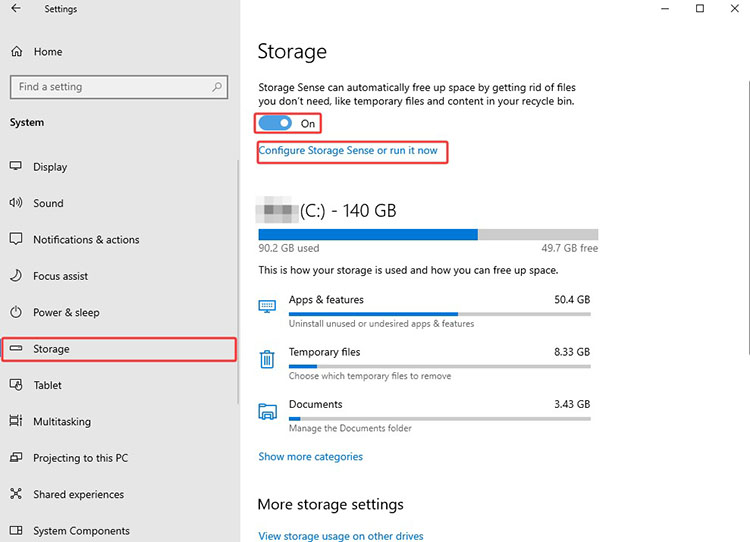
Step 1. Go to your Windows Settings and choose System.
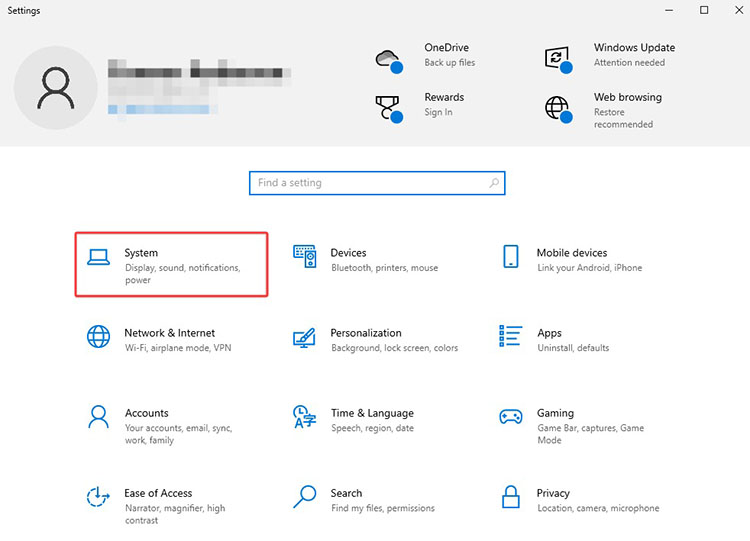
Step 2. Select Storage from the left and enable the feature. Choose “Configure Storage Sense or run it now” for advanced settings.
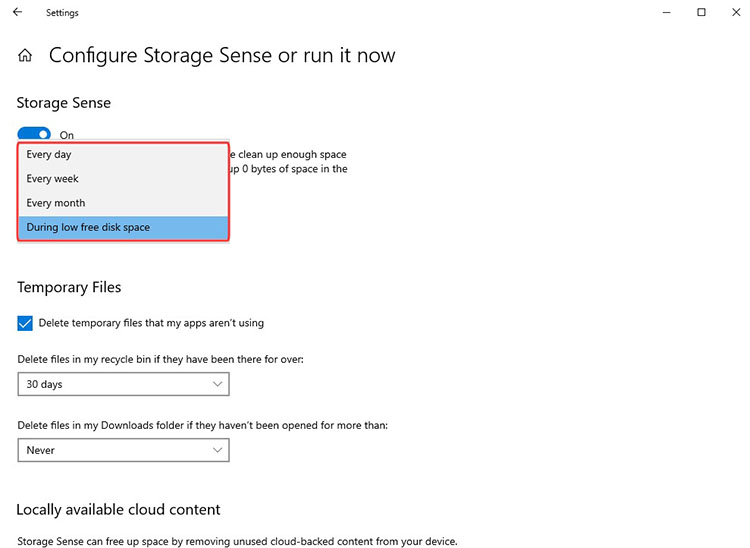
Step 3. Pick the cleanup frequency and adjust settings for Temporary files, locally available cloud content, etc., based on your preference.
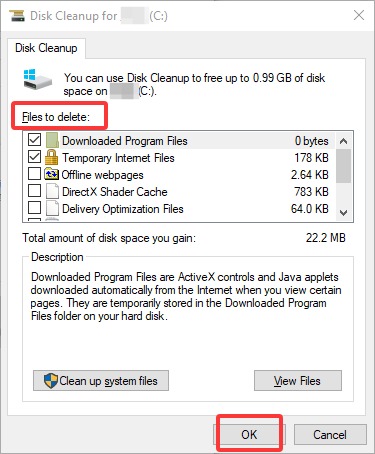
How to Clean Cache on PC with Disk Cleanup?
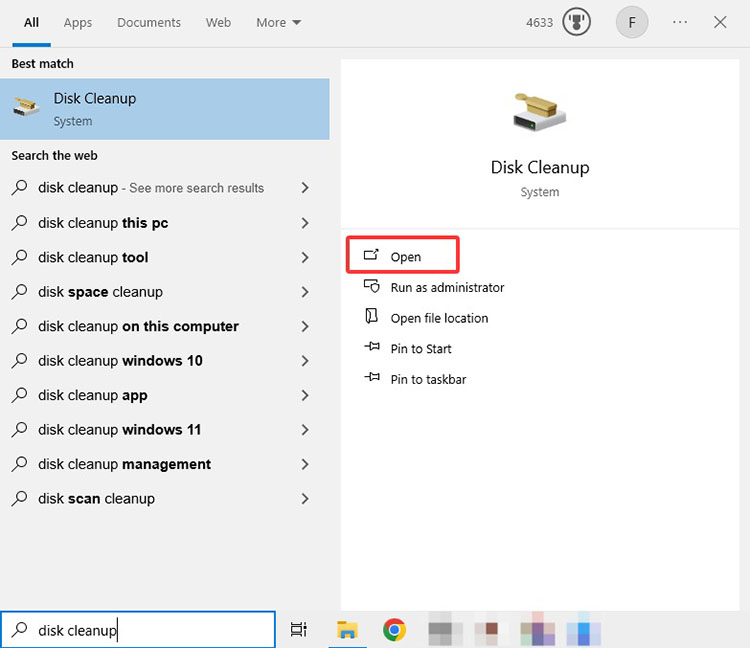
Step 1. Search Disk Cleanup from the Windows Start Menu.
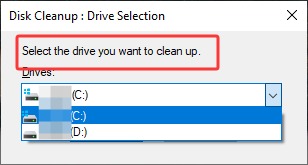
Step 2. Select a drive that you want to clean up.
Step 3. Choose the files to delete and click OK.
Also Read: [Solved] 9 Ways on How to Fix Windows 11 100 Disk Usage Easily >>
#2 How to Clear Browser Cache
Browser cache often contains saved images, scripts, and HTML pages, which are used to speed up website loading. However, it can also cause outdated content or privacy concerns. Today, most browsers have a built-in feature that allows you to clear browser cache easily.
While the function is straightforward and effective for basic cleaning, it may not remove all deeper tracking data. You may need to perform the process separately for each browser as well.
How to Clean Browser Cache from Google?
Step 1. Open Google Chrome. Click the three-dot menu > Settings > Privacy and security.
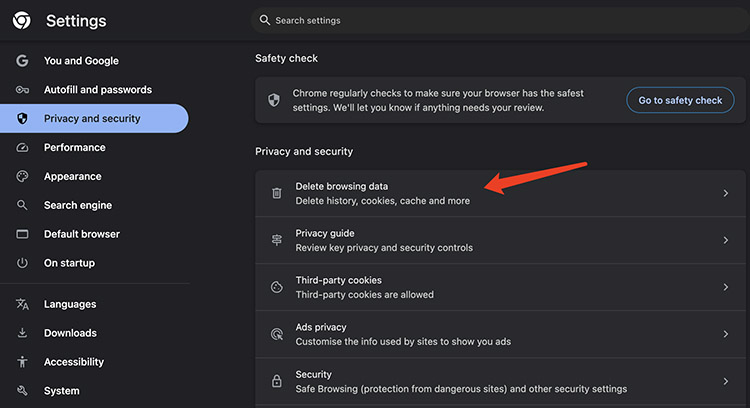
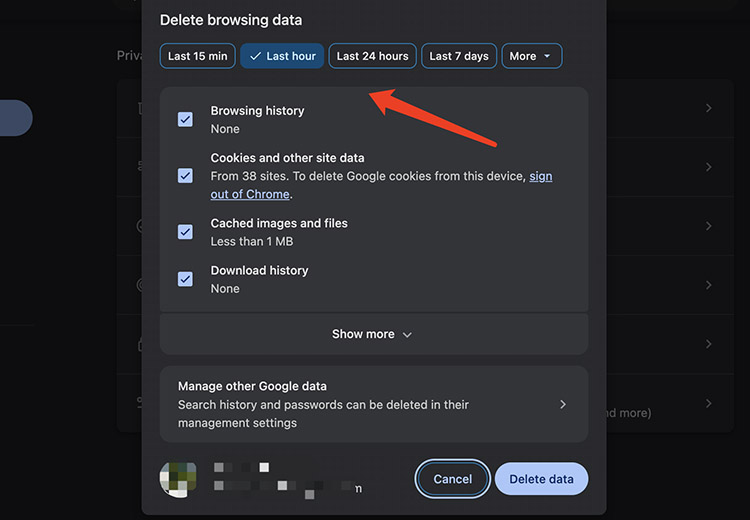
Step 2. Choose Clear browsing data. Set your preferred time range and select the cache types. Click Delete data to clear browser cache.
Common Questions You May Ask About Cache Clearing
The previous sections have thoroughly introduced how to clear cache on windows computer with smart and manual methods. To help you better understand cache management, here are some more frequently asked questions:
Q1: What Happens When You Clear Cache on PCs?
A1: It will remove temporary files, free up space, and potentially improve speed. Your websites may feel slightly slower initially for downloading fresh data, but overall performance should improve.
Q2: How Often Should You Clear PC Cache?
A2: For most users, once a month should be enough. However, if you frequently use your PC, browse heavily, or experience performance issues, weekly cleanup is strongly recommended.
Q3: Does Ctrl + F5 Clear Browser Cache?
A3: Not exactly. Ctrl + F5 performs a hard refresh for a specific webpage, which forces the browser to reload content directly from the server. However, it does not completely clear the browser cache stored on your system.
Q4: Will Clearing the Cache Delete My Personal Files?
A4: No, it will not delete your personal files. The act only removes temporary data like system files, browser cache, and app-generated files.
Final Thoughts
How to clear PC cache? While Windows allows you to do so with built-in features, they often fall short when it comes to deep cleaning. They can also be time-consuming and may leave behind hidden cache and junk files. If you want a more thorough solution, IObit Advanced SystemCare is your best choice. It not only lets you clear cache in one click but also serves as an all-in-one PC optimization tool to boost performance. Just get it and enjoy a more efficient computing experience from now on!
Advanced SystemCare Free
- Clean: 420 billion traces removed & 85 EB junk files cleaned
- Protect: 80 million unauthorized access blocked & 20 million bugs fixed
- Speed Up: 6 million hours of startup time saved & Turbo boost
- Optimize: Auto clean and auto care your PC with AI mode