- Support Center
- Multiple Languages
- Language
- Help Us Translate
Expert in
PC Health Solution

All-in-one PC health solution: clean, optimize and secure

Comprehensive PC cleaning, optimization and protection

Keep drivers always up-to-date

More stable performance with less system crashes

Protect millions of computers against malware

Top computer security with full-round protection

Protect against viruses & boost PC performance
Clean: 420 billion traces removed & 85 EB junk files cleaned
Protect: 80 million unauthorized access blocked & 20 million bugs fixed
Speed Up: 6 million hours of startup time saved & Turbo boost
Optimize: Auto clean and auto care your PC with AI mode

How to factory reset PC Windows 11/10? Step 1. Open Settings, Step 2. Access Recovery, Step 3. Click Reset PC (or Get started), Step 4. Select File Option.



Why Do You Factory Reset PC?
What to Do Before You Factory Reset?
How to Factory Reset PC on Windows 11/10
Troubleshooting Common Factory Reset Issues
Best Alternative to Factory Reset PC
Is your Windows PC running painfully slow or crashing constantly for unknown reasons? No worries. Starting fresh with a factory reset is the ultimate way to solve it. This short blog will guide you through how to factory reset PC step by step and restore it to like-new condition.
The most common reasons to factory reset your computer include:
Restoring Lost System Performance: Cleans cached junk, background bloatware, and registry errors that slow down your system over time.
Fixing Persistent Bugs/Errors: Resolves software glitches, corrupted system files, and recurring Blue Screen of Death (BSOD) crashes.
Removing Severe Malware: Completely wipes stubborn viruses, spyware, and ransomware that traditional antivirus software cannot clean.
Selling/Sending to a New Owner: Permanently deletes personal files, accounts, passwords, and browsing history to safeguard your privacy before handing the PC to a new owner.
Back up your critical files, such as personal documents, photos, videos, and active projects to an external hard drive, USB flash drive, or cloud storage like Google Drive or OneDrive.
Export your web browser bookmarks and log out of sensitive accounts and ensure your password manager credentials are up to date.
Save product keys and license codes for paid software, like Microsoft Office or specialized apps, so you can easily reinstall them.
Check power & network. Connect your PC to a reliable power outlet to avoid interruptions during the reset.
Check how to reset PC to factory settings on Windows 11/10 here:
Step 1. Open Settings: Press Windows Key + I to open the Settings menu.
Step 2. Access Recovery:
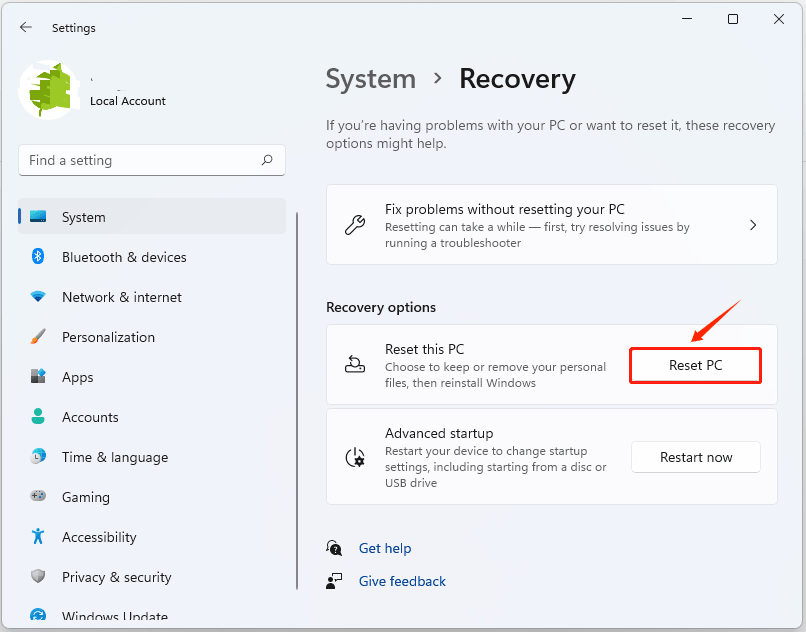
Windows 11: Navigate to System > Recovery.
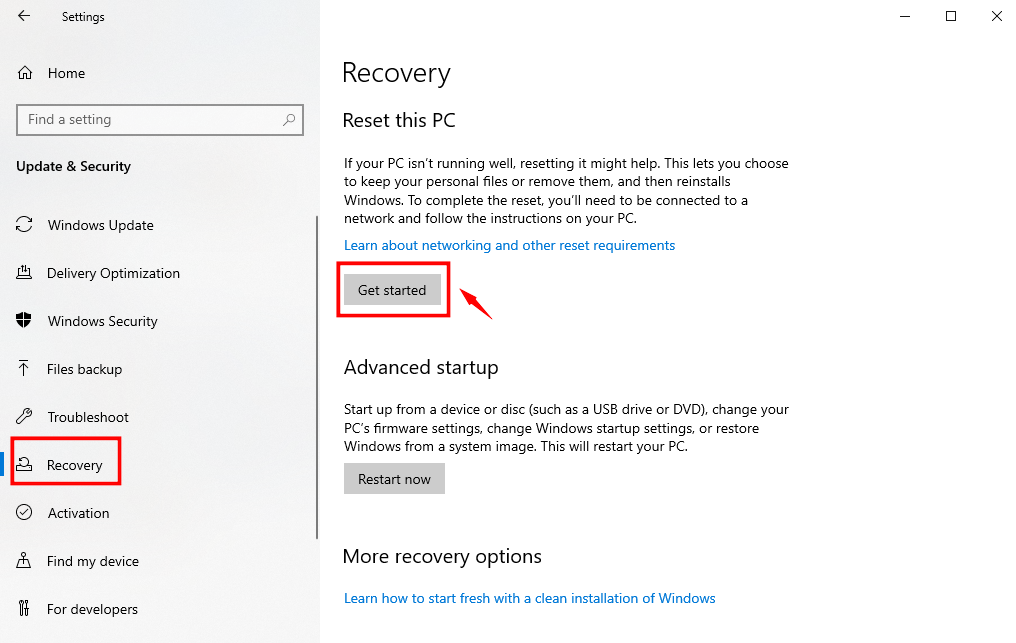
Windows 10: Go to Update & Security > Recovery.
Step 3. Initiate Reset: Click Reset PC (or Get started) under Reset this PC.
Windows 11:
Windows 10:
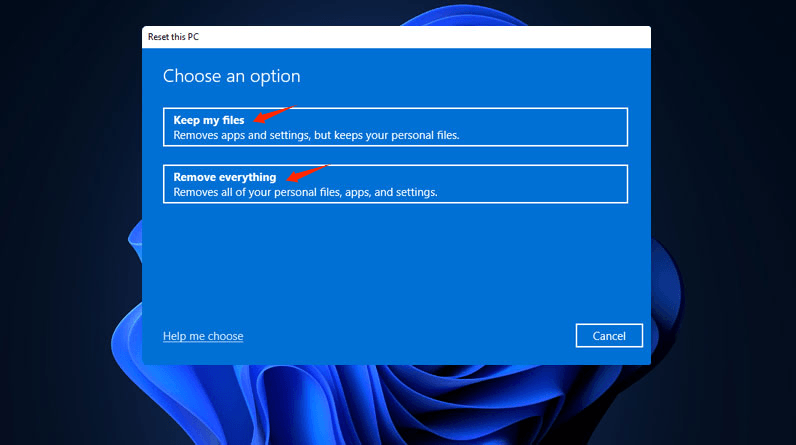
Step 4. Select File Option: Choose Keep my files (removes apps/settings only) or Remove everything (full wipe).
Step 5. Reinstall & Confirm: Choose Cloud Download or Local Reinstall, then click Reset to begin.
Your PC will restart and complete the process automatically.
That’s also how to factory reset a laptop. Follow the above guide to factory reset on a Windows laptop.
Cause: Corrupted system recovery files or background hardware conflicts.
Solution:
1. Wait at least 1 to 2 hours, as large drives can take longer to process.
2. Force restart: If there is no movement after several hours, press and hold the power button until the PC shuts down. Turn it back on—Windows will often roll back changes safely.
3. Unplug external hard drives, extra monitors, printers, and USB hubs before trying again.
Cause: An interrupted installation or corrupted boot files.
Solution:
1. Force-shutdown the PC three times consecutively while booting to trigger Advanced Startup (WinRE).
2. Go to Troubleshoot > Advanced options > Startup Repair.
3. If Startup Repair fails, select System Restore or perform a fresh install using a USB recovery drive.
Cause: The local recovery partition on your storage drive is corrupted or missing required files.
Solution:
1. Select Cloud Download instead of Local Reinstall when prompted during the reset wizard to fetch a clean Windows image directly from Microsoft.
2. Open Command Prompt as Administrator and run sfc /scannow to locate and repair corrupted system files before attempting the reset again.
That’s how to factory reset Windows 11 using traditional methods. However, it always comes with lots of irretrievable data loss and hardware damages. How can you fix slow computer or unexpected bugs without a reset? Clean up, tweak and optimize your PC to peak performance with IObit Advanced SystemCare!
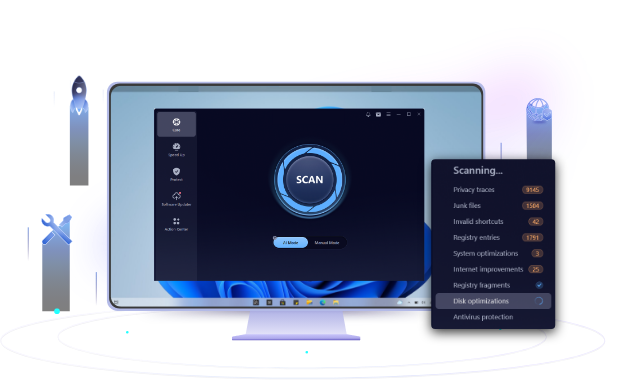
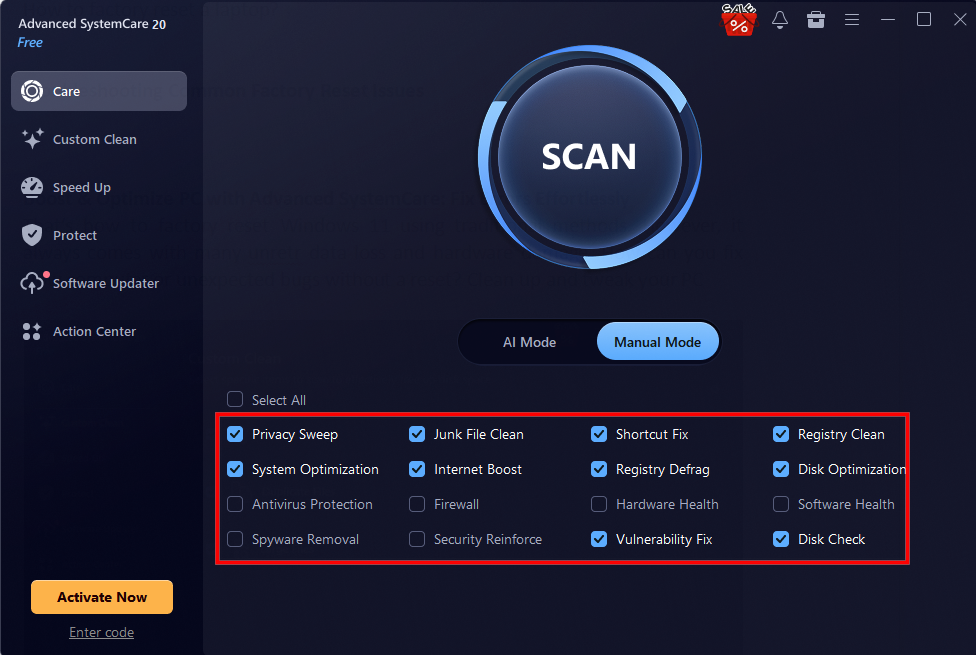
AI-Powered & Customized Scan to Fix Your PC
Check Privacy Sweep, Junk File Clean, Shortcut Fix, Registry Clean & Defrag, Vulnerability Fix, etc,. to repair any hidden bugs.
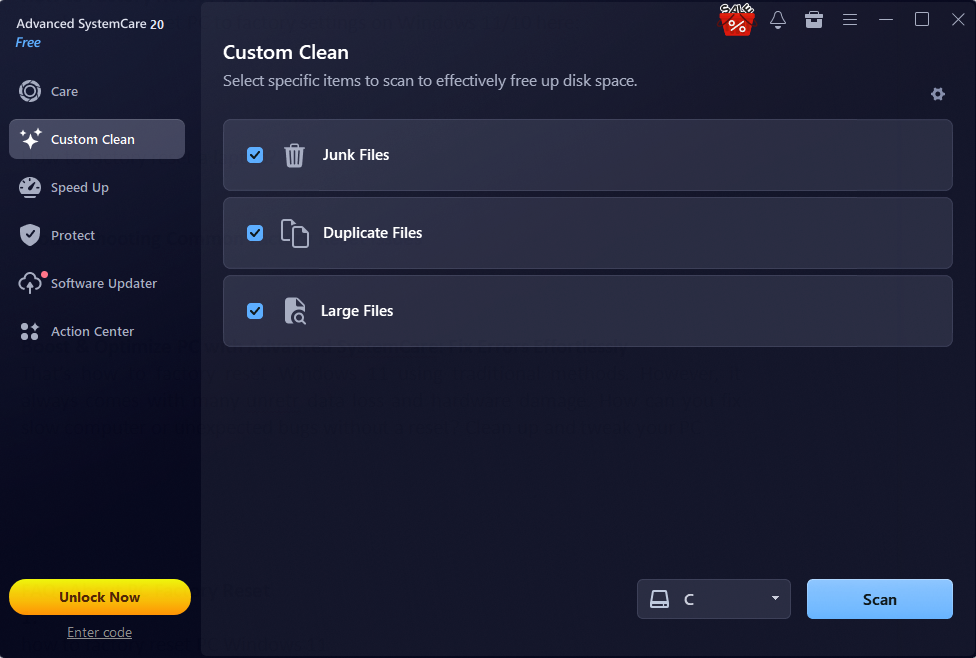
Deep Disk Clean to Free up Storage Space
Clean up Junk Files, Duplicate Files and Large Files in Disk C/D/E to release your PC storage for smoother running.
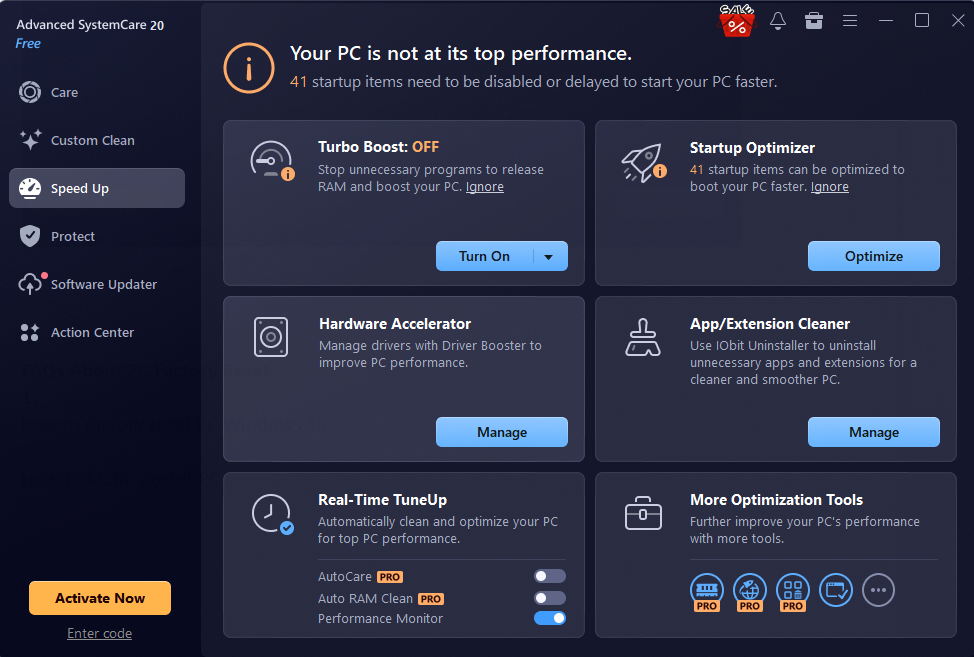
Speed up PC to Top Performance with Multi Optimizations
Enable Turbo Boost and Startup Optimizer to boost your PC and optimize startup items to start your PC faster.
Just free download Advanced SystemCare and get a fresh with your PC without a time-consuming factory reset.
That’s all about how to factory reset PC Windows 11. Just follow the step-by-step guide to get an easy reset on your computer. Safely start fresh with PC using IObit Advanced SystemCare hassle-free!
 People Also Ask
6 Solutions - The Referenced Account Is Currently Locked Out and May Not Be Logged On to: 1. Disconnect the Ethernet or Wi-Fi cable, 2. Wait for the
How to speed up Steam downloads? Check why Steam download speed slow & how to make Steam download faster: Disable download throttling, switch download server.
Startup Repair is not working. What to do when it shows Startup Repair couldn’t repair your PC?