Did you know that Windows registry issues can also be one of the hidden causes behind persistent software crashes? If your apps keep crashing even after closing demanding programs, insufficient RAM may not be the only culprit. Other factors, such as corrupted registry entries, outdated drivers, or software conflicts, could also be involved. In such cases, a Windows registry repair could help resolve underlying issues.
This guide explains what the Windows registry is, the common signs and causes of registry issues, and how to repair them effectively.
What Is Registry
Before addressing how to fix Windows registry error, let’s figure out “What is a Windows registry” first.
Windows registry, a centralized database that stores Windows system settings, includes configuration data, hardware info, user preferences, etc. It tells the system how to operate and is essential for your OS to run.
When Do You Need a Windows Registry Repair
Since the Windows registry is fundamental for your system and apps, when no issues occur, it is better left alone. However, there can be invalid, corrupted, or broken registry entries that cause problems. Then, what are the signs to tell you that a Windows registry repair might be needed?
Frequent system errors: Windows may freeze severely, shut down without warning, etc.
Application crashes: app launching failure, unexpected app shutdowns that stubbornly occur, etc.
Driver update failure: a driver update may fail to install, especially graphics and audio drivers.
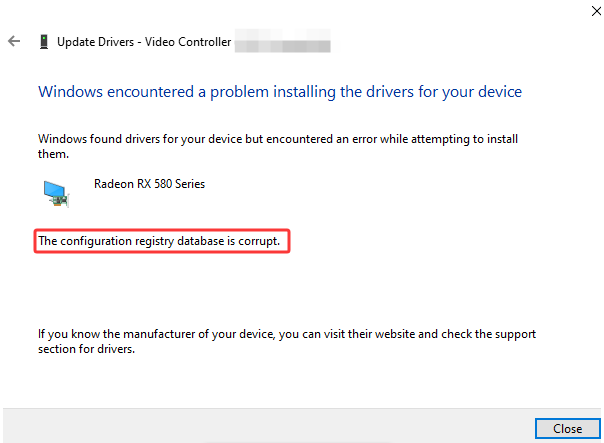
Then, what may lead to an invalid, corrupted, or broken registry? Check the possible causes of registry issues.
Malware infection: malware messes up and tampers with registries to change system behavior.
Improper shutdowns: power failure or forced shutdowns may interrupt registry updates, causing corruption.
Incomplete uninstallations may leave orphaned or invalid registry items.
Physical disk or hardware damage can bring registry damage as well.
…
How to Run a Windows Registry Repair & Address System Issues In 1 Go
If you have tried other possible fixes to cope with other possible issues, like releasing RAM, managing background apps, or even upgrading your PC specs, and the issue still exists, then you might as well try a Windows registry repair.
But what is important is that incorrect changes can lead to further system or software issues, and may fix little. So, how to repair Windows registry securely and apply other possible fixes in 1 go efficiently? The powerful Windows PC optimization and maintenance software, Advanced SystemCare, comes in here.
Advanced SystemCare Free
- Clean: 420 billion traces removed & 85 EB junk files cleaned
- Protect: 80 million unauthorized access blocked & 20 million bugs fixed
- Speed Up: 6 million hours of startup time saved & Turbo boost
- Optimize: Auto clean and auto care your PC with AI mode

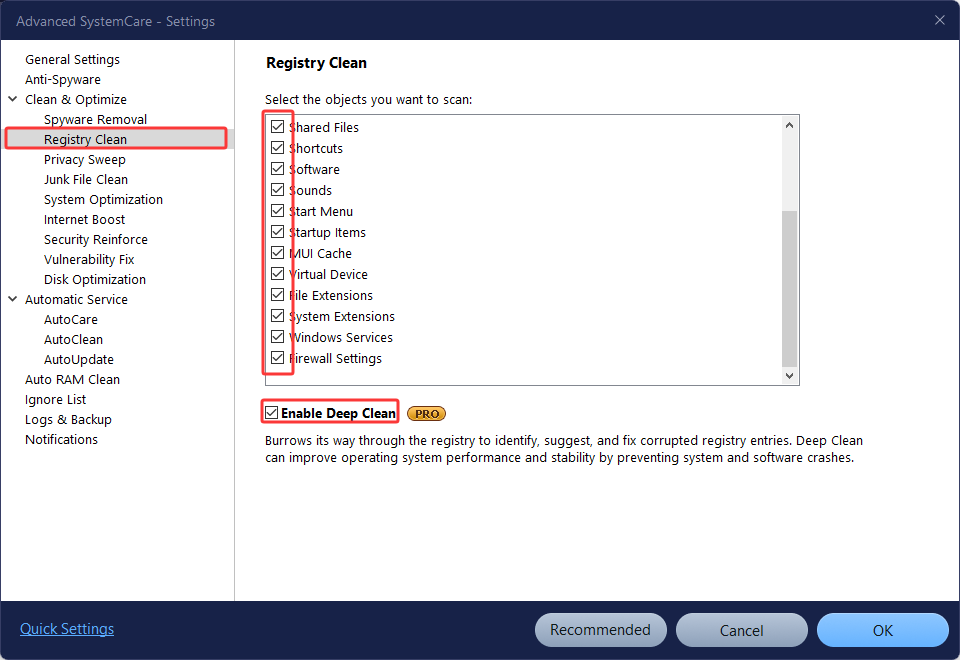
Comprehensive registry scans: Auto and manual scans to clean registry entries completely, including ActiveX and components, registry integrity, Windows Services, Firewall settings, etc.
Deeply fix broken registry: Enable Deep Clean to identify, locate, and fix corrupted registry entries, reducing PC crashes and promoting PC performance and stability.
All-round PC analysis and issue addressing: beyond registry fix, it also helps remove junk files from PC, defrag and optimize disks, sweeps privacy traces, etc.
Boost PC speed and performance: more than just computer problem fixing, it is a comprehensive performance optimizer, providing customizable Turbo Boost modes for different use scenarios, startup management to reduce PC boot time, small tools to boost Internet speed, etc.
With Windows registry repair features, this PC optimizer safely scans and removes invalid registry entries, fixes corrupted registry items, and compacts registry bloat, improving your PC performance.
Even if the registry issues are not the root cause, Advanced SystemCare can perform an overall system scan, diagnose the potential issues, and apply targeted fixes to keep your PC running smoothly.
Now check how to repair Windows registry & maintain your device.
Step 1. Download and install Advanced SystemCare on your device.
Step 2. Launch the app > use AI Mode or choose the items you want to scan via Manual Mode > select Registry Clean and Registry Defrag.
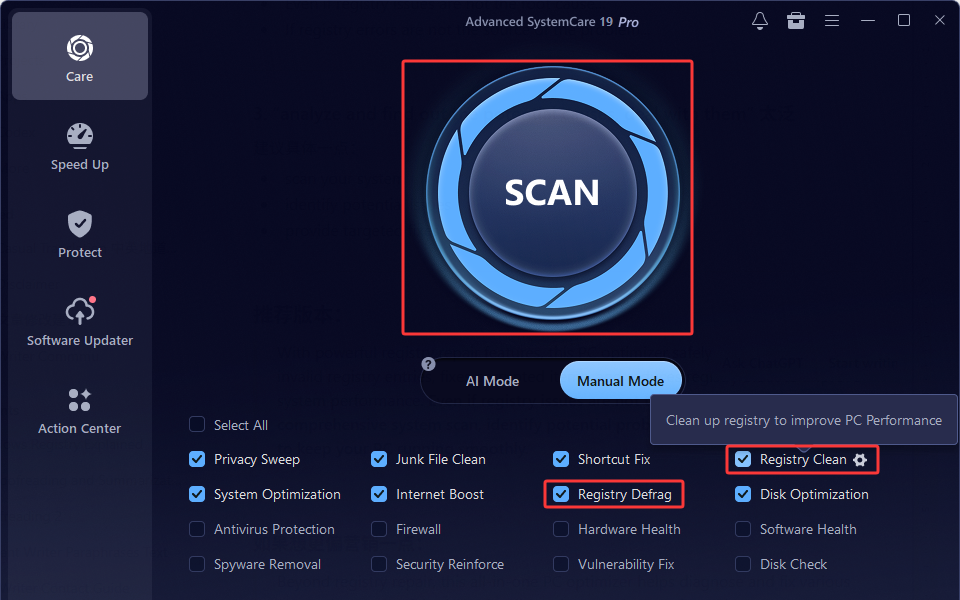
Before you start, you can customize the registry scanning options via the gear icon beside. Then, click OK and Scan to start.
Step 3. It will list all the detected items, check how many registry entries it scanned, and click Fix.
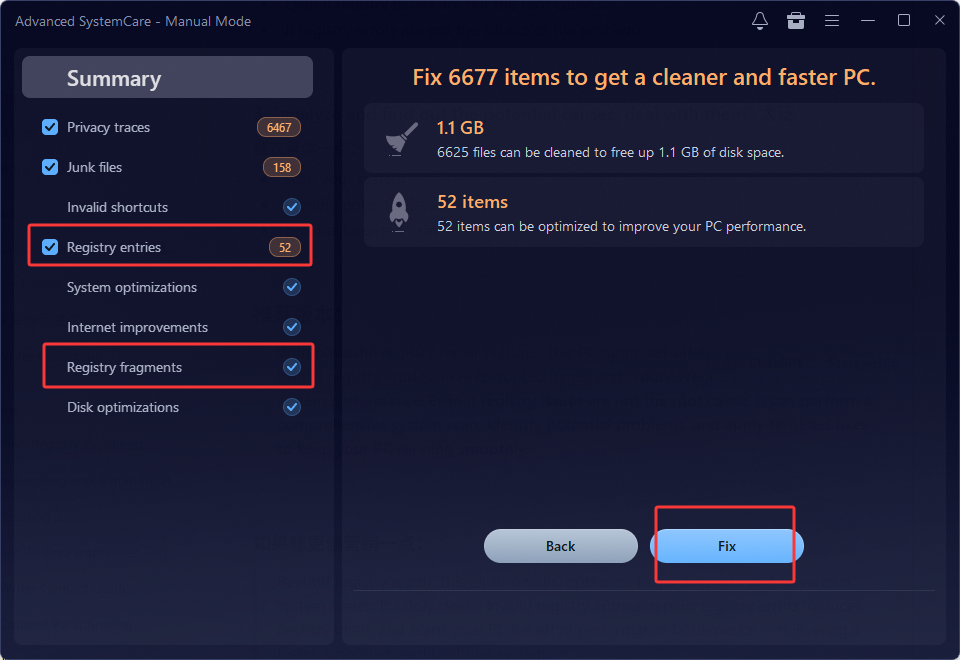
As you can see, beyond just fixing Windows registry, you can also scan and wipe off junk files to free up disk space. There are more features to explore.
How to Fix Windows Registry with Built-in Tools
Apart from using third-party tools, advanced users might also try some built-in Windows registry repair tools. Windows designed these features to help modify, back up, and verify the integrity of the registries.
*But please note that incorrect changes and misoperations can result in more or further registry issues.
1. Fix Windows Registry with Windows Registry Checker
Windows Registry Checker, also Scanreg.exe, automatically backs up the registry configuration and system files every time you boot the PC, and also scans for invalid registries. If invalid items are found, it will restore to the previous backup registry version.
The whole process is completely automatic and runs in the background, so you don’t need to manually utilize it. Maybe simply try restarting your PC to let it check the integrity of the registry entries.
2. Perform Windows Registry Repair with Windows Registry Editor
Registry Editor allows users to view, modify, create, and delete the registry entries manually. Given a rare case where a single incorrect registry value caused an application failure, so users can manually correct/modify/delete the involved key to make a fix.
Reminder again: modifying the registry manually is dangerous, since a small typo can lead to big PC changes. Please back up the current registry first before any changes.
Step 1. Input Registry Editor in the Windows search bar > back up the current registry by exporting: File > Export > choose all registry to export.
*To restore it, just go to File > Import to recover it.
Step 2. Locate the fault key via the exact path or search to access the target one.
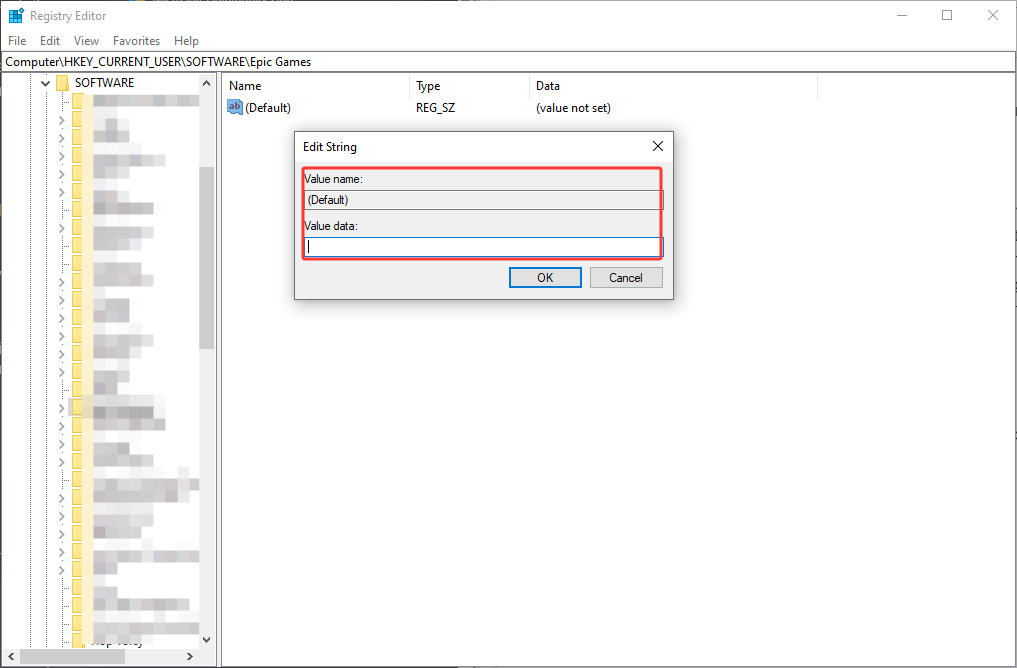
Step 3. Right click on the key > choose Modify or delete based on your specific situation > add value > OK.
3. Restore a System Restore Point
This method suits situations where registry issues have arisen recently, e.g., if you notice abnormal PC behavior after installing an update/app or any critical system changes, then restoring a system restore point is feasible to help you fix corrupted files.
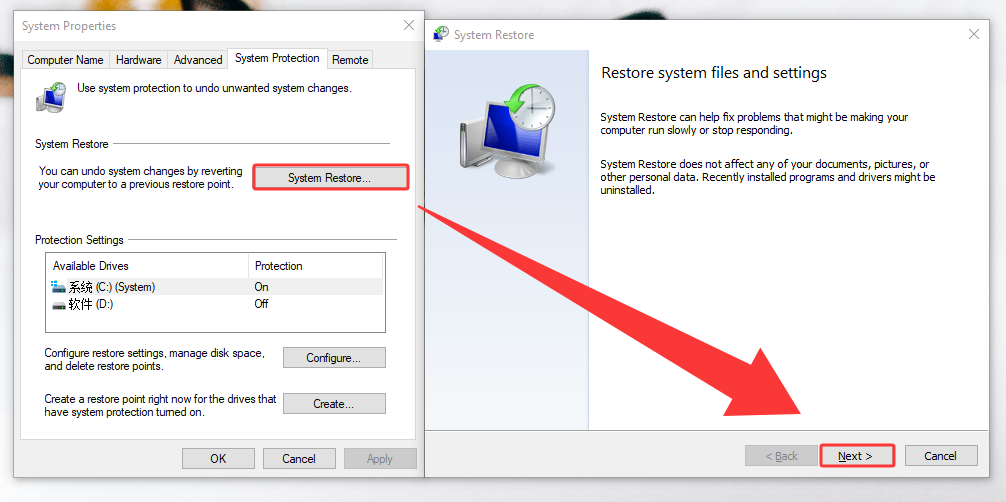
Step 1. Search for “Create a restore point” or “system restore” in the search bar > Open.
Step 2. On the System Properties window, click System Restore > Next.
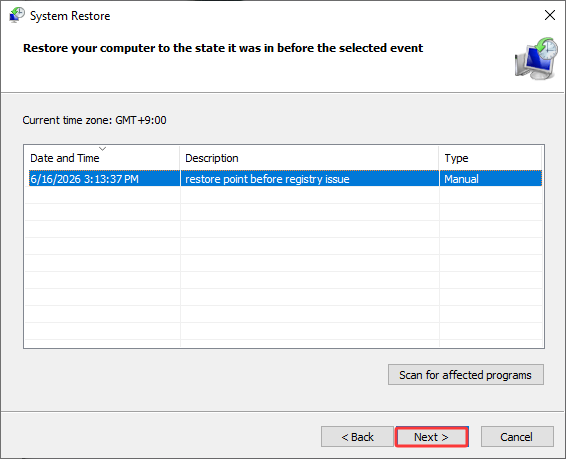
Step 3. Choose the previous point > Next > Finish. Your system will restart.
4. Repair Windows Registry with DISM.exe
The DISM tool, Deployment Imaging and Servicing Management, helps fix corrupted Windows system files, components, etc. If the system files go wrong, the associated registry items may become invalid. So, repairing the system files and components aids in resolving the related registry issues.
Step 1. Press Win+R > input cmd > press Ctrl+Shift+Enter to run as administrator.
Step 2. Input the following command:
DISM /online /cleanup-image /restorehealth
It repairs the corrupted system image, taking about 20 minutes.
Step 3. Then, input:
sfc /scannow
This runs the System File Checker, scanning and repairing the integrity of the OS system files.
Final Thoughts
When registry entries are messed up, to safely address the issue, you might as well turn to reliable Windows registry repair tools. Advanced users can utilize Command Prompt, Registry Editor, and more built-in features with caution. To ensure safety and efficiency, a comprehensive PC optimization tool will be of great help. Download Advanced SystemCare to help you scan, clear, optimize, and fix related problems in 1 click!