Too Many Startup Items
Unnecessary apps slow down your boot time.
Expert in
PC Health Solution

All-in-one PC health solution: clean, optimize and secure

Comprehensive PC cleaning, optimization and protection

Keep drivers always up-to-date

More stable performance with less system crashes

Protect millions of computers against malware

Top computer security with full-round protection

Protect against viruses & boost PC performance
 Free Download
7-Day Free PRO Access Included | Windows 11, 10, 8, 7, Vista, XP
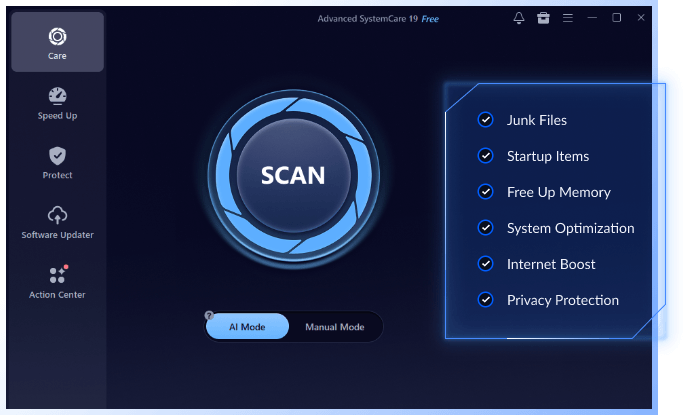

5.3 GB Junk Files Cleaned

58% Faster Startup

312 PC Issues Fixed





Over time, your PC collects junk files, unnecessary data, and background processes that slow it down.

Unnecessary apps slow down your boot time.

Temporary files, cache, and leftovers take up valuable disk space.

Hidden processes consume CPU and RAM without your knowledge.

Full storage significantly reduces overall system performance.

Invalid registry entries may impact system stability and speed.

Old or incompatible drivers can cause slowdowns and errors.
Let Advanced SystemCare help you complete each optimization task faster, safer, and with just one click.
Clean unnecessary files and free up valuable disk space.
Tip: Clean your PC every 2–4 weeks for best performance.

Over time, Windows collects temporary files that can reduce available storage and affect performance.
Advanced SystemCare automatically scans and removes temporary files, caches, logs, and other junk files safely in one click.
Free DownloadStop unneeded programs from slowing down your boot.
Tip: Apps added to startup can slow boot time. Check them regularly.
Too many startup apps increase boot time and consume system resources before you even start using your PC.
Advanced SystemCare automatically detects unnecessary startup programs and disables them to reduce boot time and help your PC start faster with one click.
Free DownloadRelease memory for smoother multitasking and gaming
Tip: Automatically free up memory for better performance.
High memory usage can slow down applications, reduce responsiveness, and affect multitasking performance.
Advanced SystemCare automatically clears unnecessary memory usage and frees up RAM to improve responsiveness and help your PC run more smoothly.
Free DownloadEnd unnecessary background processes and reduce CPU usage.
Tip: Close unnecessary background apps for smoother performance.
Unnecessary background processes consume CPU and memory resources, reducing overall system performance.
Advanced SystemCare automatically identifies resource-hungry background processes and safely stops unnecessary tasks to reduce CPU and memory usage.
Free DownloadRepair invalid registry entries for better system stability.
Tip: Clean your registry occasionally to help maintain system stability.
Invalid or obsolete registry entries may affect system stability and slow down Windows over time.
Advanced SystemCare automatically scans for invalid registry entries, broken shortcuts, and obsolete registry items to help improve system stability and performance.
Free DownloadOptimize disk settings and defragmentation for peak performance.
Tip: Keep your disk organized to improve storage efficiency and performance.
Low disk space and fragmented data can reduce file access speed and overall system responsiveness.
Advanced SystemCare automatically removes unnecessary files and optimizes disk space usage to free up storage and improve overall system performance.
Free Download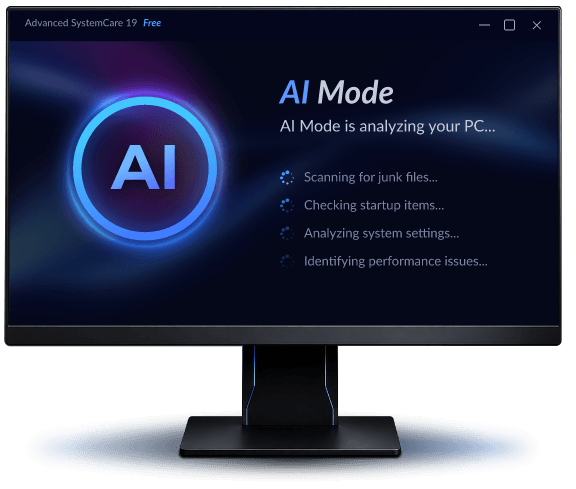
Let Advanced SystemCare's AI Mode handle all the essential cleanup and speed-up tasks for you in one click, while also providing extra protection and optimization to keep your PC running at its best.
Free Download
7-Day Free PRO Access Included | Windows 11, 10, 8, 7, Vista, XP
| Clean & Speed Up | ||
| Features |
 Windows Built-in Tools
|
 Advanced SystemCare
|
| Remove Junk Files & Free Up Space | Basic | Deep & Complete |
| Speed Up Startup by Managing Startup Apps | Manual | Auto |
| Reduce CPU & RAM Usage | Manual | Auto |
| Free Up Memory for Better Performance | Manual | Auto |
| Repair Invalid Registry Entries Safely | Manual | Auto |
| Improve Disk Performance & Storage Efficiency | Manual | Auto |
| Protect & Maintain | ||
| Features |
Windows Built-in Tools
|
Advanced SystemCare
|
| Protect Your Privacy by Cleaning Browsing Traces | ||
| Keep Your Software Up to Date | ||
| Optimize Network Settings for Better Responsiveness | ||
| Remove Performance-Draining Security Risks | ||
| AI Maintenance | ||
|
Free Download
7-Day Free PRO Access Included | Windows 11, 10, 8, 7, Vista, XP |
||
Let’s see what everyone’s talking about our Windows cleaner!





Yes. Advanced SystemCare is a free PC Cleaner for everyone. But you can upgrade to the Advanced SystemCare 19 Pro if you’d like to use the advanced features.
You can run the "AI Scan" daily or a few times a week for regular maintenance. More intensive features like "Deep Clean" or "Registry Clean" can be run weekly or as needed when you notice performance issues. Running scans too frequently is generally not harmful but might not be necessary.
Yes. Advanced SystemCare is fully compatible with Windows 11, Windows 10, Windows 8.1, Windows 8, Windows 7, Windows Vista, and Windows XP.
Yes. Advanced SystemCare can help improve the performance of older PCs by cleaning junk files, optimizing startup, freeing up memory, and reducing unnecessary background processes. The actual improvement depends on your PC's hardware and overall condition.
No. Advanced SystemCare only removes unnecessary junk files, temporary files, and other safe-to-clean items. It does not delete your personal documents, photos, videos, or other important files.


Your download should start automatically within a few seconds. Download not starting? Download Manually
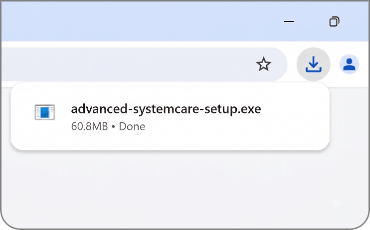
Open the installer from Chrome's downloads (it should be in the upper right corner of this window).

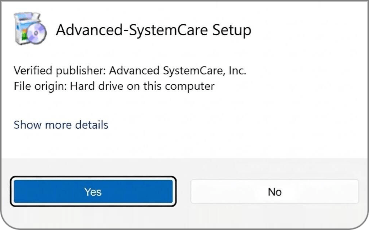
If you're prompted to, click "Yes" in the User Access Control dialog.
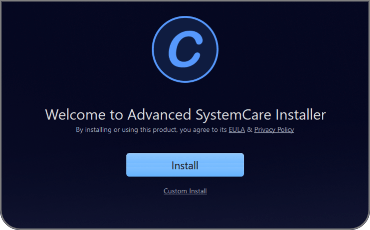
Click 'Install' to start installing Advanced SystemCare.