- Support Center
- Multiple Languages
- Language
- Help Us Translate
Expert in
PC Health Solution

All-in-one PC health solution: clean, optimize and secure

Comprehensive PC cleaning, optimization and protection

Keep drivers always up-to-date

More stable performance with less system crashes

Protect millions of computers against malware

Top computer security with full-round protection

Protect against viruses & boost PC performance
Automatically scan and update drivers.
Update game ready drivers for peak gaming performance.
Identify and fix various common of hardware issues.
Boost 30% of system performance for fast & smooth running.

Learn possible causes of why does my computer monitor keeps going black. Get quick solutions to fix random black screen error on Windows.



Understand What Causes Monitor Keeps Going Black
Check and Reset Connections
Update Graphics Drivers
Adjust Power Settings
Change Display Settings
Factory Reset Your Screen
Check for Faulty Monitor or Power Supply
The issue - computer screen goes black - has been reported for many times. A lot of users find it terribly interrupts while working or gaming. Why does my monitor keeps going black? How to fix it and restore a stable display? Let's explore common reasons and troubleshooting steps.
If your monitor goes black randomly for few seconds, several issues should be responsible, from hardware connections to software glitches.
Faulty Cables: Loose or damaged cables (HDMI, DisplayPort, power cable) often result in unstable connection and your monitor will lost the signal intermittently.
Outdated Graphics Drivers: Driver glitches may make the display flicker or turn black.
Power Issues: Aggressive power-saving settings let Windows automatically turn off your monitor after a period of inactivity. What’s more, insufficient power supply can’t ensure stable electrical connection for your computer or GPU to output video properly.
Display Settings: Unsupported resolution or refresh rate beyond the monitor’s native capabilities causes “Out of Range” black screen.
Failing Monitor: The monitor itself may be the problem as well.
According to those possible reasons, you can try some quick and simple fixes to make the monitor work normally before asking for help from professionals.
Make sure that all cables are firmly connected.
Unplug the both ends of video cable and replug them securely. If your cables are visually damaged (for example, with sharp bends or fraying), try another cable to see whether the issue stops.
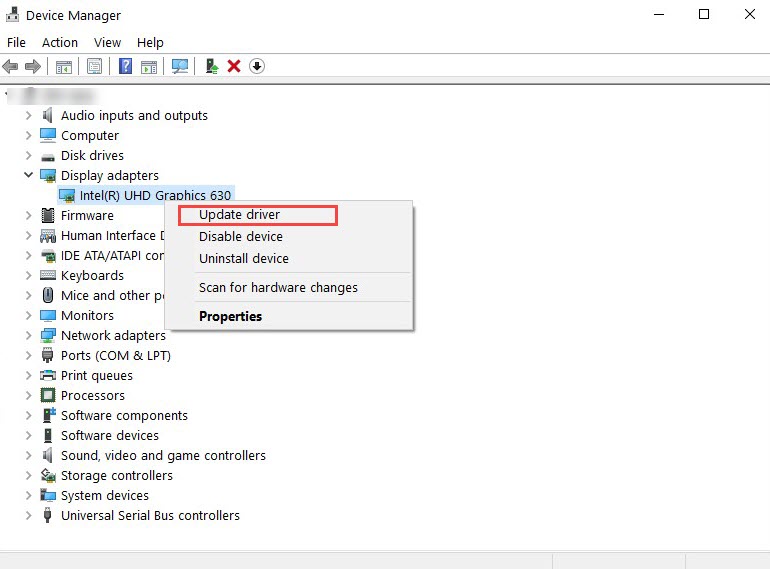
An up-to-date driver version commonly arrives with new features, bug fixes and performance improvement. Update graphic drivers to see if it can fix monitor going black.
1. Right-click Start > Device Manager.
2. Expand Display adapters.
3. Right-click your graphic card.
4. Select Update drive.
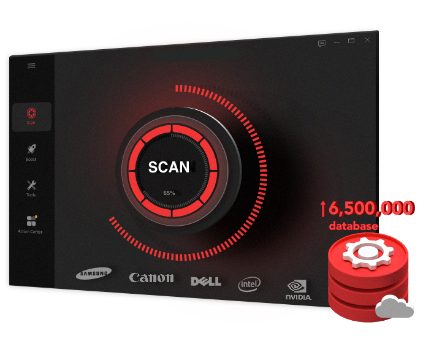
 Alternative to Device Manager, you can use a third-party driver updater, for example Driver Booster, to update all drivers safely and reliably. It delivers streamlined workflow, helping non-technical users to install the latest driver versions in a single click.
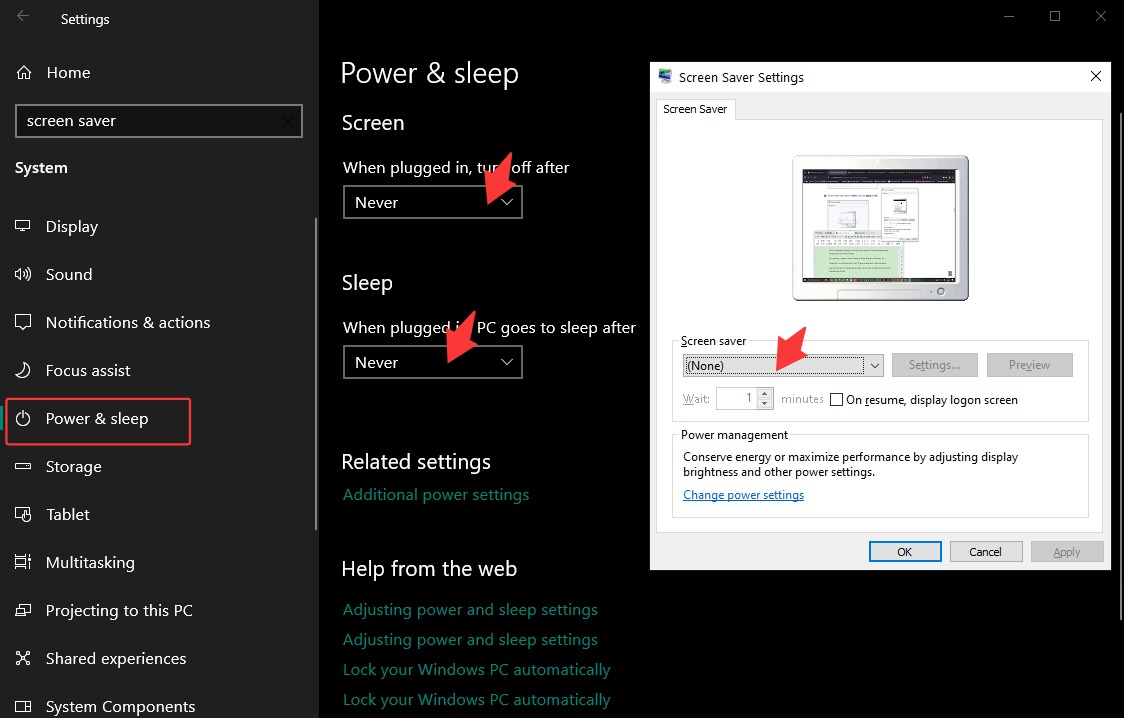
Don;t let the power settings turn off the screen randomly. Check sleep options and disable screen saver with the steps.
1. Go to Settings > System > Power & sleep (or Power & battery in Windows 11).
2. Change the "turn off screen after" and "PC goes to sleep after" options to Never.
3. Search Screen Saver in Settings app and open Screen Saver Settings.
4. Set Screen saver and None > Click Apply and OK in order.
Set the resolution and refresh rate to fit the monitor specs.
1. Go to Settings > System > Display.
2. Click Advanced display settings and check your display information.
3. Set the Refresh Rate to match your monitor.
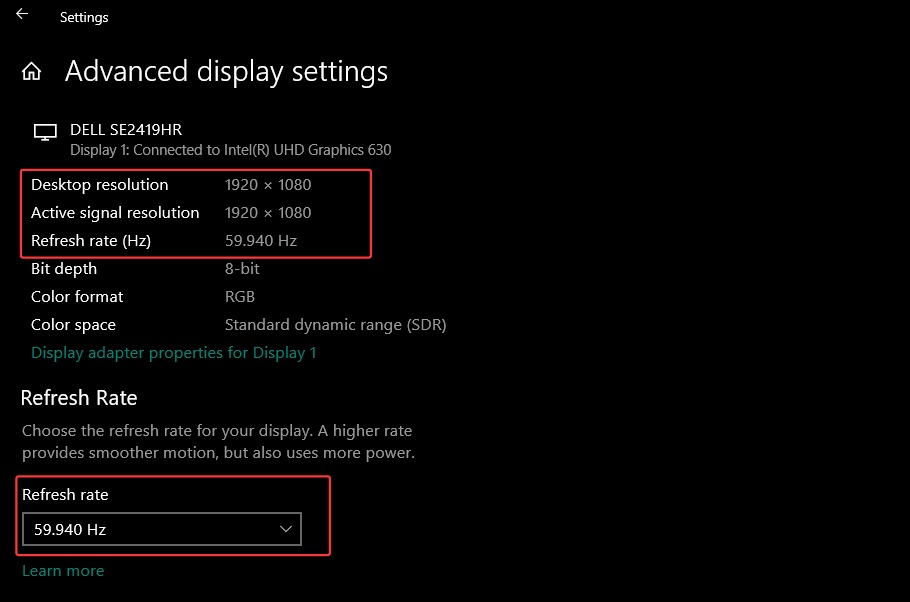
4. Back to Display and make the Display resolution match your monitor as well.
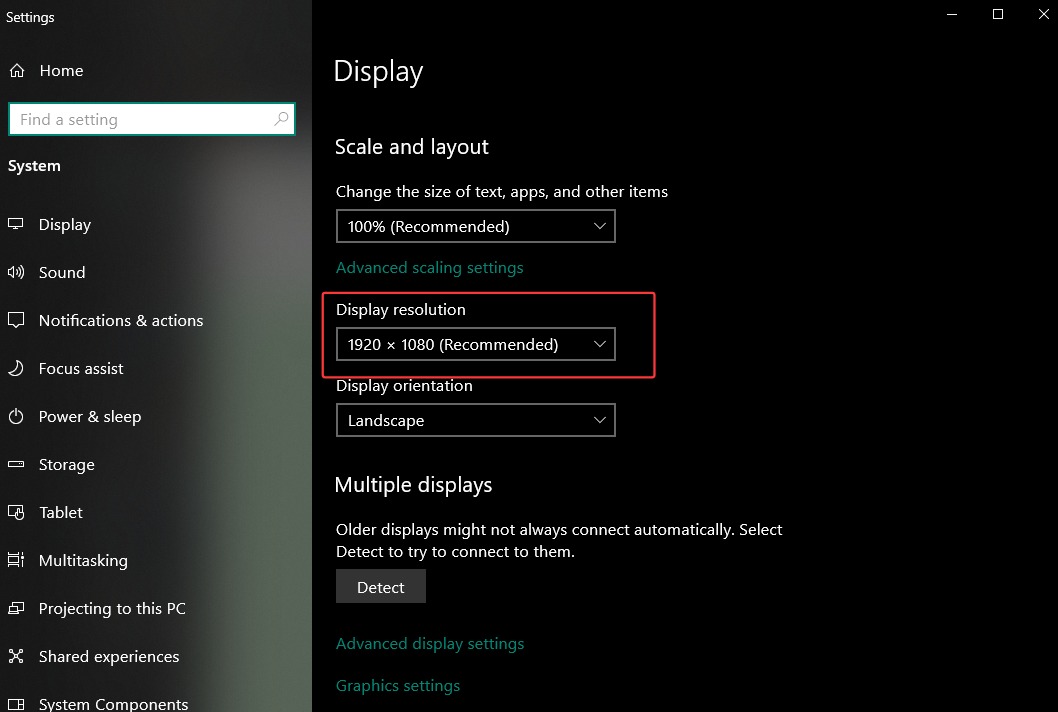
Sometimes, your monitor keeps going black for incorrect or corrupted internal settings. Factory reset can help recover configurations to default settings.
The reset steps depend on your monitor model. Here is a general guide you can follow. If it doesn’t work, please refer to the specific instructions in user manual.
1. Press the menu button on the monitor.
2. Select Menu or Others and find an option like Factory Reset.
3. Select Yes or OK to confirm.
4. Wait for the monitor to restart and return to its default settings.
If all above fixes go to failure and your computer screen still keeps going black, the monitor or power supply could be the cause.
Connect another monitor with the same PC and check whether it works well.
Test PC power supply to confirm whether it has been damaged.
Buy new monitor/power supply or repair the hardware if they are broken.
Why does my computer screen keeps going black? Reasons vary from software to hardware issues. Fortunately, there are a set of solutions helping you fix monitor black screen issues quickly. You can update drivers, fine-tune display and power settings, factory reset your screen to see if the problem is resolved. But if you have ensured that hardware failure is the cause, consult professional to repair your monitor or purchase a new one.
 People Also Ask
PC stuck on boot screen? Learn how to fix pc stuck on boot screen with proven methods like Safe Mode, SFC scan, and driver updates.
Why is my PC screen black? How to fix a black screen? What can I do as a normal person?
Struggling with “why won't my GeForce driver update”? Learn why you can’t update NVIDIA driver and discover fixes for GeForce driver installation errors.