- Support Center
- Multiple Languages
- Language
- Help Us Translate
Expert in
PC Health Solution

All-in-one PC health solution: clean, optimize and secure

Comprehensive PC cleaning, optimization and protection

Keep drivers always up-to-date

More stable performance with less system crashes

Protect millions of computers against malware

Top computer security with full-round protection

Protect against viruses & boost PC performance
Clean: 420 billion traces removed & 85 EB junk files cleaned
Protect: 80 million unauthorized access blocked & 20 million bugs fixed
Speed Up: 6 million hours of startup time saved & Turbo boost
Optimize: Auto clean and auto care your PC with AI mode

Startup Repair is not working. What to do when it shows Startup Repair couldn’t repair your PC?



Restart your computer
Boot in Safe Mode
Uninstall recent updates
System restore
Disable ELAM Protection
Run the System File Checker
Run the DISM Tool
Restore the Windows Registry
Reset Windows
Startup Repair is a built-in recovery tool in Windows 10 and Windows 11 to fix common issues. But it is not always working. When you encounter Startup Repair couldn’t repair your PC, try the following fixes.
This often fixes those temporary issues or glitches preventing your PC from starting up properly.
Booting Windows in Safe Mode loads a minimal environment with only essential drivers and services, which means third-party apps, custom drivers, and background processes will not run.
To boot in safe mode, follow the steps below.
Open Settings by pressing the Windows Key + I.
Click System > Recovery > Advanced startup > Restart now.
Then click Troubleshoot > Advanced options > Startup Settings > Restart.
After your PC restarts, press 4 or F4 for standard Safe Mode, or 5 or F5 for Safe Mode with Networking.
(Safe Mode with Networking means it loads network drivers if you need to download a fix or update drivers.)
If you have recent updates that may cause Startup Repair fails, try to follow the steps below.
Select Advanced options on the "Automatic Repair Couldn't Repair Your PC" screen.
Click Troubleshoot > Advanced options > Uninstall Updates.
Choose Uninstall latest quality update (minor updates) or Uninstall latest feature update (major version updates). Then follow the prompts and restart your PC.
Select Troubleshoot > Advanced Options > System Restore to return to a working state.
Early Launch Anti-Malware (ELAM) is not the same with the Windows Defender. It prevents PCs from starting if a driver or a system file is being flagged as "malicious". If you recently updated your GPU drivers, installed network optimization software, or modified system kernel files, try this method.
To disable Early Launch Anti-Malware, you need to:
Click the Advanced options button on the "Startup Repair couldn't repair your PC" screen.
Click Troubleshoot > Advanced options > Startup Settings.
Click the Restart button at the bottom right. Then your PC will reboot.
Press 8 or F8 to select Disable early launch anti-malware protection and wait for its response.
The System File Checker (SFC) is a good way to fix Startup Repair not working due to corrupted core Windows files.
Access the command prompt by clicking the Advanced option on the "Startup Repair couldn't repair your PC" screen, click Advanced options > Troubleshoot > Advanced options > Command Prompt. Then select your account and enter your password.
After identifying the driver location (often the drive is still C:, but it might be D: in this mode), type the following and press Enter:
sfc /scannow /offbootdir=C:\ /offwindir=C:\windows
(Replace C: with the correct drive letter.)
If the scan above says it found errors but cannot fix them, you may need to use DISM (Deployment Image Servicing and Management) in the same Command Prompt to repair the system image first.
Type the following and press Enter:
dism /image:C:\ /cleanup-image /restorehealth
Restore your registry from the RegBack directory using Command Prompt.
Click Troubleshoot in the "Automatic Startup Repair" menu > Advanced options > Command Prompt.
When the Command Prompt window is open, type the following command and press Enter: c:\windows\system32\config\RegBack* c:windows\system32\config
If you indeed have no way to reboot your PC as normal, resetting Windows is a choice.
Turn your PC on and off 3 times, or choose Advanced options.
Select Troubleshoot > Reset this PC.
Keep my files or Remove everything, choose what you want.
To reinstall Windows, select Local reinstall or Cloud download according to your needs. Then follow the prompts and complete the process, which always takes some time.
Can I Prevent Startup Repair Not Working Issue?
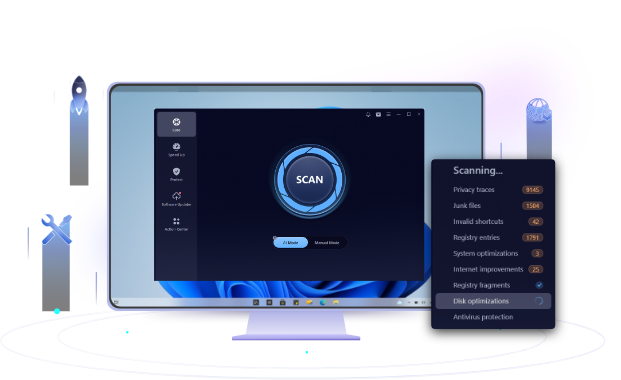
In fact, you have a way to prevent this issue from the very start: maintaining your PC health, as the issue is usually caused by failed updates, corrupted registry, or driver update conflicts. An automatic PC health keeper is recommended: Advanced SystemCare, a comprehensive tool for Windows to keep your PC always in good health. It cleans your PC junk files, fixes corrupted registry, manages startup apps, optimizes PC performance and protects your computer from spyware. Free download it to know how it improves your PC performance comprehensively.
 People Also Ask
How to improve Steam download speed? This ultimate guide will show you 7 easy steps & 5 external tips for faster Steam downloads on PC.
How to defrag hard disk Windows 11/10? Check this step-by-step guide inside.
How to fix corrupted files in Windows 11 to enhance system stability? This guide covers the most effective methods to repair damaged files on your PC.