- Support Center
- Multiple Languages
- Language
- Help Us Translate
Expert in
PC Health Solution

All-in-one PC health solution: clean, optimize and secure

Comprehensive PC cleaning, optimization and protection

Keep drivers always up-to-date

More stable performance with less system crashes

Protect millions of computers against malware

Top computer security with full-round protection

Protect against viruses & boost PC performance
How to defrag hard disk Windows 11/10? Check this step-by-step guide inside.



Click Start to search defrag.
Choose Defragment and Optimize Drives.
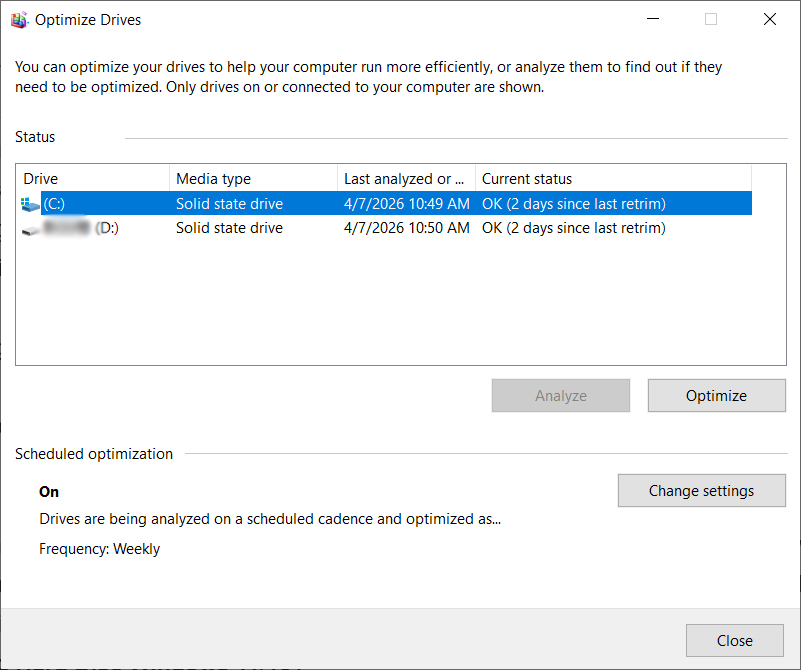
Choose the drive that needs optimization and click Optimize.
How to defrag hard disk? When your Windows computer feels like it’s "thinking" a little too long before opening a folder or launching an app, it might be time for a digital tidy-up. This process is called defragmentation, or "defragging."
A single photo or document is split into pieces (fragments) spread across different physical locations on the drive. So, your computer slows down because it has to spin the disk and move the mechanical arm to find every piece. Defragmentation will reduce the fragmentation of (a file) by concatenating parts stored in separate locations on a disk.
1. Search: Click the Start button or the search bar and type "Defrag".
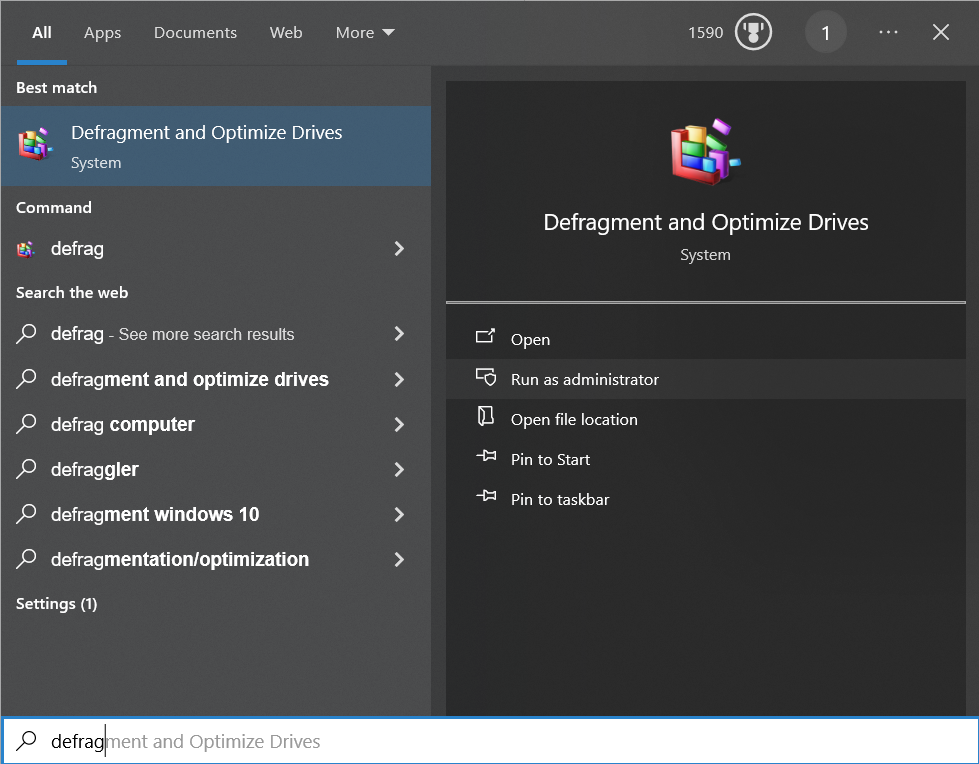
2. Open: Select Defragment and Optimize Drives from the results.
3. Optimize: Select a drive and click the Analyze button, then click Optimize.
Here are the 4 situations you need to defrag a hard disk drive.
Performance Drops: Your PC feels sluggish, or files take a long time to open. You can try the Speed Up feature of Advanced SystemCare.
Constant Clicking: You hear the drive working loudly and constantly.
Post-Cleanup: After deleting a large amount of data (e.g., 50GB+), as this leaves many gaps on the disk.
After Big Installs: After downloading a massive program or game to ensure its files are stored together.
Quick Rules
Check Monthly: Windows 10/11 usually does this automatically, but it’s worth a manual check if things feel slow.
Avoid SSDs: Never defrag a Solid State Drive (SSD); it doesn't help speed and can reduce its lifespan.
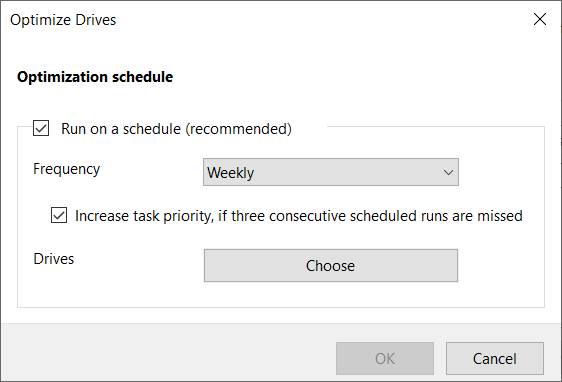
Set and Forget: Use the built-in "Optimize Drives" tool to schedule a Weekly optimization so you don't have to remember.
While Windows has built-in tools for defragging, Advanced SystemCare acts as a central hub. It combines cleaning, optimization, and basic privacy protection into one interface, making it easier for users like you who don't want to dig through various Windows system menus.
 People Also Ask
How to install device drivers? Easy guide for both PC and desktop users to check for driver updates and download new drivers for free.
How to protect my computer from viruses? Are there any effective ways to protect my computer from attacks? Do I need a professional antivirus tool for my PC?
How to fix corrupted files in Windows 11 to enhance system stability? This guide covers the most effective methods to repair damaged files on your PC.