







Kevin Hart
Kevin is an experienced editor focused on tech blog writing. Familiar with all kinds of PC software on the market. All the topics he chooses are aimed at bringing more benefits to users.
Expert in
PC Health Solution

All-in-one PC health solution: clean, optimize and secure

Comprehensive PC cleaning, optimization and protection

Keep drivers always up-to-date

More stable performance with less system crashes

Protect millions of computers against malware

Top computer security with full-round protection

Protect against viruses & boost PC performance
Clean: 420 billion traces removed & 85 EB junk files cleaned
Protect: 80 million unauthorized access blocked & 20 million bugs fixed
Speed Up: 6 million hours of startup time saved & Turbo boost
Optimize: Auto clean and auto care your PC with AI mode

Check how to conduct a browser fingerprint test to see your online privacy state now! Learn actions that you should take and useful tools inside.

Kevin Hart


For years, most internet users believed that deleting browser cookies, using private or incognito windows, or switching IP addresses via a Virtual Private Network (VPN) was enough to stay anonymous. However, tracking technologies have evolved dramatically. Today, data brokers, advertising networks, and security systems use a much more sophisticated method known as browser fingerprinting. Understanding how this technology works, how major browsers handle it, and how browser fingerprint tests can bolster your privacy is essential to protecting your digital footprint.
Browser fingerprinting is a stateless, highly accurate method of identifying and tracking web users across different websites without saving any files onto their devices.
When your browser loads a webpage, the site runs background scripts that request various pieces of technical information. Individually, these attributes seem ordinary and non-identifying. However, when hundreds of data points are combined into a single hash—a process known as creating a digital fingerprint—the resulting combination is often 90% to 99% unique to your specific machine.
A typical browser fingerprint check evaluates several key hardware, software, and configuration signals:
Hardware & Display: Screen resolution, color depth, device pixel ratio, graphic card details (via WebGL rendering), and available CPU threads.
Browser Settings: User-Agent string, active language, time zone, installed plugins, and ad-blocker status.
System Characteristics: Installed system fonts and platform architecture.
Canvas & Audio Rendering: HTML5 Canvas fingerprinting draws invisible text or shapes to test how your specific GPU and drivers render pixels. Similarly, AudioContext APIs test how your audio stack processes subtle sound waves.
Because this fingerprint relies on your hardware setup and system configuration, clearing your cache or opening an incognito tab will not change the baseline output. Running a browser fingerprint test (using public privacy testing sites) reveals how unique your combination is compared to millions of other visitors.
Here’s how you can test your browser fingerprint by Cover Your Tracks (by the EFF), other test sites like AmIUnique, and deviceinfo.me can also be utilized. Steps of using this tool are listed below:
1. Open the browser you want to test (e.g., Chrome, Edge, Opera, or Firefox). For an accurate baseline test, close secondary tabs to prevent active extensions from interfering.
2. Go to Cover Your Tracks (coveryourtracks.eff.org) and click the "Test Your Browser" button.
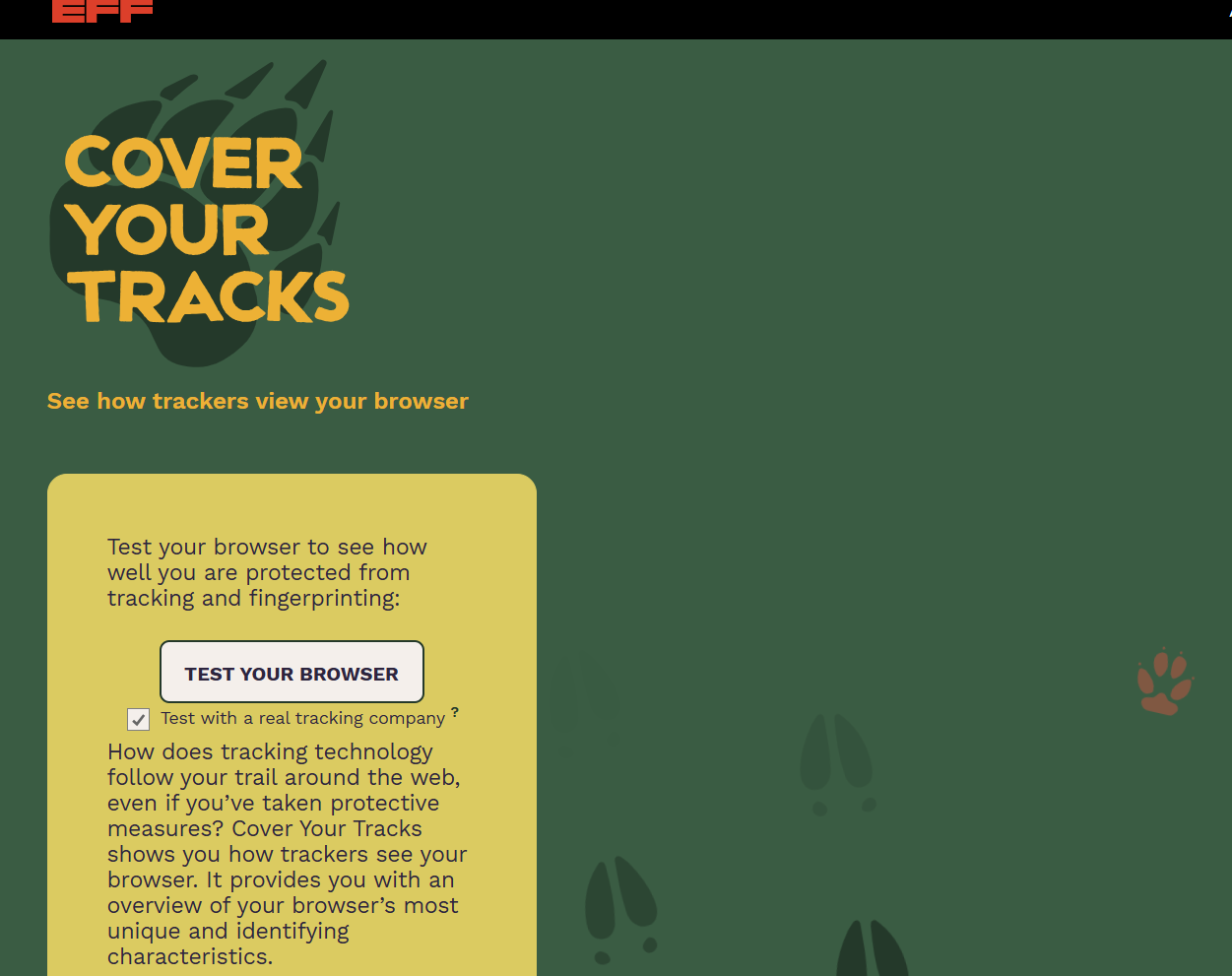
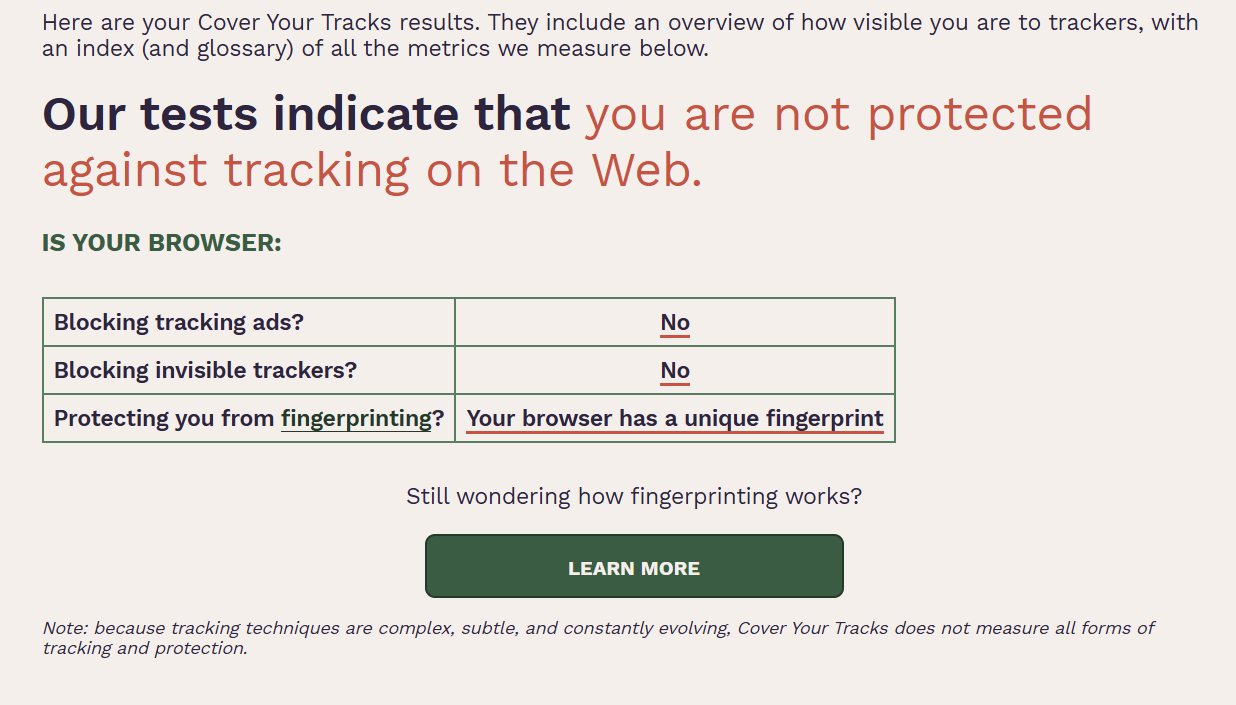
3. Check the results and identify your tracking risk.
4. Run the same test in Incognito/Private mode to see if your fingerprint score improves.
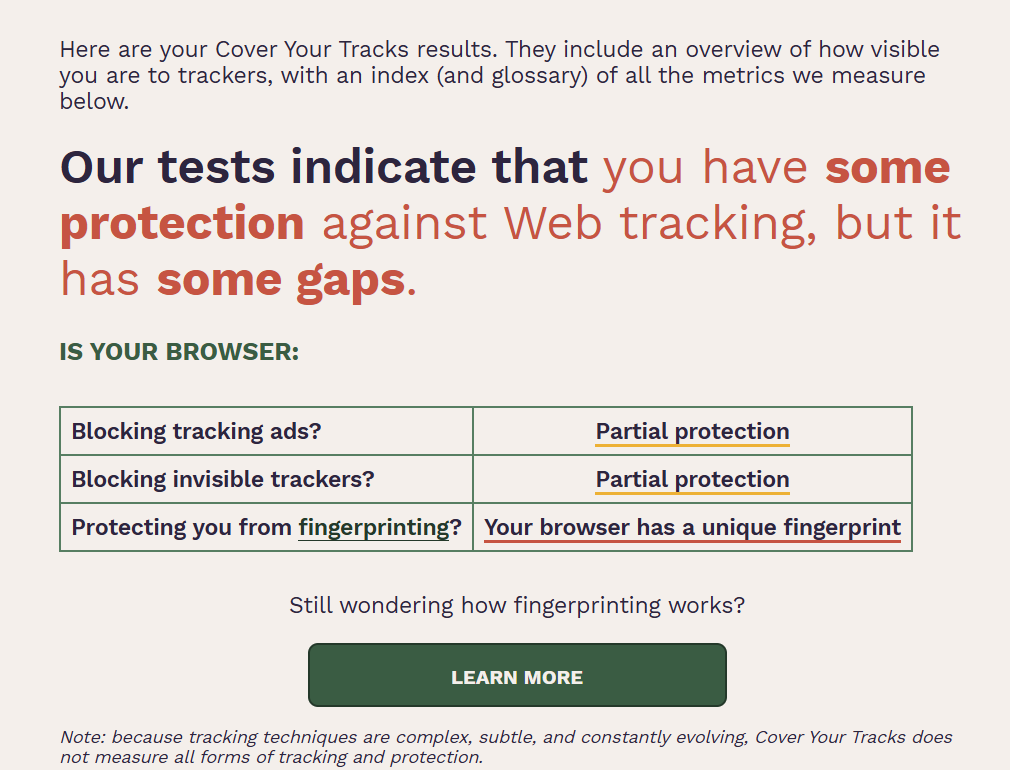
As you can see from the picture above, private mode can only enable partial protection but still has “some gaps”. Therefore, is there any tool that can mend these gaps? The answer is Yes! Check Advanced SystemCare introduced below.
While tweaking browser settings and selecting privacy-focused browsers provides a strong foundation, managing digital privacy across multiple applications on a PC can be challenging. This is where system utility software like IObit Advanced SystemCare plays a complementary role.
Advanced SystemCare includes specialized security and privacy modules designed to protect your device data from tracking mechanisms:
Advanced SystemCare features dedicated fingerprint protection that continuously disguises your digital fingerprint across hundreds of programs and browsers. By altering or masking sensitive parameters, it helps prevent tracking scripts from locking onto a static, unique signature.
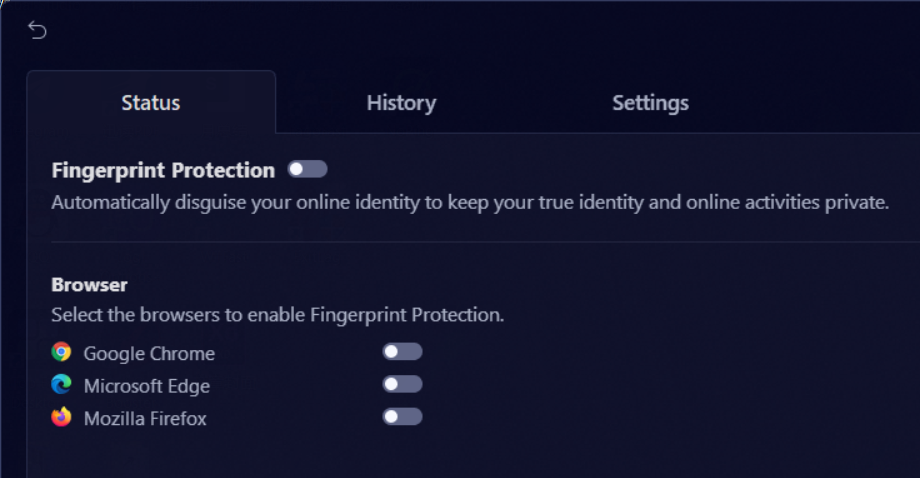
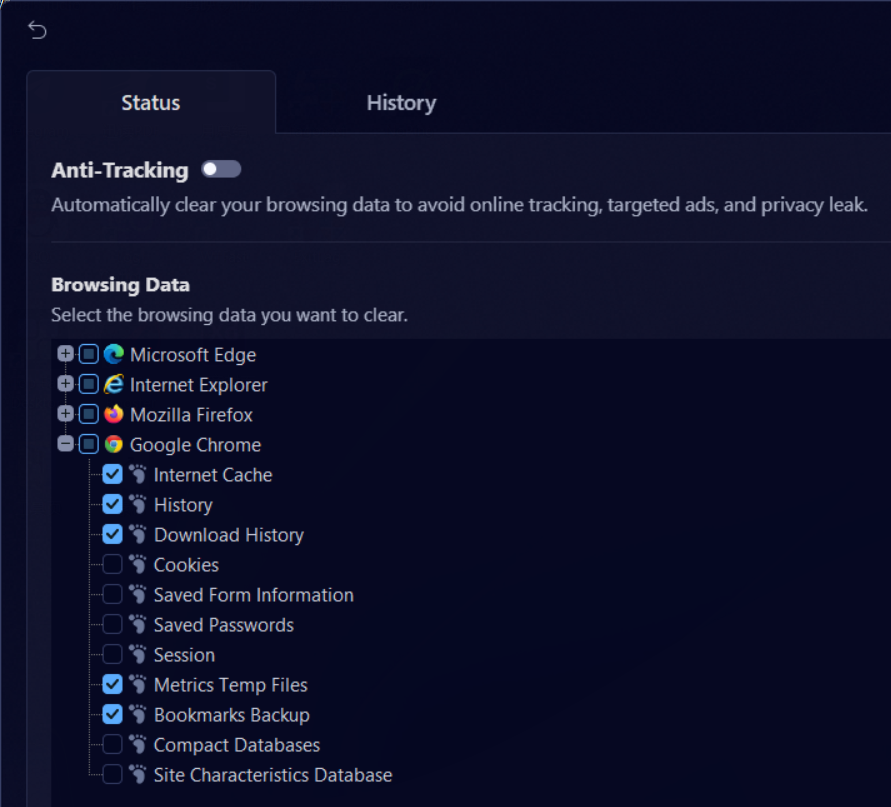
In addition to fingerprint protection, this browser history cleaner automatically wipes browsing history, saved login credentials, tracking cookies, and cache files upon closing your browsers. This eliminates secondary tracking markers that data brokers use alongside digital fingerprints to re-identify users.
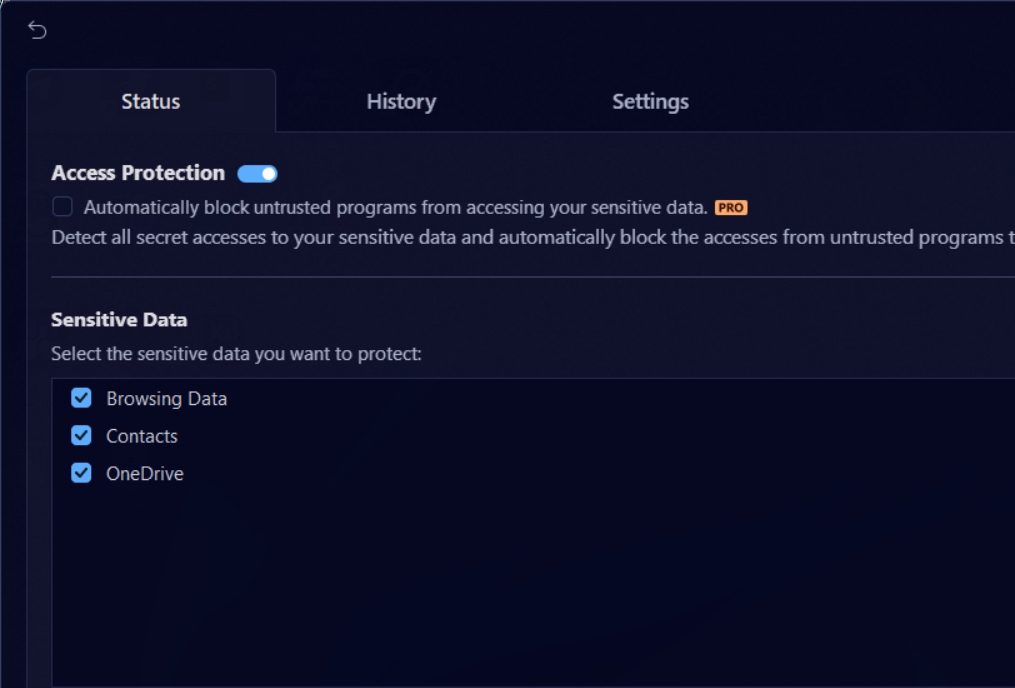
Beyond browser-specific shields, Advanced SystemCare actively monitors access to sensitive personal data and system files. This Windows optimizer prevents unauthorized third-party processes from reading system configurations, closing background security holes that trackers rely on to gather device data.
To stop websites from tracking your hardware profile and clear secondary browser traces, use the built-in privacy protection modules under the Protect tab. Here are the steps of using this tool:
Step 1. Download Advanced SystemCare by clicking the button below.
Step 2. Navigate to the Protect tab, here you will see modules such as Access Protection, Fingerprint Protection, and Browser Protection.
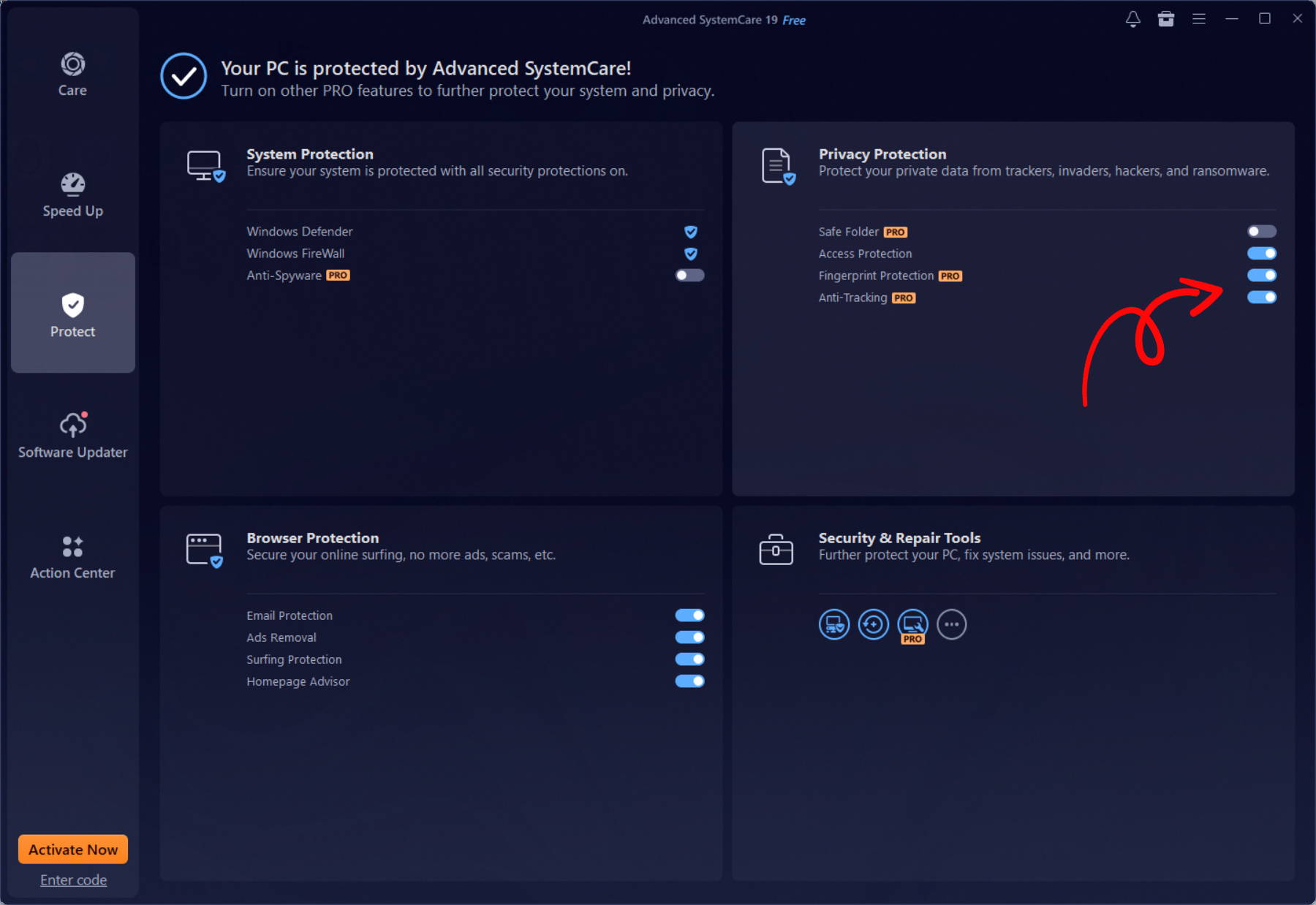
Step 3. Turn on the Fingerprint Protection, Access Protection, and Anti-Tracking.
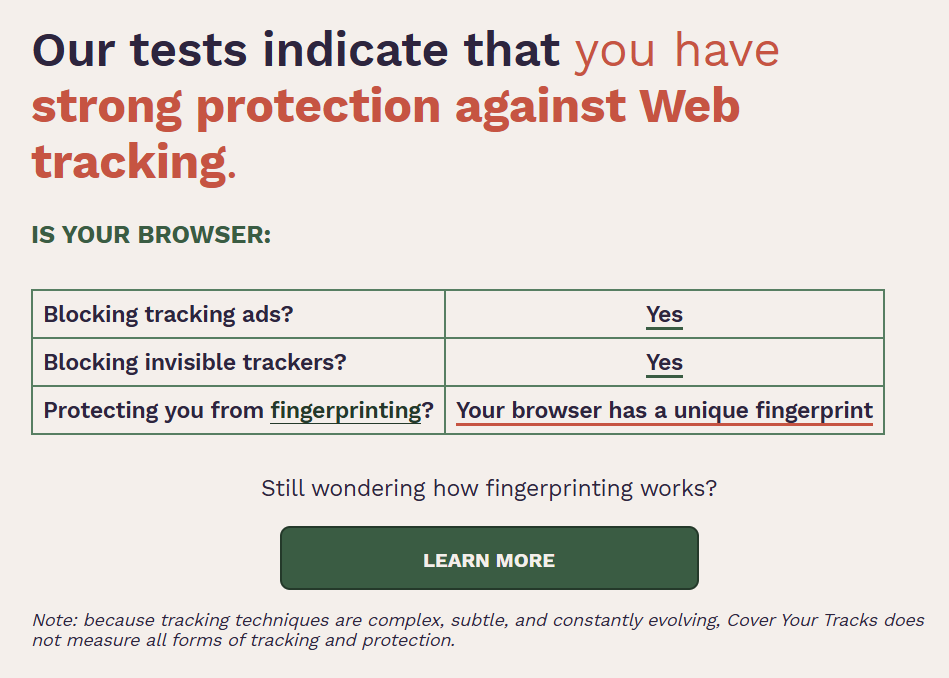
Then you can conduct a browser fingerprint check again and results like the screenshot shown below will be presented to you.
To minimize your digital exposure and lower your fingerprint uniqueness score, consider combining software tools with smart browsing habits:
Test Your Fingerprint Regularly: Use online diagnostic tools to measure how unique your current browser configuration appears to third parties.
Avoid Too Many Customization Tweaks: Installing dozens of unique fonts or rare extensions actually makes your browser fingerprint more unique rather than less.
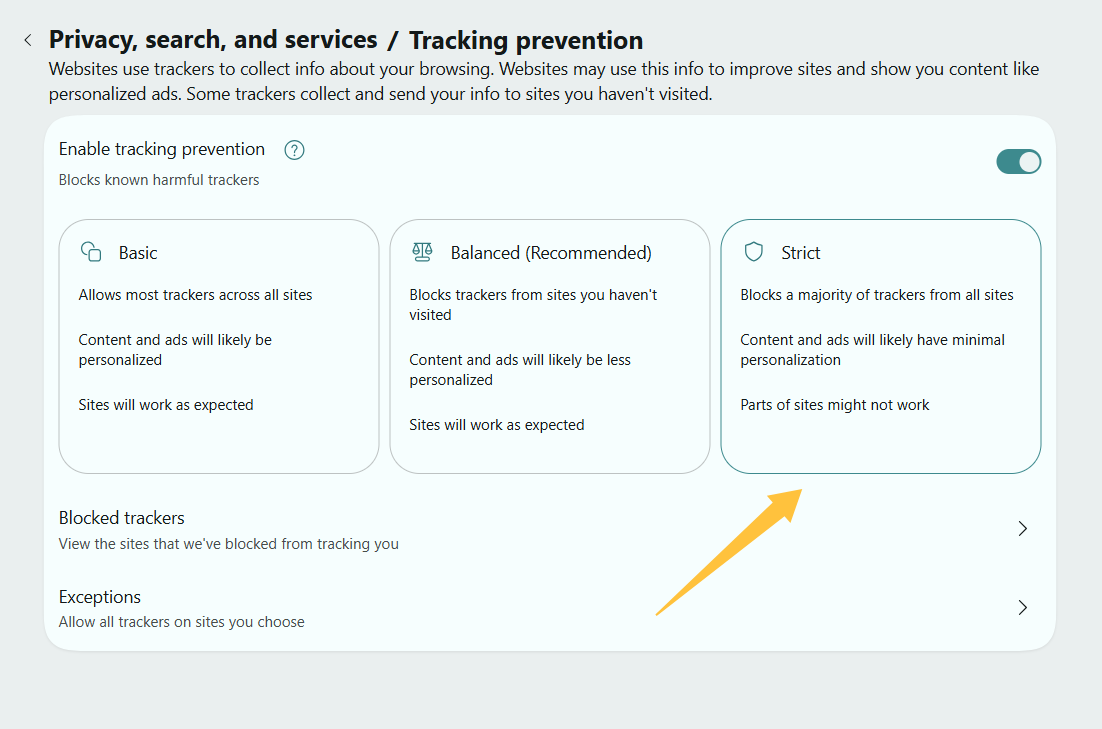
Combine Browser Settings with System Utilities: Enable built-in browser tracker blocking (such as Firefox's Strict mode or Edge's Strict Tracking Prevention) while leveraging system-level privacy protection like Advanced SystemCare to automatically mask digital traces and clear stored data.
Taking a layered approach to privacy ensures that even as tracking technologies evolve, your digital footprint remains well-protected.
All about the Browser fingerprint test has been introduced above. Deleting cookies and using private browsing tabs are no longer enough to keep your online activities anonymous. By choosing a privacy-focused browser like Mozilla Firefox or tuning security configurations in Google Chrome, Microsoft Edge, and Opera, you can significantly reduce your online exposure. Combining these browser settings with robust system utilities like Advanced SystemCare adds an essential secondary line of defense—disguising your hardware fingerprint in real time and automatically wiping residual browsing traces.


All-in-one PC health solution.
Free Download