- Support Center
- Multiple Languages
- Language
- Help Us Translate
Expert in
PC Health Solution

All-in-one PC health solution: clean, optimize and secure

Comprehensive PC cleaning, optimization and protection

Keep drivers always up-to-date

More stable performance with less system crashes

Protect millions of computers against malware

Top computer security with full-round protection

Protect against viruses & boost PC performance
Complete forced uninstallation for stubborn programs.
Uninstall a batch of programs at once.
Scan and remove leftover files, folders, and registry entries.
Support the management of Universal Windows Platform apps.

Can Windows installer files be deleted safely? Learn what you can remove without breaking Windows updates or programs.



Windows Installer files (.msi and .msp) are essential for installing, updating, and uninstalling programs.
Manually deleting files from C:\Windows\Installer is risky and can cause system instability.
Use built-in tools like Disk Cleanup for temporary installer files.
Specialized tools like IObit Uninstaller safely remove leftover installer files and orphaned patches.
Many users are surprised to discover the size of the C:\Windows\Installer folder, sometimes taking up several gigabytes of disk space. This can raise a common concern: “Can I delete these files without breaking my programs or Windows updates?” Let’s explore what these files are, why they exist, and how to manage them safely without risking your system.
Before removing anything, it’s important to understand what these files are and why Windows keeps them stored on your system.
Windows Installer files primarily come in two types:
MSI files: Installer packages used to set up software.
MSP files: Patch files used to update or fix existing software installations.
They are stored in the C:\Windows\Installer folder and serve as a cache for installing, updating, or uninstalling programs. Deleting them carelessly can prevent you from modifying or removing software later.
Understanding why these files accumulate helps clarify when and why it’s safe to remove certain items. Users often want to cleanup Windows Installer folder due to:
Low disk space, especially on SSDs with limited capacity.
Discovering the Installer folder consuming tens of gigabytes.
Leftover files from programs that were uninstalled long ago.
General desire to “clean up” the system and improve performance.
It’s tempting to delete files manually, but this section explains the risks and what can actually be safely cleaned.
Warning: Manually deleting files from C:\Windows\Installer is extremely risky. Doing so can break your ability to update or uninstall software and may even cause system errors.
However, some files can be safely removed, such as:
Orphaned patches for software that’s no longer installed.
Cached installer files for programs you’ve fully removed.
The key is using the right tools to identify and clean these leftovers without affecting your active applications.
Now that you understand the importance and risks of Windows Installer files, let’s look at the safe ways to free up space. While you can't directly clean up the entire folder, you can use the following three safe methods to delete truly useless files and free up space without affecting system stability.
First, make good use of Windows' built-in tools, as they can safely clean up redundant files related to the Windows Installer folder generated by system updates, etc.
Type "Disk Cleanup" in the taskbar search box and open it.
Select your system drive (usually the C drive) and click "OK".
In the Disk Cleanup window, click the "Clean up system files" button in the lower left corner.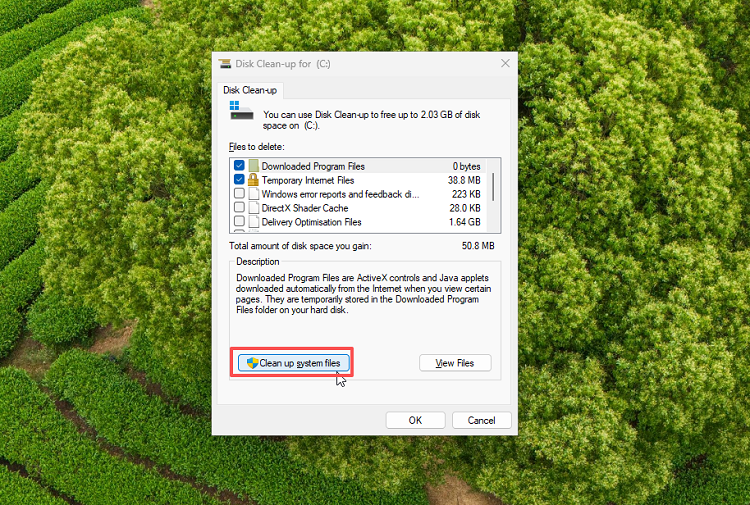
After reselecting the C drive, find and check items such as "Windows Update cleanup" and "Transfer optimization files" in the list. These are items that the system can safely delete. Then click "OK" to delete them.
This removes unnecessary cached files while leaving essential installer files intact.
Some leftover installer files may remain after uninstalling programs, especially if a program was removed improperly. Microsoft no longer supports the old Windows Installer CleanUp Utility because it could accidentally damage other installed programs. Its “aggressive” approach directly deleted installer configuration files, sometimes breaking shared components. Downloading it from third-party sites is also risky, as these may be outdated or contain malware. Instead, Microsoft recommends the Program Install and Uninstall troubleshooter for a safer cleanup.
Here’s how to use it:
Download the troubleshooter from Microsoft’s official page: Program Install and Uninstall troubleshooter.
Run the tool and select Uninstalling when prompted.
Choose the program you want to fix or clean up. The tool will detect leftover installer files and invalid entries.
Follow the on-screen instructions to complete the cleanup safely.
Tip: This tool repairs corrupted uninstall data without manually deleting files from C:\Windows\Installer, keeping your system stable.
The most reliable approach is using specialized software. This ensures leftover installer files are removed without affecting system stability.
Even after uninstalling software, leftover MSI/MSP files often remain in C:\Windows\Installer, wasting disk space. The safest way to clean these is with a dedicated tool like IObit Uninstaller.

IObit Uninstaller allows you to:
Scan for leftover files, including cached installer packages.
Remove orphaned MSI/MSP files with one click.
Automatically back up files before cleanup for safety.
Perform forced uninstalls for stubborn programs.
Safely clean the C:\Windows\Installer folder without affecting Windows updates or other software.
Using a professional uninstaller ensures that your system stays stable while reclaiming valuable disk space.
By following the recommended steps, you can safely free up disk space while keeping your Windows system intact and functional. Remember:
Never manually delete files from C:\Windows\Installer.
Use Disk Cleanup to remove temporary installer files.
Rely on tools like IObit Uninstaller to automatically remove leftover installer files and orphaned patches.
These methods let you reclaim storage without risking Windows stability or program functionality.
 People Also Ask
If you uninstall Steam, what happens to your games and saves? Learn whether your games are deleted, where files are stored, and how to keep your progress safe.
Is it okay to uninstall Copilot? This article provides a full guide on how to uninstall Copilot from Windows 10 without affecting your system.
Why is Windows Defender not turning off? How to remove and uninstall Windows Defender on Windows 11? Can I disable Windows Defender permanently?