- Support Center
- Multiple Languages
- Language
- Help Us Translate
Expert in
PC Health Solution

All-in-one PC health solution: clean, optimize and secure

Comprehensive PC cleaning, optimization and protection

Keep drivers always up-to-date

More stable performance with less system crashes

Protect millions of computers against malware

Top computer security with full-round protection

Protect against viruses & boost PC performance
Clean: 420 billion traces removed & 85 EB junk files cleaned
Protect: 80 million unauthorized access blocked & 20 million bugs fixed
Speed Up: 6 million hours of startup time saved & Turbo boost
Optimize: Auto clean and auto care your PC with AI mode

Why is my disk usage at 100%? It may be caused by Windows background services, hardware limitation, outdated system, & malware activity. Check reasons now!



Disk usage hitting 100% can be incredibly frustrating, as it means your hard drive or SSD is completely saturated, and apps won't open. Why is my disk usage at 100 on Windows? Here are the most common reasons your disk is maxed out: Windows background services, hardware limitations, system out-of-date, malware activity, etc. Check this quick guide now!
Windows Background Services
Physical Hardware Limitations
Update and Maintenance Loops
Corrupt System Files & Bugs
Hidden Malware Activity
6 Common Fixes to 100 Percent Disk Usage Windows 11
SysMain, Windows Search Indexing, and other built-in services often lead to high disk usage in your Windows 11/10. They cause bottlenecks, especially on systems using traditional HDDs.
When using an HDD instead of an SSD, the Windows 11 disk usage 100 issue will be much more likely to occur. Also, disks are much slower than RAM. When your RAM is full, Windows uses a portion of your disk as "Virtual Memory", causing 100 disk usage Windows 11.
Why is my disk space at 100? Stuck Windows updates, outdated storage driver, and system automatic maintenance, like Windows scheduled defragmentation or SSD optimization, can also lead to 100 disk usage.
If your critical Windows files are damaged, the system may get stuck in an endless cycle of repeated read-write attempts to access the corrupted data, which instantly saturates your disk and pushes the usage to 100%.
You May Need: How to Fix Corrupted Files in Windows 11 >>
Why is my disk usage at 100 all the time? Malicious software on Windows often runs hidden tasks that consume massive amounts of disk space.
Here’s how to fix 100 percent disk usage Windows 11:
Press Win + R, type services.msc, and hit Enter.
Find SysMain, right-click it, select Properties, and disable Startup type.
Click Stop to end the service, then click Apply.
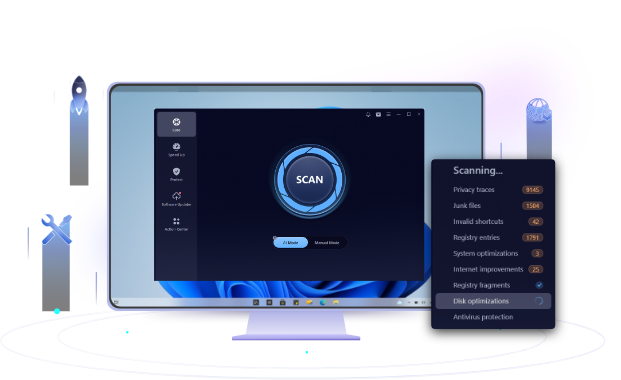
Use the best free PC cleaner, Advanced SystemCare, to get a full disk scan and complete cleanup & optimization in Windows automatically with AI!
Click Start button > Device Manager > Storage controllers.
Right-click your controller > Update driver.
Choose Search automatically for drivers and restart your PC.
Go to the Virtual Memory section and uncheck Automatically manage paging file size for all drives. Reset System managed size as you need.
Type cmd in the Start search > right-click Command Prompt > select Run as Administrator.
Type in : chkdsk C: /f /r
Press Y to schedule the scan for the next restart, then reboot your PC.
Open services.msc again.
Find Connected User Experiences and Telemetry.
Right-click, select Properties, set Startup type to Disabled, and click Stop.
 People Also Ask
Why is my PC so slow all of a sudden? Explore common reasons of a laggy PC and possible solutions to speed it up.
How to improve Steam download speed? This ultimate guide will show you 7 easy steps & 5 external tips for faster Steam downloads on PC.
Free up disk space by safe Windows Installer folder cleanup. This guide shows how to use Settings, Disk Cleanup, etc., to remove unwanted installer files.