- Support Center
- Multiple Languages
- Language
- Help Us Translate
Expert in
PC Health Solution

All-in-one PC health solution: clean, optimize and secure

Comprehensive PC cleaning, optimization and protection

Keep drivers always up-to-date

More stable performance with less system crashes

Protect millions of computers against malware

Top computer security with full-round protection

Protect against viruses & boost PC performance
Complete forced uninstallation for stubborn programs.
Uninstall a batch of programs at once.
Scan and remove leftover files, folders, and registry entries.
Support the management of Universal Windows Platform apps.

MS Edge is not opening on your Windows PC? Try these 8 effective fixes, including restarting Edge, repairing the browser, and reinstalling it.



Why Is Microsoft Edge Not Opening? Common Causes
Quick Fixes for Microsoft Edge Not Opening
How to Repair or Reset Microsoft Edge
How to Reinstall Microsoft Edge Completely
Advanced Fixes for Microsoft Edge Not Opening
Still Can’t Open Microsoft Edge? Contact Microsoft Support
When MS Edge is not opening, the cause can range from stuck processes to corrupted data or Windows issues. Below are step-by-step fixes, from quick restarts to repair, reset, and reinstall, without losing your data.
Why won't Microsoft Edge open? Before jumping into fixes, it helps to understand what is preventing Edge from launching.
Stuck msedge.exe Processes. A leftover background process makes Windows think Edge is already open, so nothing launches.
Corrupted Edge cache or user data. Damaged cache, cookies, or profile files can interfere with Edge and cause it to fail during startup.
Outdated or failed Edge updates. An interrupted update can leave Edge's files in a broken, half-installed state.
Windows or system file issues. Corrupted Windows files, pending updates, or antivirus conflicts can block Edge from opening.
Try these fixes for Microsoft Edge not opening first.
Restart Your Computer
A simple reboot can clear stuck msedge.exe processes and resolve temporary Windows glitches that prevent Edge from opening.
Save your work and close any open applications.
Click Start > Power > Restart.
Launch Microsoft Edge again after your PC boots back up.
End Stuck msedge.exe Processes in Task Manager
If Microsoft Edge is running in the background but no window appears, end its stuck processes in Task Manager and relaunch it.
Press Ctrl + Shift + Esc to open Task Manager.
Under Processes, look for Microsoft Edge or msedge.exe in the list.
Select the Edge process and click End task (or End process tree).
Clear Edge Cache and Browsing Data
Corrupted cache files are a common cause of Edge failing to launch. Clearing this data can remove problematic temporary files and help Edge start normally.
Open Microsoft Edge and press Ctrl + Shift + Delete.
Set the Time range to All time.
Select Cookies and other site data, and Cached images and files.
Click Clear now, then restart Edge and check whether the issue is resolved.
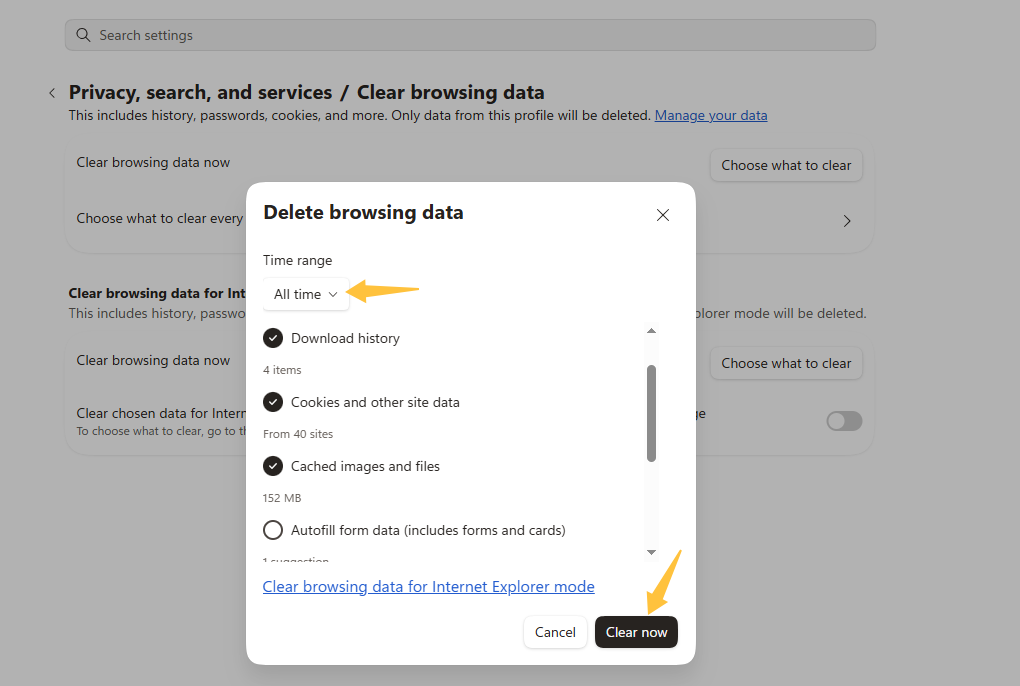
If clearing the cache didn't fix the problem, the next step is to repair Edge's core files. Or, if that fails, reset it completely. Both methods keep your bookmarks, passwords, and browsing history intact.
How to Repair Microsoft Edge Without Losing Your Data
Press Win + I to open Settings.
Go to Apps > Installed apps (Windows 11) or Apps > Apps & features (Windows 10).
Find Microsoft Edge, click the three-dot menu, and select Modify.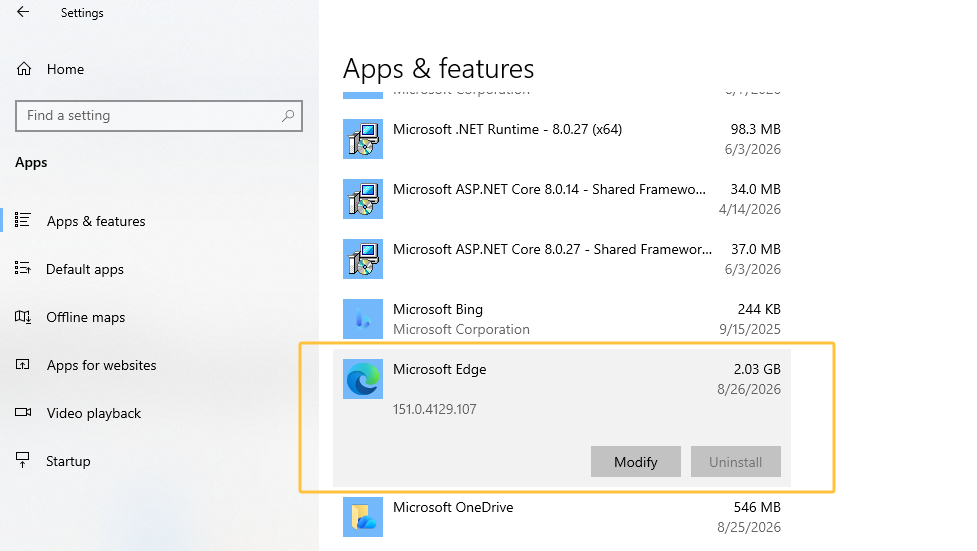
Click Repair and wait for the process to finish.
Launch Microsoft Edge and check whether it opens normally.
How to Reset Microsoft Edge If Repair Doesn't Work
If repairing Edge doesn't solve the issue, resetting Edge restores it to its default state.
Open Microsoft Edge and go to Settings > Reset settings.
Select Restore settings to their default values.
Click Reset to confirm.
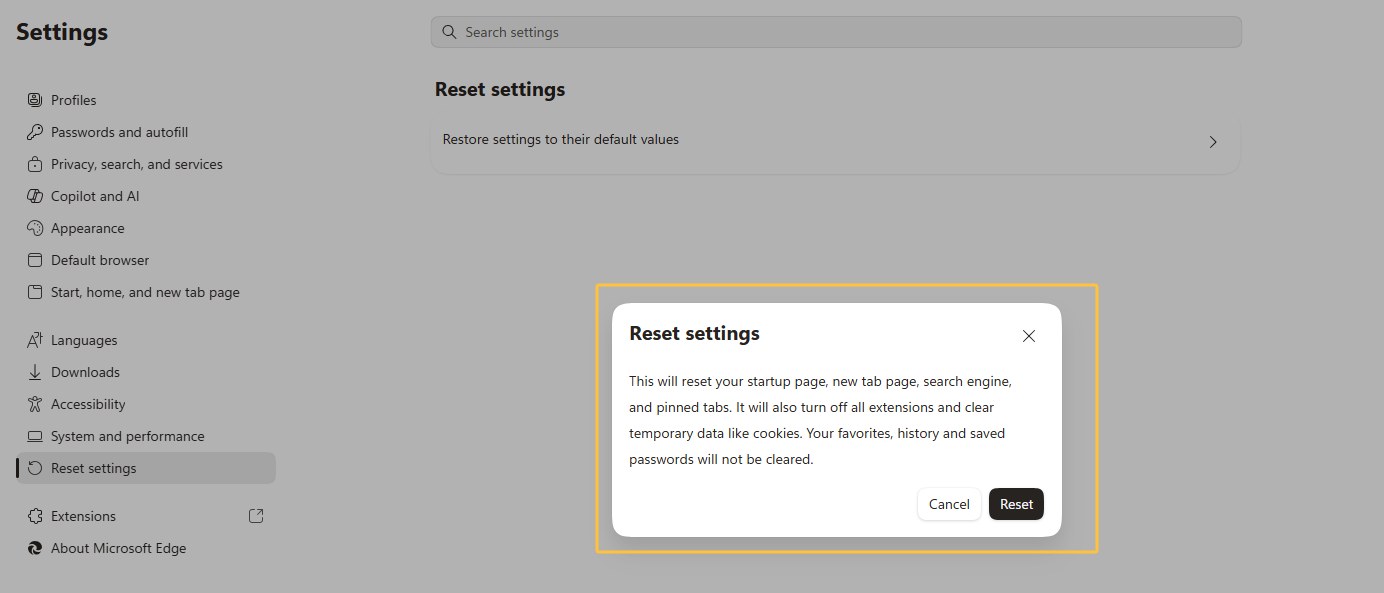
Note: Resetting Edge may affect settings such as the startup page, new tab page, search engine, and pinned tabs.
If Microsoft Edge won’t open after repairing or resetting it, a complete reinstall can replace corrupted browser files and give Edge a fresh start. Although you can uninstall supported Edge installations through Windows Settings, using a dedicated uninstaller such as IObit Uninstaller helps remove the browser and clean up leftover files. Simply find Microsoft Edge in the installed apps list, select it, and click Uninstall. It also provides a cleaner starting point before reinstalling the browser.
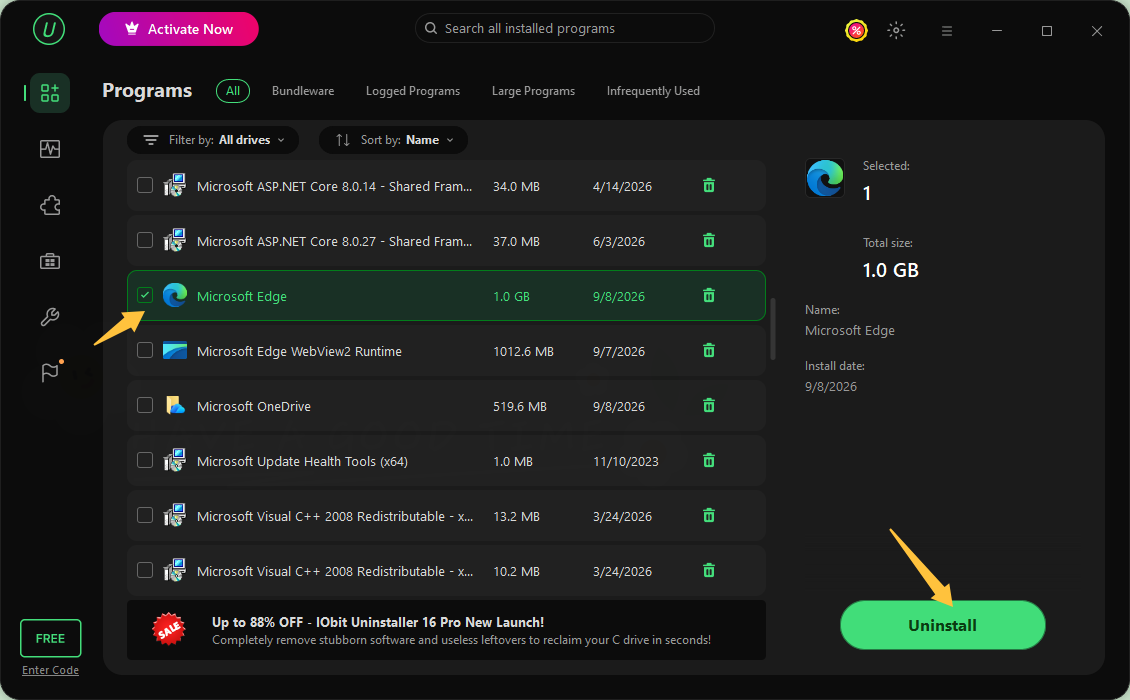
After removing the existing installation, reinstall the latest version of Microsoft Edge on the official download page to replace potentially corrupted files.
If the basic fixes above haven’t resolved the problem, try these more advanced troubleshooting methods. Proceed carefully, especially with Registry Editor.
Run SFC and DISM to Repair Windows System Files
Windows includes System File Checker (SFC) and Deployment Image Servicing and Management (DISM) to repair corrupted system files that may prevent Edge from launching.
Press Windows + S, type Command Prompt, and select Run as administrator.
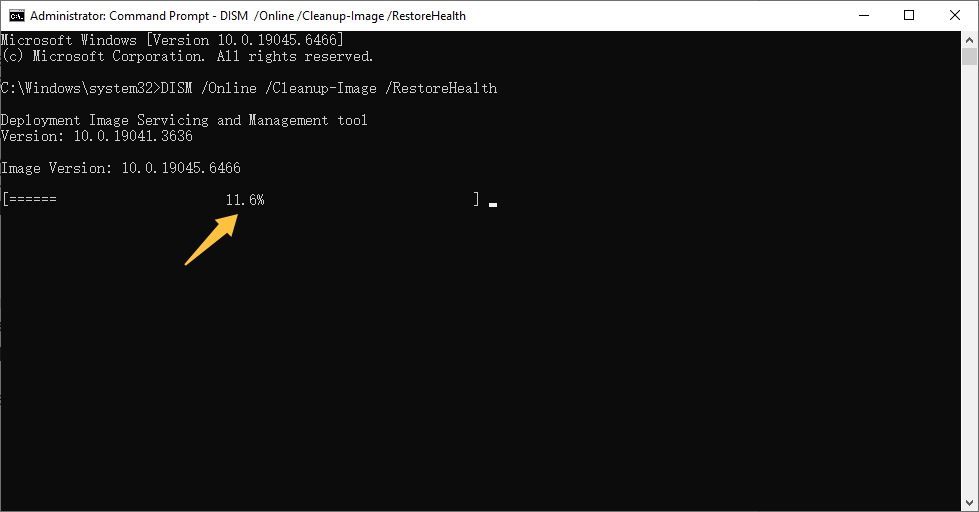
Enter DISM /Online /Cleanup-Image /RestoreHealth this command and press Enter.
Then run sfc /scannow and press Enter.
Wait until this scan reaches 100%, and follow any repair instructions shown.
Restart your computer and try opening Microsoft Edge again.
Check Registry and Group Policy Restrictions
If Edge is still blocked, a leftover registry entry or a Group Policy restriction—especially on work or managed PCs—could be preventing it from opening.
Press Windows + R, type regedit, and press Enter to open Registry Editor.
Navigate to HKEY_LOCAL_MACHINE\SOFTWARE\Policies\Microsoft\Edge and check whether any policies are configured that could restrict Edge. Do not delete entries unless you know what they control; consult your IT administrator on a work or managed PC.
Alternatively, press Windows + R, type gpedit.msc, and press Enter. Go to Computer Configuration > Administrative Templates > Microsoft Edge and look for restrictive policies.
If you identify an incorrect policy, set it to Not Configured where appropriate. Then restart your computer and test Edge again.
If Microsoft Edge still won't open after trying the fixes above, the issue may require further Windows or browser-specific troubleshooting. At this point, contact Microsoft Support for additional assistance.

 People Also Ask
If you uninstall WhatsApp, what happens to chats, photos, groups, and your account? See what stays and how to reinstall WhatsApp without losing data.
Free up disk space by safe Windows Installer folder cleanup. This guide shows how to use Settings, Disk Cleanup, etc., to remove unwanted installer files.
Stuck with the “This app can’t run on your PC” error? Learn quick fixes, compatibility settings, and advanced ways to make programs run smoothly on Windows.
Learn how to uninstall updates on Android apps, roll back system updates, and stop automatic updates with these simple, practical steps.
Learn what bloatware is, why devices come with it, common examples, and how to safely remove unnecessary apps to free up storage and improve performance.
Why is Windows Defender not turning off? How to remove and uninstall Windows Defender on Windows 11? Can I disable Windows Defender permanently?