- Support Center
- Multiple Languages
- Language
- Help Us Translate
Expert in
PC Health Solution

All-in-one PC health solution: clean, optimize and secure

Comprehensive PC cleaning, optimization and protection

Keep drivers always up-to-date

More stable performance with less system crashes

Protect millions of computers against malware

Top computer security with full-round protection

Protect against viruses & boost PC performance
Why is Windows Defender not turning off? How to remove and uninstall Windows Defender on Windows 11? Can I disable Windows Defender permanently?



Open the Start menu.
Click Windows Security and choose Virus & Threat Protection.
Click Manage Settings.
Find Real-time Protection and disable it.
How to remove Windows Defender? Windows Defender is the default antivirus program on the Windows system, and you cannot remove it by uninstalling. However, you can disable Windows Defender. You can disable Windows Defender temporarily in Settings or disable it permanently in Group Policy Editor or Registry Editor.
Here is how to temporarily disable Windows Defender on Windows 11. You can turn it off in Windows Settings without advanced tools.
Follow these steps:
Click the Start menu and open Windows Security.
Select Virus & Threat Protection.
Click Manage Settings under Virus & Threat Protection settings.
Find Real-time Protection and switch it off.
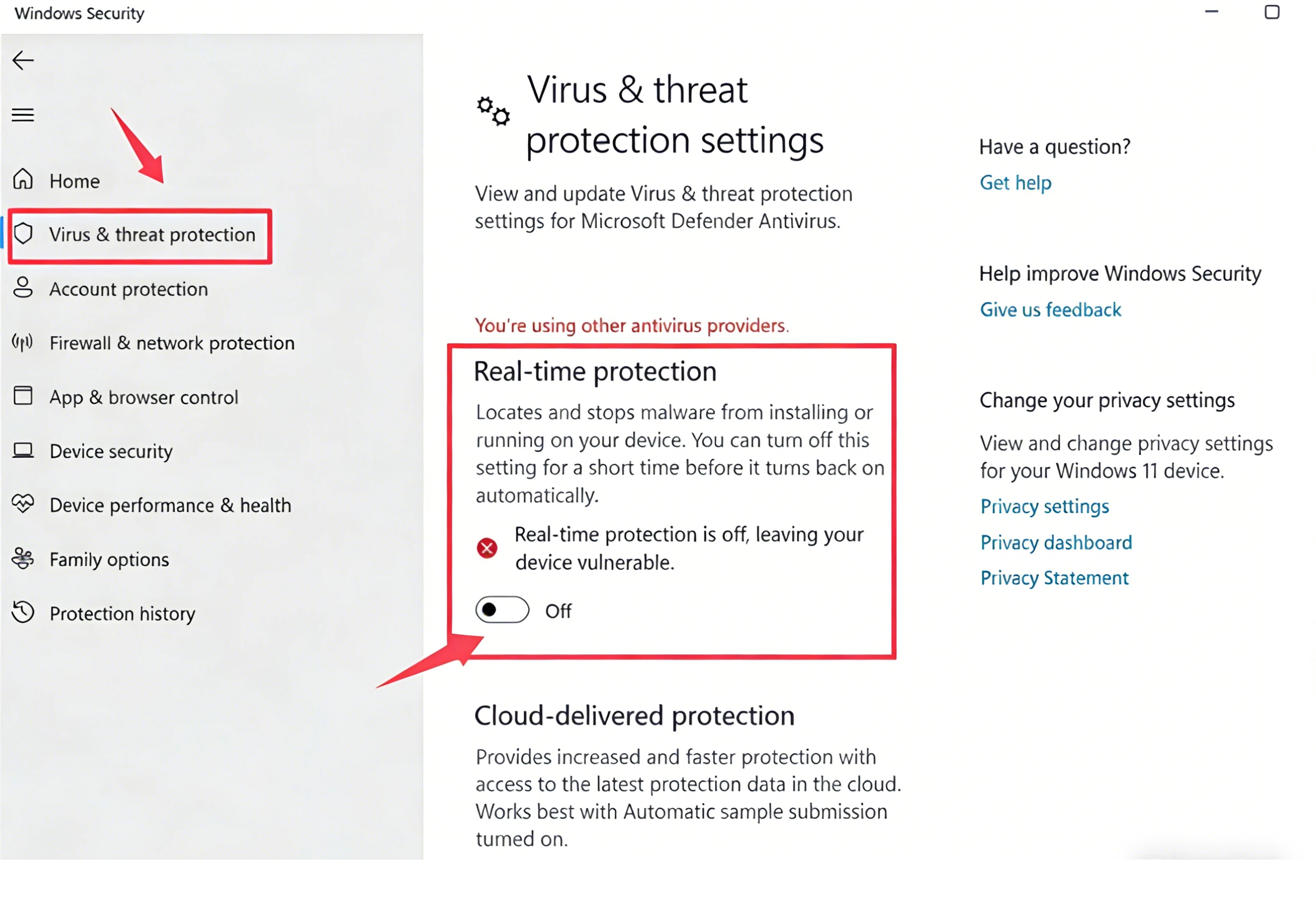
In this way, you can disable Windows Defender temporarily. However, it may automatically turn back on after a restart.
As mentioned before, you can only temporarily turn Windows Defender off in Settings. To disable Windows Defender permanently, you need to make deeper system changes.
Method 1: Group Policy (Windows Pro or Enterprise)Press Wins+ R to and input gpedit.msc to open Group Policy Editor.
Go to Administrative Templates.
Find Windows Defender Antivirus.
Set it to “Disabled”.
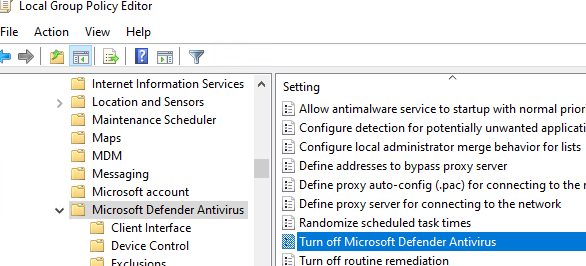
Press Wins + R and input regedit to open Registry Editor.
Navigate to HKEY_LOCAL_MACHINE\SOFTWARE\Policies\Microsoft\Windows Defender.
Right-click Windows Defender, click New, and choose DWORD (32-bit) Value.
Name the DWORD, like DisableAntiSpyware, and press Enter.
Change the “DisableAntiSpyware” value from 0 to 1 and click OK.
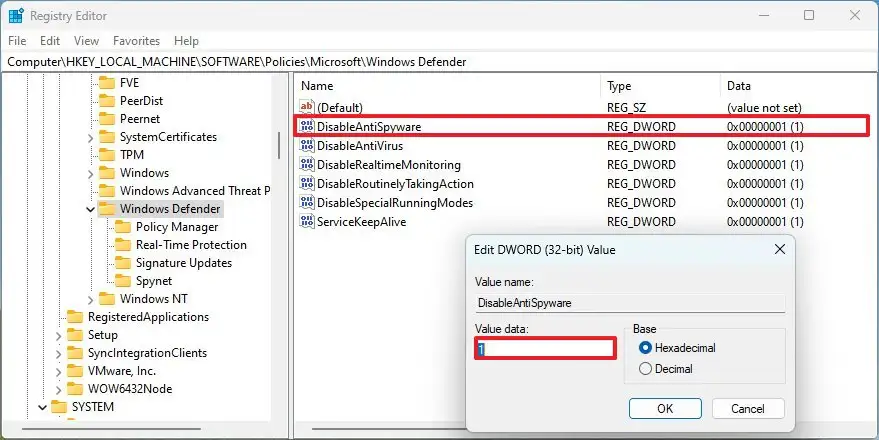
These methods prevent Defender from restarting automatically, but they should be used carefully.
Windows Defender not turning off is a common issue when system protections block changes.
You can fix it by:
Turning off Tamper Protection first
Running as administrator
Using Group Policy instead of basic settings
Restarting after making changes
These steps help ensure your changes are applied correctly.
Here are several common scenarios in which people need to turn off Windows Defender:
Conflict with third-party antivirus software
High CPU or memory usage
False positives deleting safe files
Development or testing needs
More control over system settings
There are certain risks of disabling Windows Defender. It doesn’t damage your PC, but it removes a key security layer.
It is generally safe if you:
Install another trusted antivirus software
Know how to manage system security
It is risky if you:
Leave your system unprotected
Download risky files from unknown sources.
It is highly recommended that you use a security solution to avoid your PC being exposed to threats.
Here are several helpful tips for you before you disable Windows Defender:
Back up important files
Install an alternative antivirus tool
Avoid browsing risky websites
Keep your system updated
In some cases, there are conflicts between security programs. Use a tool like IObit Unistaller can help you completely remove leftover files or conflicting antivirus software. This makes it easier to disable Windows Defender without errors.
How to remove Windows Defender? We can’t uninstall Windows Defender, but we can easily disable it. Go to Windows Settings to disable Windows Defender temporarily or use advanced settings, like Group Policy and Registry Editor, to turn it off permanently. But note that there are risks to turning off Windows Defender. You’d better use an antivirus tool to protect your system.
 People Also Ask
How to clean install Windows 11? Get detailed steps in this article.
Can’t uninstall Adobe Creative Cloud, why? Can I force uninstall it? Get the answer here and find solutions.
How should I know if I can shift to Windows 11 safe and sound, and can my old hardware and system make it through the transition? WIndows Secure Boot and PC Health Checker help you know the answers.