

- Support Center
- Multiple Languages
- Language
- Help Us Translate
Expert in
PC Health Solution

All-in-one PC health solution: clean, optimize and secure
Comprehensive PC cleaning, optimization and protection

Keep drivers always up-to-date
More stable performance with less system crashes

Protect millions of computers against malware
Top computer security with full-round protection

Protect against viruses & boost PC performance
Clean: 420 billion traces removed & 85 EB junk files cleaned
Protect: 80 million unauthorized access blocked & 20 million bugs fixed
Speed Up: 6 million hours of startup time saved & Turbo boost
Optimize: Auto clean and auto care your PC with AI mode

Compare 4 disk speed test tools to measure your drive’s read and write speeds. Explore online tools and software reviews to find the best option for your needs.



Online Disk Speed Test Tool - Testuj.ovh Review
Online Upload File to Test Write and Read Speed - PCtester Review
Disk Speed Test Software - HDD User Benchmark Review
Test HDD and SSD - HDDscan Review
You may be puzzled about why your system takes longer than before to start up, and that’s maybe because your disk speed is lower than before. Relevant signals of slow disk speed include: long response time when opening programs; copy and paste need buffering; PC freezes or lags from time to time.
If you want to know where the lag comes from, you can test your disk performance with some disk speed test tools, online and offline, to test the sequential read and write speeds, random 4K read and write IOPS, and disk latency.
This blog reviews 4 mainstream tools you can find on Google and lets you know which one provides the features you need.
URL: https://testuj.ovh/en/test-dysku
Overview:
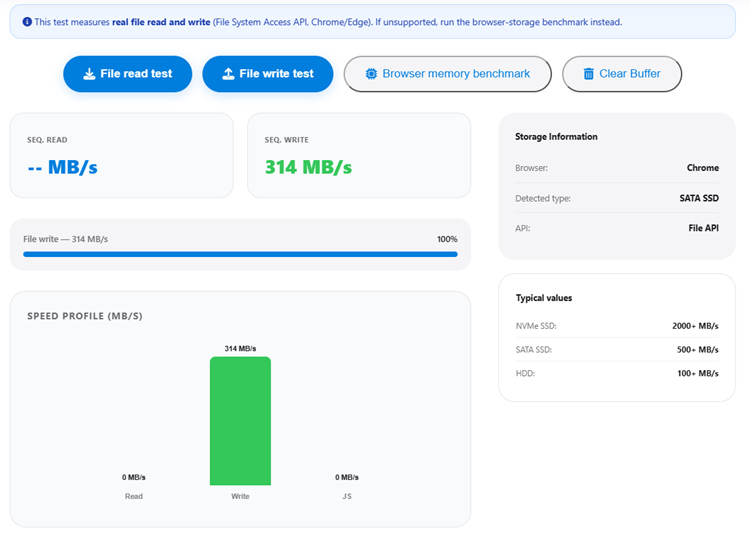
TESTUJ.ovh is a simple online storage benchmark designed to measure read and write speeds. It also displays basic storage information and typical speed ranges to help users interpret their results.
Main features
Sequential Read Speed: Measures large-file reading throughput in MB/s.
Sequential Write Speed: Measures large-file writing throughput in MB/s.
Speed Profile: Displays a visual representation of the measured speed.
Storage Information: Shows browser information, a buffer limit of approximately 10 MB, and detected storage type.
Typical Speed References: Provides indicative speeds for NVMe SSDs, SATA SSDs, and HDDs.
Test Controls: Includes a full-test option and a buffer-clearing option.
Simple interface with minimal setup.
Quick way to check basic read/write performance.
Typical speed references help beginners understand the results.
Limited visibility into detailed random I/O performance.
No comprehensive SMART health report or bad-sector diagnostic workflow.
Browser and operating-system overhead can make results lower than manufacturer specifications.
Who may need this tool?
A good choice for users who want a quick, accessible speed check. However, it provides limited diagnostic depth and may not satisfy users who want to investigate the cause of slow disk performance.
URL: https://pctester.online/real-storage-speed-test/
Overview: PCTester offers a more detailed online benchmark disk test service than a basic read/write test. It measures sequential throughput, random 4K performance, and latency, with configurable test parameters and a hardware profile analysis section.
Main features
Sequential Read/Write Speed: Measures large-block data throughput in MB/s.
Random 4K Read/Write IOPS: Measures small-block random read and write operations per second.
4K Latency: Reports average round-trip time for 4 KB read/write transactions.
Configurable Benchmark: Lets users select test file size, test passes, and workload suite.
Hardware Profile Analysis: Provides estimated storage medium, interface information, classification confidence, and workload assessment.
Detailed Results Table: Displays block size, throughput, IOPS, average latency per operation, and execution status.
Result Export: Offers summary copying and JSON diagnostic export.
Browser-Based Execution: Requests access to a target directory to perform the test without requiring the separate desktop utility.
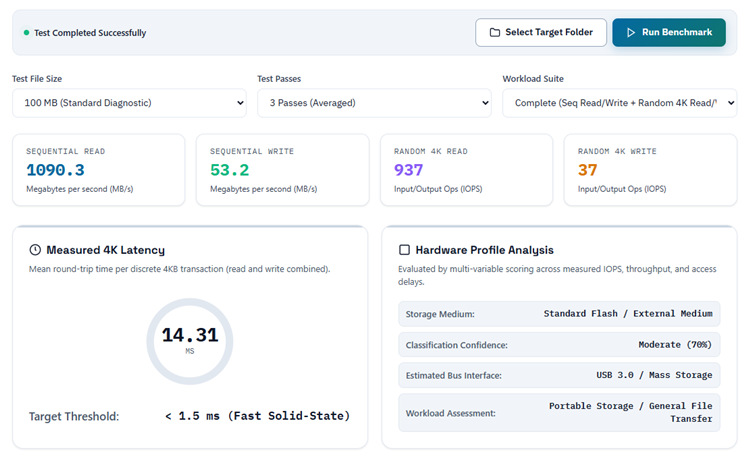
Covers all five core performance metrics discussed earlier.
More detailed results help users understand different storage workloads.
Configurable tests make it more flexible than a basic speed checker.
JSON export supports saving or further analyzing results.
Requires directory permission, which may be unfamiliar to some users.
Hardware identification and interface estimation should be treated as estimates, not guaranteed detection.
Browser sandbox limitations and queue depth mean results are not directly comparable to every desktop benchmark.
Its online test does not provide the same low-level health diagnostics as a dedicated disk utility.
Who may need this tool?
Of the four tools, PC Tester is the closest match for a modern online disk benchmark that aims to deliver more than a single speed number. Its strongest selling points are the combination of five metrics, configurable workloads, and a structured results table. The main opportunity for improvement is to make the results easier for non-technical users to interpret.
URL: https://hdd.userbenchmark.com/Software
Overview: UserBenchmark combines a benchmark utility with a website containing performance profiles, user-submitted results, model rankings, and comparisons between storage devices. Its focus is on how a drive performs relative to other drives, rather than diagnosing physical disk health.
Main features
Drive Benchmarking: Runs performance tests and reports benchmark results on the website.
Sequential Read/Write: Reports read and write throughput.
Random I/O Metrics: Includes 4K random read, write, and mixed I/O performance in supported benchmark profiles.
Effective Speed Score: Combines benchmark data into an overall performance measure intended to reflect typical consumer use.
User-Submitted Results: Aggregates results from many systems to build drive performance profiles.
Rankings and Comparisons: Shows relative performance, average scores, percentile ranges, and rankings for supported models.
Upgrade Research: Helps users identify stronger-performing drives and compare potential upgrades.
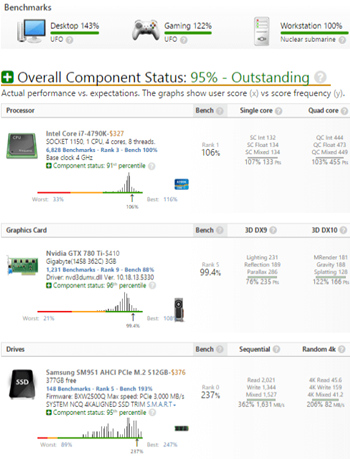
Large user-submitted dataset helps put individual results in context.
Hardware comparisons and rankings make upgrade decisions easier.
Useful for comparing the same drive model across different benchmark results.
Requires downloading and running software rather than testing entirely in a browser.
Rankings can be affected by differences in system configuration, drive capacity, free space, and testing conditions.
An overall score may hide weaknesses in individual metrics.
It is not a substitute for SMART analysis or bad-sector testing.
Who may need this tool?
UserBenchmark's biggest advantage is its comparison ecosystem. While an online speed test tells users how fast their drive is, UserBenchmark can help them understand how that result compares with other drives. Its main limitation is that comparative scores are not a complete diagnosis of disk performance or health.
Note: The supplied software URL currently redirects to a verification page in the browser, so the feature analysis above is based on accessible UserBenchmark HDD benchmark and comparison pages rather than a direct inspection of the current installer.
URL: https://hddscan.com/
Overview: HDDScan is a storage diagnostic utility for checking drive health, surface errors, temperature, and read/write performance. Unlike the previous online tools, it can inspect SMART attributes and perform detailed surface tests.
Main features
Read/Write Benchmarking: Runs linear read, verification, erase, and butterfly-read tests.
SMART Monitoring: Reads and analyzes drive health attributes and supports SMART test results.
Bad-Sector and Surface Testing: Examines drive blocks for read errors and unusually slow responses.
Temperature Monitoring: Displays drive temperature for supported devices.
Drive Identification: Shows drive identity and physical or logical parameters.
Performance Graphs and Maps: Visualizes transfer speed and block response times.
Report Export: Saves diagnostic reports in MHT format and supports printing.
Advanced Drive Controls: Supports selected acoustic, power-management, and spindle controls for compatible devices.
Command-Line Support: Can generate command scripts for certain operations.
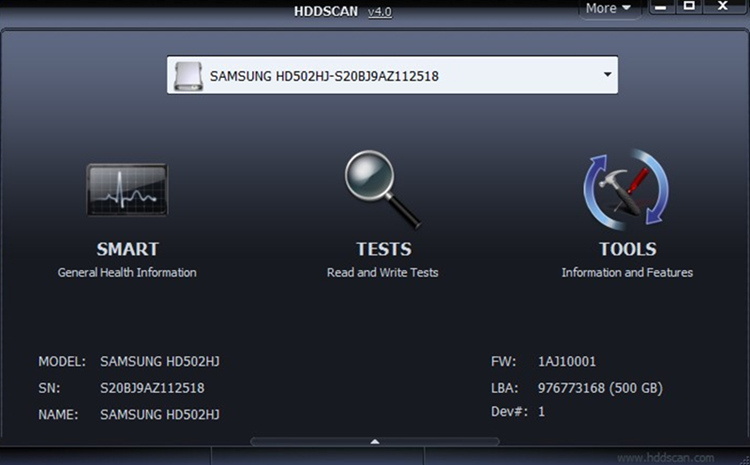
Offers more comprehensive disk diagnostics than a speed-only benchmark.
SMART attributes and surface tests help identify potential drive problems.
Supports various HDDs, SSDs, USB storage devices, and some RAID configurations.
Free to use, with reports and advanced testing controls.
Requires downloading and installing a desktop utility.
The interface and technical options may be difficult for beginners.
Compatibility and SMART access vary by drive, controller, and USB enclosure.
Some tests take a long time, and the Erase test is destructive because it overwrites data.
Its published requirements list older Windows versions, so compatibility with current systems and devices should be verified.
Who may need this tool?
HDDScan is the strongest option here for users investigating possible drive faults rather than simply measuring speed. Its SMART monitoring, surface tests, and response-time maps provide deeper diagnostic information, but the learning curve is steeper, and users must be careful with destructive operations.
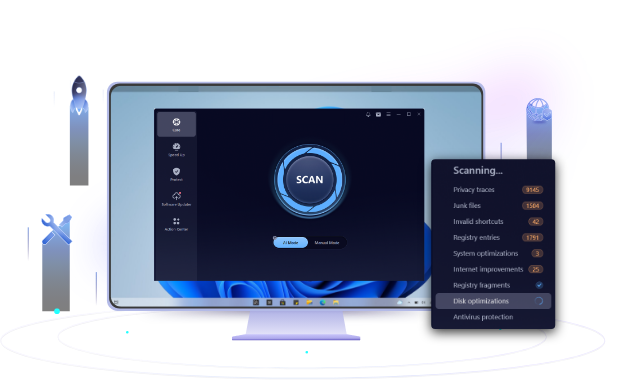
IObit Advanced SystemCare helps keep your PC clean and running smoothly with its disk cleanup feature. If you always notice that your disk is hitting 100%, then you can use this tool to do a cleanup. It scans for junk files, temporary files, and other unnecessary data that take up valuable disk space. By removing digital clutter, it helps free up storage space and maintain a cleaner system, making it easier to manage your PC's storage and optimize overall system performance.
Each disk speed test tool serves a different purpose. TESTUJ.ovh and PC Tester are convenient for quick online benchmarks, UserBenchmark helps compare drive performance, and HDDScan provides more advanced disk diagnostics. The best choice depends on whether you want to measure speed, compare hardware, or investigate potential drive issues. For most users, starting with a simple disk speed test is an effective way to understand storage performance and identify when further troubleshooting may be needed.
 People Also Ask
Compare 4 disk speed test tools to measure your drive’s read and write speeds. Explore online tools and software reviews to find the best option for your needs.
Want to scan your PC for viruses online? Learn how online virus scanners work, their limitations, and how to protect your PC with IObit Malware Fighter.
Learn what system software is, how it works, its main types, functions, and real-world examples, including operating systems, drivers, BIOS, and system utilities.