- Support Center
- Multiple Languages
- Language
- Help Us Translate
Expert in
PC Health Solution

All-in-one PC health solution: clean, optimize and secure

Comprehensive PC cleaning, optimization and protection

Keep drivers always up-to-date

More stable performance with less system crashes

Protect millions of computers against malware

Top computer security with full-round protection

Protect against viruses & boost PC performance
Complete forced uninstallation for stubborn programs.
Uninstall a batch of programs at once.
Scan and remove leftover files, folders, and registry entries.
Support the management of Universal Windows Platform apps.

What is AMD auto-detect and install Tool? How to fix AMD auto detect and install not found? See here.


Understand AMD Auto-detect and Install Tool
AMD Auto Detect and Install Not Found - Common Situations
7 Fixes for This Issue
AMD Auto-detect and Install Tool Alternative
Many users encountered errors like “AMD Auto Detect and Install not found” or “AMD software not found.” But lots of users don't know how to download AMD auto detect and install tool, let alone fix the issue.
The AMD Auto-Detect and Install Tool is an official utility from Advanced Micro Devices that helps Windows users automatically detect AMD hardware and install compatible drivers.
It can identify Radeon graphics cards, Ryzen processors, and chipset components, making driver installation easier for users who do not want to manually search for the correct version.
This error can appear for several different reasons. Understanding the possible causes can help you fix the issue much faster.
Common situations include:
The tool was not installed successfully
The downloaded installation file is corrupted
The computer does not use AMD CPU or GPU
Antivirus software blocked AMD services
Existing drivers are damaged or conflicting
Windows cannot detect related AMD components
If your PC uses:
Intel CPU
NVIDIA graphics card
Then the AMD Auto Detect Tool would display “not found” because there is no AMD hardware installed.
Another common situation is receiving messages like:
“installer not found”
“AMD software not found”
This usually happens because the installation path is incorrect, installation files were deleted, or the installer package is incomplete.
You can troubleshoot in the following directions, and you can usually locate the problem in a few minutes.
This is the most important step before trying anything else.
Steps:
1. Press Ctrl + Shift + Esc
2. Open Task Manager → “Performance”
3. Check whether:
Your CPU is AMD Ryzen
Your GPU is Radeon graphics
If your system uses Intel or NVIDIA hardware, then the AMD auto detect tool will not work because there is no compatible AMD device available.
Many “AMD Auto Detect and Install not found” errors are caused by damaged installation packages. The easiest solution is to delete the old installer and download a fresh copy directly from the official AMD website.
How to download AMD auto detect and install tool safely? Always use the official driver page below instead of third-party download websites:
AMD Official Driver Download Page >>
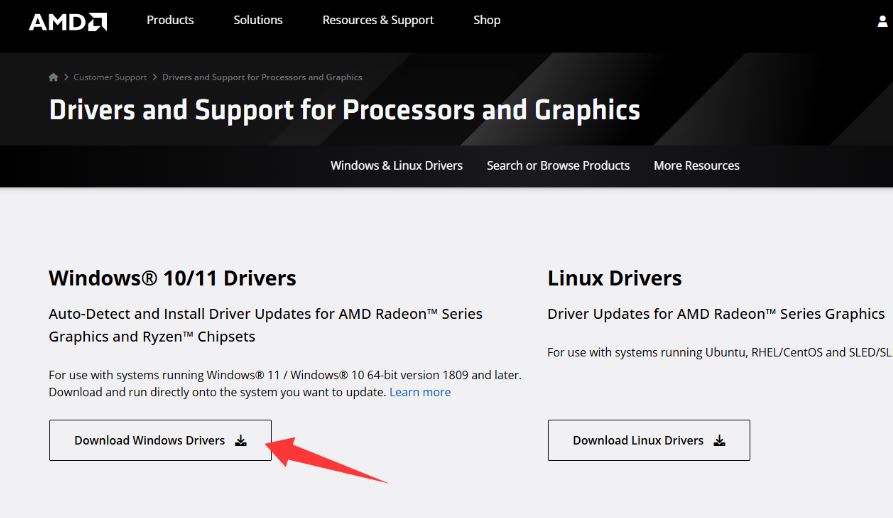
Sometimes, Windows permission restrictions can prevent the installer from detecting AMD components correctly.
Steps:
Right-click the installer
Select “Run as administrator.”
This allows the tool to access required system services and hardware information.
Older versions of Windows may prevent the AMD installer from recognizing system components properly. This issue is more common on:
Old Windows 10 builds
Lightweight modified systems
Ghost Windows versions
To update Windows:
1. Open Settings → Windows Update
2. Check for updates
3. Install the latest updates and restart your PC
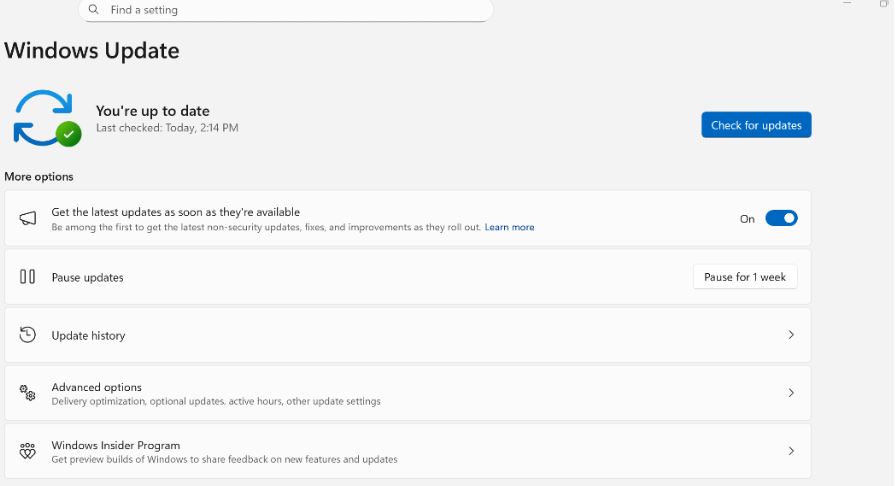
After updating, try running the AMD installer again.
You May Need: PC Stuck on Boot Screen – How to Fix Fast >>
If incorrect or damaged AMD drivers were installed previously, the auto detect tool may fail to work properly. In this situation, cleaning old drivers before reinstalling is recommended.
A simple solution is using IObit Uninstaller, which can remove AMD software along with leftover files and registry entries. This helps create a cleaner environment for reinstalling the latest driver.
This free and easy-to-use uninstaller that supports:
Force uninstallation
Residual file cleanup
Registry cleanup
Software trace scanning
Corrupted installation cache
Steps:
1. Get IObit Uninstaller and uninstall existing AMD software and drivers

2. Use the “Powerful Scan” feature to clean leftover files and registry entries
3. Restart your PC
4. Download and reinstall the latest AMD driver from the official website
Some antivirus or security software may block AMD Installer services from running correctly.
You can temporarily disable:
Windows Defender
Third-party antivirus programs
Then, try reinstalling the AMD tool again.
After installation is complete, you can re-enable your security software normally.
Some older AMD GPUs are no longer fully supported by newer driver packages. Common examples include:
Radeon HD series
Legacy AMD GPUs
In these situations, the AMD auto detect and install tool windows 11 and 10 will fail to find compatible drivers automatically.
Instead, you need to manually download older legacy drivers from the AMD support website that match your specific graphics card model. If you are not sure which driver version to install, tools like Driver Booster Free may also help detect older AMD hardware and recommend compatible driver versions automatically, reducing the need for manual searching.
If the AMD auto-detect and install tool is not working, Driver Booster can also help update AMD drivers automatically.
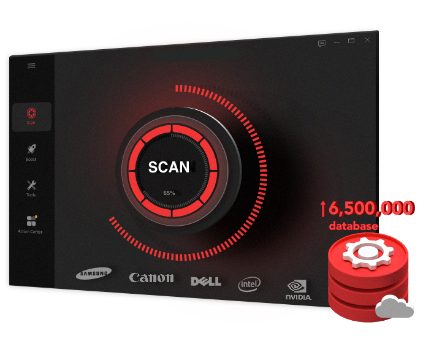
Advantages include:
Detects outdated AMD drivers
Installs compatible driver versions
Supports AMD, Intel, and NVIDIA hardware
Easier for beginners to use
 People Also Ask
Free up disk space by safe Windows Installer folder cleanup. This guide shows how to use Settings, Disk Cleanup, etc., to remove unwanted installer files.
Is it okay to uninstall Copilot? This article provides a full guide on how to uninstall Copilot from Windows 10 without affecting your system.
Why is Windows Defender not turning off? How to remove and uninstall Windows Defender on Windows 11? Can I disable Windows Defender permanently?